



Share:


Table of Contents
The success of your WooCommerce store often hinges on how well you handle customer orders post-purchase. Manually generating and printing order invoices can slow down operations and introduce unnecessary friction for businesses such as restaurants, warehouses, or retail outlets, where speed and accuracy matter. And that’s where auto-printing WooCommerce invoices remotely becomes a valuable upgrade.
Instead of creating PDF Invoices, downloading and printing them one by one, you can set up a system that prints WooCommerce invoices automatically, right when the order comes in. It is no longer just about convenience; it’s about optimizing workflows, reducing errors, and staying a step ahead.
Here, you’ll learn how to connect your WooCommerce store to a printer for remote invoice printing using the Remote Print (PrintNode) plugin from WebToffee. Whether you want to print from across the office or the globe, this auto-print invoice setup gives you the power to do so.
Key Takeaways
- Printing WooCommerce invoices remotely allows you to automatically send print jobs from your store to a connected printer.
- Automated invoice printing is beneficial for fast-paced businesses, such as restaurants, warehouses, and retail stores, to facilitate timely and accurate order processing.
- By reducing the need for manual invoice generation and printing, automatic invoice printing minimizes errors and frees up staff for higher-priority tasks.
- The Remote Print plugin connects your WooCommerce store to your printer, instantly sending new orders without any manual steps.
Ready to generate and print a WooCommerce invoice remotely?
Remote printing in WooCommerce is the process of automatically sending order documents, like invoices, packing slips, or receipts, from your WooCommerce store to a printer connected to a remote computer. Here, you don’t need to log in, download files, or manually initiate a print job each time.
Using a plugin like WebToffee’s Remote Print Add-on, your WooCommerce store detects the order status and triggers a print command based on predefined settings.
Like we discussed above, instead of generating and printing invoices one by one, remote printing lets your WooCommerce system handle the entire process. How? Well, with the help of PrintNode.
What is PrintNode?
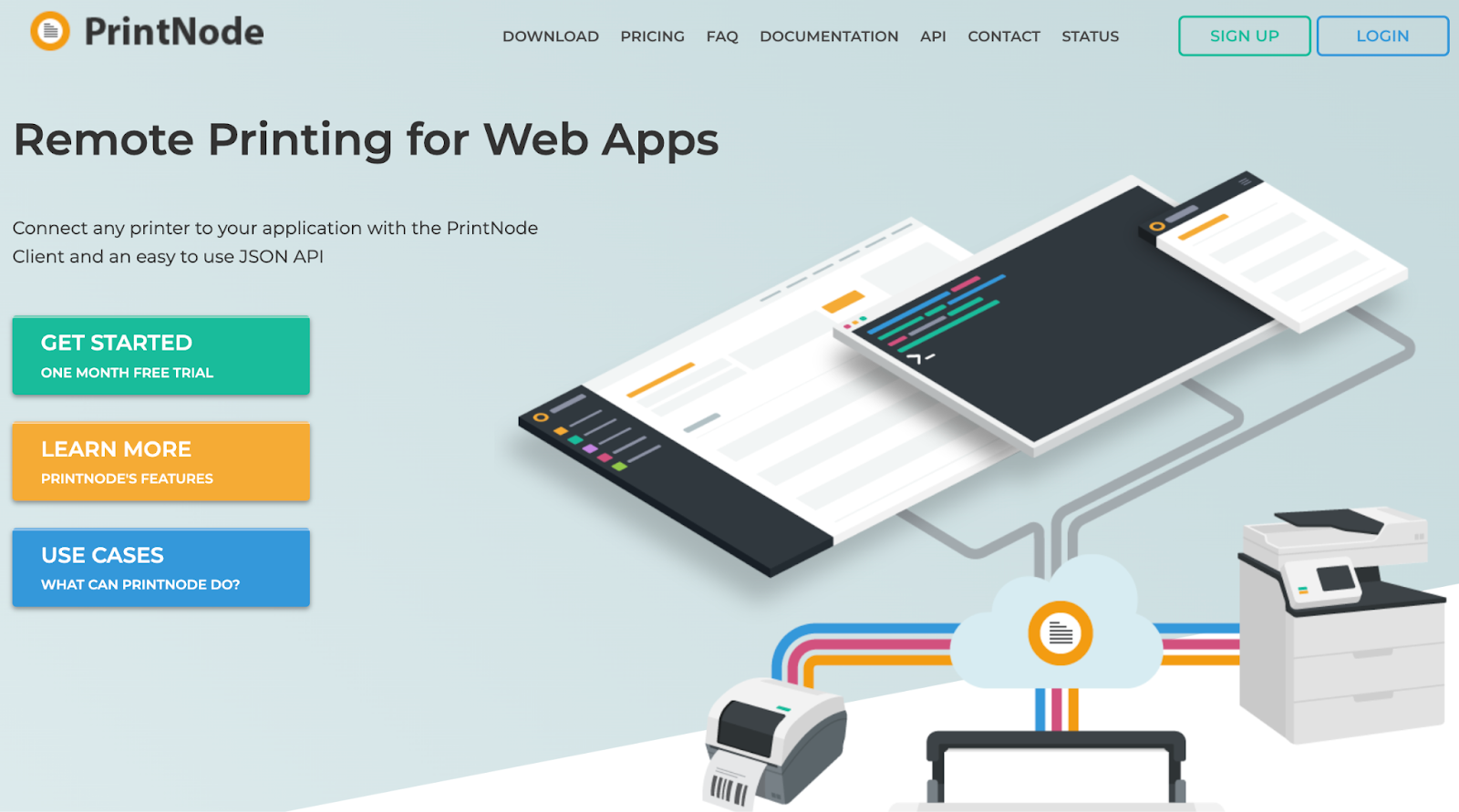
PrintNode is a service that connects your printers to the internet, offering various benefits, including the ability to remotely print over the internet and bypass firewalls. It is a cloud-based print service that bridges your WooCommerce store and any local or network printer.
Once you’ve connected your printer to a computer using PrintNode, the system listens for new orders and sends print jobs instantly to your designated invoice printer. You may get started with PrintNode for free by signing up on their website.
How to Print Remotely in WooCommerce Using PrintNode?
Here is a quick overview of how WooCommerce remote printing works:
- Connect your printer to a computer: Start by installing PrintNode on any computer that has access to your invoice printer. It doesn’t matter if it’s a Mac, Windows, or Linux. Set up a PrintNode account.
- Use the Remote Print add-on in WooCommerce: After installing the plugin, connect your WooCommerce store to PrintNode using the API Key. Configure trigger settings for invoices, packing slips, and dispatch labels. Once done, it automatically triggers a print command when a new order matches your chosen criteria.
- Automatic print WooCommerce Invoices: PrintNode acts as the invisible middleman, delivering the print job to your connected printer immediately, no matter where you are.
Why should you use Remote Print within WooCommerce?
- Customers still want physical receipts: Even in the digital age, many customers prefer a printed receipt as proof of purchase. Auto-printing WooCommerce invoices ensures they get it quickly and reliably.
- Saves time and effort: Instead of printing manually, automatic invoice printing streamlines the process.
- Improves internal communication: Order invoice printouts can be easily shared with staff, helping teams like kitchen crews, warehouse workers, or customer service reps stay on the same page.

Using WebToffee’s invoice printing plugin to automate the printing of WooCommerce orders is one of the simplest and most effective ways to enhance your workflow.
Instead of dealing with manual print jobs or constantly checking for new orders, a print invoice generator plugin takes care of everything in the background, quickly and automatically. It links your WooCommerce store directly to your printer, so as soon as an order comes in, it’s printed and ready to go.
Now, let’s examine how to configure the Remote Print add-on to remotely print WooCommerce invoices in your WooCommerce store.
Prerequisites
To get the Remote Print add-on working smoothly on your WooCommerce store, there are just a couple of things you’ll need:
- Make sure you have the free core plugin installed: WooCommerce PDF Invoices, Packing Slips, Delivery Notes, and Shipping Labels.
- You’ll need to have one of the following premium invoice plugins:
- WooCommerce PDF Invoices, Packing Slips, and Credit Notes (PRO)
- WooCommerce Shipping Labels, Dispatch Labels, and Delivery Notes (PRO)
- WooCommerce Proforma Invoices (PRO)
- Sign up for an account on the PrintNode developer dashboard to acquire the API key required for remote print setup authentication.
After you’ve received your API key, head over to your WordPress admin dashboard. Paste the key into the designated API key field in the plugin settings. Once that’s done, click to test the connection and make sure it links to PrintNode successfully.
Step 1: Install WebToffee Remote Print Add-on
After purchasing the premium version of the Invoice Remote print add-on, you can download the plugin zip file from the My Account page. Then, install and activate the plugin on your WordPress admin dashboard.
Step 2: Configure General Settings
From the WordPress dashboard, go to Invoice/Packing > Remote print (PrintNode).

On the settings page of Remote Print, you can configure the general settings as per your requirements to print WooCommerce invoices remotely.
Step 3: Enable Automatic Printing of WooCommerce Invoices
To remote print WooCommerce invoices automatically, enable the automatic printing to ‘Yes’.
When you click ‘Yes,’ a list of available documents will appear, and you can set up the documents with the preferred order status.

Make sure that a default printer is set up to do this work. A PrintNode works with any printer since it is merely a transport, getting a print job across the Internet, across firewalls, and to the printer to print the documents of your choice. You can refer to the same documentation for setting up the default printer.
After necessary actions have been taken, click on the Update Settings button.
No, PrintNode works with any printer. It acts as a transport layer, sending print jobs from your WooCommerce store to your connected printer, regardless of brand or model.
To export invoices from WooCommerce, you’ll need a plugin that supports bulk invoice management, such as the WooCommerce PDF Invoices, Packing Slips, and Credit Notes plugin by WebToffee. This plugin allows you to configure settings to automatically generate invoices based on specific order statuses, download them from the admin panel, and bulk export invoices within a selected date range using filters.
Yes! You can select specific documents like invoices, packing slips, delivery notes, etc., and link them to different order statuses for automatic printing.
PrintNode will queue the print job and attempt to print once the printer is back online. You can also enable email notifications to stay informed of print failures.
Yes, PrintNode uses secure connections to send your print jobs, and no data is stored after printing. Just ensure your printer and computer are secured locally.
Setting up automatic order invoice printing in your WooCommerce store is a simple way to make your day-to-day operations a lot easier. With the Remote Print (PrintNode) add-on plugin, your orders go straight from your store to your printer—no extra steps, no delays.
It helps you save time, avoid mistakes, and keep things running smoothly, whether you’re in a restaurant, warehouse, or retail shop. It’s a small change that can make a big difference!
That’s it, folks! We’ve reached the end of this guide on how to auto-print WooCommerce order invoices remotely using a WebToffee add-on. If you’ve got questions, feedback, or insights of your own, feel free to drop them in the comments section. Thanks for reading!

Got any query? Please leave a comment or reach out to our support
Got any query? Please leave a comment or reach out to our support

Subcribe to our newsletter


Comments (2)
Smaku
February 1, 2023
I would like to ask if it’s possible as I pack orders we process via woo commerce and there’s only 4people who complete orders from processing to completed so my question is as we are 4people to complete this orders can the system automatically tell how many orders per person packed as we have our own different user names,,,,,is it possible for the system to tell how many orders where completed by James verses other Packers…..
Thanks
Yours Loraine
Hema
March 28, 2023
Hello Smaku,
Thanks for reaching out.
Presently the plugin doesn’t offer any option to list out the user activity as per your requirement. The plugin will print documents based on the chosen order statuses. Thanks for understanding.