


Share:


Table of Contents
Importing products with multiple variants into Shopify can be challenging if done manually. This guide shows you how to quickly import multi-variant products in bulk using a CSV file.
Adding products to Shopify is easy, but things can quickly become complicated when your products come in multiple variations. Many products are available in different options such as size, color, material, or style. In Shopify, these are called multi-variant products, where each combination of options is treated as a separate variant with its own SKU, price, and inventory.
If you manage a large catalog, creating these variants manually can be time-consuming. This is especially true when migrating products from another platform, uploading products in bulk, or managing a store with a large inventory.
A faster, more efficient way to handle this is to import products from a CSV file. With the StoreRobo Import Export app, you can easily import products along with their variants in bulk, saving time and reducing manual effort.
In this guide, we’ll show you how to import multi-variant products into Shopify using StoreRobo, including how to prepare your CSV file and complete the import process step by step.
Key Takeaways:
- Multi-variant products in Shopify allow you to offer different options (like size or color) under a single product, with each variant having its own SKU, price, and inventory.
- Importing variants manually can be time-consuming, especially when managing large product catalogs or migrating from another platform.
- Using a CSV file with the StoreRobo Import Export app lets you quickly bulk import products and their variants, making product management much faster and easier.
Product variants are different versions of the same product that vary based on specific options such as size, color, material, or style. Instead of creating separate product listings for each option, Shopify allows you to group these variations under a single product as variants.
For example, consider a T-shirt that is available in multiple colors (Red, Blue, Black) and sizes (S, M, L). Each unique combination, such as Red-Small or Blue-Large, is treated as a separate variant within the same product listing.

Even though these variants belong to the same product, each one can have its own specific details, including:
- SKU (Stock Keeping Unit) – A unique identifier used for tracking and managing inventory.
- Price – Variants can have different prices depending on the option (for example, larger sizes may cost more).
- Inventory quantity – Shopify tracks stock levels separately for each variant.
- Image (optional) – You can assign specific images to different variants, such as showing the red T-shirt when the red color option is selected.
Using variants helps store owners keep product pages organized while still offering customers multiple options.
Shopify Variant Limitations
Shopify allows you to create products with multiple option combinations, making it easy to offer different variations of the same item. Each variant represents a distinct purchasable version of a product, with its own attributes such as SKU, price, and inventory.
For example, if a product has two options: color and size, Shopify automatically generates variants for every possible combination of those options. Customers can then select their preferred option directly from the product page before purchasing.
Variants help streamline product management and improve the shopping experience by allowing customers to easily choose the exact version of the product they want.
Before importing multi-variant products into Shopify, you need to prepare a properly structured CSV file. Using the correct CSV structure is important because Shopify relies on these columns to understand how products and their variants should be organized during the import process.
The easiest way to create a correctly formatted file is by starting with a sample CSV template. Shopify and tools like the StoreRobo Import Export App provide sample templates that include all the required column headers.
Using a template helps you:
- Follow the correct column structure
- Avoid formatting errors during import
- Understand how variant data should be organized
Once you download the template, open it in a spreadsheet editor such as Excel or Google Sheets. The template may contain sample product data for demonstration purposes.
Note: Make sure to remove these example products before adding your own product details to prevent accidental imports.
Important CSV Columns for Variants
When importing products with variants, certain columns play a key role in defining the product and its different options. Some of the most important fields include:
| Handle | The handle is a unique identifier for a product. All variants that belong to the same product must share the same handle value. Shopify uses this field to group multiple rows as variants under a single product listing. |
| Title | This is the name of the product that will appear in your Shopify store. |
| Option1 Name | Specifies the value for the first option, for example, Red, Blue, or Small. |
| Option2 Name | Defines the second variant option type, such as Size if the first option is color. |
| Variant SKU | The SKU (Stock Keeping Unit) is a unique identifier for each variant, used for tracking inventory and managing products. |
| Variant Price | The selling price assigned to the specific variant. |
| Variant Inventory Qty | Defines the stock quantity available for each variant. |
| Image Src | The URL of the product image that should be associated with the product or specific variant. |
How Variants Are Structured in the CSV
When importing multi-variant products, each variant is added as a separate row in the CSV file. However, all rows belonging to the same product must share the same Handle value.
For example, if a T-shirt is available in three colors and two sizes, each color–size combination will appear as a separate row in the CSV. Because all rows share the same handle, Shopify recognizes them as variants of a single product rather than separate products.
The Option columns define the variation structure:
- Option Name – Defines the variant category (Color, Size, etc.)
- Option Value – Defines the actual value of the variant (Red, Blue, M, L)
Each row should represent one unique variant combination.
Example:
| Option1 Name | Option1 Value | Option2 Name | Option2 Value |
| Color | Red | Size | M |
| Color | Red | Size | L |
| Color | Blue | Size | M |
Once your CSV file is ready, you can import your multi-variant products into Shopify using the StoreRobo Import Export App. The app simplifies bulk product imports and ensures that variants are properly grouped under the same product during the import process.
Follow the steps below to import your multi-variant products.
Step 1: Install StoreRobo Import Export App
First, install the StoreRobo Import Export Suite from the Shopify App Store.
- Go to the Shopify App Store.
- Search for StoreRobo Import Export.
- Install it in your Shopify store.
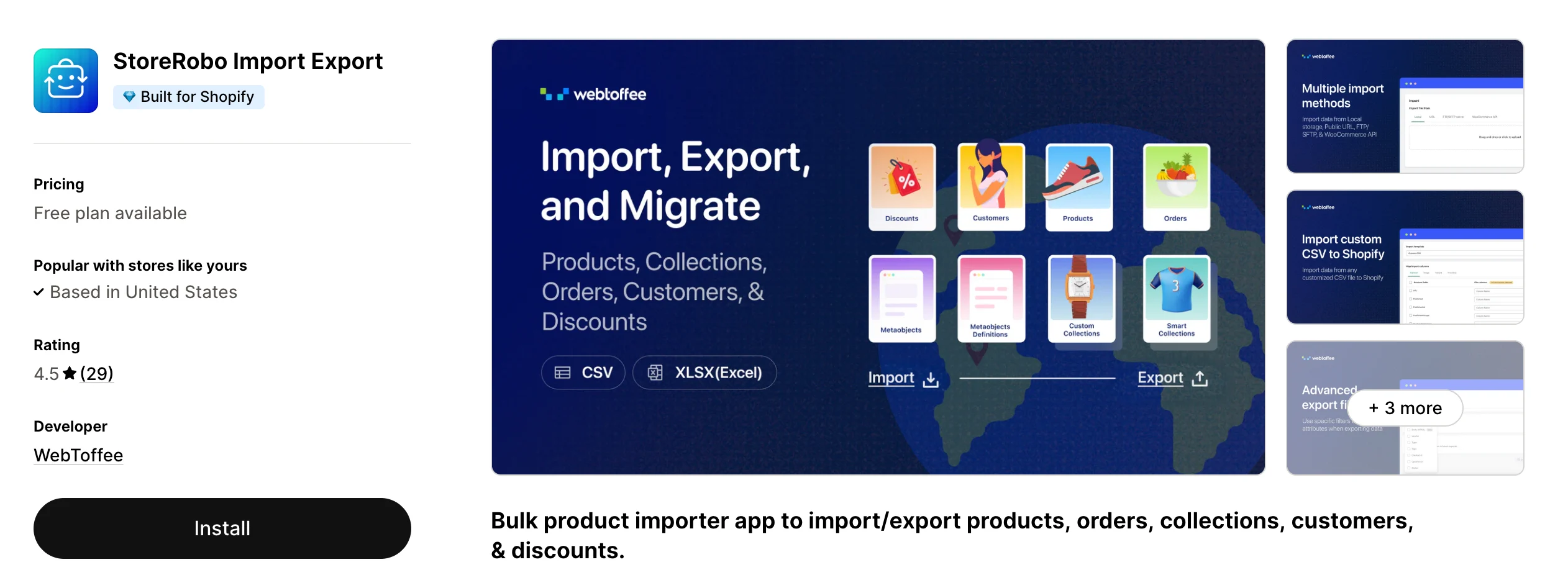
Once installed, the app allows you to easily import and export Shopify data, including products, variants, orders, customers, and more. It supports bulk product imports using CSV files, making it ideal for managing large product catalogs with multiple variants.
Step 2: Upload the CSV File
After installing the app, the next step is to upload the CSV file containing your product data.
- Open the StoreRobo Import Export app from your Shopify admin.
- Navigate to the Import section and upload the CSV file containing your multi-variant product data.

The app will read the CSV file and prepare it for the import process.
Step 3: Select Data Type
Next, specify the type of data you want to import.
- Choose Products as the import data type and click Upload.

This step ensures that StoreRobo correctly processes the data and maps it to Shopify’s product fields.
Step 4: Configure Import Options
StoreRobo provides several configuration options to help control how your products are imported.
Some of the available options include:
- Select Import Template – StoreRobo automatically detects the correct import template based on your uploaded file. If the detected template is incorrect, you can manually select the appropriate option from the drop-down.
- Apply Filters – You can filter which products to import based on their product status. In the Product Status dropdown, select the status to determine which products from the CSV file should be imported.
- Choose Import Options: Here, you can choose how products should be imported into your Shopify store. You can ignore the product ID in the CSV and treat the products as new entries, update products if they already exist in the store, or skip importing new products and update only existing ones. You also have the option to automatically publish newly imported products to your store.
These settings help ensure that the import process works according to your store’s requirements.
After configuring the import settings, click Import to start the process.

StoreRobo will begin importing the products and their variants into your Shopify store. The time required depends on the size of your CSV file and the number of products being imported.
Once completed, the app will display a summary of the import results.
Step 5: Verify Imported Products
After the import is finished, it’s important to verify that everything has been imported correctly.
Go to Products > All in your Shopify admin and check the following:
- Variant grouping – Ensure that all variants appear under the same product.
- Images – Confirm that product or variant images are displayed correctly.
- Pricing – Verify that each variant has the correct price.
- Inventory levels – Check that stock quantities are assigned correctly to each variant.
Reviewing these details helps ensure that your multi-variant products are properly configured and ready for customers to purchase.
Also Read: Getting Started with Shopify Import Export
Common Errors When Importing Multi-Variant Products
When importing multi-variant products into Shopify using a CSV file, you may sometimes encounter errors that prevent variants from being imported correctly. These issues usually occur due to incorrect CSV formatting or missing data in important columns. Understanding these common problems can help you troubleshoot and fix them quickly.
1. Variants Not Grouped Under One Product
One common issue is when variants appear as separate products instead of being grouped under a single product. This usually happens when the Handle values are different for each row in the CSV file. Shopify uses the handle to identify which rows belong to the same product. If each row has a different handle, Shopify treats them as separate products rather than variants.
Solution: Ensure that all variant rows for the same product share the exact same handle value.
2. Missing Variant Options
Another issue occurs when variant options, such as color or size, are not displayed correctly after the import. This typically happens due to incorrect or missing Option columns, such as Option1 Name, Option1 Value, Option2 Name, or Option2 Value.
Solution: Make sure that the option columns are properly filled. For example:
- Option1 Name: Color
- Option1 Value: Red
- Option2 Name: Size
- Option2 Value: M
Each row should represent one unique combination of these options.
3. Import Errors in the CSV File
Sometimes the import process may fail completely due to issues within the CSV file itself.
Common causes include:
- Incorrect file encoding (the file should typically be saved in UTF-8 format)
- Missing or incorrect column headers
- Formatting errors, such as misplaced commas or extra spaces
Solution: Always review your CSV file before importing. Using a CSV template provided by Shopify or the StoreRobo Import Export App can help avoid these formatting issues and ensure the file structure matches Shopify’s requirements.
By checking these common errors before importing, you can ensure that your multi-variant products are imported smoothly and displayed correctly in your Shopify store.
You can import products with variants using a Shopify-compatible CSV file where each variant is listed on a separate row and grouped using the same Handle. You can upload the CSV via Shopify or use the StoreRobo Import Export Suite for guided import and mapping.
No. Create one product and list each variant as a separate row in the CSV using the same Handle, along with option columns like Option1 Name/Value and Option2 Name/Value.
Key columns include Handle, Title, Option1 Name, Option1 Value, Option2 Name, Option2 Value, Variant SKU, Variant Price, Variant Inventory Qty, and Image Src.
Not always. If the option names are the same for all rows (like Color and Size), you can keep them consistent and avoid unnecessary repetition, depending on the import template you use.
Yes. If all variants share one image, you can add the Image Src for the first variant row and leave it blank for the remaining rows.
Wrapping Up
Importing products with multiple variants into Shopify can become complex when done manually, especially if you are managing a large product catalog. Using a properly structured CSV file allows you to organize product information efficiently and import multiple variants in bulk without creating each variant individually. This not only saves time but also reduces the chances of errors while managing product data.
Tools like the StoreRobo Import Export App make this process even easier by providing a guided way to upload CSV files, map product fields, and import products along with their variants. Try StoreRobo to quickly import multi-variant products and manage your Shopify store more efficiently.
We hope this article helped you understand how to import multi-variant products into Shopify more easily. If you have any questions, feel free to comment below, and we’ll get back to you.


Subcribe to our newsletter


