


Share:


Table of Contents
Once your WooCommerce store has been running promotions for a while, the coupon list starts getting messy. Seasonal discounts, BOGO codes, loyalty offers, flash sales, they all pile up in one flat list with no way to separate them.
WooCommerce doesn’t have native coupon categorization, so filtering through dozens of codes becomes a real time sink. This guide shows you how to fix that using the free version of Smart Coupons for WooCommerce.
Key Takeaways
- Categorizing coupons in WooCommerce can help you keep your store and promotions organized.
- Explore the features of the best WooCommerce coupon management plugin.
Why your coupon list needs categories
Most store owners don’t think about coupon organization until they’re already buried. You go looking for a specific Halloween discount code in February, scroll through 80 active coupons, and give up. Or you want to pull up all your free shipping offers, and there’s no way to filter for just those.
The bigger your catalog of promotions, the harder coupon management gets without some structure. Categories solve this in a few practical ways:
- You can filter your entire coupon list by campaign type in one click
- Seasonal codes (Black Friday, Christmas, Summer Sale) stay grouped so you can update and reuse them instead of rebuilding from scratch every year
- Running reports on specific promotion types becomes straightforward
- Your team can find and manage coupons without needing to know the exact coupon code
It’s a small organizational step that saves a lot of friction as your store grows.
WooCommerce doesn’t include coupon categorization out of the box. To add it, you need the Smart Coupons for WooCommerce plugin. The free version is enough for everything covered in this guide.
To install it:
- From your WordPress dashboard, go to Plugins > Add New.
- Search for “WebToffee Smart Coupons for WooCommerce.”
- Click Install Now, then Activate.
Once activated, a new Smart Coupons menu item appears in your WordPress navigation. That’s where all the steps in this guide live. If you’ve read other guides on coupon categorization and seen a different navigation path (like Marketing > Coupons), that’s because they’re using a different plugin. Our steps use the Smart Coupons menu specifically.
Step 1: Create a WooCommerce coupon category
With the plugin active, setting up your first category takes about a minute.
- Go to Smart Coupons > Coupon Category in the left navigation bar.
- Enter a Category Name. Use something campaign-specific: “Black Friday 2026,” “Free Shipping Offers,” “BOGO Deals,” or “Store Credits” all work well.
- Add a Slug (this auto-generates from the name, but you can edit it).
- Add a Description if you want context visible to your team.
- Assign a Parent Category if you’re building a hierarchy (for example, “Holiday > Christmas” or “Holiday > Halloween”).
- Click Add New Category.
Repeat this for every campaign type you want to track. The more granular you go upfront, the easier filtering becomes later. You can always add more categories or restructure them as your store evolves.

Step 2: Assign coupons to a category
Once your categories exist, you can assign coupons to them, both when creating new ones and when editing existing ones.
For an existing coupon:
- Go to Smart Coupons > All Coupons.
- Click on the coupon you want to categorize.
- In the coupon edit screen, find the Categories panel (usually in the right sidebar or lower section of the page).
- Select the category that applies.
- Click Update.

For a new coupon:
The Categories panel appears in the same location during coupon creation. Assign the category before you publish so it’s organized from the start.
One coupon can belong to multiple categories if needed. A BOGO offer that’s also part of a seasonal campaign, for example, can sit under both “BOGO Deals” and “Summer Sale 2026.”
Step 3: Filter coupons by category
This is where the organizational work pays off.
- Go to Smart Coupons > All Coupons.
- Use the Select Category dropdown at the top of the list to choose a category.
- Click Apply.
The coupon list instantly narrows to only the coupons in that category. If you want to go further, combine the category filter with the Show All Types dropdown to filter by discount type within a specific category. So you can pull up, say, all percentage-off coupons inside your “Flash Sale” category in a couple of clicks.
This filter combination is particularly useful when you’re reviewing a campaign after the fact, deactivating old codes, or checking which coupons are still live from a past promotion.

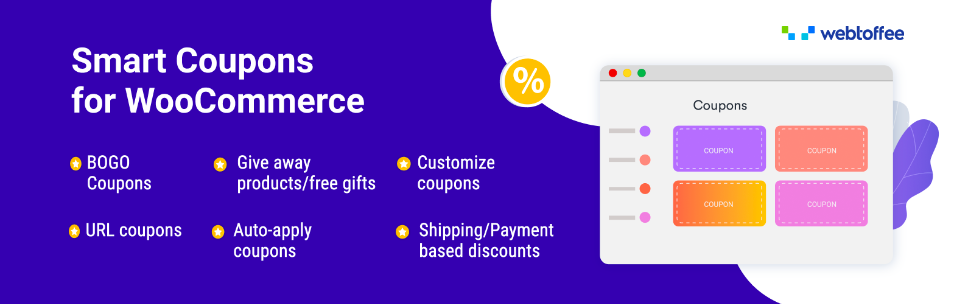
The smart coupon plugin for WooCommerce is available in two versions: the free and the premium version. The free version of the plugin offers some of the most fundamental coupon creation and management features. Key features include WooCommerce BOGO deals, add giveaways, coupon categories, and more.
The premium version of the WooCommerce coupon creation plugin contains more advanced features for generating coupon discounts for every use case. In addition to that, you may also use this coupon to create promotional banners for marketing coupons in your store. You can also issue store credits and gift card coupons with this plugin. Here are some of the premium features available in the coupon management plugin,
- Gift cards and store credit generation
- Setting up advanced BOGO offers
- Creating coupons in bulk
- Creating purchase history-based coupons
- Offer coupons to new user signups
- Create cart abandonment coupons
- Create coupon banners
Categorizing coupons can help you save a lot of time trying to properly manage your coupons. Since you will need an additional tool to categorize the coupons in your store, it is wise to go with a free coupon plugin. Smart Coupons for WooCommerce is such a plugin that you can use for this purpose. In addition, you can use the plugin to create different kinds of coupons.
Hope this article was of help. Do let us know if you have any questions about this in the comments.


Subcribe to our newsletter


