


Share:


Table of Contents
Importing product data in WooCommerce is essential for maintaining an up-to-date catalog, but removing outdated field values during this process can pose challenges. The default WooCommerce importer does not allow for the deletion of existing field values, making third-party plugins like Product Import Export for WooCommerce necessary for efficiently managing product data and ensuring accuracy.
- WooCommerce's default importer skips empty fields, leaving old values unchanged.
- Third-party plugins provide the capability to delete specific field values during bulk imports.
- Removing outdated or incorrect information is crucial for maintaining a clean and accurate product catalog.
- Automating the deletion of field values saves time and reduces the risk of manual errors.
- Consistency across multiple stores or platforms is maintained by eliminating irrelevant fields during import.
- The premium version of import plugins offers additional features, including support for various file formats and advanced customizations.
Importing product data is a common task for store owners, whether it’s for updates, migration, or syncing across platforms. But when it comes to removing outdated information, especially if you need to delete field values while importing WooCommerce products, things can get a bit tricky.
If you run a WooCommerce store, there are times when you need to import products—maybe to update details or list them on another platform. But what if you don’t want to update everything? What if you just want to remove or clear out some specific product fields?
Here’s the thing: WooCommerce’s default importer doesn’t let you delete existing field values during an import. If a field is empty in your import file, it simply skips over it, leaving the old value unchanged.
That’s why using a third-party import-export plugin is a smart move. Tools like Product Import Export for WooCommerce give you more control and let you delete specific field values during bulk imports, saving you time and effort.
In this article, we’ll show you how to use the WooCommerce Product import plugin to remove existing product field values the right way.
Why Delete Field Values While Importing WooCommerce Products?
When managing a WooCommerce store, product data isn’t always static; it evolves. Prices change, product descriptions are refined, categories shift, and specific details may become outdated or irrelevant. In such cases, simply updating values isn’t enough—you may need to completely remove specific field data to keep your catalog clean and accurate. Here’s why:
1. To Remove Outdated or Incorrect Information
Sometimes, products carry over information that is no longer valid, like an old sale price, discontinued attribute, or deprecated custom field. Deleting these values during import ensures you’re not just adding new data, but also cleaning up what shouldn’t be there anymore.
2. To Reset Optional or Empty Fields
Not all fields need to stay populated forever. For example, a promotional message or limited-time feature might have served its purpose. Deleting such values during import helps you reset product entries without having to manually edit each one.
3. To Maintain Consistency Across Stores or Platforms
If you’re syncing data across multiple stores or marketplaces, it’s essential that outdated or extra fields from one platform don’t carry over to another. Deleting irrelevant fields during import helps maintain data consistency and prevent confusion.
4. To Save Time on Manual Cleanup
Without field deletion during import, store admins often have to go in and manually clear data field by field—an error-prone and time-consuming task, especially with a large catalog. Automation through import saves hours of effort.
5. To Prevent Customer Confusion
Incorrect product data on the frontend—such as outdated shipping information, specifications, or availability messages can mislead customers and erode trust. Removing such data ensures your product listings remain clear and accurate.
As mentioned earlier, WooCommerce does not remove existing product field values by default if no new value is available to replace them. So, you will need to use a plugin to help you with this process.
Product Import Export for WooCommerce is a free plugin from WebToffee that enables you to delete field values while importing WooCommerce products. Let’s see how the plugin can import empty product field values.
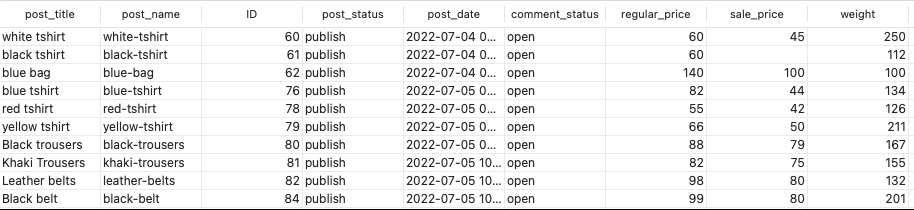
This is a sample CSV of the products exported using the free product import plugin.
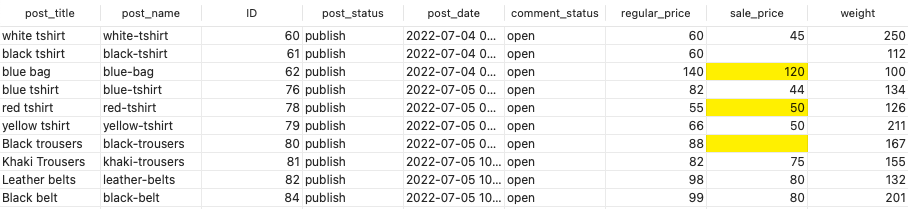
The highlighted changes have been made to the file. Here, we will change the sales price of a couple of products and delete the sales price of a single item.
You will now have to update the changes you made in your WooCommerce store. Now, follow the instructions below to do so.
1. Install and Activate WebToffee Product Import Export Plugin
- Go to Plugins > Add Plugin in your WooCommerce admin panel
- Search for the Product Import Export Plugin for WooCommerce.
- Install the plugin and then activate it.

Once activated, you can proceed with the import process.
2. Select Product as Post Type
After activating the plugin,
- Go to WebToffee Import Export (Basic) > Import.
- Select the post type to import as the Product.

3. Select Advanced Import Method
Choose the method for importing products to your console. The plugin offers two options, Quick and Advanced Import.
Note: All the options support importing empty field values, so you may choose the method that is most convenient for you.
Let’s go with the default import option Advanced Import.
- Now select the CSV file with the updated product values.
- Select the delimiter used in the CSV file. By default, this is a ‘comma.’ If you have used a different one, you may change the delimiter to that.

4. Map Import Columns
Choose the columns that you want to import. You may only have to configure this if you want to omit importing some columns. Otherwise, you can skip this configuration and directly skip to the next step.

5. Import Updated Field Data
You have the option to import the empty cell value here. When you delete a cell value, the cell will now occupy an empty string. Usually, the tool will ignore this empty cell and will keep the previous field data. However, you can change this setting here.
- Choose Update corresponding to the field If the product exists in the store. This will help you update the products instead of adding them as new products.
- Set Yes corresponding to the option Update even if empty values. This allows the importer to clear or delete field values when the corresponding field in the import file is empty.
- Once the settings are in place, click Import to begin the process.

Once the import process is completed, the field values that you deleted will be empty.
For example, the sales price of the product ‘Black trousers’ is now deleted.
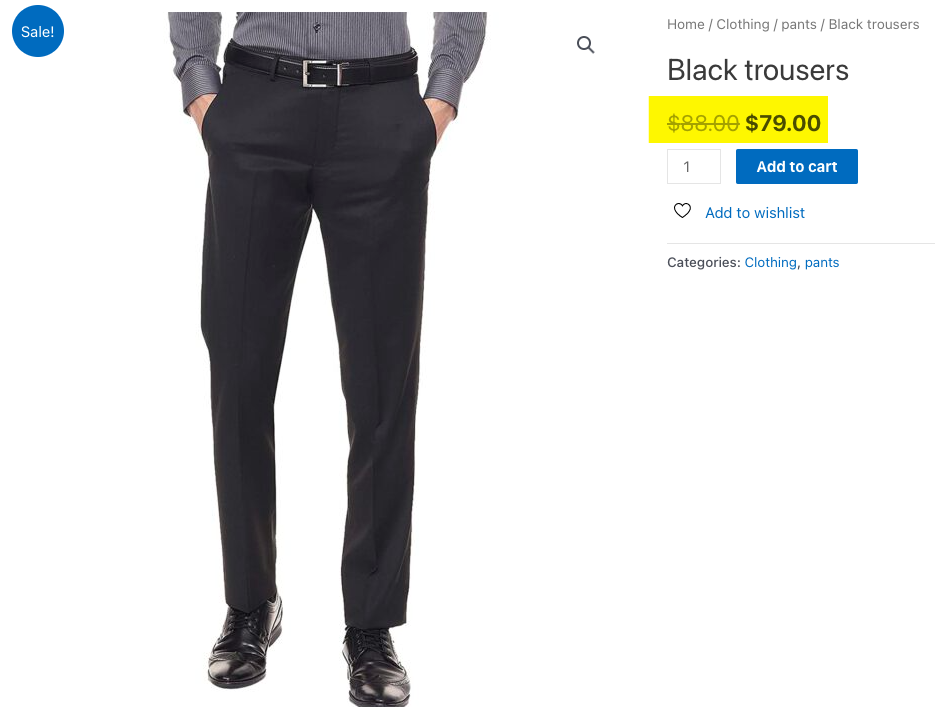

In a similar way, you can bulk delete different field values within WooCommerce by using the above feature.
Product Import Export for WooCommerce (Premium)

The Product Import Export for WooCommerce plugin is available in the premium version in addition to the free one. The premium version offers several additional features over the free version, including customizations. For instance, the premium version supports multiple file formats like XML, TSV, XLS, and XLSX in addition to CSV. The plugin also offers additional filters and customization options.
Some of the additional features of this premium plugin include,
- Variable and subscription product type support
- Import process scheduling
- Exporting WooCommerce product images in a separate CSV file
- Supports additional features and customizations required for advanced import and export
- Supports the import and export of third-party plugin fields
Quick fact: Our Product Import Plugin boasts an impressive 4.8 rating on WordPress and powers over 90,000 active customers.
The products added to a WooCommerce store are subject to changes. They have to be dynamically updated to keep up with the changing atmosphere. In some situations, instead of changing, you may have to remove some fields altogether.
However, manually doing it by opening each product in your store is cumbersome. Therefore, it is wise to use a plugin like Product Import Export for WooCommerce to help you with the process.
Hope this article was of interest to you. Do let us know what you think in the comments.
Yes. The plugin gives you precise control over what gets updated. By enabling the setting to update even empty values, you can delete specific field content (e.g., product descriptions, tags, or custom attributes) without changing the rest of the product data.
Yes, the plugin fully supports variable products and their variations. You can clear or update field values in variations by correctly structuring your import file and applying the same update settings.
Leave the specific cell empty in your CSV file for the field you want to clear, and make sure the “Update even if empty values” setting is enabled during import. No special placeholder is required unless configured otherwise.
No, the plugin does not have a built-in undo or rollback feature. It is highly recommended that you back up your WooCommerce store before running any import that may delete data.

Got any query? Please leave a comment or reach out to our support
Got any query? Please leave a comment or reach out to our support

Subcribe to our newsletter





Comments (4)
Annie
August 5, 2023
Followed this to a T. This used to work to get rid of an extra column I don’t want, but now it doesnt anymore. I delete the columns completely, import and tell it to replace if blank. The attribute column creates a second attribute no matter what I do. I can’t get rid of it.
Vineetha
August 8, 2023
Hi Annie,
Thanks for reaching out! To remove the value, please ensure that the column value in the CSV file is empty. During mapping, keep the columns empty for which you want to remove the values. In the advanced options of product import, choose Update for the option If product exists in the store. On this action, another option Update even if empty values appears. Choose Yes and import. This will update the products with empty values.
Cat
May 14, 2024
I’m running into the same issue. Instead of making the attribute’s value(s) blank/empty, I want to remove the attribute from the product(s) entirely.
Hema
May 15, 2024
Hello Cat,
Thanks for reaching out. The plugin can only blank/Empty an attribute value. The attribute can’t be deleted or removed, completed.