Share:


Table of Contents
Struggling with WooCommerce product imports can lead to significant delays and frustration for store owners. Understanding the common errors—such as incorrect CSV formatting, mapping issues, and server limitations—is crucial for ensuring efficient product uploads and maintaining an organized inventory.
- Product imports are essential for streamlining operations in WooCommerce, allowing for bulk uploads and updates.
- Common issues include formatting errors, missing SKUs, and incorrect field mapping, which can disrupt the import process.
- Server limitations, such as memory and execution time restrictions, can cause imports to fail or stop midway.
- Properly formatted CSV files, with accurate data and unique SKUs, are critical to prevent import errors.
- Utilizing reliable import-export plugins can enhance the import process, providing advanced features and error handling.
- Regularly checking the import log after attempts helps identify specific issues and facilitates quicker resolutions.
Is your WooCommerce product import not working, getting stuck, or completing without adding all your products?
The error you see during an import does not always reveal what actually went wrong. A failed import, for example, could be caused by the source file, variable product structure, server limits, conflicting plugins or custom code, image URLs, or the import configuration itself.
This guide turns those real-world troubleshooting insights into a practical checklist. Find the symptom that matches your import problem, check the likely causes, and work through the recommended fixes.
Importing products into WooCommerce can feel like a straightforward task. You upload a CSV or XML file, map the fields, and expect everything to appear neatly in your store. But in reality, a lot can go wrong behind the scenes.
Here are the most common reasons product imports fail:
1. File Formatting Mistakes (CSV/Excel Issues)
Even the smallest error in your CSV file can cause big problems. A misplaced comma, merged cells from Excel, or incorrect text encoding might prevent WooCommerce from reading the file properly.
If the structure doesn’t match what WooCommerce expects, the import may stop halfway or skip products entirely.
2. Incorrect Field Mapping
When importing products into WooCommerce, proper SKU mapping in WooCommerce is essential. During import, WooCommerce asks you to match the columns in your CSV with product fields (like SKU, Name, Price, Stock). If these are mapped incorrectly, say, a SKU column linked to “Product Name”, the result can be products with missing information or details in the wrong place.
3. Missing or Invalid Data
Some product fields, such as SKU, price, or stock, are critical. If these values are missing, left blank, or contain invalid data (e.g., letters where numbers should be), WooCommerce may reject those products or create incomplete records. This can also happen with dates, email addresses, or image URLs that don’t follow the correct format.
4. Plugin or Theme Conflicts
Sometimes, the issue isn’t with your data at all but with your site setup. Other plugins or themes may interfere with the import process, causing unexpected behavior or errors. For example, a custom product field added by another plugin may not align with your CSV data.
5. Server Limitations (Memory, Timeout Issues)
Large product catalogs can push your server to its limits. If your hosting environment has strict memory or execution time limits, imports may fail partway through, leaving you with incomplete product data. This is especially common for stores with thousands of SKUs or very large images.
A. CSV, XML, Excel, and File Formatting & Access Errors
File-related problems were also one of the most frequently reported issue categories in our support analysis.
A file can look perfectly normal when opened in a spreadsheet application while still containing formatting or structural problems that affect the import.
1. “File Path Provided for Import Is Invalid” error
This error appears when the importer cannot locate or access the file you are trying to import. In other words, the import process has been given a file path or URL, but it cannot retrieve the file from that location.
Why it happens: This can happen if the file has been moved or deleted, the path is incorrect, the remote file is no longer accessible, or the importer does not have the required permissions to read it.
What to check:
- Confirm the file still exists: If you uploaded the file earlier or stored it temporarily, make sure it has not been deleted, moved, or renamed.
- Verify the file path: Check for incorrect folder names, missing directories, typos, or outdated paths.
- Test remote URLs: If you are importing from a URL, open it in a browser and confirm you can access the file directly.
- Check access restrictions: A remote file may require authentication or may be protected by server, firewall, or access-control rules that prevent the importer from retrieving it.
- Review file and folder permissions: The server needs sufficient permission to read the file and the directory where it is stored.
- Verify FTP/SFTP details: If you’re importing from FTP or SFTP, confirm that the host, credentials, directory path, and filename are correct.
If the error appears when importing a locally uploaded file, try selecting and uploading the file again. This can help if the original temporary file is no longer available or its stored path has changed.
If the error continues, try importing a small test file from a known accessible location. If the test file works, the pro
2. Special Characters Showing as Symbols (’, �) After WooCommerce Import
Special characters (like accents, umlauts, or non-English letters) appear as gibberish symbols (� or strange characters) after import.
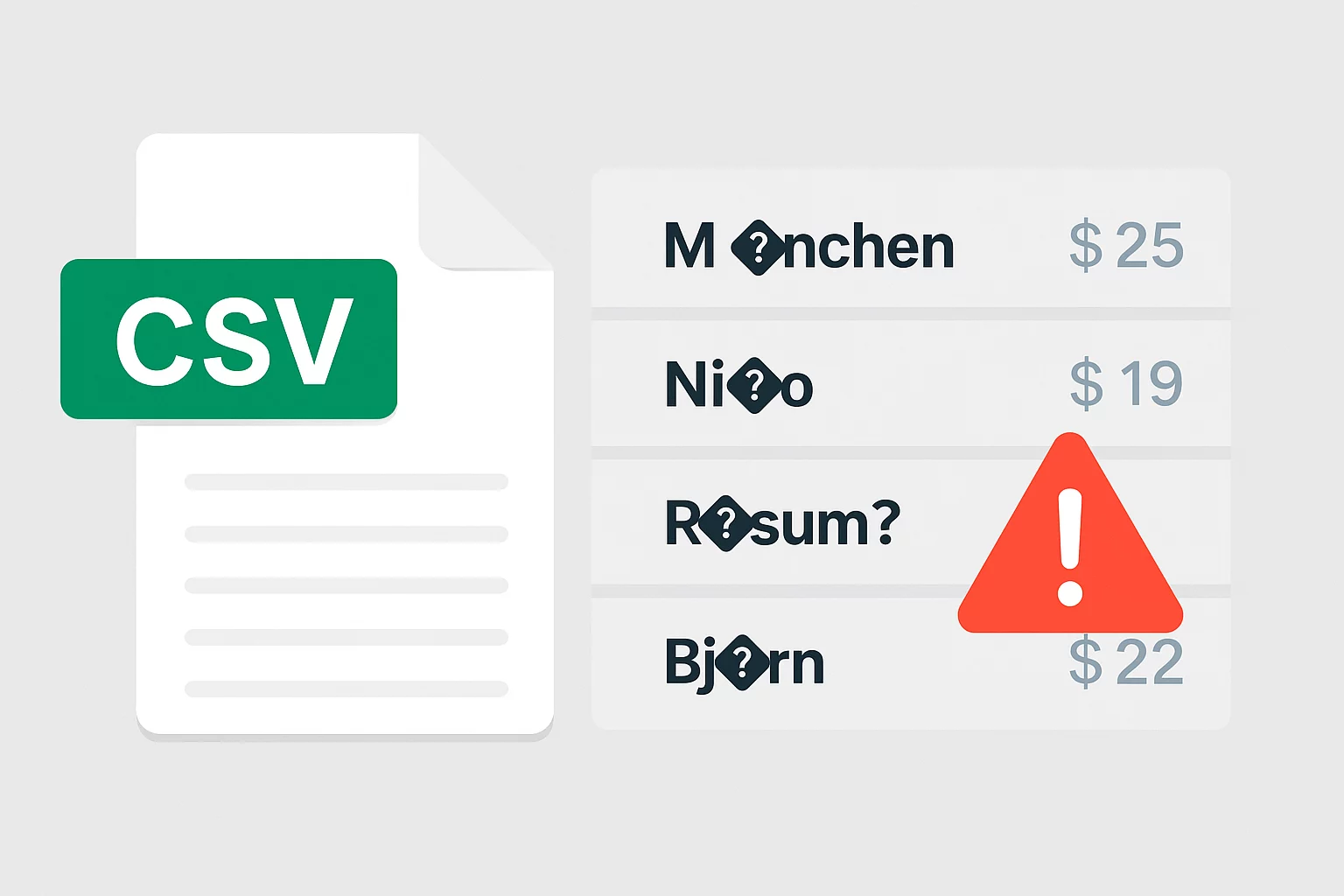
Why it happens: WooCommerce expects CSV files to be saved in UTF-8 encoding, but many spreadsheet editors, especially Microsoft Excel, default to other encodings, which corrupt special characters.
Fix:
- Re-save your CSV file in UTF-8 format using a reliable editor such as Google Sheets, Notepad++, or VS Code.
- Avoid saving CSVs directly from Excel, or if you must, use “CSV UTF-8 (Comma Delimited)” as the export option.
3. WooCommerce Import Failing or Creating Blank/Incomplete Products
When attempting to import your CSV file, WooCommerce throws an error saying certain fields are missing, most commonly: post_title → Product Name, sku → Stock Keeping Unit (unique product identifier), post_content → Product Description.
As a result, the import either fails entirely or creates incomplete products that don’t display correctly in your store.
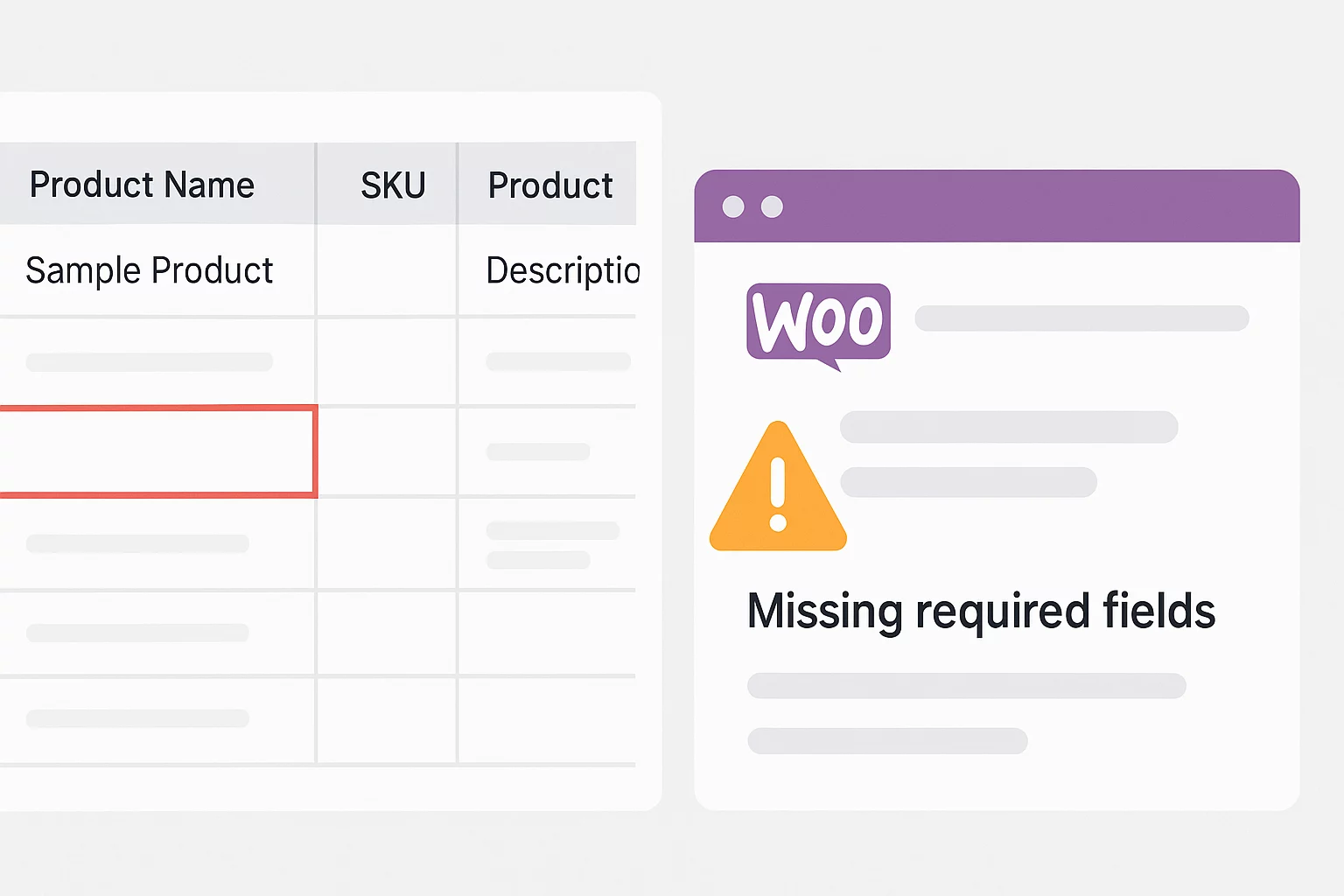
Why it happens: WooCommerce requires specific core fields to identify and create products. If they are empty or mapped incorrectly, the system doesn’t know how to process the row.
Fix:
- Double-check that all required fields are present in your CSV.
- Make sure each row has a product name (post_title), unique SKU, and basic content (post_content).
- During import, map CSV columns correctly to WooCommerce fields.
4. “common.errors.csv_row_skip” error message
This message means the importer skipped one or more rows in the CSV instead of creating or updating the corresponding products.
Why it happens: Common causes include missing required fields, incorrect mapping, invalid values, duplicate SKUs or IDs, variation relationship errors, or malformed CSV rows.
How to fix it:
- Identify the skipped row from the import log.
- Compare it with a row that imported successfully.
- Check required fields, SKU/ID values, product type, and variation parent references.
- Make sure the row has the correct number of columns and uses proper delimiters and quotation marks.
- Test the affected row in a small sample CSV to isolate the issue.
A skipped row does not necessarily mean the entire CSV is invalid; the problem may be limited to that specific record.
5. Product Titles or Descriptions Are Split Across Columns
When you import a CSV file, product descriptions or titles that contain commas (for example: A durable, waterproof bag) doesn’t stay in one column. Instead, they get split into two or more columns, which scrambles the entire row. The result? Products imported with broken or missing descriptions, or the whole import may fail.
Why it happens: CSV files use commas as column delimiters. If a comma is inside the text itself, it tricks the importer into treating it as a new column.
Fix:
- Always enclose fields with commas inside double quotation marks (“ ”).
- Example: “A durable, waterproof bag” will stay in one column.
6. Products Import Into the Wrong Categories or Attributes
After import, products don’t show up under the correct categories, or variation dropdowns fail to display properly. Sometimes products appear uncategorized, or attributes (like size or color) don’t connect to the variations you created in the CSV.
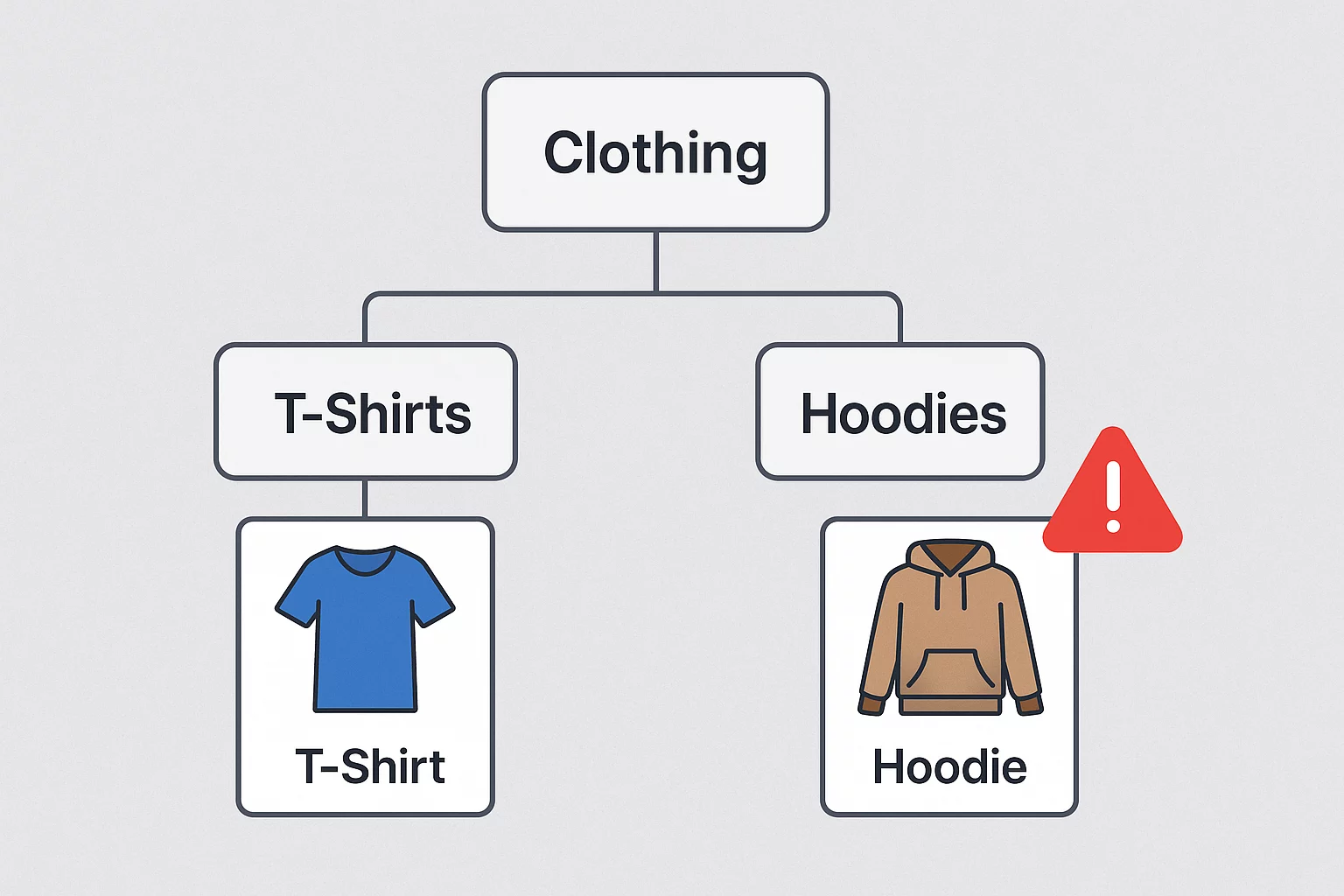
Why it happens: WooCommerce relies on exact matches between your CSV and its internal taxonomy (categories and attributes). If your CSV uses slightly different labels, slugs, or hierarchy, WooCommerce won’t know where to place the product.
Common causes include:
- Using category names instead of slugs in the CSV.
- Misspelled or differently capitalized attribute values (red vs Red).
- Forgetting to set up and map WooCommerce product attributes (Size, Color, etc.) before import.
- Incorrect formatting for multiple categories or nested categories.
Fix:
- Match Category Slugs Exactly. WooCommerce stores categories by slugs (the lowercase, hyphenated version of the name).
Example:
- Category Name: Men’s Shoes
- Category Slug: mens-shoes
- Use Hierarchical Category Format. For subcategories, use a > separator.
- Match Attribute Values Exactly. Attribute values in the CSV must be identical to WooCommerce terms (including capitalization).
Example:
If the attribute is “Red” in WooCommerce, don’t use “red” or “RED” in the CSV.
Format Attribute Columns Properly: Use WooCommerce’s expected header format:
- Attribute 1 name → Size
- Attribute 1 value(s) → S, M, L
7. Product Prices or Other Field Values Import Incorrectly
During import, you may encounter several issues. Product prices may appear incorrect, dates like “12/05/25” may not map correctly, leading to blank fields or date misinterpretation, or customer or order email fields may throw errors, preventing those records from being imported.
These errors often don’t crash the import entirely, but lead to incomplete or inaccurate data once products or users are in WooCommerce.
Why it happens: WooCommerce expects values in very specific formats. If your CSV contains extra symbols, inconsistent formats, or invalid entries, the importer either ignores the data or misplaces it.
- Prices: WooCommerce only accepts raw numbers. Adding currency symbols ($20, €15) or formatting (e.g., 20.00 USD) causes issues.
- Dates: WooCommerce uses the ISO format YYYY-MM-DD. If your CSV uses DD/MM/YYYY or MM-DD-YY, the importer won’t recognize it.
- Emails: Invalid formats (missing @ or domain, e.g., user@domain) break the import for customers or orders.
Fix:
- Keep numeric values clean: Use 20 instead of $20. Stick to decimals for prices: 19.99 (no currency code, no commas).
- Use the correct date format: Always enter dates as YYYY-MM-DD. Example: 2025-09-10 (not 09/10/25 or 10-Sep-25).
- Validate email addresses: Ensure every email has the correct format (e.g., [email protected]). Avoid placeholder or malformed values like customer[at]example.com.
B. Server & Performance Issues
1. WooCommerce Import Stops, Stalls, or Completes Only Partially
The import process stops abruptly with errors like “Internal Server Error” or “Maximum execution time exceeded.”
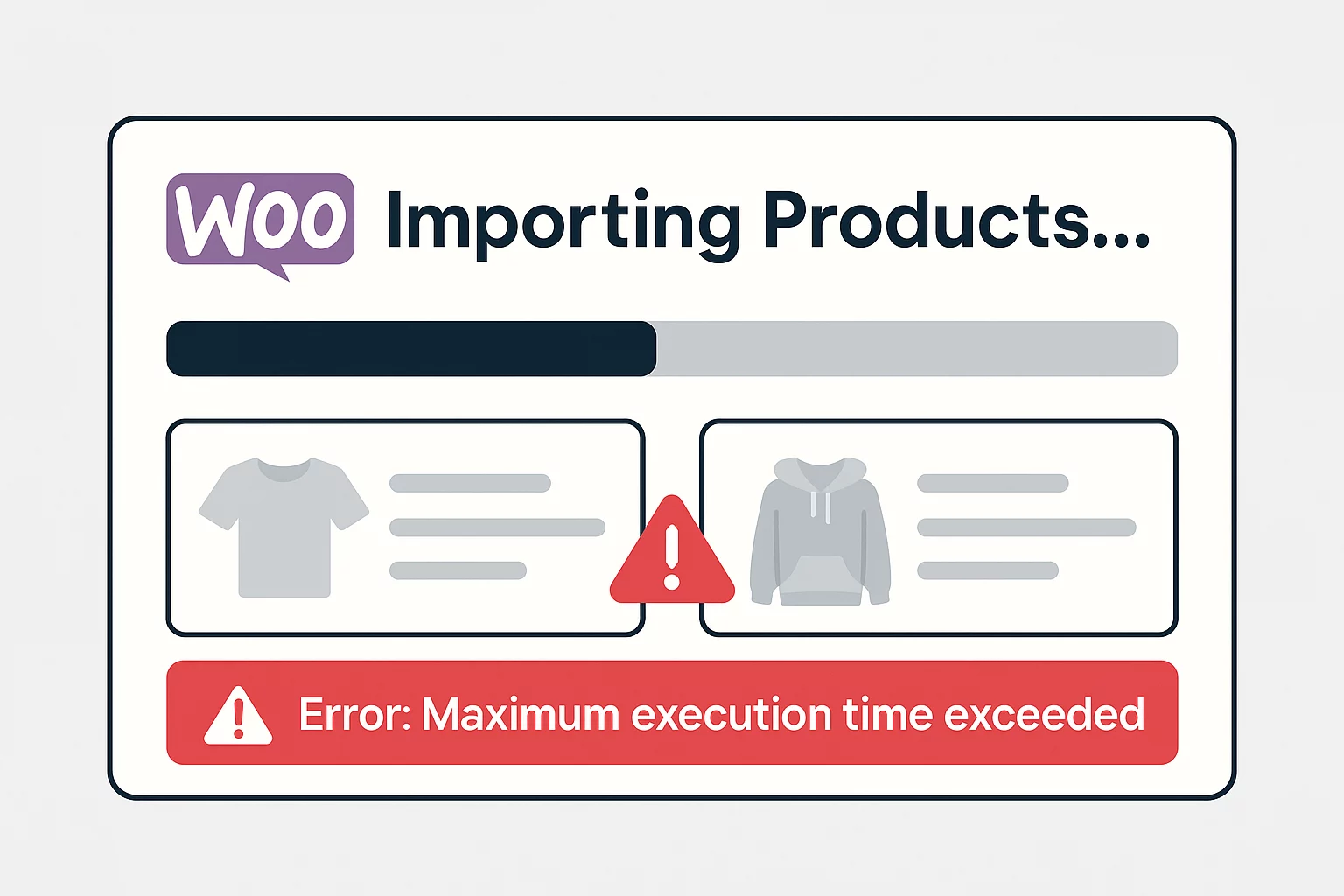
Why it happens: Large imports require PHP memory, execution time, database operations, and sometimes external HTTP requests for product images.
A large catalog can therefore expose limits that don’t appear when importing only a handful of products.
Fix:
- Split your CSV into smaller files (e.g., 50–100 products per batch).
- Increase server limits by editing php.ini or asking your host:
- memory_limit = 256M or higher
- max_execution_time = 300 seconds or more
- Use plugins with batch processing to handle imports in chunks.
2. WooCommerce CSV Upload Fails Immediately or Nothing Happens After Selecting File
The import fails before it even starts. You upload your CSV file, but instead of processing, WooCommerce shows an error, or nothing happens at all.
Why it happens: Most web servers limit the maximum size of files that can be uploaded through PHP. By default, this limit can be as low as 2MB – 8MB, depending on your hosting provider. If your product CSV file exceeds 20MB, the upload will be blocked before WooCommerce can even read it.
Large file sizes usually occur when:
- You’re importing thousands of products in one CSV.
- The file includes high-resolution image URLs or lengthy product descriptions.
- Supplier-provided catalogs are bulk exports that aren’t optimized for WooCommerce.
Fix:
- Increase the upload_max_filesize and post_max_size values in your php.ini.
Example:
upload_max_filesize = 64M
post_max_size = 64M
- Alternatively, compress the file or split it into smaller CSVs.
C. Data & ID Conflicts
1. WooCommerce Import Overwriting Existing Products or Showing “ID Conflicts With Existing Post”
During import, the log shows messages like: “Importing (ID) conflicts with an existing post.” This usually means WooCommerce is trying to assign a product to an ID that’s already in use by another product, page, or post in WordPress.
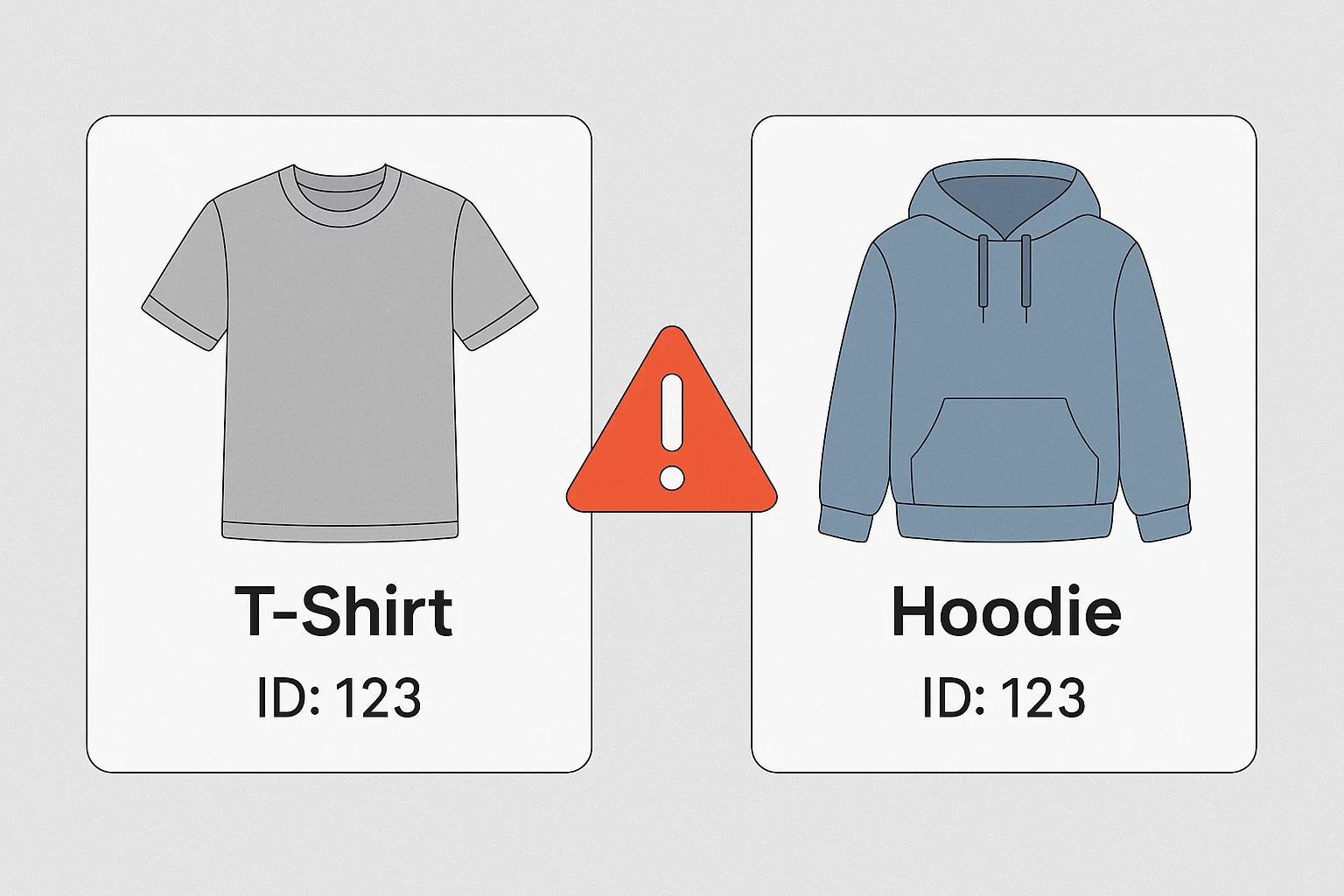
Why it happens: WordPress assigns a unique ID to every piece of content products, pages, blog posts, and even media files. These IDs are stored in the database and can’t be duplicated.
When your CSV includes a column for ID:
- If the value matches an existing post/product ID, WooCommerce assumes you want to update that entry.
- If you’re actually trying to add new products, this causes a conflict because WooCommerce attempts to overwrite an existing post instead of creating a fresh product.
This issue is common when:
- Migrating products from one site to another where IDs differ.
- Using supplier CSV files that include IDs irrelevant to your store.
- Forgetting to remove the ID column when creating a new import.
Fix:
- For new imports, remove the ID column and let WooCommerce assign unique IDs.
- For updates, use SKU as the unique identifier instead of ID.
2. WooCommerce Import Skipping Rows or Updating the Wrong Products
When importing your CSV file, some products fail to import, or existing products don’t update as expected. You may notice skipped rows in the log or overwritten product data.
Why it happens: WooCommerce uses the SKU (Stock Keeping Unit) as a unique identifier for each product and variation. If two or more products share the same SKU:
- The importer can’t decide which product to update.
- A new product might overwrite an existing one.
- Variations may not link correctly to their parent product.
This often occurs when:
- Supplier files recycle the same SKUs across multiple product lines.
- You copy/paste rows when building your CSV and forget to change the SKU.
- Variations are listed without unique SKUs, sharing the parent product’s SKU.
Fix:
- Review your CSV and ensure every row has a unique SKU.
- Use an SKU generator tool if necessary.
D. Variation & Attribute Import Problems
1. WooCommerce Product Variations Importing as Separate Individual Products
Instead of being grouped under a single variable product, variations (like Size S, Size M, Size L) import as separate simple products. This clutters the catalog, confuses customers, and makes it harder to manage inventory.
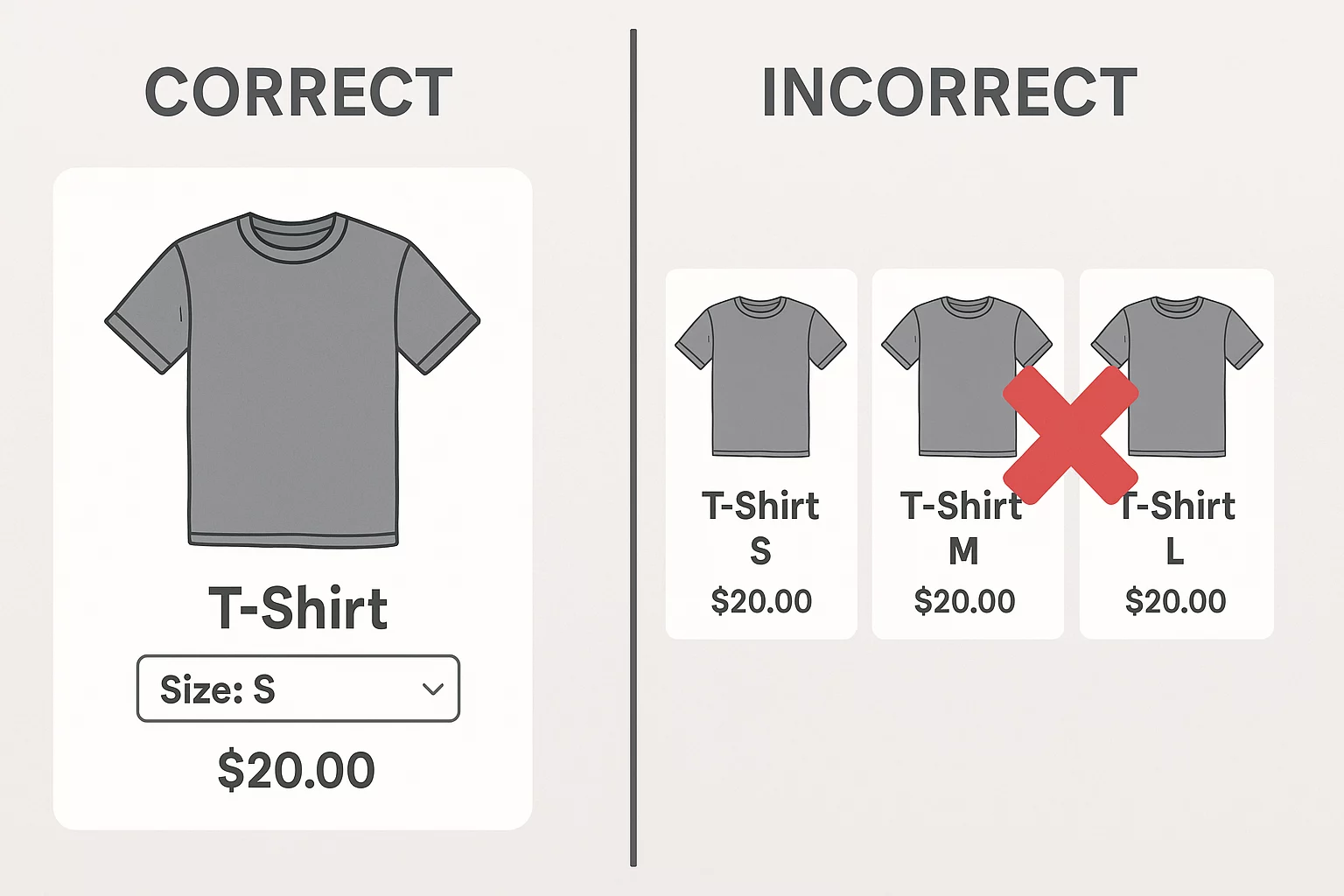
Why it happens: WooCommerce uses a parent–child relationship to link variations to their variable product. If your CSV doesn’t define this relationship properly, the importer assumes each variation is a standalone product.
Common causes:
- Missing parent product row in the CSV.
- Variation rows don’t include the correct parent reference (ID or SKU).
- Incorrect product type values (simple used instead of variable/variation).
Fix:
- Include a parent product row with type = variable.
- Each variation row should have “type = variation” and a matching parent_sku pointing to the parent product.
2. Size, Color, or Other Attribute Dropdowns Missing or Empty After Import
After importing products, the variation dropdowns (like Size or Color) are empty, or attributes don’t display at all on the product page. Variations may exist in the database, but aren’t linked properly, leaving customers unable to select options.
Why it happens: WooCommerce requires attributes to be defined and consistent across the database and the CSV. If the data in your file doesn’t align with WooCommerce’s predefined attributes, the system fails to connect them.
Common causes:
- Attributes (like Size or Color) don’t exist in WooCommerce before import.
- Incorrect column header format in the CSV (e.g., Size instead of Attribute 1 name).
- Attribute values in the CSV don’t exactly match the terms in WooCommerce (red vs. Red).
- Variations are imported without the correct attribute assignment.
Fix:
- Make sure the attribute exists in WooCommerce (go to Products → Attributes).
- Format CSV columns properly, e.g., Attribute 1 name and Attribute 1 value(s).
- Ensure attribute values match exactly (spelling, capitalization) with the terms in WooCommerce.
E. Image Import Failures
1. WooCommerce Product Images Are Missing After Import
Your CSV imports successfully, products appear in the catalog, but no images show up. The featured image slot is blank, or galleries are missing, even though the CSV contains image links.
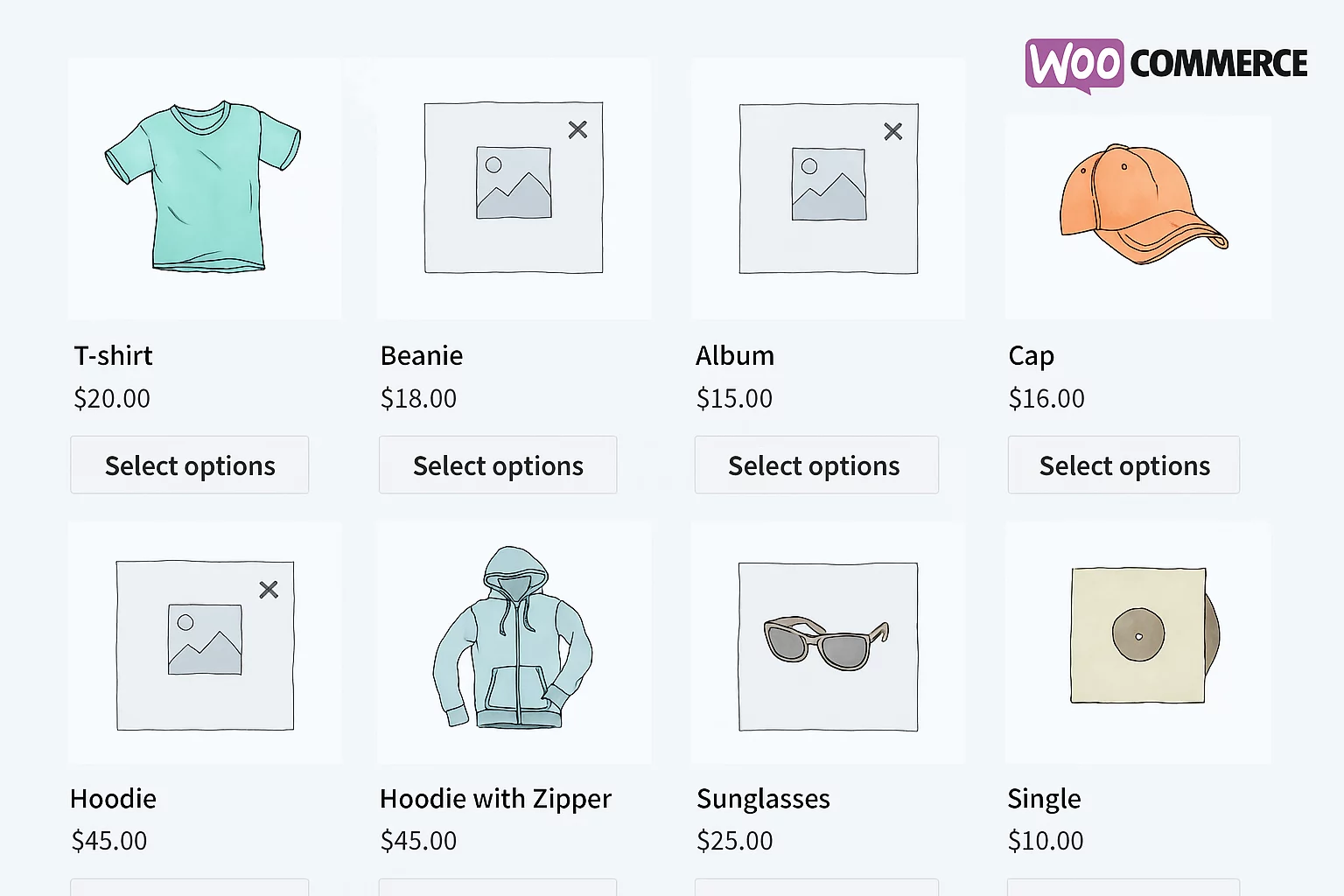
Why it happens: WooCommerce fetches images during import based on the URLs provided in your CSV. If those URLs are broken, incorrect, or inaccessible, the importer cannot download and assign them.
Common causes include:
- Broken URLs: Image links don’t exist or point to a deleted file.
- Incorrect file paths: Relative paths (e.g., /images/product1.jpg) instead of full URLs.
- Private or restricted sources: Images are hosted on a server that requires login or is blocked by a firewall/CDN.
- Slow/large image files: The import times out before images finish downloading.
Fix:
- Test each image URL in a browser to confirm accessibility.
- Ensure the server’s firewall isn’t blocking external requests.
Pro Tip: If you’re migrating from another WooCommerce site, export images directly from the media library and re-upload them to your new store before import. This avoids broken external links.
2. Featured Image or Gallery Photos Blank After WooCommerce Product Import
Products are imported successfully, but only a single image shows up. Even if your CSV lists multiple image URLs, WooCommerce only pulls in the first one. As a result, the featured image appears, but the product gallery is empty.
Why it happens: WooCommerce (and most import/export plugins) expects multiple image URLs to be separated by a specific delimiter. If the wrong separator is used or if URLs are incorrectly formatted, the importer only processes the first image and ignores the rest.
Common mistakes:
- Using spaces instead of separators.
- Mixing commas (,) and pipes (|) inconsistently.
- Forgetting to enclose multiple URLs in quotes.
Fix:
- Use the correct delimiter. Separate multiple image URLs in your CSV with the correct delimiter (commonly a comma (,) or a pipe (|), depending on the plugin).
The first URL should be the featured image, and the rest will be gallery images.
Pro Tip: Always test imports with a small batch first. This makes errors easier to spot and prevents large-scale mistakes across your store.
How to Troubleshoot WooCommerce Product Imports Systematically
When a WooCommerce product import fails, the visible error is not always the actual cause. A failed import, skipped row, missing variation, or incomplete process can originate from the source file, product structure, server environment, external resources, or the importer itself.
Instead of changing multiple settings at once, troubleshoot the issue step by step so you can isolate the cause more easily.
1. Check the Import Log
Start with the import log or error message generated during the failed import.
Look for the first error, skipped row, affected SKU, or point where the import stopped. The first failure is often more useful than the final “import failed” message because later errors may simply be a result of the original problem.
If a specific product or row is mentioned, locate it in the source file and compare it with a similar product that imported successfully.
2. Reproduce the Issue With a Small Test
Instead of repeatedly importing the entire catalog, create a smaller file with a few representative products.
If the smaller file works, gradually add more rows until the problem appears again. This can help you determine whether the issue is tied to a specific product, field, variation, image, or simply the size of the import.
If even a very small test file fails, the problem may be related to the store environment, importer configuration, or server rather than the original catalog.
3. Check the Product Structure
If the file is being read but products are imported incorrectly, inspect how the product data is structured.
Pay particular attention to product types, SKUs, attributes, custom fields, and parent-child relationships for variable products. A small mismatch can prevent variations from linking to the correct parent or cause product data to be mapped incorrectly.
If one type of product fails while others import normally, that is a useful clue that the issue lies in the product structure rather than the whole file.
4. Check Server Resources
If small imports work but larger ones stop midway, time out, or fail unexpectedly, review the server environment.
PHP memory, maximum execution time, upload limits, and general hosting resources can affect large imports. Variable products, lengthy descriptions, and remote image downloads can also increase the amount of processing required.
Before increasing server limits, confirm that the problem occurs mainly with larger batches. This helps separate a resource issue from a problem with a particular row.
5. Rule Out Site-Level Conflicts
If the file appears valid but fails only on one WooCommerce store, the site environment may be contributing to the issue.
Plugins, themes, custom code, WooCommerce settings, database conditions, or server-specific behavior can all interfere with an import.
Where possible, test the same file in a staging environment or with non-essential plugins temporarily disabled. If the file works in a cleaner setup, the issue is more likely to be site-specific.
6. Check External Sources
Some imports depend on files or resources hosted outside the WooCommerce store, such as remote CSV or XML files, FTP/SFTP locations, supplier feeds, or product image URLs.
Confirm that these resources are still available and accessible. For example, open remote URLs directly, verify FTP/SFTP paths and credentials, and check that product images can be downloaded without authentication or access restrictions.
If the import succeeds after removing or replacing the external resource, that dependency is likely contributing to the failure.
7. Escalate With Evidence
If you can reproduce the issue consistently and the source file appears valid, gather the relevant details before contacting support.
Provide the original import file, exact error message, logs, affected product or row, steps to reproduce the issue, and relevant WooCommerce or server information.
A reproducible example makes it much easier to determine whether the problem comes from the data, store environment, configuration, compatibility, or the importer itself.
The key is to avoid assuming that every failed import is an importer bug. Work through the file, product structure, environment, and external dependencies first, then escalate if the issue remains reproducible.
Importing products doesn’t have to be stressful. A few smart habits can save you hours of frustration and keep your store data clean and consistent. Here’s what to keep in mind:
1. Always Start With a Sample CSV From WooCommerce or Your Plugin
Instead of creating your file from scratch, download a sample template first. This way, you’ll have the correct column headers and formatting right from the beginning. Just copy your product details into the file, and you’ll avoid many common mistakes.
2. Keep Product Identifiers Consistent
Think of SKUs as your product’s fingerprint. They need to be unique and consistent across your store, supplier feeds, and marketplaces. If two products share the same SKU, WooCommerce won’t know which one to update, and that’s when problems start.
3. Clean Your Data Before Exporting to CSV
Before you hit the import button, spend a few minutes in Excel or Google Sheets cleaning up your data. Remove extra spaces, make sure prices are numbers (not “$20”), and check that categories and attributes match what you already have in WooCommerce. A little preparation here goes a long way.
4. Validate Your Data Before Importing
Review your product data before uploading the file to make sure values are complete, consistent, and correctly formatted. Check prices, categories, attributes, product types, image URLs, SKUs, and variation relationships. Catching these issues beforehand can prevent skipped products, incorrect mappings, and broken variations.
5. Test Before Running a Large Import
Run a small test import before processing the entire catalog. Include a mix of simple and variable products so you can verify mappings, images, categories, attributes, and variation relationships. Once the sample imports correctly, proceed with the full file.
6. Save Reusable Import Settings
If you regularly import files with the same structure, save the field mappings and import settings as a reusable template. This reduces repetitive setup and lowers the risk of mapping mistakes. It also makes recurring imports faster and more consistent.
7. Automate Regular Imports
If you work with suppliers or frequently update large catalogs, don’t do everything manually. Set up scheduled jobs, so WooCommerce can automatically pull in updated product data at regular intervals. This keeps your store fresh and saves you from repetitive tasks.
8. Use a Reliable Import-Export Plugin
WooCommerce’s built-in importer is handy, but for bigger stores, you’ll want more power. The WooCommerce product import export plugin gives you advanced filters, batch processing, error handling, and even scheduling, everything you need to keep imports smooth and stress-free.
Start by checking the import log and determining whether the problem occurs before the import starts, during processing, or after it completes. Common areas to investigate include the source file, field mapping, variable product structure, server resources, images, plugin or custom-code conflicts, and import settings.
The visible error does not always identify the root cause, so test with a small sample before making large changes.
First confirm that the products were actually processed. Check the import log for skipped rows or errors.
If they were imported, check their product status and visibility. Also determine whether existing products were updated instead of new products being created.
A large import can expose server memory or execution limits, but server resources aren’t the only possible cause.
Try a smaller batch. If the failure repeatedly occurs around the same row or product, inspect that data and any associated images or variations. If smaller imports succeed but larger ones consistently fail, server-resource limits become more likely.
The importer may not be able to identify the parent-child relationship.
Confirm that the parent is a variable product, each child is a variation, and each variation correctly references its parent. Also verify the associated attribute data.
A row can be skipped because of invalid data, identifier conflicts, mapping problems, product structure, or importer-specific validation.
Check the import log and compare the skipped row with a similar row that imported successfully.
Yes, provided the importer can reliably identify the existing product.
For workflows between separate WooCommerce stores, consistent SKUs are commonly used to match corresponding products. Review your importer’s update and matching settings before running the import.
It means the importer cannot access the specified source file. Check that the file or remote URL still exists and that the path, permissions, authentication, or FTP/SFTP configuration is correct.
Create a small, clean test file containing a few straightforward products.
If that imports successfully, gradually introduce data from the original file. If even a known-good sample fails, investigate the site environment, server, plugins, and importer configuration.
Conclusion
Product imports don’t have to be a nightmare. Yes, errors like duplicate SKUs, broken image links, or category mismatches can derail your workflow, but now you know exactly how to prevent and fix them. Most issues come down to a few simple mistakes, and with the right preparation, you can avoid them altogether.
Think of it this way: once you set up your process with clean data, consistent SKUs, and the right tools, imports become fast, predictable, and stress-free. Instead of dreading CSV uploads, you’ll know your products will land in WooCommerce exactly as intended.
The best part? You don’t have to do it all manually. With a reliable solution like WebToffee’s Product Import Export Plugin for WooCommerce, you get advanced filters, scheduling, batch processing, and built-in error handling, all designed to take the guesswork out of imports.
We hope this guide has given you clear insights into the most common WooCommerce product import issues and practical ways to prevent them before they cause headaches.
Got questions or stuck on a tricky import? Drop your comments below. We’re always happy to help and guide you through the process.
Thanks for reading, and here’s to smoother, error-free imports for your store!


Subcribe to our newsletter