


Share:


Table of Contents
You can easily enable quote inquiries for WooCommerce variable products using the WebToffee Request a Quote plugin, trusted by more than 30,000 WordPress store owners. A quote inquiry allows customers to select specific product variations, such as size or color, and request a custom price instead of purchasing the product directly.
With this plugin, you can configure the quote settings to enable the Add to Quote option for variable products in just a few steps.
In this article, we’ll explain how quote inquiries work for variable products and show you how to enable the Request a Quote feature in WooCommerce to strengthen buyer intent. We’ll also walk through a simple example to demonstrate how quote inquiries behave across different variation statuses.
Key Takeaways
- Quote inquiry helps WooCommerce stores handle variable products with custom pricing for bulk orders.
- WooCommerce quote inquiry keeps out of stock variations active and continue sales conversion.
- By collecting preferred pricing and notes at enquiry stage, store owners can reply with targeted quotes and turn complex enquiries into confirmed orders.
- The request a quote plugin by WebToffee helps website owners to enable a Add-to-Quote for WooCommerce variable products.

Many WooCommerce stores reach a point where fixed pricing cannot cover every buying scenario. This is especially true for products with multiple variations. Each variation carries its own price and stock level, which makes the standard “Add to Cart” checkout feel restrictive.
This is where the quote inquiry becomes practical. Stores use it so customers can ask for a price instead of purchasing instantly. Adding a quote inquiry button works well for businesses that need flexibility in how they quote different variations of the same product.
Some common situations where adding a “Quote Inquiry” button is beneficial can include:
- B2B bulk orders where buyers request negotiated pricing
- Items with unstable pricing such as metals or construction materials
- Customizable products that change based on requirements
- Out of stock variations where shoppers still want availability details
Variable products add one more layer. A single product may have several thicknesses, colors or sizes, each with its own stock count and pricing. A quote inquiry feature helps WooCommerce store owners step in, offer a custom rate, and secure the lead before shoppers move elsewhere.
To explain the quote inquiry setup in the easiest way, let’s use a simple product example. Imagine a store that sells premium steel sheets in multiple thickness options. Each option has its own price and stock count. This gives shoppers flexibility, yet it also creates situations where a fixed price does not always match a customer’s requirements.
Product: Premium Steel Sheets available in variations: 1 mm, 2 mm, and 3 mm thickness. Each variation carries different pricing and availability:
| Product Variation | Price | Stock Level |
| 1 mm | $20 | 50 |
| 2 mm | $25 | 0 |
| 3 mm | $27 | 10 |
This example highlights several points.
- A customer may want a special rate for a large order.
- A variation may be unavailable, yet the shopper still wants to ask for lead time.
- Pricing can fluctuate, which encourages customers to ask for a revised amount.
In this example, the 2 mm sheet has no stock. Instead of losing the customer, you can show a quote inquiry button so they can request pricing or delivery details. This keeps the product active even when stock changes and allows the store owner to engage with potential buyers.
Now that you understand the benefits of enabling a quote inquiry option in a WooCommerce store, the next section will guide you through the steps to enable quote inquiries for all variable products using the Request a Quote plugin.
Now that the example is set, let’s walk through how to activate quote inquiry for variable products in WooCommerce.
The Request a Quote plugin for WooCommerce by WebToffee allows store owners to set up a comprehensive quote management system for their online store. It not only enables quote inquiries for variable products but also offers extensive functionality across all product types.
The plugin lets you add quote requests to specific products, out-of-stock items, or all products, replace add to cart with an add to quote button, hide product prices, enable quote inquiry email notifications, and more. The plugin is user-friendly and ideal for businesses looking to manage customer quotes efficiently within the WooCommerce ecosystem, making it a practical alternative to many other WooCommerce quote request plugins.
1- Install and Activate the Request a Quote Plugin
Start by adding the plugin to your store. Once activated, the Request a Quote plugin adds a Quotes menu, where you can configure various quote settings such as enabling the quote button, setting up the inquiry form, and applying customizations.
2- Set Up Variable Products in WooCommerce
If you already have variable products in your store, you may skip this step. However, if you’d like a quick overview of how to set up WooCommerce variable products, follow the steps below:
- Go to the Products menu and click Add new product to create a new variable product in WooCommerce.
- Give the product a name. Eg: “Premium Steel Sheets”. Optionally, you can mention the available variations in the description.
- Next, scroll down to the Product data widget and select Variable product from the dropdown menu (instead of the default Simple product).
- Then, go to the Attributes sub-menu and add the “Thickness” attribute to the variable product as shown below.

- Click Save attributes.
- Next, go to the Variations sub menu, and click the Generate variations button to auto-generate the product variations based on the “Thickness” attribute.

- WooCommerce will now generate three variations of the product. You’ll need to update the price and stock level for each.
- Click on the variation to expand it and bring to view additional fields like price, stock status, weight, etc. Enable the Manage stock? option to enter the stock quantities.
- Repeat the process for each variation, then click Save changes.

- Finally, click on Publish to make the product live.
Now that we have successfully set up WooCommerce variable products, let’s move on to setting up a quote inquiry for these variations. You can choose to enable quote requests for all variations or only for those that are out of stock. We’ll cover both cases of adding a quote inquiry in this setup.
3- Enable Quote Inquiry for All Product Variations
To enable the Request a Quote or Inquiry button for WooCommerce product variations:
- Go to Quotes > General > Inclusion list
- Click on Add new inclusion, choose “Product” and choose the parent product.

- Click Add button to include the product and its variations in the WooCommerce quotable products list.
- Then, click Update settings to activate the changes.
Next, switch to the General settings tab under the Quotes menu to configure the request quote button settings.
- In the Show ‘Add to quote’ button for products, choose the Based on inclusion list option.
- You can hide the add to cart button and prices by configuring the corresponding settings within the same dashboard.
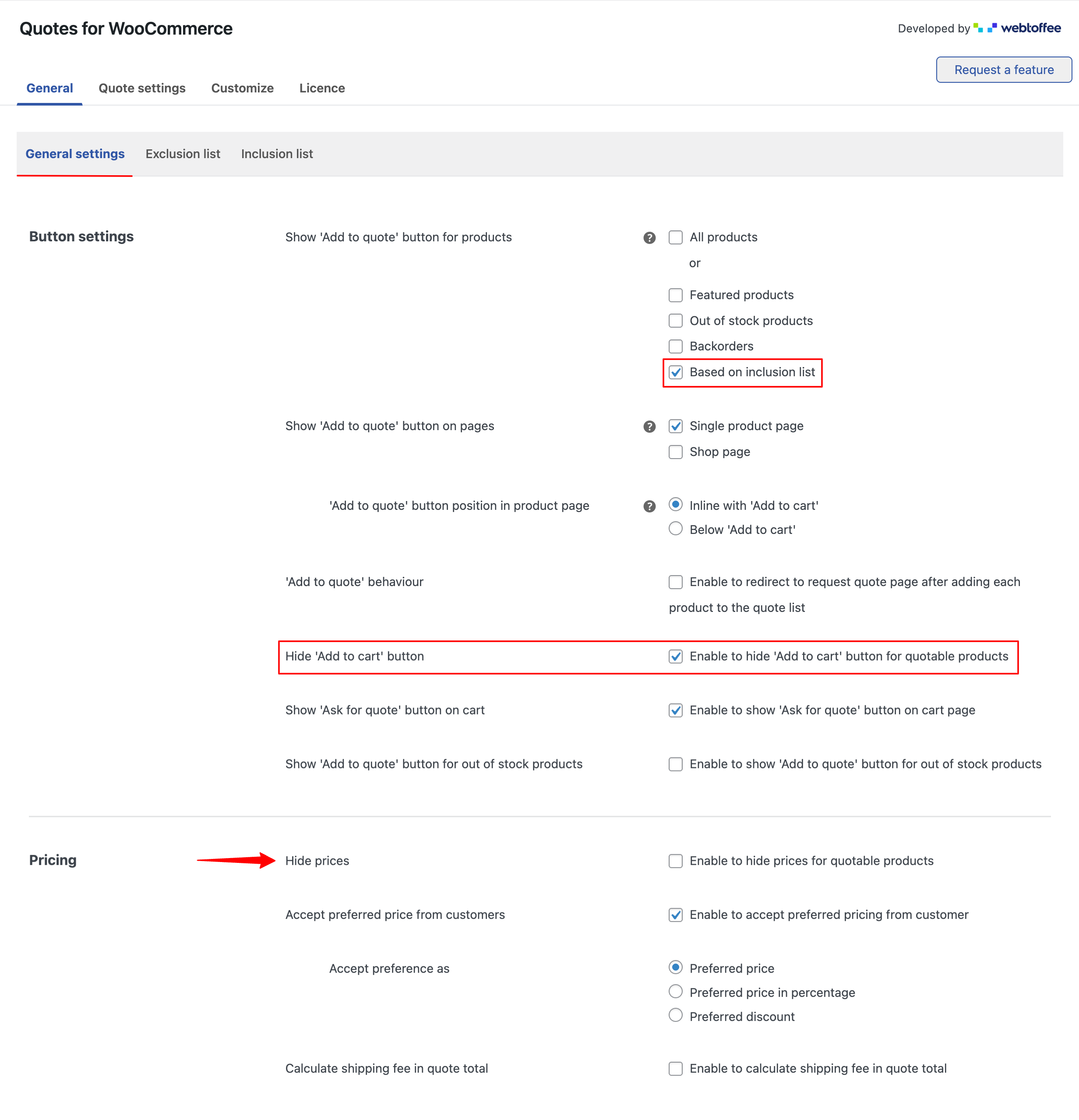
- Once reviewing all settings, click Update settings.

4- Enable WooCommerce Quote Inquiry for Out-of-Stock Variations Only
Now, if you want to enable the quote inquiry settings only for out-of-stock variations only, you can do the same using the request a quote plugin. To do so, first remove the parent product from the Inclusion list.
Then, go to the General settings tab, in the Show ‘Add to quote’ button for products, choose the Out of stock products, and click Update settings.

This allows each variation to independently show or hide the quote button. For e.g., if the 2 mm sheet variation is out of stock, it will display the quote button, while available variations will retain the “Add to Cart” button.

This setup helps you show the quote option only for items that require restocking details.
5- Add an Inquiry Field to WooCommerce Quote Forms (Optional)
By default, the quote inquiry forms enabled via the WooCommerce request a quote plugin enables three input fields, name, phone, and email address. You can add a custom field, like say “Message” field, so customers can provide specific details about their inquiry. To add a custom field,
- Go to Quotes > Quote settings > Request a quote page and scroll down to Form settings.
- In the Form fields setting, click on Add field to add the custom field to the request a quote form.
- In the opening dialog box, select the field type, enter a label, choose a placeholder text, and mark if the field is mandatory.

- Once configured, click Add.
- Click on Update settings.
Note: You can include a general note or message field that allows customers to provide additional information. Since this is open text input, set it as an unconnected field (SELECT). The plugin will store this information with each quote request, and store admins can view it on the quote request detail page.
This field helps add context to inquiries, allowing store owners to respond more effectively.
That’s it! You’ve now successfully set up quote inquiry options for WooCommerce variable products using the plugin. You can choose to enable it for all variations or only for out-of-stock variations.
Next, let’s take a brief look at the customer workflow – what happens once a customer clicks the quote inquiry button.
Let’s look at how the quote inquiry process unfolds from the shopper’s side and how store owners handle the WooCommerce quote request afterward. This gives readers a clear picture of the experience assisted by the request a quote plugin.
A customer visits the product page and selects a variation. They chose the 2 mm thickness, which has no stock. The quote inquiry button appears, so the shopper decides to make an inquiry. They fill in their details.

After submitting the inquiry, the quote request reaches the store admin for review.
Once the inquiry arrives, the admin can take several actions based on the customer’s message and the variation selected. They can reply with a custom offer, update the price for that variation, share an alternative product, or notify the customer once stock becomes available. The admin can then convert the inquiry into an order once the customer accepts the quote.
People Also Ask
Yes. This plugin lets you customize the request a quote button directly from the Customize tab. You can control button color, text, background, and styling so that the quote inquiry button blend naturally with product pages.
The request a quote plugin for WooCommerce includes an option to generate and send quotes automatically. When you enable this setting, the system sends a quote email to the customer using the saved product prices.
Yes. The WooCommerce quotation plugin provides a setting that shows an “Ask for quote again” link for the same quote list. When enabled, customers can resend a quote inquiry without repeating the entire process.
Wrapping Up
Quote inquiry gives stores more control over how they handle variable products, especially when pricing shifts or stock levels vary. It keeps interested buyers from leaving the product page and encourages direct communication before they make a decision. This works well for B2B buyers, bulk orders, and products that rely on custom pricing.
A flexible quote system ensures every variation stays relevant even when stock changes. It also creates an opportunity for store owners to offer accurate pricing and convert more inquiries into confirmed orders. WebToffee’s request for a quote plugin supports these use cases with clear controls and a quote inquiry process that feels simple for both sides.
That’s it, folks! We’ve reached the end of this guide on how to easily set up quote inquiries for WooCommerce variable products. You now know how to enable or disable quote inquiries for specific variations with just a few clicks.
We hope you found this article helpful. Thanks for reading!


Subcribe to our newsletter





