


Auto-apply coupons simplifies the checkout process for customers by automatically applying eligible discounts without the need for manual entry.
To automate your discounts, follow these steps:
- Create a Coupon: Navigate to Smart Coupons > Add Coupon.
- Enable Automation: Under the General tab, scroll down and check the Apply Coupon Automatically box.
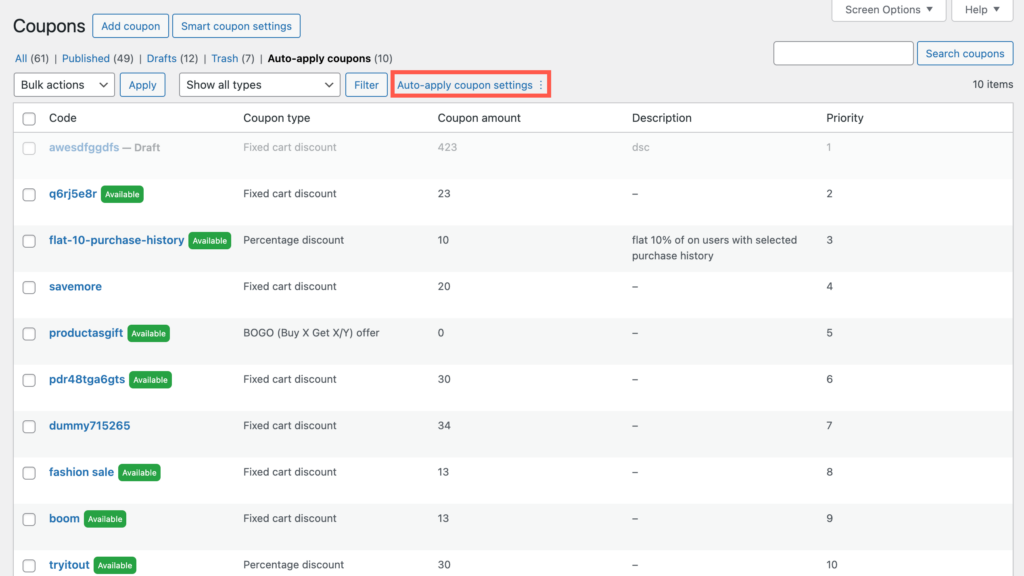
- Manage Priority: View and organize your automated offers by navigating to Smart Coupons > All Coupons > Auto-apply coupons, where they are listed by priority.
- Optimize Performance: Adjust settings such as the Max auto-apply coupons per cart (default is 5) or the number of coupons checked for eligibility to improve store processing time.
This feature enhances user experience and helps reduce potential errors. The Smart Coupons for WooCommerce lets you integrate this functionality into your store for free.
Get started
- First of all, install and activate Smart Coupons for WooCommerce.
- Go to Marketing > Coupons from your WordPress dashboard.
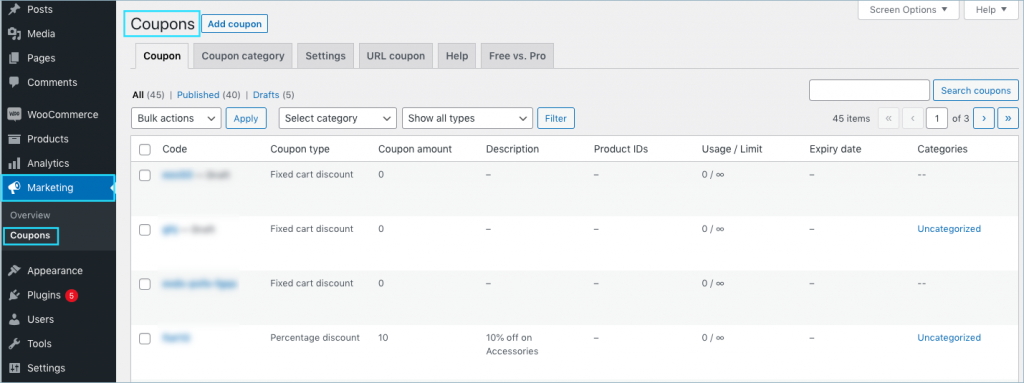
Steps to Create an Auto-Apply Coupon
- Click on Add Coupon to create a new coupon.
- Enter the Coupon Code and Description in their respective fields.
- In the General tab, configure the Discount Type and Coupon Amount.
- Scroll down and enable the Apply Coupon Automatically option.
- Click on Publish to save the coupon.
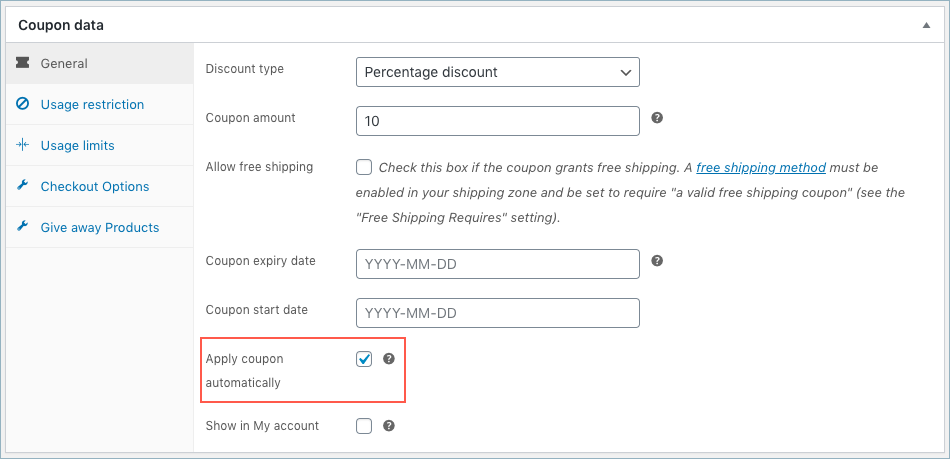
The above-configured coupon is a simple coupon that will auto-apply to the cart.
Manage Auto-Apply Coupons
To manage auto-apply coupons efficiently, navigate to Smart Coupons > All Coupons > Auto Apply Coupons. This page lists all auto-apply coupons based on priority, higher-priority coupons first.
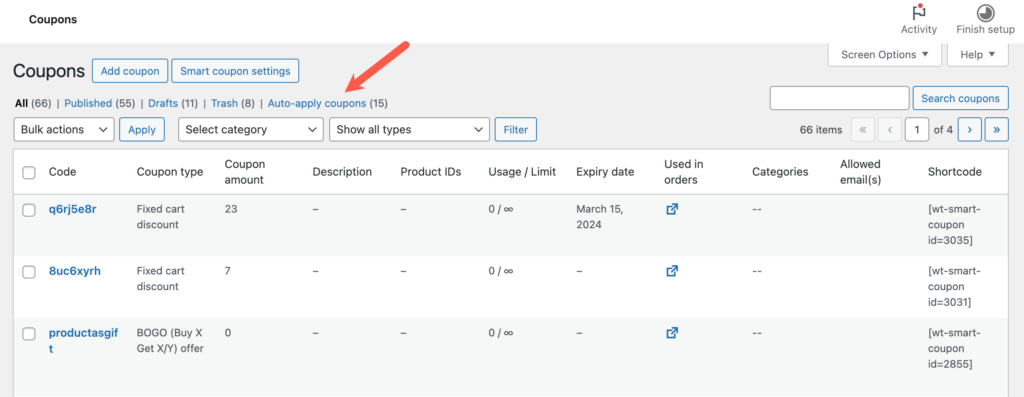
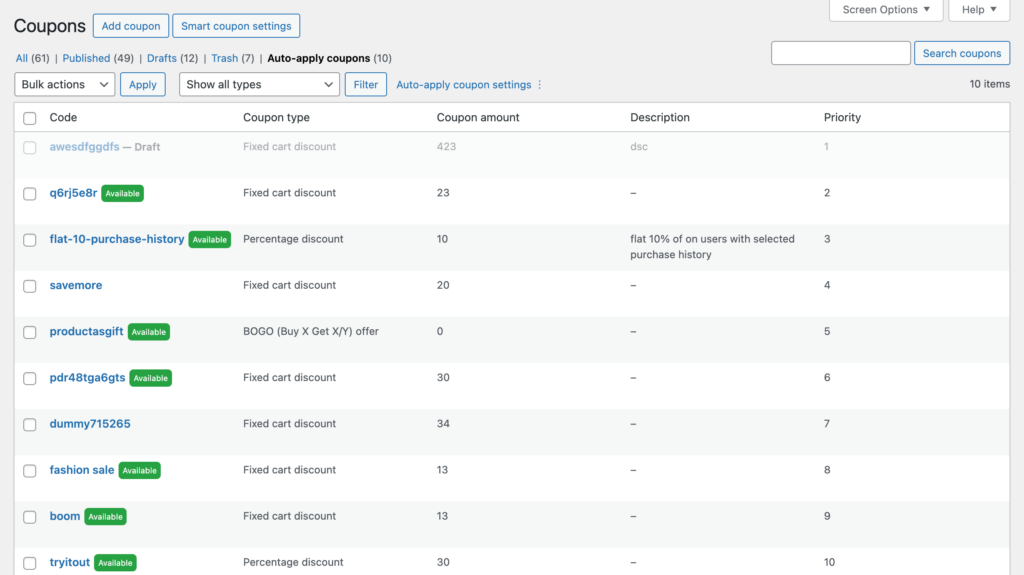
How the auto-apply coupon works
The plugin checks for applicable auto-apply coupons on adding a product to the cart. The following settings determine the number of coupons checked:
- Max auto-apply coupons per cart : By default, this is set to 5.
- No of coupons will be checked for auto-apply eligibility: All available auto-apply coupons are checked by default.
The plugin actively scans until it finds up to five eligible coupons for the cart. To improve processing time, limit the number of coupons checked for auto-apply eligibility.
Alter auto-apply coupon settings
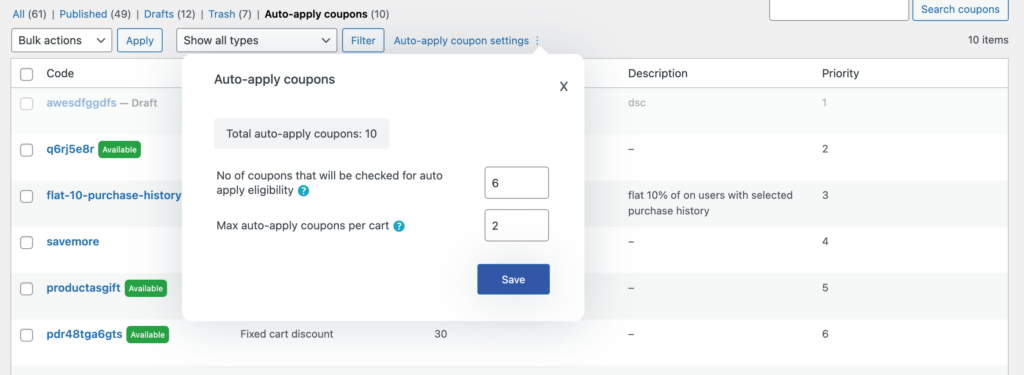
To adjust the number of coupons checked for auto-apply eligibility and the maximum number of auto-apply coupons allowed for a cart:
- Select Auto-apply coupon settings from the auto-apply coupons page.
By default, the values are:
- Max auto-apply coupons per cart = 5
- No of coupons will be checked for auto-apply eligibility = Total number of auto-apply coupons available in the store.
- Modify these values as needed and click on Save Settings to apply changes.

John
December 15, 2023
Hello, thanks for this plugin.
Auto-apply coupons have a bug. This coupon has an error when setting start date and end date. The start date works fine, with my local time (UTM – 5 Bogota – Colombia), but the end date takes UTM time, therefore the coupon is deactivated in my case 5 hours before the end of the day. This bug is for auto-apply coupons only.
I use the plugin to provide free shipping on specific days, if this error can be fixed it would be perfect.
Arjun
December 18, 2023
Hi John,
Thank you for reaching out to us. Sorry to know that you are experiencing this issue. Please feel free to get in touch with our support team for direct assistance.
Claire
November 21, 2022
I have set up my code, I have enabled discount to cart, but im still not getting the discount applied. help!!
Mike
November 22, 2022
Hi Claire,
Sounds like you need some technical assistance. Please visit the support page for technical assistance: https://www.webtoffee.com/support/
Fabio Gobetti
February 14, 2022
Hi, the plugin is great! Just one question. I have created many coupons that cannot be used with other coupons.
I have also created a self-applying coupon, is it possible to make this self-apply even if there is already a coupon that does not include other coupons?
Mike
February 27, 2022
Hello Fabio,
Thanks for reaching out to us. We understand your requirement. Presently our plugin doesn’t offer any options or tweaks to auto-apply coupons if the already added coupon has the “individual use only” option is enabled.