


The WebToffee Smart Coupons for WooCommerce free plugin lets you offer free giveaway products to your customers via specialized coupon codes. To set this up, go to Smart Coupons > Add Coupon in your WordPress dashboard and navigate to the ‘Giveaway Products’ tab. You can add a specific product to the cart for free, or even let customers choose their gift from a selection at checkout. By combining this with ‘Auto-Apply’ settings, the giveaway item will appear in the cart the moment your customer meets your store’s promotional requirements.
This guide explains how to create a coupon that offers giveaway products and how to set giveaways at a discount, such as BOGO offers or Spend X, Get Y.
Get started
- Install and activate the Smart Coupons plugin on your WordPress site.
- Navigate to Marketing > Coupons in your WordPress dashboard.
- Click Add Coupon to create a new coupon.
Create a coupon with a free giveaway product
You can link a single product to a coupon so that it’s added to the cart for free when the coupon is applied.
Step 1: Add a New Coupon
- Create a coupon by clicking Add Coupon.
- Enter a coupon code manually or click Generate Coupon Code to generate one automatically.
- Add a description for the coupon to make it easier to identify.
Step 2: Configure the Discount Type
- Go to Coupon Data > General and choose one of the following discount types:
- Percentage discount
- Fixed cart discount
- Fixed product discount
- Set up all the other required coupon configurations as per your requirements.
- If your intention is only to provide a free product and no other discounts, select a coupon type and keep the value as zero.

Step 3: Set Giveaway Product
- Navigate to the Giveaway Products tab.
- From the Free product dropdown, select the product you want to add as a giveaway.
- This product will be added to the customer’s cart automatically when they apply the coupon at checkout.

Step 4: Publish the Coupon
- Set any additional coupon restrictions as needed (e.g., usage limits or product categories).
- Click Publish to make the coupon live.

Offer Giveaway Products at a Discount
Instead of giving away a product for free, you can set it at a discounted rate. This allows you to create offers such as:
- Buy X, Get Y at a Discount
- Spend X, Get Y at a Percentage Discount
Step 1: Configure a basic BOGO coupon
- Go to Marketing > Coupons and click Add Coupon.
- Provide a coupon code or use the Generate Coupon Code option.
- In the Coupon Data > General tab, choose BOGO (Buy X Get X/Y offer) as the Discount type.
- Configure any other coupon settings as required.
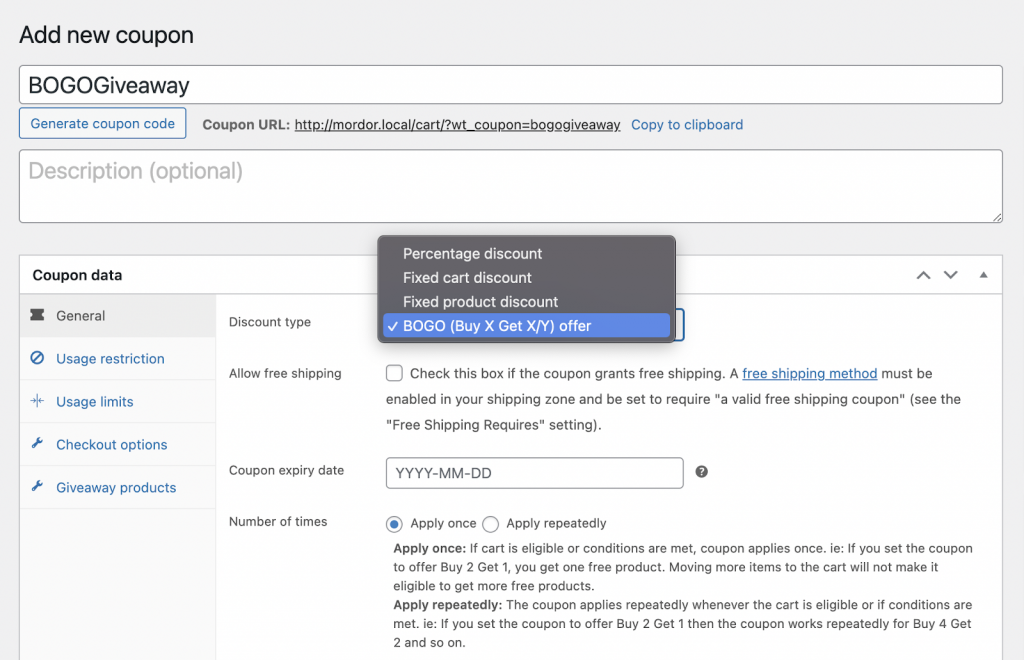
Step 2: Add a discounted giveaway product
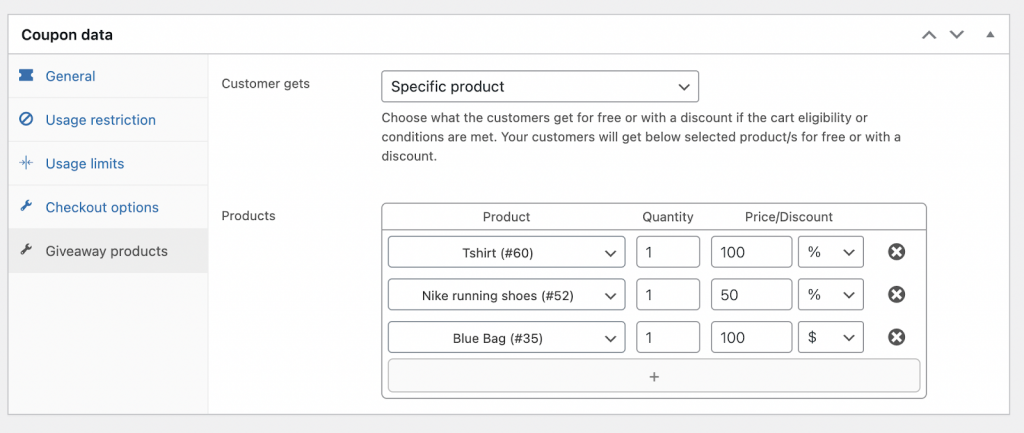
- Open the Giveaway Products tab.
- Select the product you want to offer as a giveaway from the dropdown.
- Specify the quantity and the price discount or percentage discount.
- Tip: To offer the product as a freebie, set the Discount to 100%.
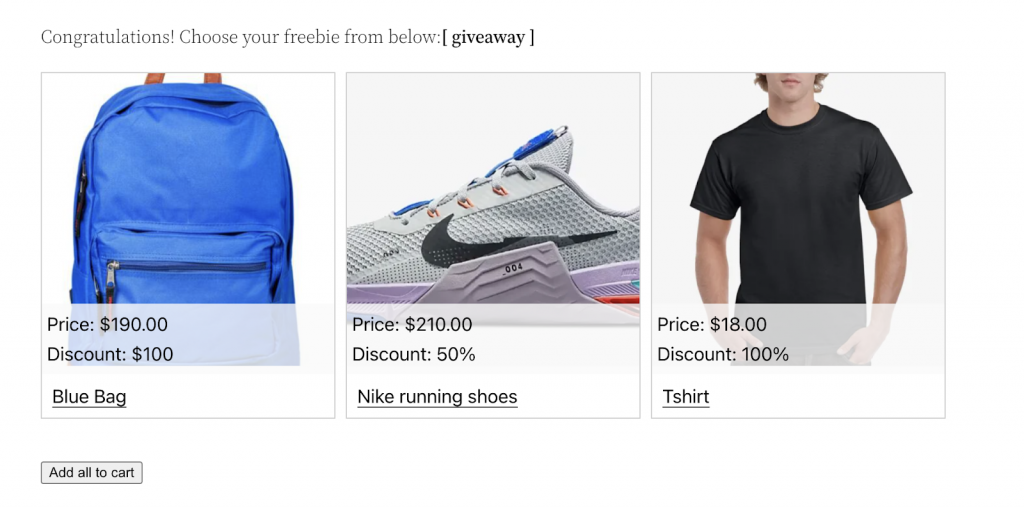
Note: All giveaway products must be added to the cart together. Customers cannot select individual products from the giveaway offer.

Comments (2)
Semsedin Senol
October 12, 2022
Dear Smart Coupons Team,
Good day,
I am starting creating a new website and i am facing issues regarding choosing right coupon plugin.
My company wants to provide following style of coupons.
At every order received 3 coupons code should be provided as follows:
Today 12 October 2022 Nick have placed an order
Nick will receive a coupon code valid for 60 days for him self with 1 free product on next order.
Nick also will receive 2 coupons with unique codes for another 2 friends with validity for 10 days. (same buy 1 get 1 free)
These coupons we intend to print them and place in package and will be visible when Nick will open the package.
In the same time we need to implement them via email automation and remind to Nick that 3 days, 1 day until coupon will expire.
I hope this message clarify my needs and i hope i can get support from your team
Thanks
Semsedin Senol
Mike
November 8, 2022
Hi Semsedin,
Thank you for sharing your use case with us in detail. It was very helpful in understanding your requirement easily.
Unfortunately, it is not possible to send coupons for all orders. The gift coupon feature is limited to individual products. So it requires a lot of effort to add three different gift coupons to all products individually. Regardless, it is possible to configure 60 days and 10 days of expiry to the coupons. But the gift coupon can be sent to the user or to any email. We can’t restrict that to a specific option depending on the expiry date or any other factor.
The gift coupons are sent through emails to the user or to the email they choose. But, presently there is no option to send a reminder mail informing about the expiry date. I hope it is clear.