


Introduction
EU consumer rights law requires merchants to clearly communicate withdrawal terms to customers what can be withdrawn, within what timeframe, and under what conditions. Writing and maintaining this policy manually is time-consuming, and it’s easy for it to fall out of sync with your actual plugin settings (excluded products, categories, or product types).
The Webtoffee’s EU withdrawal button for WooCommerce solves this by creating a policy page automatically and kept in sync with your live configuration.
Keeping your withdrawal policy synced with your actual exclusion rules avoids a common compliance gap and publishing terms that don’t match what the plugin actually enforces. Since the excluded products, categories, and product types stay dynamic, you don’t need to manually update the page every time your rules change.
How It Works
The generated page uses dynamic shortcodes that pull directly from your Rules & Exclusions settings excluded products, categories, and product types , so the published policy always reflects your actual store rules without manual edits.
Setup Steps
Step 1: Open General Settings Go to WooCommerce → Withdrawals → Settings → General and locate the Withdrawal Terms & Conditions section.
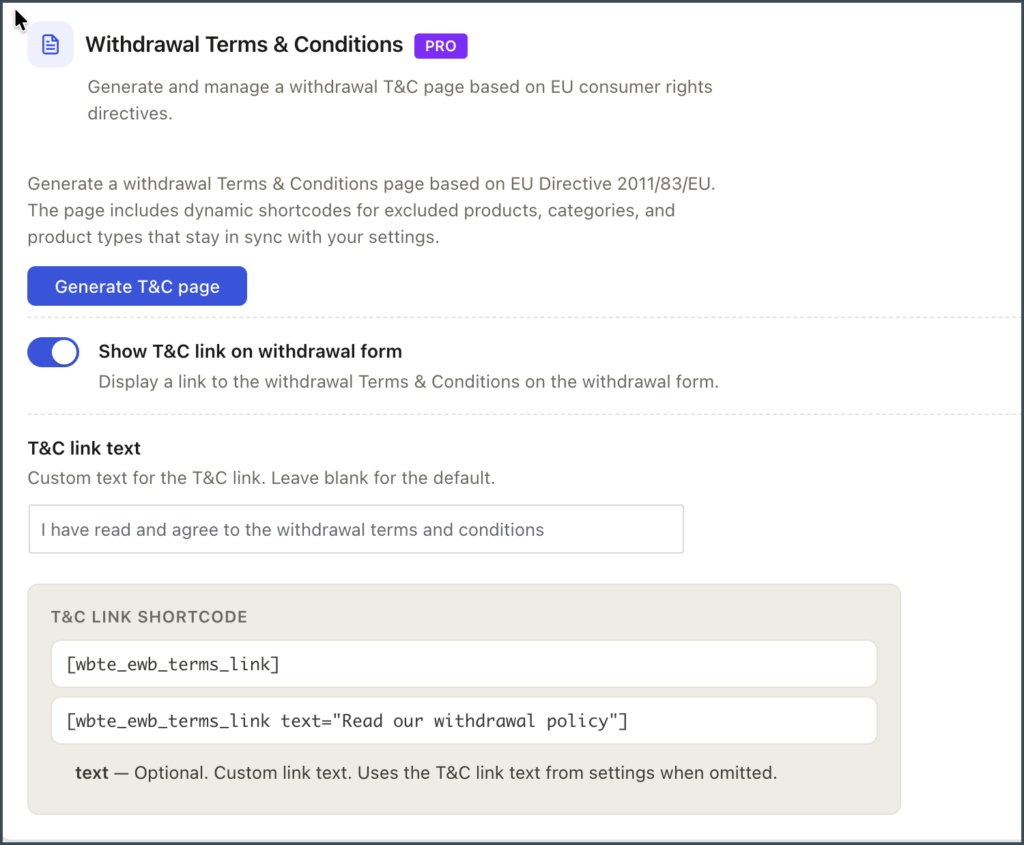
Step 2: Generate the Page Click Generate T&C page. This creates a new page pre-filled with withdrawal terms, along with the dynamic shortcodes for your exclusions.


Step 3: Show the T&C Link on the Withdrawal Form (Optional) Toggle on Show T&C link on withdrawal form if you want customers to see a direct link to this policy while submitting a request.

Step 4: Use the T&C Link Shortcode Elsewhere (Optional) To link to the T&C page from other parts of your site, use:
[wbte_ewb_terms_link]
Or with custom link text:
[wbte_ewb_terms_link text="Read our withdrawal policy"]
| Attribute | Required | Description |
|---|---|---|
text | No | Custom link text. Uses the T&C link text from settings when omitted. |
