


Share:


Table of Contents
This blog post will cover everything you need to know about coupon URLs in WooCommerce, including how to set up auto-apply coupon with URLs using a Woocommerce free plugin. We’ll also explore advanced URL features available with the premium URL Coupons for WooCommerce plugin, which offers additional customizations and QR code support.
Who wouldn’t love a smooth, no-hassle shopping experience, especially when it comes to discount applications? 🤩
However, manually entering coupon codes can interrupt the flow and even cause some shoppers to bounce in search of better deals. That’s where a smarter approach comes in: using WooCommerce coupon URLs.
With this method, you can auto-apply coupon codes via URL in WooCommerce, allowing customers to access discounts instantly. Whether it’s a flash sale, email promotion, or social media offer, you can add coupons via URL and make the entire checkout experience seamless.
Key Takeaways
- URL coupons are promotions or discounts auto-applied to the store via a specific coupon link or URL.
- Learn how to set up auto-apply coupon URLs in WooCommerce using a free plugin.
- Access advanced WooCommerce coupon URL features with a premium WooCommerce plugin.
Coupon URLs are shareable WooCommerce discount links that automatically apply the discount when clicked. This adds convenience to the checkout process, allowing customers to apply coupons with a single click and eliminating the need to copy-paste coupon codes.
While WooCommerce doesn’t offer a built-in feature to generate auto-apply coupons or apply coupons with URLs, you can use the free Smart Coupons plugin to create them. For more advanced coupon URL features like generating coupon QR codes, setting custom redirect pages, attaching products to URLs, and more, the URL Coupons for WooCommerce plugin is here to help.
What are the benefits of offering URL coupons in WooCommerce?
- Drive customer engagement
- Easy to track
- Reduces cart abandonment
- Incentivize loyal customers
- Improves conversions
- Utilized for affiliate marketing
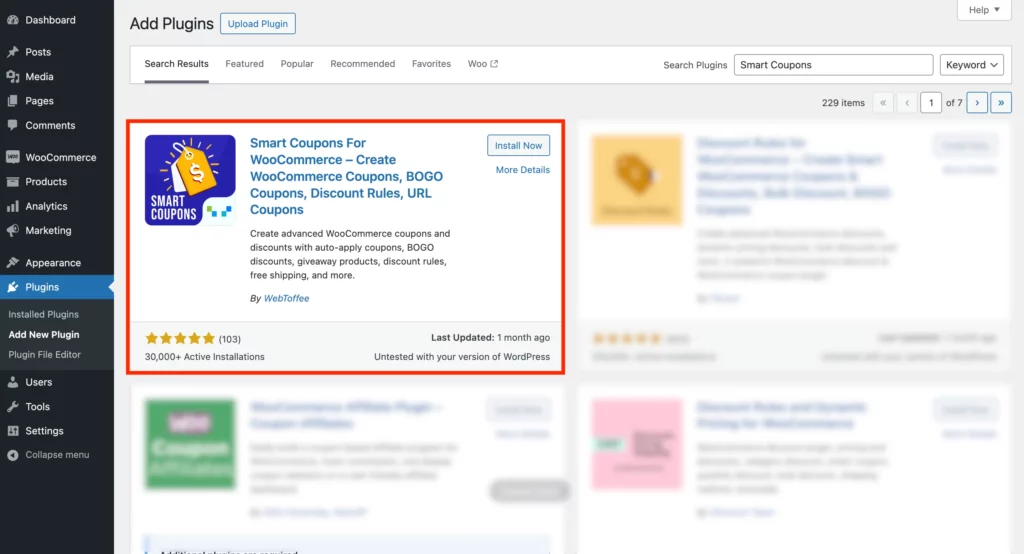
In order to generate coupon URLs using a free plugin, first install and activate the Smart Coupons for WooCommerce plugin from the WordPress directory. Then, follow the remaining steps.
Step 1: Create a URL Coupon
Start by creating a coupon, just as you would with the default WooCommerce coupon feature. Navigate to Smart Coupons > Add Coupon to create a new coupon. After entering a unique coupon code or generating one, you’ll notice an option to Copy coupon URL.
Also, don’t forget to enable Apply coupon automatically checkbox in the Coupon data widget to create auto-apply coupons with URLs in WooCommerce.
Step 2: Setting Advanced Coupon Conditions
Next, configure the coupon URL according to your specific requirements and click Publish. Don’t forget to copy the coupon URL. Once copied, you can embed it into a button or share it via email, popups, SMS, and more.
This pretty much sums up how to generate WooCommerce apply coupons with URLs using the free plugin. Beyond the URL feature, this advanced WooCommerce coupon plugin offers next-level capabilities, such as BOGO deals, usage limits, and restrictions based on products or categories.
Using the advanced URL Coupon for WooCommerce plugin, you can attach products with WooCommerce coupon URLs, redirect them to custom set pages, and more.
You can also generate a QR code corresponding to each coupon, just like the coupon URL, and download them with the premium plugin. When a user scans the QR code (provided the underlying coupon conditions are met), the respective coupon code will be automatically applied to the cart.
If you’re looking to simplify your discount strategy while offering more personalized and engaging promotions, pairing Smart Coupons with WooCommerce URL Coupons is a smart move. While URL Coupons help remove friction by auto-applying discounts and directing shoppers to specific pages, the WooCommerce coupon plugin unlocks advanced coupon features like BOGO deals, free gifts with purchases, bulk coupon creation, and detailed cart rules.
With WebToffee’s WooCommerce Coupon Bundle, you can:
- Reward customers with free products for eligible purchases
- Generate and manage various WooCommerce coupon types
- Set conditions based on order value, cart contents, or user role
- Run dynamic BOGO and tiered discount campaigns
- Offer store credits and gift card coupons
- Redirect customers to custom URLs
- Add countdown timers and banners to highlight offers
- Assign add-to-cart items to coupon discounts
- And many more.
Conclusion
The URL coupons are a better alternative than the usual coupon code fields. Manually entering coupon codes is a real conversion killer, as customers often leave your site searching for coupons and may not return.
WooCommerce marketing with coupon URLs gives you the flexibility to redirect the customers to the cart and automatically apply coupons without any manual intervention. The QR code coupon features of the advanced URL coupons plugin are a good way to make your promotional campaigns effective.

Got any query? Please leave a comment or reach out to our support
Got any query? Please leave a comment or reach out to our support

Subcribe to our newsletter


Comments (8)
Wouter
November 21, 2023
We have Automate Woo for referals. But now when customers receive the referal they have to remind the code, then select a product, then add to cart and add the referal code.
We want to add the code after they click (in the mail or WhatsApp), then they land in the shop where people decide which product they want and after they add their product to the, the coupon will automatically apply.
So noone needs to remember the (long) coupon code or re-open the mail or WhatsApp for the copy-paste of the code.
Can this plugin do that?
Arjun
November 23, 2023
Hi Wouter,
Thank you for reaching out. With the URL coupon, when a customer clicks on the link, they will be directed to the store, and the coupon will be applied automatically. Additionally, if you wish to automatically add a specific product(s) to the cart upon clicking the link, that’s possible as well. For more information, refer to this article.
coupon
March 14, 2022
Thanks for the great sharing. It really helps me and everyone a lot.
Paiboon
July 27, 2021
Hi,
I want to know if your plugin can do this. I can make a picture or text with a keypad. When a user clicks on it, the coupon code will be stored in that user immediately. without being able to click twice like this again.
https://1drv.ms/u/s!AifVBNS8N5OIg44mFUjQgrhrXBsEZg?e=koLIwVMy company will start buying plugins in the middle of next month.
Thank you.
Mark
July 29, 2021
Hi Paiboon,
Please submit a ticket via the support page detailing the requirement. The shared file is not accessible.
Mrs Carole Jones
January 29, 2021
the coupon only seems to trigger when i have the coupon code box showing on the front end. If i remove that the discount is not applied automatically. I am using the free version. Any ideas?!
Mark
February 4, 2021
We have tested it and it is working correctly in our testing site and in fact in this website itself, it is working that way.
Please submit a ticket here with the site details, order number of purchase and coupon url.
Finesse Coupon
June 26, 2020
Useful information!!
Thanknyou for sharing this.