


Share:


Table of Contents
Are you looking for a way to update product field values in bulk, such as product prices and quantities? If so, you’re in the right place. This article will show you how to bulk edit WooCommerce products using the Product Import plugin.
Updating product details in bulk isn’t just convenient, it’s a huge time-saver for keeping your store running smoothly. It allows you to quickly adjust prices, descriptions, and other important information across multiple products, ensuring everything stays consistent.
On top of that, bulk updates make it much easier to grow your store and remain competitive. You can react to market changes more swiftly and ensure your listings are always current.
In this guide, we’ll walk you through how to bulk edit WooCommerce products using two different methods: WooCommerce’s built-in bulk editing features and the free version of the WooCommerce Product Import plugin by WebToffee.
Whether you’re fine-tuning pricing, managing stock, or refreshing product information, these methods will help you keep your store organized and up to date with minimal effort.
Key Takeaways
- Bulk updating product field values is an excellent way to make changes to multiple products simultaneously, reducing time and effort and ensuring consistency.
- Specialized plugins, such as WebToffee’s Product Import plugin, enable you to bulk edit WooCommerce products with minimal effort, giving you the confidence to manage your store effectively.
Bulk updating your WooCommerce products isn’t just about convenience; it’s about keeping your store efficient, accurate, and competitive. As your catalog grows, managing hundreds (or even thousands) of items can become a serious challenge.
Here’s why having the ability to bulk edit WooCommerce products matters so much for any store owner:
1. Keep Product Listings Consistent Across Your Store
Inconsistencies in product data, such as mismatched prices or missing details, can confuse customers and damage your credibility. Bulk updates help you make sure every product follows the same format, pricing rules, and naming conventions, giving your store a more polished and trustworthy look.
2. Save Time When Editing Product Data
Instead of manually editing each product one by one, bulk updates allow you to modify hundreds of products in a few clicks. Whether you’re adjusting SKUs, updating prices, or revising descriptions, you can make all the changes in one go, freeing up time for marketing, sales, or customer service.
3. React Quickly to Market or Seasonal Changes
Running a sale or adjusting prices based on supplier updates? Bulk editing lets you roll out changes across your catalog instantly. You can launch discounts, update inventory, or swap product details to match seasonal trends without spending hours in your dashboard.
4. Improve SEO With Bulk Meta Updates
Your product titles, descriptions, and meta fields play a big role in search engine visibility. With bulk updates, you can optimize keywords, categories, and tags across multiple products at once, helping your store rank better and attract more organic traffic.
5. Maintain Accurate Inventory and a Better Customer Experience
Outdated product info can lead to stock issues, incorrect pricing, and disappointed customers. Bulk updates ensure your listings reflect real-time availability and accurate details, helping you build trust and reduce order errors.
Now, let’s look at two different ways to bulk update WooCommerce products.
- Using the default WooCommerce Bulk Edit feature built into your dashboard.
- Using the Product Import Export plugin by WebToffee, which offers advanced bulk editing options with automation and flexibility.
Method 1: Use the Built-in WooCommerce Bulk Edit Feature
The easiest way to start bulk editing in WooCommerce is to use the built-in Bulk Edit feature in your WordPress dashboard. This method doesn’t require any plugins or external tools. You can quickly update multiple products at once, including prices, stock quantities, categories, and more.
It’s ideal for making simple, direct changes to your product catalog without leaving your WooCommerce admin panel.
Step 1: Select Products to Edit
- Go to WooCommerce > Products > All Products in your WordPress dashboard to view your product list.
- Check the box beside each product you want to edit, or use the top checkbox to select all.
- Use filters (category, product type, or stock status) to narrow down items before selecting.
- From the Bulk actions dropdown, select Edit, then click Apply. This opens the Bulk Edit screen for all selected items.

Step 2: Update Product Details
Adjust key fields as needed:
- Categories & Tags: Add or change product categories/tags.
- Price & Sale Price: Set fixed prices or increase/decrease existing ones.
- Tax & Shipping: Change tax status/class or assign shipping classes.
- Weight & Dimensions: Update weight, width, height, or length.
- Stock & Visibility: Manage stock status, featured items, quantity, and backorder rules.

- Once all updates are set, click Update to apply changes to all selected products.
WooCommerce will automatically update each item based on the fields you modified, saving you the time of editing products individually. However, the native bulk edit feature comes with several limitations:
- Limited editing options: You can only modify a few basic fields, such as price, stock, and categories.
- No advanced filtering: There’s no way to apply complex filters or conditions (e.g., edit only products within a certain price range).
- No automation: Changes must be done manually every time. There’s no scheduling or repeat automation available.
- No import/export capability: You can’t use external data sources like CSV or Excel files for editing.
Because of these restrictions, this method is best suited for small product catalogs or occasional updates. For larger stores or more advanced control, using a dedicated plugin is a much more efficient approach.
Let’s now focus on the next method: using a dedicated product import export plugin, which gives you a faster, more flexible way to bulk edit WooCommerce products before importing them back.
Method 2: Bulk Update Products Using a Product Import Export Plugin
This method offers far greater flexibility than WooCommerce’s built-in tools, allowing you to edit large volumes of product data quickly and accurately.
The Product Import Export Plugin for WooCommerce by WebToffee is an excellent choice. Its free version lets you easily export products, make edits in a CSV file, and import them back into your store. It’s perfect for store owners who want more control over product data without needing advanced technical skills.
Follow the steps below to update product field values in bulk using this Product Importer plugin.
Step 1: Install WebToffee Product Import Export Plugin
- From the WordPress dashboard, go to Plugins > Add New.
- Search for “WebToffee Product Import Export Plugin”.
- Click Install Now and then activate the plugin.

Step 2: Select Product as Post Type to Update
- From the dashboard, go to WebToffee Import Export (Basic) > Import.
- Choose the post type to import as Product and click the Select import method.

Step 3: Select Advanced Import Method for Updating Products
- Select the Advanced Import method, which allows you to import data with filters, column selection, and other advanced options.
- To import a product, upload a CSV file.
- After uploading your file, click the Map import column button.
You can also save these settings for future use.

Step 4: Update Product Field Values
The column names of your CSV file will map to the product field names.
Note: Columns are automatically mapped only if a matching header name is discovered in the input file. If not, the value is left blank.
This is how you carry out the import mapping column.
How to Use the Import Mapping Column
Mapping columns during import allows you to update existing product fields by referencing columns from your CSV file and applying logical expressions.
1. Open the Mapping Dropdown:
- Click the dropdown icon next to the product field you want to update.
- The dropdown will list all column headers from your input CSV file.
2. Select the Input Column:
- Choose the column from your CSV that matches the product field.

3. Use the Pencil Icon to Set a Value:
- Click the pencil icon beside the product field to open the value editor pop-up.
- Here, you can enter a logical expression to update the field.
- Example: To increase stock by 10 units, enter: [{stock} + 10]
What the Mapping Does
- The plugin maps the selected input column to the corresponding WooCommerce product field.
- It then applies the expression you enter (if any).
- Finally, it updates the product field with the computed result during import.

Expression Syntax
You can change the field value using any of the operators:
- Arithmetic: +, -, *, /, ()
- String: &, @
- Constants: Literal strings or values
Input File Columns
From the dropdown menu, select the column in your CSV file that you want to modify or use for updating a WooCommerce product field.
This step connects your CSV data to the correct product field for import.
Output / Preview
Once you set a value or expression, the plugin will automatically generate a preview based on the first row in your CSV file.
Example:
- Original regular_price: 30
- Expression used: [{regular_price} + 10]
- Preview output: 40
This helps confirm your formula is working before applying it store-wide.
Note: Columns with null values in the input file may cause syntactic issues when used in an expression. It’s important to ensure that all columns have valid values to avoid errors during the import process.
1. Assign Any Constant Value You Need
If you want to assign a fixed value to a product field, for example, setting the shipping class to ‘flat rate’, follow these steps:
- Locate the field you want to update (e.g., tax:product_shipping_class).
- Click the pencil icon next to the field and enter the value ‘flat rate’ in the input box.
- Click Apply.

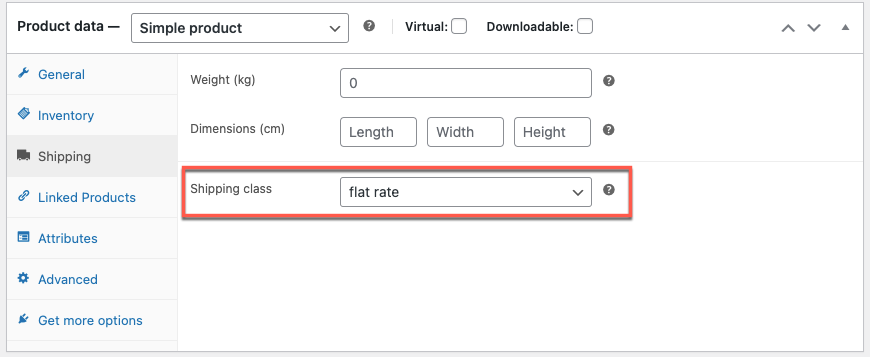
Upon import, the shipping class of all the products imported via the CSV will be changed to ‘Flat rate’ (as shown below).
2. Increase Product Price
To increase the product price, for example, by $10
- Find the row labeled Price: regular price.
- Click the pencil icon next to it.
- In the Set value for column window, enter: [{regular_price}+10]
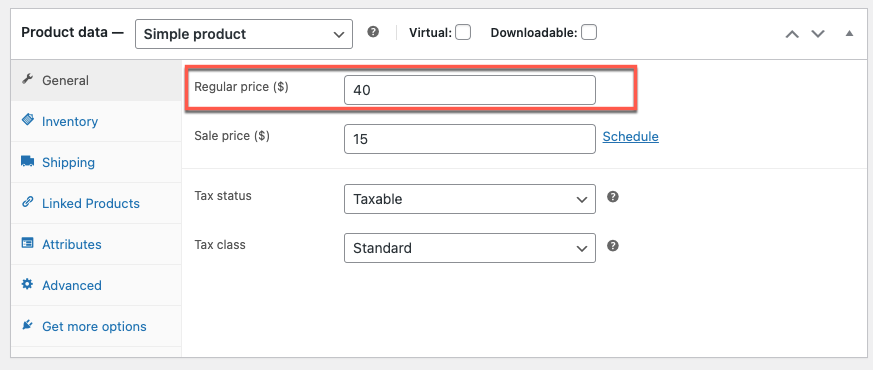
This will add $10 to the existing regular price for each product.

If the initial price is 30, the regular price will change to 40.
3. Decrease the Value of a Sale Price
To reduce the sale price, for example, by $10
- Locate the row labeled Price: sale price.
- Click the pencil icon next to it.
- In the Set value for column field, enter: [{sales_price}-10]
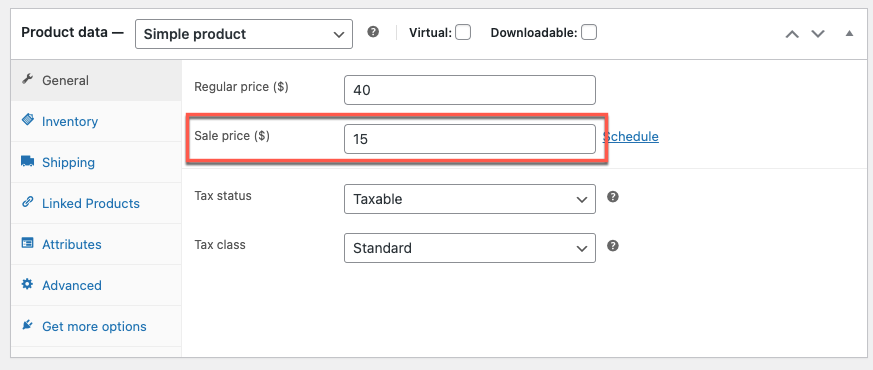
This will subtract $10 from the current sale price of each product.

The revised sale price (if the initial price was 25) will now be as follows upon import:
4. Appending a Value
To add text at the end of an existing product field—for example, adding “By Sonadora Cafe” to the product title:
- Find the row labeled Product Title.
- Under the Transform window, enter: {post_title}& By Sonadora Cafe
This will append “By Sonadora Cafe” to the end of each product title.

The updated value will display as follows upon import:

5. Prepend a Value
To add text before the existing content, for example, adding “Description:” to the beginning of the Product Description:
- Locate the row labeled Product Description.
- In the Transform window, enter: Description: {post_content}
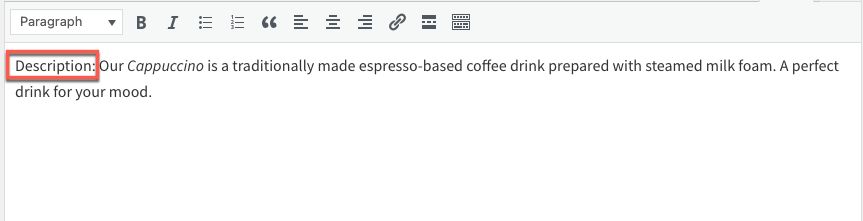
This will place “Description:” at the start of every product description.

When imported, the value will show up as follows:
6. Combine Two Columns
Sometimes, you may want to merge multiple fields into one during import. This can be done easily using the Transform option.
Example: To combine the SKU and Product Name fields:
- Identify the target field where you want the combined value to appear.
- In the Transform window, enter: [{sku} {post_title}]
This will merge the SKU and product title into a single string (e.g., SKU123 Coffee Mug).

When imported, the values of the merged columns will show up as:

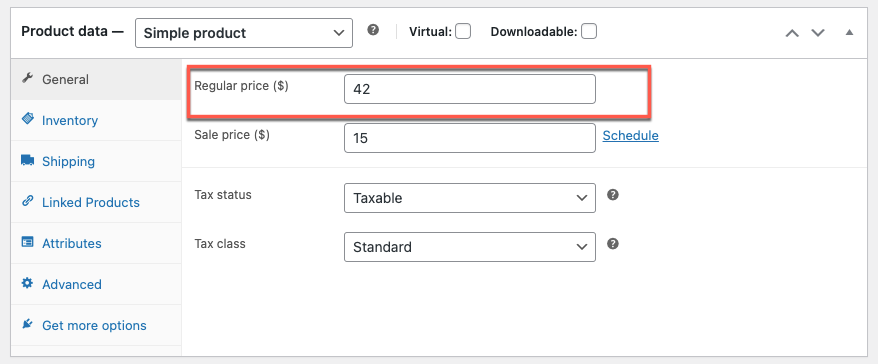
7. Increase the Price by a Percentage
To increase the regular price by a percentage, for example, 5%, you can use a simple formula.
Example: If the original price is 40, increasing it by 5% results in 42.
- Locate the Price: regular price row.
- In the Set value for column field, enter: [{regular_price}*1.05]
Tip: To increase by any percentage, multiply the original value by 1 + (percentage/100).
For example:
- 10% increase → *1.10
- 20% increase → *1.20
Always enclose the formula in square brackets for it to work correctly.

The changed normal price value will be displayed as:
8. Updating the Stock
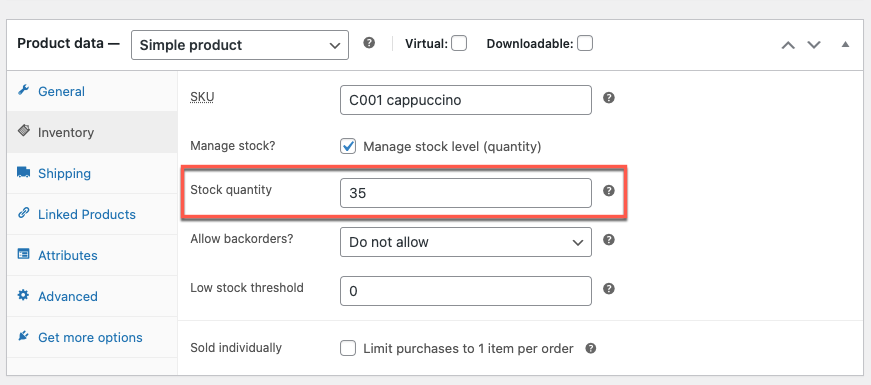
To increase the stock quantity by a specific number, for example, 10 units, use the following method:
- Locate the Inventory: Stock field.
- In the Set value for column input, enter: [{stock}+10]
This will add 10 units to the existing stock for each product during import.

The updated stock value will show up as:
Using these logical expressions, you can bulk update all the products and product field values on your WooCommerce store. Be aware that any changes you make will apply to all the products in the input file.
If you want to update a specific category of products, use the same Product Import Export plugin to export the required products in a CSV file using custom filters. Then, use the exported file as input to update the product field values.
Yes. You can filter products by category, tag, stock status, or other criteria before exporting them. Then, update only those filtered products in the CSV file and re-import it using the plugin.
Not necessarily. The plugin updates only the fields you specify in the CSV mapping. Other fields that are left blank or unmapped will remain unchanged.
With the premium version of the plugin, you can schedule imports or updates to run automatically at set intervals via FTP, URL, or Google Sheets, ensuring your product data stays up to date.
Make sure your CSV file uses UTF-8 encoding, contains valid headers, and doesn’t have empty values for required fields. Always test with a small batch before running a full import.
Before performing any bulk update, it’s best to create a backup of your site or export your current products. That way, you can restore your data easily if you need to undo changes.
When it comes to efficiently managing and updating a growing WooCommerce store, using a dedicated product import export plugin is by far the most powerful solution. While the built-in WooCommerce bulk edit tool works for small changes, it quickly becomes limiting as your catalog expands. The Product Import Export Plugin for WooCommerce by WebToffee stands out as a smarter, more scalable alternative, letting you bulk edit WooCommerce products and reimport them effortlessly.
Its transform option makes bulk editing even easier by letting you change or remap file columns during import. This feature is especially helpful for fixing data or adjusting fields when updating products in bulk, saving time and keeping your product information accurate.
The Product Import Export Plugin we mentioned in this article also has a premium version with advanced capabilities like scheduled imports, automated updates, and support for complex product types. You can check it out to learn more about its capabilities.
Hope this article led you in the right direction. If you have any queries, please mention them below.


Subcribe to our newsletter


