


Share:


Table of Contents
When running an online store, you may encounter situations where you need to update the price details of multiple products simultaneously. Manually updating prices is time-consuming and inefficient for large product catalogs, pointing to how limited and inconsistent the current platform is.
Bulk updating product prices is a repetitive process that takes enormous amounts of time and labor, often resulting in burnout and human errors. Such errors can have drastic impacts, especially if updating something as important as the “product price.”
Because the update process is volatile and complex, most WooCommerce store owners do not prefer manually updating their product prices. Instead, they usually use third-party plugins that offer much simpler update alternatives. The free product import export plugin for WooCommerce is one of the most common plugins used for this specific use case.
You can use WooCommerce’s default import-export settings to update product prices in bulk. However, you will need a plugin like the product import export plugin from WebToffee to export specific WooCommerce products for price updates.
In this article, we’ll guide you on updating the pricing of specific products in your WooCommerce store using a CSV file.
Key takeaways:
- Bulk updating product prices is a complex task fraught with challenges, mostly due to platform limitations.
- The default WooCommerce import-export settings for price updates have several restrictions, making a specialized plugin a must-have.
- WebToffee’s Product Import Export plugin allows users to rapidly modify and adjust product pricing in bulk, thanks to its advanced filtering and customization features.
Running a WooCommerce store means juggling many moving parts—products, orders, shipping, customers, and yes, pricing. At some point, you’ll likely find yourself needing to update product prices—not just one or two, but dozens (or even hundreds) of them.
Here’s why bulk updating makes a lot of sense:
1. Respond Quickly to Market Changes: Markets are dynamic—prices from suppliers may increase, competitors might launch promotions, or currency exchange rates could shift. Bulk updates let you adjust your pricing strategy quickly to stay competitive without editing each product one by one.
Example: Your supplier increased the cost of electronics by 5%. Instead of updating 50 product pages individually, you can update your CSV, upload it, and be done in minutes.
2. Run Seasonal Sales and Promotions: Want to offer discounts for Black Friday, Christmas, or a flash sale? Bulk updates allow you to lower the prices temporarily (using the Sale Price column) and just as easily revert them later.
3. Manage Large Product Catalogs Efficiently: If you have 100+ products, updating each one manually from the WooCommerce admin panel is not just tedious—it’s risky. You’re more likely to make mistakes. Bulk edits via CSV let you work in a spreadsheet where you can use formulas, filters, and sorting for faster editing.
4. Correct Pricing Errors in Bulk: Pricing mistakes happen—maybe you imported incorrect prices earlier or set the wrong currency value. Bulk updates let you fix these across multiple products at once.
Fix a simple pricing typo (like “2999” instead of “299.99”) in your CSV and correct it across all affected products instantly.
5. Speed Up Store Setup or Migration: Setting up a new WooCommerce store? Migrating from another platform? A CSV import is one of the fastest ways to upload and assign prices to your product list without manually doing so during the setup process.
6. Maintain Pricing Consistency: Using a CSV means you can apply rules uniformly, for example, updating all T-shirts to $25 or setting all clearance items to 50% off. It ensures consistency and avoids random pricing mistakes that can confuse customers.
7. Automate Price Management Over Time: If you use advanced import tools or plugins (like the WebToffee Product Import Export for WooCommerce), you can even schedule CSV imports, which means your product prices can be automatically updated from an external file (e.g., from a supplier’s feed) on a regular basis.
With the WooCommerce Product Import Export plugin, you can seamlessly update the product prices in just three simple steps.
- Export required products from the store
- Update the WooCommerce product price
- Import the products back to the store
This process takes considerably less time than individually updating the prices and is relatively easy.
The only prerequisite is to install and activate the plugin in your WordPress admin console.
Benefits:
- Modify or update prices for hundreds of products in minutes.
- Perform multiple price adjustments simultaneously, saving hours of manual work.
- Apply price changes to specific product categories and attributes or based on custom criteria.
Step 1: Export Required Products From the Store
With this product export plugin, you can export all or specific products in your store to a CSV file.
To export the products,
- Go to WebToffee Import Export (Basic) > Export and select Product as the export post type.

- Select which export method you want to use. You will have two options: Quick and Advanced export.
Note:
Use quick export to update prices for all the products in your store. However, for updating just a few selected products, opt for the advanced export method.
- With Quick export, you can download the CSV file by just clicking on Export at the bottom of this page. You can directly skip to Step 2 from here if this is your requirement.
In case of advanced export, proceed to filter the required products from the whole catalog.

- On the Export Product: Filter data page, select the products you want to export. Filters like Products, Exclude products, Stock status, Product categories, Product tags, and Product status help you select the exact products you want to export.
You can add specific products to the export file by selecting them in the Products field. Once done, you can proceed to rename and reorder the export columns.

- In the Map and reorder export columns page, you can select the columns you want to export.
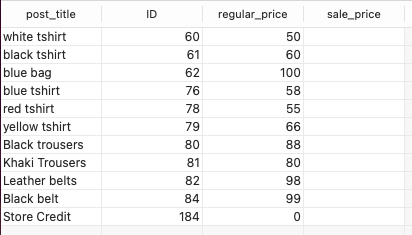
In our case, we want to export the price columns to update them. Also, select the columns corresponding to your required product identifiers. As an example, let us select the columns Product name, ID (both to identify the products), Regular price, and Sales price.
Note:
By default, all columns are selected. To choose specific columns, simply uncheck the box in the header to clear all selections. Then, pick the columns you need.

- Now, click on the Export button on the Advanced options/Batch export page.

This will download a CSV file to your system with the required products and columns.
This is a sample CSV file with the columns that we selected earlier.
Step 2: Update WooCommerce Product Prices
Once the CSV file is downloaded, you can update the price by opening it in any spreadsheet program, such as Google Sheets or LibreOffice (recommended).
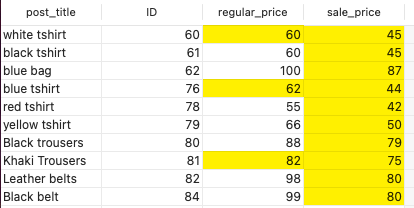
The highlighted prices have been updated.
Tips for Preparing Your CSV File
- Avoid duplicate SKUs
Each product (and variation) should have its own unique SKU. If two products share the same SKU, WooCommerce might get confused and overwrite the wrong one.
- Be consistent with decimals
If your prices include decimals (like 19.99), make sure you use a dot (.) as the decimal separator—not a comma. So it’s 49.95, not 49,95.
- Don’t add currency symbols
Prices should be just numbers – no $, €, or ₹. WooCommerce already knows the currency your store uses, so extra symbols can cause the import to break.
Step 3: Import the Products Back to the Store
Now, to import the products with the updated details back to your store, you can make use of the import feature in the same Product Import Export plugin.
To import the updated CSV,
- Go to WebToffee Import Export (Basic) > Import. Select Product as the import type.

- Now choose advanced import as the import method and select the updated CSV file.

The next step is to map the columns in the CSV to the standard product fields in WooCommerce. The columns will be mapped by default, so make sure the mapping is accurate before proceeding to the next step.

- In the Advanced options/Batch import page, choose Update for the option If products exist in the store.

You can then Import the products.

Step 4: Verifying the Updates
Once you’ve imported your CSV and WooCommerce confirms the import is complete, the next important step is to make sure the price updates actually went through. It’s always a good idea to double-check, because even a small mistake in your CSV (like a misplaced comma or an extra space) can cause WooCommerce to skip a product or apply the wrong value.
Here’s how to confirm that everything looks good:
1. Check the Front End of Your Store
This is what your customers see, so it’s the best place to start.
Go to your Shop or Category pages and browse through the product listings. Open individual product pages and verify:
- The correct price is showing.
- Sale badges (if any) appear as expected.
- Variable product options (such as sizes or colors) have the correct prices across all variations.
Quick Tip: Use a private or incognito window, or clear your cache, if you’re not seeing the changes right away.
2. Check the Backend (WooCommerce Admin)
Now, jump into the dashboard to inspect the backend product data.
- Go to Products > All Products in your WordPress admin panel.
- Use the search bar or filter by category to locate a few of the products you updated.
- Look at the Price column in the product list view. This should show the current price and any sale prices you’ve applied.

Bonus: Use Import Logs
While using the Product Import Export plugin, check the import logs or reports. These often include:
- A download link to view the log file for more details.
- A summary of how many products were updated.
- Warnings or errors if any rows failed to import.
Best Practices for Bulk Price Updates
Bulk updating prices in WooCommerce is powerful, but with great power comes great responsibility. Making changes to dozens or hundreds of products at once can save you a lot of time… but it can also lead to costly mistakes if you’re not careful.
Here are some practices to follow before you hit that “Import” button:
1. Always Back Up Your Site and Database
This is rule number one. Never skip it.
Before doing any kind of bulk import or major update to your store, create a backup of:
- Your WordPress database (which holds your product info and prices),
- And your site files, just to be safe.
Why? If something goes wrong during the import (like overwriting the wrong prices or breaking product variations), you can quickly restore your store to the previous working state without panicking.
2. Test with a Small Batch First
Instead of importing your entire product list right away, try updating a handful of products first—say 5 to 10 items.
- This lets you verify that your CSV formatting is correct.
- You’ll see how WooCommerce handles the changes.
- And it gives you a chance to catch any issues early.
Once you’ve confirmed that the update worked smoothly, you can go ahead and upload the full file with confidence.
3. Keep Historical Pricing Records
It’s a good habit to save old pricing data before making changes, especially if you’re doing regular price updates or running seasonal promotions.
Here’s how:
- Keep a dated copy of the original CSV file before making edits.
- Store it in a safe location (like Google Drive or Dropbox).
- Use version names like products-pricing-before-summer-sale.csv.
Conclusion
You may have to update WooCommerce product prices (sales and/or regular) after publishing the products. It may be to offer seasonal price drops, match the high demand hikes, or something else. Whatever may be your requirement, you can seamlessly update the prices of specific WooCommerce products with the free plugin Product Import Export for WooCommerce.
The premium version of this Product Import Export plugin offers several other features and customization options. If you are interested, feel free to check it out.
What do you think about this article? Comment to let us know.
Also read: How to Bulk Update WooCommerce Products

Got any query? Please leave a comment or reach out to our support
Got any query? Please leave a comment or reach out to our support

Subcribe to our newsletter





Comments (2)
Silvan
January 13, 2024
Hi there,
I’m trying to import the products but it seems the plugin does not accpet decimals for prices. Is there a fix for this?
Thanks in advance
Vineetha
January 17, 2024
Hi Silvan,
As per our functionality, the plugin accepts decimal separators for prices. Can you please raise a ticket via support with the file you are trying to import so that we can check on the issue you are facing?