Share:


Table of Contents
A single, mismatched delimiter can halt your entire product import. This guide shows you how to fix it fast and change WooCommerce product import export delimiter settings to ensure your imports and exports run smoothly every time.
When importing or exporting product data in WooCommerce, you may need to change the data delimiter (or separator) to ensure the file is processed correctly. This adjustment is often necessary to help data interpretation tools, like spreadsheet software, parse the file without causing errors or triggering security warnings.
Delimiters can also vary based on regional settings. For instance, while a comma (,) is the default list separator in Excel for US English, many international versions use a semicolon (;) instead. These differences can lead to formatting issues when sharing files across systems or teams. To avoid such conflicts and maintain compatibility, it’s important to know how to change the product import and export delimiter in WooCommerce.
In this article, we’ll walk you through the steps to easily modify the delimiter setting and ensure smooth, error-free product data handling.
Key Takeaways:
- Delimiters are special characters or strings that separate data items within a text string or code.
- Delimiters help organize data, improving data parsing efficiency and reducing the likelihood of errors.
- WebToffee’s Product Import Export plugin allows you to specify the delimiter used in the file before importing it to a store.
A delimiter is a character or string that separates one piece of data from another within a file. You can think of it as a punctuation mark that tells a system where one piece of information ends and another begins.
When importing data, specifying a delimiter helps the system understand how to divide the data into fields and columns. Similarly, when exporting data, selecting a delimiter ensures that the exported data is properly formatted for readability.
Common types of delimiters:
- Comma (,)
- Colon (:)
- Semicolon (;)
- Tab (/)
- Better Data organization – Using delimiters while importing and exporting data helps keeps data organized. They break data into distinct units, making it easier to understand and analyze.
- Efficient Data Processing – Delimiters make data parsing more efficient by breaking up long strings of text into manageable pieces, which simplifies interpretation for computers and software programs.
- Error Reduction – Properly setting delimiters when exporting or importing product data can help fix WooCommerce import errors and significantly reduce the risk of data entry or processing issues.
When Should You Change the Delimiter?
So, why would you need to change the delimiter in your WooCommerce CSV file? Great question! While commas are the default and work in most cases, there are a few specific situations where switching things up makes your life a lot easier.
Let’s look at the most common ones:
1. You’re Importing a File from a Different Region
If you’re working with a supplier or partner from Europe (especially countries like Germany, France, or Spain), there’s a good chance their CSV files use semicolons (;) instead of commas as the delimiter.
If you try to import one of these files using the default comma setting, WooCommerce might get confused, mixing up price fields, cutting off text, or placing everything in the wrong column. By simply changing the delimiter setting to a semicolon, you can fix all that.
2. Your Spreadsheet Tool Isn’t Reading the File Correctly
Sometimes, the issue isn’t WooCommerce—it’s your spreadsheet program.
Programs like Microsoft Excel or LibreOffice Calc might misread comma-delimited files, especially if your computer’s language settings use commas for decimals. You might open a file and see everything dumped into one column—or worse, fields breaking up incorrectly.
Changing the delimiter to something more unique, like a pipe (|) or tab, can help you open and edit your file without weird formatting issues.
3. You’re Integrating with a Third-Party System
Sometimes, the system you’re sending your product data to or receiving it from requires a specific format.
- Maybe your POS system only accepts tab-delimited files.
- Or your ERP software prefers semicolons.
- Or a plugin you’re using expects pipes instead of commas.
WooCommerce enables you to specify the delimiter used in the import file. Here is how you can do that.
- On your WordPress admin panel, go to WooCommerce > Products > Import.

- Upload the CSV or TXT file, then click Show advanced options.
- You may change the delimiter in the CSV Delimiter field.

- Now map the fields in the file to those in your WooCommerce store, then proceed.
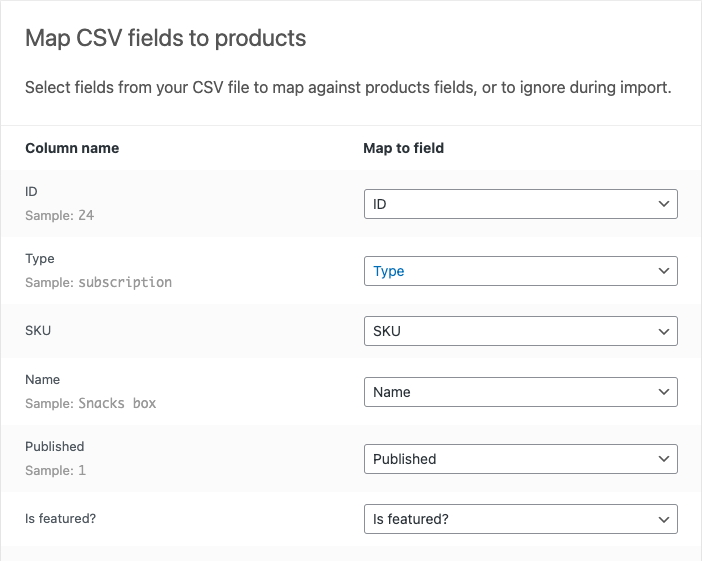
- Click on Run the importer to import the file.
If you have selected the correct delimiter, the import process will be completed without any errors.
You may also use the free plugin Product Import Export for WooCommerce to change the delimiter while importing products. This plugin’s advantage is that it allows you to specify the delimiter during the export process, too. This eliminates the need to manually change the file delimiter before it can be imported to WordPress.
The Product Import Export plugin for WooCommerce is one of the best-performing free WooCommerce plugins for moving products across websites. The plugin lets you specify the delimiter used in the file before importing it to your store.
Take a look at the following steps to understand how you can do that.
- Install and activate the free WebToffee plugin to import and export WooCommerce products.
- Go to WebToffee Import Export (Basic) > Import.
- Select Product as the post type to import from the drop-down.
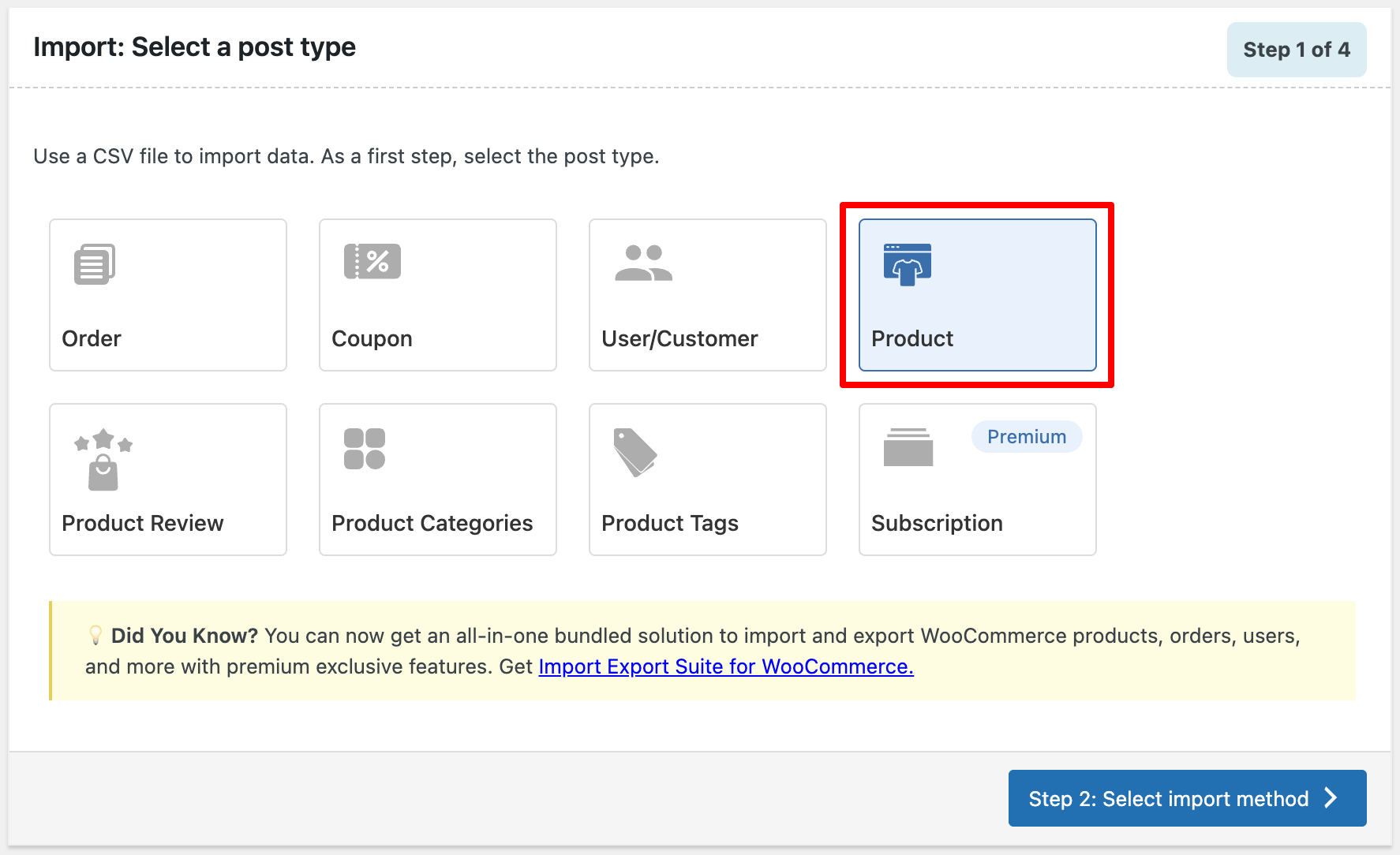
- You can then select the Advanced Import method and upload the CSV file with the product details.
- In the Delimiter dropdown, choose the character used to separate values in your CSV file. This could be a comma, semicolon, tab, space, or any other character, depending on how your file is formatted.

- You may now select product fields to be imported and map them with the respective fields in WooCommerce. The plugin might auto-identify and map the fields for you in most cases, so you will only have to confirm the selections before moving forward.

- Now, set up the advanced settings if required and click on Import.

The plugin will import the products and their respective data to your WooCommerce console.
The same free product export plugin can also be used to change the delimiter of the export file. Let’s take a look at how to choose the delimiter using the plugin.
Note: Make sure that the WooCommerce product export plugin is activated in your WooCommerce store.
- Go to WebToffee Import Export (Basic) > Export.
- Select the export post type as Product.

- You should then select the product export method. Let’s choose Quick export and click on the Advanced options/Batch export button.

- You can now choose a delimiter from the Delimiter field drop-down.
- Once the required delimiter is chosen, you can click on Export.

This will export a CSV file with semicolons instead of commas as the delimiter. Here is a sample CSV file with the semicolon as the delimiter.


The WebToffee Product Import Export Plugin for WooCommerce offers a powerful and flexible solution to manage your product data efficiently. Whether you’re migrating products between sites or updating product details in bulk, this plugin provides intuitive tools to handle the process with ease.
With features like quick import/export, advanced settings, and the ability to reuse saved templates, it simplifies repetitive tasks and boosts productivity. For users looking for more advanced capabilities such as support for additional file formats, product types, and automated scheduling, the WooCommerce product import export plugin also comes in a premium version that unlocks extended functionality.
Key Features
- Multiple Import/Export Methods: Choose between quick import/export for simple tasks or advanced options for granular control.
- Reusable Configurations: Save your import/export settings as templates and reuse them to streamline future operations.
Plugin Versions
| Feature | Free Version | Premium Version |
|---|---|---|
| Supported Product Types | Simple, Grouped, External/Affiliate | Simple, Grouped, External/Affiliate, Variable, Subscription, Custom product types |
| File Format Support | CSV only | CSV, XML, TSV, XLS, XLSX |
| Filters and Customization | Basic filtering options for product data | Advanced filtering for precise data selection |
| Import/Export Scheduling | Not available | Automated scheduling of imports and exports at set intervals |
| Best For | Users with basic product management needs | Users with complex WooCommerce stores or large product catalogs |
Quick Info: WebToffee’s WooCommerce Product Export plugin boasts an incredible 4.85 rating on wordpress, powering over 90,000 active customers.
If the delimiter does not match the format used in the CSV file, WooCommerce will not correctly split the data into columns. This can cause:
– Multiple fields appearing in a single column
– Product attributes or prices importing incorrectly
– Import errors or failed imports
You can open the CSV file in a text editor like Notepad to inspect the characters separating the values. Identifying the delimiter helps ensure the correct import configuration.
The default WooCommerce importer does not always automatically detect delimiters, especially if the file uses uncommon characters. In such cases, you need to manually specify the delimiter in the advanced import settings.
Yes. If the delimiter is incorrect, complex fields such as product attributes, variations, categories, and tags may not import correctly because WooCommerce cannot properly split the values.
No. Changing the delimiter only affects how the import/export file is read or generated. It does not modify or impact products already stored in your WooCommerce database.
Conclusion
Adjusting the file delimiter is sometimes essential when managing product data in your WooCommerce store, especially to meet regional formatting standards or external system requirements. The Product Import Export Plugin by WebToffee makes this process simple, offering flexible delimiter options like comma, semicolon, tab, or pipe.
Whether you’re importing inventory or exporting products for bulk edits, the plugin ensures compatibility with your preferred file structure.
We hope this article has provided you with valuable insights into modifying delimiters in import/export files. If you have any questions, experiences, or suggestions, feel free to share them in the comments below.
Also Read: How to Bulk Update WooCommerce Products


Subcribe to our newsletter