Share:


Table of Contents
Generating a Shopzilla product feed is a crucial strategy for WooCommerce store owners aiming to enhance product visibility and drive sales through comparison-shopping engines. By leveraging Shopzilla, merchants can tap into a vast network of high-traffic platforms, ensuring their products reach high-intent buyers actively seeking to make purchases. This approach not only diversifies marketing channels but also stabilizes sales by capturing a broader audience.
- Shopzilla is a leading comparison-shopping engine that connects consumers with multiple retailers, enhancing product visibility.
- Submitting a product feed to Shopzilla allows WooCommerce listings to be syndicated across the entire Connexity Network, increasing exposure.
- A well-structured product feed includes essential fields like product title, description, price, and image URL, which are critical for successful product listings.
- Using a dedicated plugin, such as WebToffee's WooCommerce Product Feed, simplifies the creation and management of Shopzilla feeds, ensuring compliance with required specifications.
- Regularly updating the product feed is essential for maintaining accurate pricing and stock levels, which can significantly impact conversion rates.
- Optimizing product titles, descriptions, and images enhances the likelihood of approval and improves performance within the comparison-shopping ecosystem.
Trying to grow your WooCommerce store but feel like you’re relying too much on Google Shopping? You’re not alone. Putting all your traffic in one basket is risky, and expanding into new channels can open the door to more steady, reliable sales. That’s where Shopzilla comes in. It’s not just one more comparison-shopping site; it’s actually the entry point to a whole network of high-traffic platforms.
Through Shopzilla, your products can appear across the entire Connexity Network, including sites like PriceGrabber and Bizrate. That means more visibility and more potential customers browsing your products.
In this guide, we’ll walk you through the simple steps to create a Shopzilla-ready product feed for your WooCommerce store, so your products can get syndicated across this big network automatically.

Shopzilla is one of the most recognized comparison shopping engines on the web. It’s where shoppers go specifically to compare products, check prices, and find the best deals across multiple online stores. Instead of browsing site by site, customers can instantly see options from dozens or even hundreds of retailers in one place. That makes Shopzilla a high-intent traffic source, filled with users who already know what they want and are close to making a purchase.
But here’s what many store owners don’t realize: Shopzilla is just the beginning. It’s part of the much larger Connexity Network, one of the biggest retail media marketplaces in the world. When you submit your products to Shopzilla, you’re not only appearing on Shopzilla; your listings can also show up across Connexity’s ecosystem, including major comparison and review sites like PriceGrabber, Bizrate, Become, NexTag, and more. This means one feed can multiply your product visibility across several high-traffic platforms without any extra work from your side.
For WooCommerce store owners, this is a huge opportunity. Listing your products on Shopzilla (and by extension, the Connexity Network) puts your catalog in front of shoppers who are actively searching, comparing, and ready to buy. More visibility means more targeted traffic, and targeted traffic often leads to higher conversion rates.
A Shopzilla product feed is a structured file that contains all the key information about the products in your WooCommerce store. Instead of adding items manually, you submit this feed to Shopzilla, and their system automatically imports your product catalog and displays it across their shopping platform and the wider Connexity Network.
Product feeds work by organizing your data in a clear, standardized format so Shopzilla can read it automatically.
Required Shopzilla Fields
While the exact requirements may vary, Shopzilla generally expects fields like:
- Product Title
- Description
- Price / Sale Price
- Product URL
- Image URL(s)
- Category (mapped to Shopzilla’s taxonomy)
- Brand or Manufacturer
- SKU / Unique Identifier
- Stock Status
- Shipping Cost / Shipping Info
Providing these fields accurately is essential for your products to be accepted and correctly displayed.
Shopzilla typically accepts common feed formats like XML, CSV, TXT, and sometimes TSV, depending on how you upload the file.
Requirements Before You Start
Before you can generate a Shopzilla product feed and start pushing your WooCommerce products into the Connexity Network, there are a few things you’ll need to have in place. Getting these ready will ensure a smooth setup process and reduce any feed errors later on.
A Shopzilla Merchant Account
To list your products, you’ll need a Shopzilla/Connexity merchant account.
Signing up is straightforward:
- Visit the Connexity Merchant Services signup page.
- Provide your business details, website URL, and contact information.
- Wait for approval and access to your merchant dashboard.
Once approved, you’ll be able to upload your product feed, monitor performance, and manage your campaigns.
Complete & Clean Product Data
Before generating your Shopzilla feed, make sure your WooCommerce product data is complete and accurate. Shopzilla depends on clean data to display your products correctly, so missing or inconsistent details can lead to errors or poor visibility.
Your catalog should include:
- Clear product titles with key details
- Accurate descriptions that explain the product well
- Correct pricing and sale prices
- High-quality product images
- Updated stock status (in stock/out of stock)
- Proper category assignments
- Brand or manufacturer info
- SKUs or unique identifiers
The cleaner your data is upfront, the smoother your feed setup will be, and the better your products will perform on Shopzilla and the Connexity Network.
WooCommerce Product Feed Plugin
To generate a clean, properly formatted Shopzilla feed, you’ll need a reliable product feed generator plugin for WooCommerce. This tool converts your store’s product data into the exact format Shopzilla requires, saving you from manually building and maintaining large XML or CSV files.
One of the most popular and beginner-friendly plugins for this is WebToffee WooCommerce Product Feed. This plugin includes a dedicated Shopzilla feed template, making the setup fast and straightforward. It allows you to:
- Generate feeds in XML, CSV, or TXT formats
- Map WooCommerce product fields to Shopzilla specifications
- Add custom attributes if your products need additional fields
- Filter products by category, stock status, tags, or price range
- Schedule automatic updates so your feed stays in sync with your store
WebToffee’s plugin is especially useful if you want flexibility and control without the complexity, ideal for small to large WooCommerce stores. Other plugins may also support Shopzilla, but WebToffee’s built-in template means you spend less time configuring feed structure and more time getting your products live on the Connexity Network.
Generating a Shopzilla Product Feed in WooCommerce (Step-by-Step)
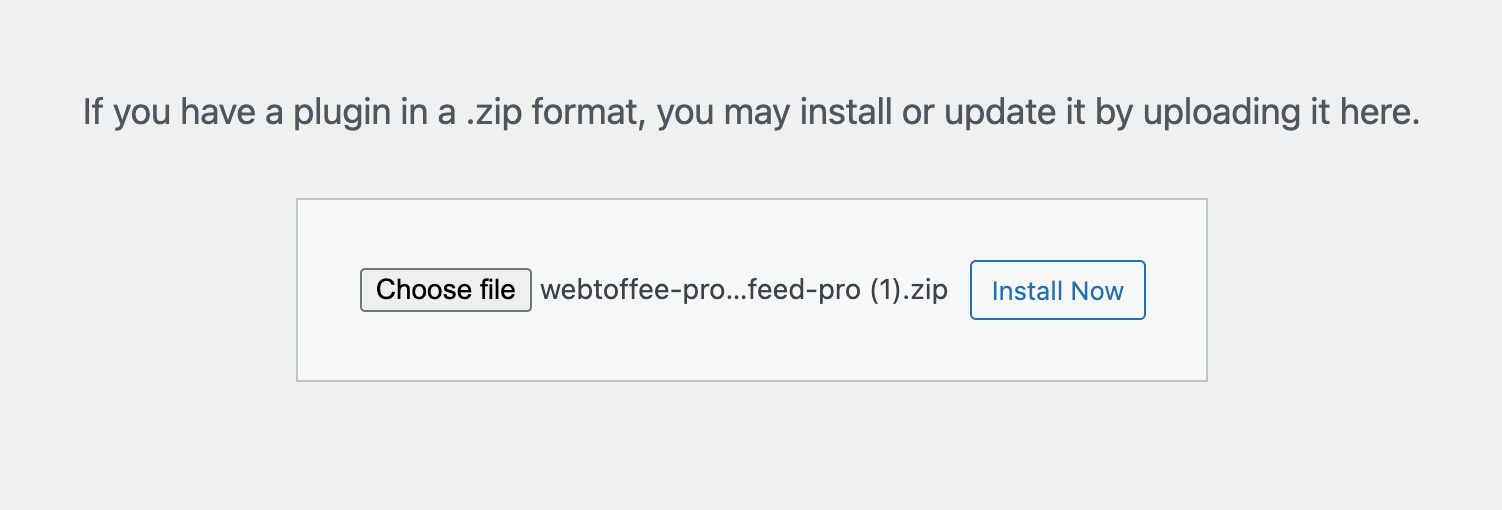
After purchasing the plugin, download the plugin ZIP file from your WebToffee account in the My Account purchased products section.
- Next, open your WordPress dashboard and go to Plugins > Add New.
- Click Upload Plugin, select the ZIP file you just downloaded, and hit Install Now.
- Once the installation finishes, click Activate to enable the plugin on your site.
Step 2: Create a New Shopzilla Product Feed
Once the plugin is activated, you can start building your Shopzilla feed:
In your WordPress dashboard, navigate to WebToffee Product Feed > Create new Feed.
- Under Channel, select Shopzilla from the list of supported platforms. The plugin will then auto-load all required and optional Shopzilla attributes for easier mapping.
- Choose the Country where your products will be listed within the Shopzilla/Connexity Network to ensure proper regional formatting.
- Enter a clear Feed Name, such as “Shopzilla Product Feed”, so you can easily identify it later.
- Set an Auto-refresh interval (daily, twice daily, weekly, etc.) to keep your feed updated automatically with the latest prices, stock changes, and new products.
- Pick a Cron Type for scheduling: WordPress Cron for simple setups or Server Cron for large catalogs and more reliable feed updates.
Pro Tip: Setting up an automatic schedule is highly recommended. This ensures your feed always reflects the latest prices, stock levels, and product changes, helping Shopzilla display accurate information to shoppers across the Connexity Network.

Step 3: Filter Products for Your Shopzilla Feed
The WooCommerce Product Feed plugin lets you choose exactly which products to include in your Shopzilla feed. This is helpful if you want to feature only specific items instead of your entire WooCommerce catalog.
Filtering Options Include:
- Filter by Categories or Tags: Select only the categories or tags you want to send to Shopzilla. Example: Include only “Best Sellers” or “New Arrivals.”
- Exclude Products: Manually remove individual items you don’t want listed in the Shopzilla feed.
- Out-of-Stock Products: Automatically exclude products that are out of stock to avoid listing unavailable items.
- Product Variations: Choose whether or not to include variations such as different sizes, colors, or styles.
- Product Type: Filter products by type – simple, variable, grouped, or external, depending on what you want to send to Shopzilla.
These filters help you keep your Shopzilla listings clean, relevant, and fully optimized.

Advanced Filtering (Conditional Logic)
For even more precise control over which products appear in your Shopzilla feed, the WebToffee Product Feed plugin offers Advanced Filtering using simple “if–then” logic. This lets you build custom rules that automatically include or exclude products based on specific conditions.
To use it:
- Click Advanced Filtering within the feed setup.
- Add one or more conditions using dropdown fields like price, stock status, category, or attributes.
- Define what should happen when the condition is met (include or exclude).
Example rule:
If the product stock is less than 5, then exclude it from the Shopzilla feed.
This ensures that low-stock items don’t appear on Shopzilla, helping you avoid overselling and keeping your listings accurate across the Connexity Network. You can create multiple rules to refine your feed, ensuring only your best, most relevant, and fully available products are sent to Shopzilla.
Step 4: Map Shopzilla Attributes to WooCommerce Fields
In this step, you’ll connect Shopzilla’s required data fields with the corresponding values from your WooCommerce store. The WebToffee Product Feed plugin automatically maps many essential attributes for you, but you can review, adjust, or assign static values as needed to ensure your feed is accurate and fully optimized.
Connexity uses specific required fields such as product name, description, price, category, and image link to correctly index and display your products across Shopzilla, Bizrate, and the broader network. Mapping these fields accurately ensures your listings are complete, compliant, and optimized for visibility.
Here’s how your WooCommerce fields typically map to Shopzilla’s required attributes:
| WooCommerce Field | Shopzilla Attribute |
|---|---|
| Product Title | title |
| Product Description | description |
| Regular Price | price |
| Sale Price | sale_price |
| Product URL | link |
| Main Image URL | image_link |
| Product Category | category |
| Brand / Manufacturer | brand |
| Shipping Information | shipping |
Connexity also strongly recommends including additional identifiers and attributes when available, such as GTIN, MPN, UPC, manufacturer, size, color, and other variations, because these fields help improve product matching and ad performance.
The WebToffee Product Feed plugin allows you to map all of these optional or custom fields easily. Supplying richer, more structured product data reduces feed errors, boosts product relevance, and improves your chances of ranking well within Connexity’s comparison ecosystem.
For reference, you can review all required and recommended Connexity fields in their official documentation.

Step 5: Map WooCommerce Store Categories to Shopzilla Categories
Shopzilla relies on Google’s product category taxonomy, so mapping your WooCommerce store categories to the correct Google categories is essential. Proper category mapping ensures your products are placed in the most relevant sections of Shopzilla’s listings, leading to better visibility and improved ad performance.
- For each WooCommerce category, select the corresponding Google category from the dropdown list.
- If you need to adjust a mapping later, simply revisit the specific category page to update it.

When your categories align with Google’s structure, Shopzilla can accurately classify your products, increasing the chances of appearing in the right search results and boosting overall impressions across the Connexity Network.
Step 6: Generate Your Shopzilla Product Feed
With your settings, filters, and attribute mappings finalized, you’re ready to generate the actual Shopzilla feed file. This is the file you will upload or submit to the Shopzilla/Connexity Merchant Center.
Select a Batch Count
In the Process in batches of field, choose how many products the plugin should process at once. For large product catalogs, selecting a smaller batch size can help prevent server timeouts. If you’re unsure which value to choose, the plugin’s default recommendation is a safe and reliable option.
Choose Export File Format
Shopzilla accepts several file formats, but TXT, XML, and TSV are the most widely used. Set the Export file format to TXT or XML. The plugin will automatically organize your feed according to Shopzilla’s required specifications.
Generate the Feed
Before generating the feed:
- Review your filters
- Double-check attribute mappings
- Confirm the category mapping and general settings
Then click Generate Feed.

The plugin will process your products in batches based on the batch count you selected. Once complete, your Shopzilla feed file will be created and ready for submission to the Connexity Merchant Center.
Once your Shopzilla feed is generated, the plugin will display a confirmation message letting you know the file is ready. You can now choose how to use or manage your feed:
- Download the Feed: Save the file to your device if you want to review it or upload it manually to the Shopzilla/Connexity Merchant Center.
- Edit Feed Settings: Need to adjust mappings, filters, or schedules? Simply return to the configuration screen and update your settings anytime.
- Manage Feeds: View all your existing feeds, check statuses, adjust auto-refresh intervals, or regenerate a feed when needed.
You’ll also see a Feed URL generated by the plugin. Click Copy URL to copy the link. This is the URL you’ll provide inside your Shopzilla/Connexity Merchant Center so the platform can fetch and update your product feed automatically.
Step 7: Upload the Feed to Shopzilla
Once your Shopzilla feed is ready, the final step is to submit it to the Shopzilla / Connexity Merchant Center so your products can be processed and published across the network.
To upload your feed, log into your Connexity merchant account and follow their feed submission process. You can either provide the Feed URL generated by the WebToffee plugin (recommended for automatic updates) or manually upload the TXT/XML file. Shopzilla will then validate your feed by checking formatting, required fields, product categories, and overall data quality.
For detailed instructions and the most up-to-date onboarding steps, refer to Shopzilla’s official Connexity merchant documentation.
Best Practices for Optimizing Your Shopzilla Product Feed
Optimizing your Shopzilla (Connexity) feed helps your products look professional, get approved quickly, rank better, and attract more buyers. Below are key areas to pay attention to:
1. Craft Keyword-Friendly Product Titles
Include essential details such as brand, product type, model, color/size/variant (if relevant). This helps buyers and search algorithms understand exactly what the product is.
Avoid promotional text like “Best Price!” or “Free Shipping!” Keep titles clean and factual.
Make each product title unique, especially if you have variants, so Shopzilla treats them as separate listings rather than duplicates.
2. Use High-Quality Product Images
Provide clear, high-resolution images that show the product fully (avoid blurry or low-quality photos). Good imagery increases buyer trust and click-through rates.
Ideally, include multiple images or angles if possible (main image, gallery, etc.) to give customers a full view, which improves conversion chances.
3. Provide Detailed & Accurate Descriptions
Write descriptions that clearly outline what the product offers: features, benefits, material, size/variant details as relevant.
Avoid keyword stuffing or vague claims. Honest, helpful descriptions reduce the risk of feed rejection and build customer trust.
4. Ensure Pricing, Stock & Shipping Data Are Accurate
Always use correct, regular and sale prices. If prices aren’t accurate, your feed may be rejected, or customers may abandon on seeing mismatches.
Include availability/stock status for each product. Connexity recommends feeding accurate availability. Missing or incorrect stock info can lower your ranking or lead to disapproval.
Provide valid shipping cost or shipping info. Shopzilla values feeds with shipping data, as it helps shoppers see full offer details.
5. Use Unique Product Identifiers (UPC/EAN/MPN/SKU)
Including global identifiers like UPC, EAN, or MPN helps Shopzilla (and other Connexity platforms) match products efficiently, avoid duplicates, and improve listing accuracy.
Unique identifiers also help your products stand out in crowded marketplaces and avoid conflicts or mismatches.
6. Provide Complete Data — Avoid Missing Fields
Always fill out all required fields (title, description, price, image, category, availability, etc.). Incomplete feeds may get rejected or result in poor visibility.
If possible, include additional attributes (size, color, material, variant info). Richer data helps improve matching, filtering, and conversions.
Conclusion
Comparison-shopping engines remain one of the most effective PPC and discovery tools for ecommerce because shoppers using them are already in the mindset to compare options and make a purchase. By tapping into Shopzilla with a clean, accurate, and regularly updated product feed, you position your WooCommerce store to attract targeted traffic, improve conversions, and ultimately grow your sales with minimal ongoing effort.
Using a dedicated tool like the WebToffee WooCommerce Product Feed plugin makes this entire process smooth and hassle-free. With accurate product data and a regularly updated feed, you’re well-positioned to get the most out of Shopzilla and other comparison-shopping channels.
If you haven’t explored comparison-shopping channels before, Shopzilla is an excellent place to start, and with the right feed setup, you can begin scaling your visibility across multiple networks all at once.


Subcribe to our newsletter