


Share:


Table of Contents
Importing products into WooCommerce is easy until you’re dealing with variable products. With multiple sizes, colors, or configurations, they add complexity fast. If you’re migrating or setting up a store, a smooth import process is essential.
When it comes to managing a WooCommerce product catalog, things can get a bit complicated, especially with variable products like clothing in different sizes or electronics that come in various configurations. Unlike simple products, variable items have multiple attributes and combinations, which can make manual entry a slow, error-prone, and tedious process.
Whether you’re switching from another platform, updating a large inventory, or launching a brand-new store, efficiently importing variable products is key. That’s where a dedicated import-export plugin really shines. It simplifies the whole process and ensures that all your product details—variations, attributes, and pricing are imported accurately.
In this article, we’ll show you how to import variable products into WooCommerce using the premium WooCommerce Product Import Export plugin by WebToffee, complete with step-by-step instructions for handling CSV or XML files.
Key Takeaways:
- Variable products are migrated for several reasons, such as expanding product lineups or restructuring product catalogs.
- Using plugins eliminates the intricacies of migrations and allows for easy handling of variable products for fast and accurate to-and-fro transfer.
- Data migration plugins like WebToffee’s Product Import Export for WooCommerce are game changers that help store owners manage the imports of variable products with ease and accuracy.
What Are Variable Products in WooCommerce?
In WooCommerce, a variable product is a type of product that comes in different versions like different sizes, colors, materials, or styles. Instead of creating separate product pages for each option, WooCommerce lets you group them under one main product so customers can choose the variation they want from a dropdown menu.
For example, if you’re selling a T-shirt, you don’t want a separate product page for every size and color combination. Instead, you create one product called “Classic T-Shirt,” and inside it, you set up variations like:
- Size: S, M, L, XL
- Color: Red, Blue, Black
Each combination like Red, Size M becomes its own variation, with its own SKU, price, stock level, and images.
To make this work, WooCommerce uses a parent–child structure. The parent product is the main listing (the T-shirt page), and the child products are the variations (Red-M, Red-L, Blue-M, etc.). Attributes (like size or color) define what variations exist, and each variation inherits these attributes but also has its own unique settings.
Because of this structure, variable products rely heavily on clean, correctly formatted data. If attributes aren’t set up properly or if the relationship between the parent product and its variations isn’t clear WooCommerce won’t be able to build those variations correctly during import.
That’s why formatting the CSV file carefully is so important: it ensures that each variation connects to the right parent and that all attributes match perfectly, so your product displays the way you expect it to on your store.
Importing variable products into WooCommerce becomes much easier when your data file, whether CSV or XML, is prepared correctly. Variable products rely on a parent–child structure and depend heavily on attributes, so your file must clearly define the main product and the variations that belong to it.
The formatting differs between CSV and XML, but the rules and required data remain almost the same. Here’s how to structure both formats properly.
Required Fields for Variable Products (CSV & XML)
Regardless of whether you’re using a CSV or XML file, WooCommerce needs the same information to correctly build variable products:
product_type
This tells WooCommerce whether an entry is the main (parent) product or one of its variations.
- Parent: variable
- Variation: variation
In CSV, this is a column; in XML, it appears as a <type> tag.
Parent/Child Relationship
Each variation must be linked to its parent product so WooCommerce can group them correctly. This is done using:
- The parent’s SKU, or
- A parent_id field/tag.
XML uses nested tags or explicit parent references, but the logic is the same.
SKU & Variation SKU
Every product must have a unique SKU both the main product and each variation.
- Parent gets one SKU
- Each variation gets its own unique variation SKU
This prevents duplicates and helps WooCommerce identify products during import.
Attributes (Global & Custom)
Attributes define what varies between products—size, color, material, etc. These must be identical across parent and variation entries.
Examples: pa_color, pa_size, attribute:size
In XML, these appear as <attribute name=”pa_color”>Red</attribute>, but the naming rules remain the same.
Regular and Sale Prices
Variations should include their own pricing. The parent product usually leaves price fields empty because prices depend on each variation.
Stock Data
Each variation entry should include:
- Stock quantity
- Stock status
- Backorder settings
XML uses tags (e.g., <stock_status>instock</stock_status>), while CSV uses columns.
Images
You can assign one main image for the parent product and specific images for each variation. XML imports images through tags like <image> or <images><image>URL</image></images>.
Structuring the File Correctly (CSV & XML)
The key to a smooth import is creating the correct structure. While CSV uses rows and columns, XML uses nested tags, but the logic is the same.
Parent Variable Product Format
Whether CSV or XML, the parent product should appear once and should include:
- product_type = variable
- Main product SKU
- Attribute names (with all possible values listed)
- No prices or stock values (handled by variations)
- Optional parent product image
Variation Row/Entry Structure
Each variation should be listed directly under or after the parent.
Each variation must include:
- product_type = variation
- It’s own unique SKU
- Reference to parent SKU or parent_id
- Attribute values for that variation
- Variation-specific price, stock, weight, dimensions
- Optional variation image
Attribute Naming Rules (CSV & XML)
WooCommerce is strict about attribute naming:
- Global attributes use slugs like pa_color, pa_size.
- Custom attributes use names like attribute:material or <attribute name=”material”>Cotton</attribute>.
- Attribute values must match exactly in both parent and child entries.
Mistakes like these will break your variation import:
- “Red” vs “red”
- “Large” vs “L”
- “pa_color” vs “pa-colour”
Consistency is crucial.
Importing Variable Products Using WooCommerce’s Built-In Importer
If your variable product data is correctly formatted in a CSV file, you can import it directly using WooCommerce’s built-in product importer. This tool is simple and works well for basic to moderately complex variable products.
To access it, go to: WooCommerce > All Products > Import
Step 1: Upload Your CSV
After opening the import screen, select your file.
- Click Choose File and select your prepared CSV. Make sure it’s in UTF-8 format to avoid encoding issues.
WooCommerce usually detects your delimiter (commas, semicolons, etc.) automatically, but you can change it manually if needed, especially if your CSV was created in Excel or another regional format.
Once your settings look good, click Continue.

Step 2: Mapping Columns
This step is where the most important issues occur, so it’s important to review the mappings carefully. WooCommerce will display each column from your CSV and try to match it with a WooCommerce product field. All you have to do is confirm or correct these matches.

What to look for:
- Ensure product_type is mapped correctly (variable / variation).
- Make sure SKUs match the correct field.
- Confirm attribute fields (like pa_color, pa_size) are mapped to Attributes.
- Check variation-specific data such as prices, stock, weight, and dimensions.
- Parent–child links (e.g., parent SKU or ID) must map correctly for variations to attach to their main product.
After reviewing your field mappings, click Run the Importer. WooCommerce will process the file and begin creating your products.
You’ll see a progress screen and, once finished, a success message showing how many products were imported or skipped.
While WooCommerce’s built-in importer can handle basic simple and variable products, it begins to fall short when things get more complex. It often struggles with advanced attribute configurations and may not reliably import multiple images for each variation. The importer also lacks support for custom metadata or fields added by third-party plugins, which can be a dealbreaker for stores with specialized setups.
Another major limitation is handling complex parent–child product structures, where dedicated import tools maintain relationships far more accurately. WooCommerce also only supports CSV files. XML imports aren’t possible, and there’s no option to schedule imports or run large imports in the background.
Because of these restrictions, many store owners turn to dedicated import/export plugins that offer more flexibility, better accuracy, and powerful automation features for managing large catalogs of variable products.
While the built-in WooCommerce importer works for simple use cases, complex variable products often require more flexibility and precision. This is where dedicated import/export plugins shine. They handle advanced product data, custom metadata, multiple images, and large catalogs far more reliably. One of the best tools for this is the Product Import Export Plugin for WooCommerce.
It gives you full control over how your variable products are imported. It supports detailed attribute mapping, complex parent–child relationships, large product catalogs, and virtually every type of WooCommerce product. If your store relies heavily on variations or uses custom fields added by other plugins, this tool ensures a smooth, error-free import.
The following steps will guide you through importing WooCommerce variable products.
Step 1: Select Product as Post Type for Import
- Go to WebToffee Import Export (Pro) > Export.
- Select Product as the post type to import.

Step 2: Select Advanced Import Method
- Choose the Advanced Import option.
- Select Local if your CSV file is saved on your computer. (You can also choose to import from a URL or FTP if your file is hosted elsewhere.)
If you’re unsure about the required format, you can download a sample CSV of variable products for reference from here.
- Upload the import file.

Step 3: Map Product Import Columns
Here, you can map the columns in your CSV file against the corresponding WooCommerce product fields.
If the CSV is exported by this plugin, you can skip this step, as the columns will be mapped automatically.

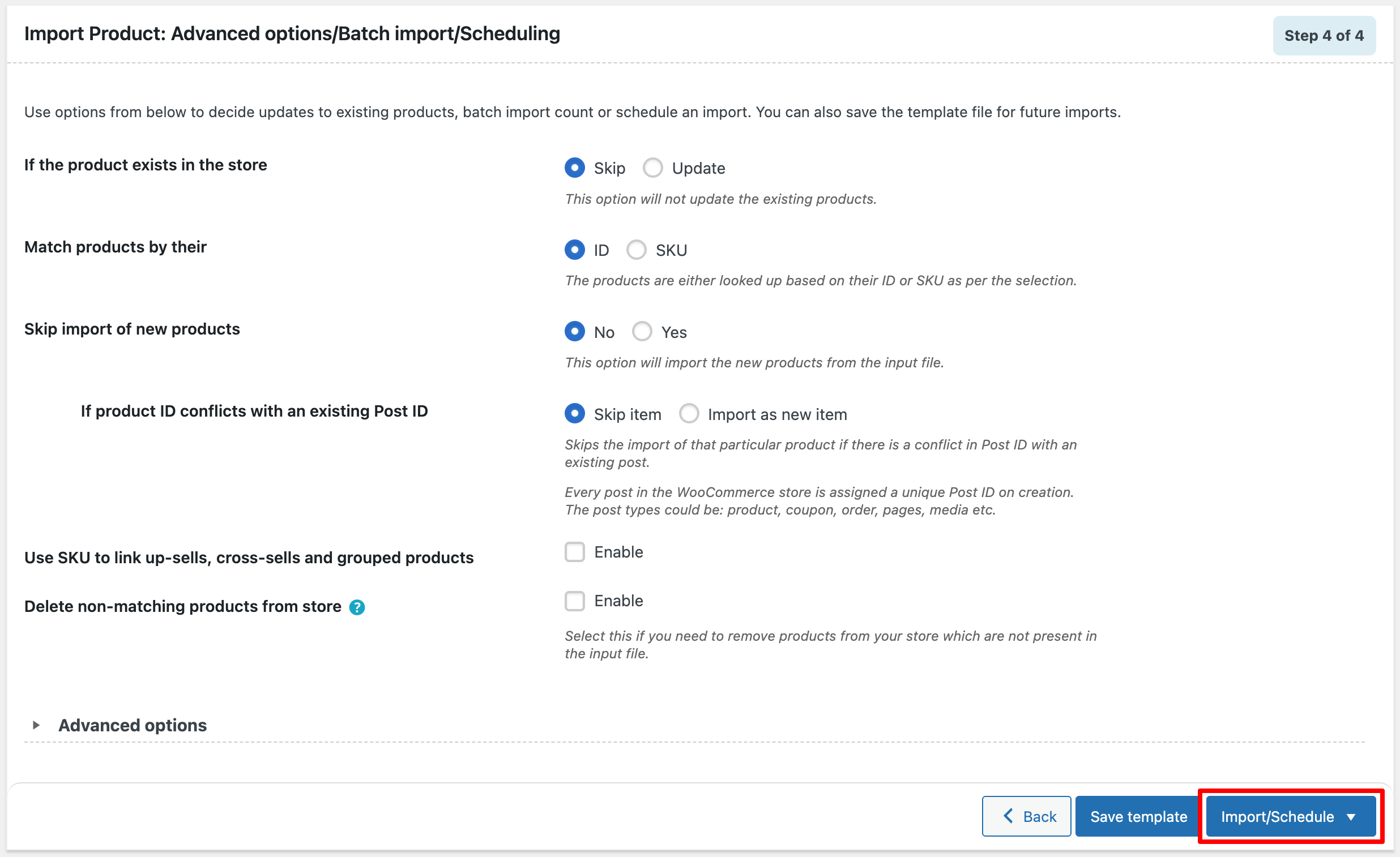
Step 4: Set Advanced Import Options
After uploading your file, you’ll see a set of advanced options that offer additional control over the import process. These include:
- Updating existing products based on matching SKUs or IDs
- Setting the batch import count to control how many records are processed at once
- Scheduling imports for a later time
- Saving your settings as a template for future use
Note: These options are useful for more complex import scenarios. However, since you’re only importing variable products, you can skip them for now.
To begin the import immediately, simply scroll to the bottom and click Import from the Import/Schedule button.
If you prefer to run the import at a later time, select Schedule instead.
You can see an import progress log with the number of successful and failed imports (if any).

Previewing Imported Variable products in WooCommerce
After the import is complete, it’s a good idea to preview the imported variable products in your WooCommerce store. This step helps ensure everything looks and functions as expected before customers see them.
Why Previewing Matters:
- Confirms that variations (like size, color, etc.) are displayed correctly
- Verifies pricing, stock levels, and product descriptions
- Helps catch any formatting issues or missing details before going live
How to Preview:
- From your WordPress dashboard, navigate to Products > All Products.
This will take you to the product’s storefront page, where you can inspect how the variations and product data appear.

You can find the newly imported variable products in your WooCommerce store. Each product will show its variations, like different sizes, colors, or other attributes, making sure they’re arranged exactly as you set them up.
The thing is that you can import as many products as you want using the import variable products WooCommerce plugin, whether it’s just a few items or a whole inventory. This approach simplifies bulk imports, saving you time and keeping your store current with your latest offerings.
Also Read: How to Bulk Update WooCommerce Products
Here are the most common errors store owners face, along with practical solutions to fix them quickly.
1. Variations Not Showing (Missing or Incorrect Attributes)
Variations often fail to appear when the attribute data isn’t perfectly aligned. This usually happens when attribute values differ between the parent and child rows, when slugs are inconsistent (like “color” vs “color”), or when the parent product doesn’t list all possible values.
To fix this, ensure that attribute names and values match exactly across all entries, that the parent includes every variation value, and that global attributes exist before importing. Even small differences like “Red” vs “red” can prevent variations from generating.
2. Images Not Importing
If your products import but images don’t appear, the issue is usually with the image paths or formatting. Broken URLs, mismatched filenames, blocked external hosting, or incorrectly structured image columns/tags can all cause failures.
Use full, valid image URLs, confirm they load in a browser, and follow the correct formatting, commas for multiple images in CSV or <image> tags in XML, to ensure WooCommerce can fetch them properly.
3. Duplicate Products
Duplicate entries usually occur when SKUs are reused, changed, or missing, or when the import is set to create new products instead of updating existing ones.
The solution is simple: assign a unique SKU to every product and variation, enable the “update existing products” option when needed, and run a small test import to confirm everything maps correctly. Avoid leaving any SKU field blank to prevent accidental duplication.
4. SKUs Not Recognized
WooCommerce may skip rows or reject products if SKUs contain invalid characters, duplicate the parent’s SKU, or include hidden spaces.
Keep SKUs clean and alphanumeric, give every variation its own unique SKU, and remove any extra spaces before or after values. Ensuring SKU uniqueness across the entire store is key to preventing product import errors.
5. Attribute Slug/Prefix Issues (pa_color vs color)
Small slug mismatches can break your entire variation structure. Global attributes always use the pa_ prefix, while custom attributes use the attribute: format. Mixing these, using incorrect slugs, or swapping underscores for hyphens can cause imports to fail.
To fix this, verify that attribute slugs match exactly, use global attributes whenever possible, and double-check all spelling and formatting.
6. Timeouts in Large Imports
Large import files can overload your server, especially on shared hosting. Timeouts occur when memory limits or execution times are too low, or when you’re importing thousands of variations at once.
Increase your PHP memory and timeout settings, split huge files into smaller chunks, or use an import plugin that supports background or scheduled processing. If using XML, simplifying nested structures can also help reduce processing load.
Variable products require parent-child relationships and defined attributes, while simple products have no variations and are easier to import.
Yes. The plugin allows mapping image URLs or image file names for parent and variation-level images.
Yes, using the “Update existing products” option, you can modify pricing, inventory, or other details without duplicating entries.
There’s no “undo” button, but you can re-import corrected data or restore a backup if you’ve taken one before importing.
Not necessarily. A single well-structured file can include simple, variable, and grouped products as long as rows are properly formatted.
The product import export plugin we discussed in this article has a free version available in the WordPress plugin library with basic functionalities. It lets you import products on WooCommerce from CSV or XML files.
The free version does not support importing or exporting variable products. You may need to purchase the premium version to import variable products to your store site.
We believe this article has helped you import variable products into WooCommerce. If you have any questions or feedback, let us know in the comments, and we will be happy to assist you.

Got any query? Please leave a comment or reach out to our support
Got any query? Please leave a comment or reach out to our support

Subcribe to our newsletter


Comments (4)
Loretta
December 11, 2022
I tried to put different picture attached to the variable items however this failed and only one primary picture can be posted (which is the first one). I do the excel file and download as CSV which sets up accordling to the product csv sample. Could you verify that the CSV sample that linked with the plugin is working? Please get back to me. I can send you my prduct file to you and try on your side. Thank you.
Alan
January 2, 2023
Hi,
It appears that you require technical assistance. Can you please reach us via support?
Cristian Baitg
October 27, 2022
Thank you. All this information is great as you explain very well what happens with the plugin and how to do it. The big problem that small seller have is creating the CSV/Excel files and the formulas. If I have 10 variation now suddenly I have 10 different file names on my excel and in my other excels with hundreds of products only one filename and 1 price. To create a rule that all the files convert to variable files following the export sample s the complicated thing. Lots of tutorials of how the plugins work that are usually easy as a plugin holds your hands step by step but no tutorials on how to set up Google sheets or Excel to transform one product in multiple ones so you can import those With import/export. Now that would be very useful in a YouTube video.
Alan
November 3, 2022
Hi,
Currently, there is no option to automatically generate the variable product data for import. You have to provide all the details in the file for importing.
We will include your feature suggestion in our development backlogs and will try to include it in future releases.