


Share:


Table of Contents
Exporting WooCommerce products with images is a crucial process for store migration, data backup, and efficient product management. Understanding the different methods available for exporting product data, including image URLs, is essential for maintaining a seamless e-commerce operation and ensuring that product visuals are preserved during transfers.
- WooCommerce allows exporting products with images primarily as URLs or references, not as actual files.
- The built-in WooCommerce exporter is suitable for basic exports, while plugins offer advanced features for larger catalogs and complex needs.
- Featured and gallery images can be included in exports, typically represented as comma-separated URLs in the export file.
- Using a plugin like WebToffee’s Product Import Export Plugin provides greater control over export configurations and simplifies the process.
- Common issues during import, such as inaccessible image URLs or missing gallery images, can disrupt the successful transfer of product visuals.
- Regular exports serve as reliable backups, facilitate bulk editing, and help manage product feeds for marketing platforms.
Exporting WooCommerce products with images is important when you are migrating your store, creating a backup, bulk editing product data, or setting up product feeds for marketing channels.
WooCommerce lets you export product data with image information, but the way images are included depends on the export method you use. In most cases, product images are exported as image URLs or image references, not as actual image files.
In this guide, we’ll show you how to export WooCommerce products with images using three methods:
- WooCommerce’s built-in product exporter
- WordPress’s native export tool
- WebToffee’s Product Import Export Plugin for WooCommerce
We’ll also explain how featured images and gallery images are handled, how to export selected products with images, and what to do if product images do not import correctly after export.
Yes. WooCommerce lets you export products with image data, usually as image URLs or image references in the CSV/XML export file. You can export featured images, gallery images, product details, categories, tags, prices, stock, and attributes.
For basic exports, WooCommerce’s built-in CSV exporter is usually enough. For advanced exports, large product catalogs, selected products, custom fields, scheduled exports, or better image handling, a dedicated WooCommerce product import export plugin is a better option.
What Image Data Is Included in a WooCommerce Product Export?
WooCommerce products can include two main types of images:
- Featured image: The main product image displayed on the product page and catalog pages.
- Gallery images: Additional product images shown in the product gallery.
When you export WooCommerce products, these images are usually added to the export file as image URLs. If a product has multiple gallery images, they are often included as comma-separated image URLs in the image/gallery image field.
This means the export file does not usually download the actual image files. Instead, it stores the image locations so they can be used later during import.
Best Ways to Export WooCommerce Products With Images
| Method | Best for | Image handling | Limitations |
|---|---|---|---|
| WooCommerce built-in exporter | Basic CSV product exports | Exports product image URLs/data in CSV | Limited advanced filtering and automation |
| WordPress export tool | Exporting products as WordPress XML data | Exports media references | XML is harder to edit and not ideal for product migration |
| Product Import Export Plugin | Advanced product exports, large catalogs, selected products, and better control | Exports featured and gallery image data with more control | Requires plugin setup |
Why Export WooCommerce Products with Images?
Exporting WooCommerce products along with images is essential for several common use cases:
- Store Migration: When moving to a new store or server, exporting products with images ensures you don’t lose important visuals and data during the transition.
- Backup & Restore: Exports act as a reliable backup. If something goes wrong, you can quickly restore your store data, including product images.
- Bulk Editing: You can export products, update details in a spreadsheet, and re-import them—saving significant time compared to manual edits.
- Product Feed Marketing: Platforms like Google Shopping, Facebook, Amazon, etc. require product data with image URLs. Exporting makes it easy to create and manage these feeds.
- Multi-Store Management: If you run multiple stores, exporting products helps you sync or replicate your catalog across different sites efficiently.
Did You Know?
E-commerce is rapidly growing, with more stores created and migrated, making product data and image exports increasingly common.
Method 1 – Export WooCommerce Products With Images Using the Built-in Exporter
WooCommerce includes a built-in export tool that’s simple, free, and effective for basic product export needs. If you’re looking for a quick way to export product data along with image URLs, without installing any plugins, this method is a great place to start.
Step 1: Go to WooCommerce Products
- From your WordPress dashboard, navigate to Products > All Products. At the top of the page, you’ll see an Export button. Click on it to open the export settings.

This will take you to a screen where you can configure what data you want to export.
Step 2: Select Columns and Filters
WooCommerce gives you flexibility in choosing what to include in your export file. You can:
- Select specific columns (such as product name, price, SKU, images, etc.), or
- Export all product data with one click
You can also apply filters to narrow down your export:
- Export by product type (simple, variable, grouped)
- Filter by category
- Choose specific products or statuses

This is especially useful if you only want to export a portion of your catalog instead of everything.
Once you’ve configured your settings, click the Generate CSV button.
WooCommerce will create and download a CSV file containing your selected product data. You can open this file in tools like Excel or Google Sheets for editing, analysis, or migration.
How Images Are Included in the CSV
WooCommerce includes product images as URLs in the CSV file.
- The main product image appears in the images or image_url column
- Gallery images are included as comma-separated URLs
For example: image1.jpg, image2.jpg, image3.jpg
This means your images are not downloaded; they are referenced via URLs, which can be re-imported later.
Note: This method is simple and free, but it offers limited control over advanced export configurations.
Method 2: Export WooCommerce Products and Images Using WordPress Export Tool
WordPress includes a built-in export tool that lets you export various types of content, including WooCommerce products. While it can be useful in certain scenarios, it’s not specifically designed for WooCommerce product exports, so it has some limitations.
How to Use It
To export products using WordPress’s native tool:
- Go to Tools > Export from your WordPress dashboard
- Select Products as the content type
- Click Download Export File

This will generate an XML file containing your product data, which can be imported into another WordPress site.
Limitations of This Method
Although simple, this approach has several drawbacks when used for WooCommerce:
- Images are exported as media references (IDs), not direct URLs, which makes them harder to reuse outside WordPress
- The XML format is not ideal for bulk editing in tools like Excel or Google Sheets
- Limited filtering options compared to WooCommerce’s built-in exporter
- Not suitable for product feeds or advanced export needs
Method 3: Export WooCommerce Products with Images Using a Plugin
If you’re looking for more control, flexibility, and efficiency, using a plugin is the best way to export WooCommerce products, especially when images and large catalogs are involved. Unlike built-in tools, plugins offer advanced options that simplify even complex export tasks.
A plugin like WebToffee’s Product Import Export Plugin for WooCommerce is designed to handle real-world store requirements with ease. It not only simplifies the export process but also ensures accuracy and scalability.
Follow the steps below to export WooCommerce products along with their images using the plugin.
Step 1: Install & Activate Product Export Plugin
- Go to Plugins > Add New Plugin from your WordPress dashboard.
- Search for the plugin – Product Import Export for WooCommerce.
- Install and activate the plugin.

Step 2: Select Post Type
After you have installed and activated the plugin, let’s see how the export process is carried out.
- Go to – WebToffee Import Export (Basic) > Export.
- Choose the post type as Product and proceed to select the export method.

Step 3: Choose the Export Method
- Now select the method for exporting the products. You will have two options: Quick export and Advanced export.
- Let’s select advanced export and proceed to the next step.

Step 4: Filter Product Data to Export
Here, you can customize the export by selecting the number of products to be exported and specifying which products, categories, or tags to include or exclude.
However, if you want to export all products and their images, it’s best to skip these configurations and move to the next step.

Step 5: Map and Rename Export Columns
Here, you can decide which information to export and how to organize it. You have the option to rearrange the product fields, rename the columns, and select specific fields to appear in the output export file.
Since we have to export the whole set of products and their corresponding images, you can skip configuring and proceed directly to the next step. If you prefer to rename or rearrange any fields, you can do so before moving forward.

However, if you only want to export the product images of the products in the store:
- Uncheck all the fields and select only the Images (featured and gallery) field. The export file will only have one column named Images.
- Click the Advanced options/Batch export button to proceed to the next step.

Step 6: Set Advanced Options/Batch Export of Products with Images
- Select the number of products to be exported in a single batch. By default, it’s set to 30.
- In the Delimiter drop-down, choose a separator (comma, semi-colon, tab, space) that differentiates columns in the CSV file.
- Once done, click on Export to start exporting your products and images. You can then download the CSV file.

Pro Tip: You can save your current export configurations as a template for future use. This way, you can quickly export your products without configuring these steps again.
Here is an exported sample CSV file with product images and other product-specific data.

Variable products may have image data at both the parent product level and the variation level.
For example, a T-shirt product may have a main product image, while each color variation may have its own image.
When exporting variable products with images, make sure the export includes:
- Parent product data
- Variation data
- Featured images
- Variation images
- Gallery images, if applicable
- Attributes used for variations
WooCommerce’s built-in exporter may work for basic variation exports, but a dedicated product export plugin gives better control over variable product image fields and product data.
Now, let’s see how to export product images in your WooCommerce store to an Excel file. For this, you need the premium version of the WooCommerce Product Import Export plugin.
Before we begin, make sure you have purchased and downloaded the plugin file from My Accounts > Downloads on your WebToffee account.
Follow the below steps to export WooCommerce product data with images to an Excel file.
Step 1: Install & Activate the Plugin
- From your WordPress admin console, navigate to Plugins > Add New Plugin.
- Click on Upload Plugin and upload the plugin file that you have previously downloaded.
- Click on Install Now and then Activate the plugin.
Refer to this article if you need help activating the import export plugin.

Next, you go through the same steps for export configuration as you did with the basic version of the plugin.
The only difference lies in the final step before exporting, where you configure the advanced export options.
Step 2: Configure Advanced Export Options
This is the final step for exporting WooCommerce product data with images.
- Specify a file name for the export file.
- From the export file format dropdown, choose XLS or XLSX as the file format.
- Click Export to export WooCommerce product data with images.

Exporting Product Images Separately
If you want to export WooCommerce product images separately,
- Expand the advanced options widget and enable the Export product images separately option.
- Then click on Export images to export images only.

After completion, you will receive a prompt message to download the export file. Click on the Download button to save the file to your local storage.
You can see an image tab in the export file with a URL to download the images.

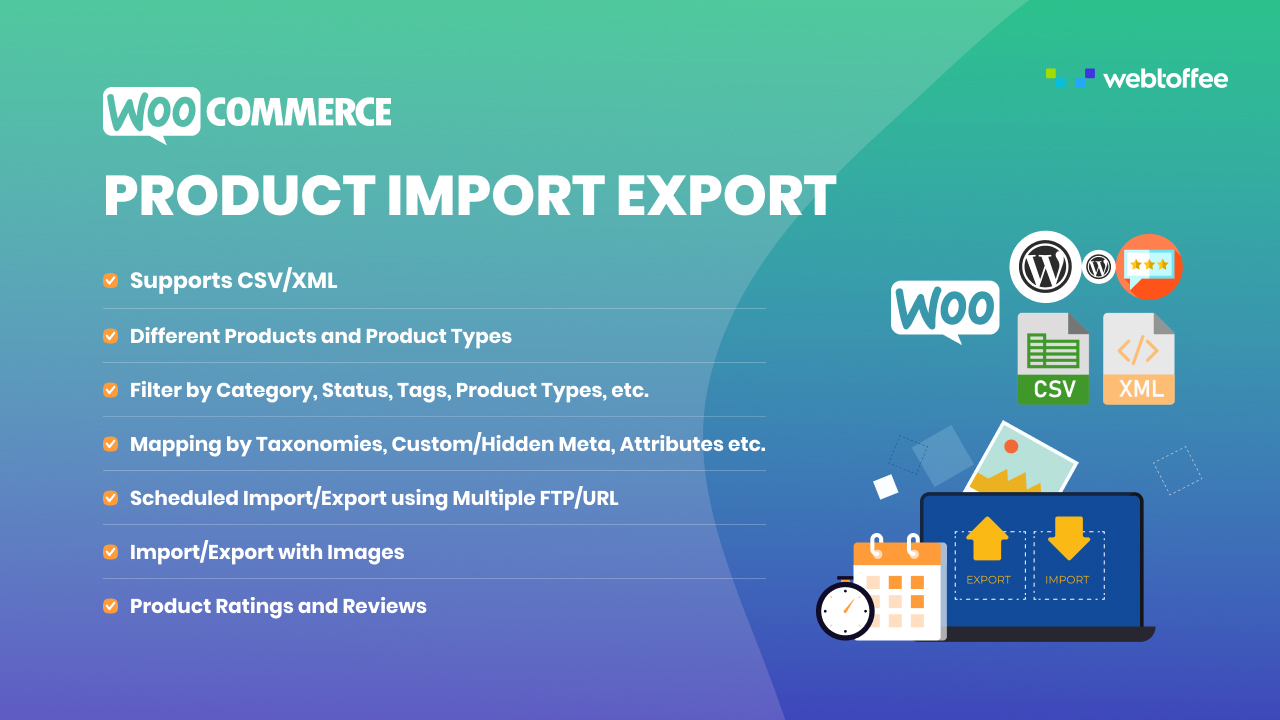
The Pro version of the WooCommerce Product Export Plugin offers several premium import/export features in addition to the ones offered by the basic version of the plugin.
Exporting products and images from the WooCommerce platform using this plugin follows the same steps as the basic version. Meanwhile, the Pro version offers more customization and filtering options.
Some of the advanced features offered by this plugin include:
- Supports variable, subscription, and custom product types
- Schedule automated export process
- Export images as a separate .zip file, etc.
- Export in Excel, XML, CSV, and TSV formats
- Export custom fields and third-party plugin (hidden meta) fields
- Option to export products modified after the last export
- Enables automatic FTP export
Sometimes, product images may not appear correctly after importing exported WooCommerce products into another store.
Here are the most common reasons.
1. Image URLs Are Not Publicly Accessible
If the image URLs in the export file are blocked, private, or inaccessible, the destination site cannot download them.
Make sure the image URLs open properly in a browser.
2. Images Were Deleted From the Source Site
If the source images were deleted after export, the destination store will not be able to retrieve them during import.
Keep the source site and media files available until the import is complete.
3. Gallery Image URLs Are Missing
If only the featured image field is exported, gallery images may not be imported.
Make sure the export file includes both featured image and gallery image data.
4. Images Were Exported as Media IDs
Media IDs may not work correctly when importing products into a different WordPress site because media IDs are specific to the source site.
Image URLs are usually better for migration between different stores.
5. The Destination Site Cannot Download Images
Server timeout, file permission issues, security plugins, or hotlink protection can prevent the destination site from downloading images.
Check the destination site’s server settings if images fail during import.
6. Image URLs Are Incorrectly Formatted
If multiple gallery image URLs are not separated correctly, the importer may not read them properly.
Check the CSV file and make sure image URLs are formatted correctly.
WooCommerce does not export the actual image files. Instead, it includes image URLs in the export file, which can be used to retrieve and display images during import.
Yes, WooCommerce includes gallery images in the export. These are added as comma-separated image URLs within the CSV file.
The built-in WooCommerce exporter works well for basic needs. However, if you require advanced features like filtering, automation, or handling large catalogs, using a plugin offers greater flexibility and control.
WooCommerce product exports usually include image URLs or image references, not a downloadable folder of image files. This means the export file points to the image location instead of downloading the actual image file.
For example, the CSV may include an image URL like: https://example.com/wp-content/uploads/product-image.jpg
When you import the product into another WooCommerce store, the destination site uses this URL to fetch the image.
It is always better to keep a backup of all the products in your store. Above all, exporting these data shouldn’t be a headache either. A simple free plugin like the WooCommerce product import and export plugin can help you make this process as hassle-free as possible.
For a detailed breakdown of the product and image export process, you can refer to our documentation here.
Was this article of interest to you? Do let us know your thoughts about this in the comments.

Got any query? Please leave a comment or reach out to our support
Got any query? Please leave a comment or reach out to our support

Subcribe to our newsletter


Comments (2)
Adam
November 12, 2024
Hello! I would like to export products to XLSX with images that are visible, not links. The XLSX file should be pre-formatted, have bold, similar column widths, row heights, header. Do you have such an add-on?
Hema
November 21, 2024
Hello Adam,
Thanks for reaching out. Our plugin can currently export the URL of the image. We will make sure to add the requested feature to our feature request pool. Thank you.