


Maintaining and organizing WooCommerce order documents is crucial for any WooCommerce store. While WooCommerce generates invoices, packing slips, and other documents, downloading and storing them manually can quickly become time-consuming. This is especially true as the order volume increases. To solve this issue, the WebToffee PDF Invoice, Packing Slip, and Credit Notes plugin now integrates Dropbox as your automated cloud-based storage option. In this article, we will explain the steps needed to create a Dropbox app, and then integrate Webtoffee’s PDF plugin to get access to the user’s Dropbox account.
Pre-requisite
- An active Dropbox account to store order documents.
- Dropbox developer account to create Dropbox app.
- A Dropbox app created in your Dropbox account.
- WooCommerce PDF Invoices, Packing Slips, and Credit Notes by WebToffee, installed and activated.
Steps to Enable Dropbox Cloud-Storage
- Invoices are saved to the cloud only when they are generated as PDFs. As a first step, automate invoice creation. Then send the Invoice PDF via Email to customers for selected order statuses. Doing this will automatically add the Invoice to the Dropbox.
- From the dashboard, navigate to Invoice > General. Set the order status for which the invoice must be automatically created. This can be set via options Automate Invoice creation
- Then set the statuses for which the invoice must be mailed to the customer, in the Attach the Invoice PDF to selected WooCommerce emails option.

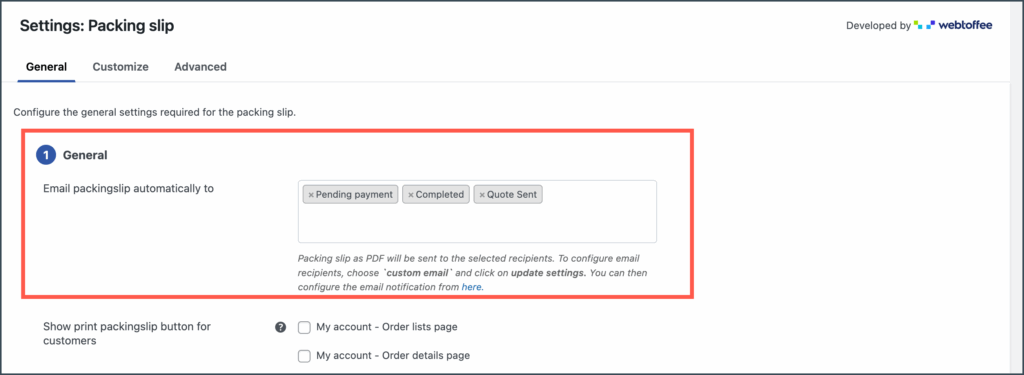
To save other document types to the dropbox cloud, the above steps can be repeated by setting their respective Create credit notes automatically, Email Packingslip automatically to options. The image illustrates this:

- Next, move to the General settings > Cloud storage tab. Here, click on Enable Cloud storage to enable the cloud storage integration.
- Then select the cloud storage provider from the Cloud storage provider drop-down box.
- In the following two subsequent options, input the App key and App secret. You can get this from the Dropbox API console. This page lists the existing Dropbox apps for your account. Select the Dropbox app that you wish to connect. On selection, the Settings page shows the App key and App Secret. Copy them and paste them into the WordPress Dashboard.
Follow the steps in the article “ Getting started – Dropbox App” to create a Dropbox app and obtain the required credentials.
- Get the Access code from the Dropbox access code link. The link can be found in the plugin UI’s help text.
- Select the order document types that need to be uploaded to the cloud storage -Dropbox.

- Finally, specify the Dropbox folder where the documents need to be uploaded. The default location is set as /Documents.
In conclusion, integrating Dropbox with the WebToffee WooCommerce PDF plugin simplifies document management by automating storage and organization. This reduces manual effort, saves time, and ensures all order documents are securely stored and easily accessible as your store grows.
