


At times, store owners may encounter instances where they have to generate documents for multiple orders. The bulk print option offered by WebToffee’s WooCommerce PDF Invoices, Packing Slips, and Credit Notes plugin and other pro-add-ons makes it easier to bulk print invoices, packing slips, and other document types. In addition to this, store owners can also use filters while bulk printing, such as month of order placement and customer name. Follow the below steps to bulk print documents by filtering.
- From the WordPress dashboard, navigate to WooCommerce > Orders.
- Select the preferred month and the registered customer for bulk printing.
- Apply the filter.
- Bulk generate documents.
Steps to Bulk Print Shipping Labels, Dispatch Labels, and Delivery Notes
- From the WordPress dashboard, navigate to WooCommerce > Orders.
- On the Orders listing page, select the orders you want to generate documents for.
- To select multiple orders, tick the checkbox next to each order.
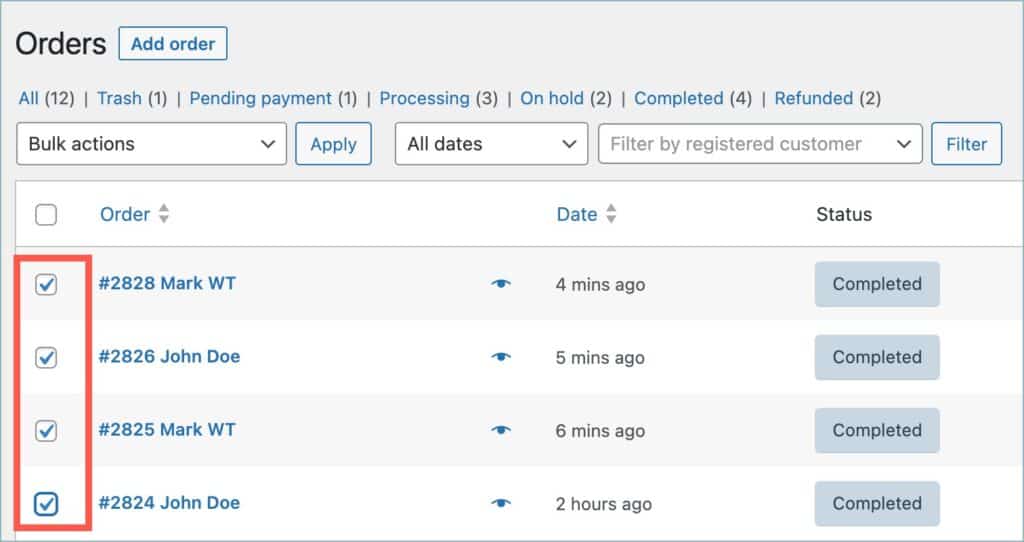
- From the Bulk actions dropdown, choose the required option:
- Print Shipping Label
- Print Dispatch Label
- Print Delivery Note
- Click on Apply.

Preview Before Printing (Optional)
If the Preview before printing option is enabled under Invoice/Packing > General Settings > Advanced, you’ll first see a preview window where you can confirm settings before printing. To learn more, check out this article: Generating Document Preview Before Printing.

- When enabled, you’ll be directed to a preview screen before the final print dialog.
- When disabled (default setting), the browser’s print dialog opens directly with the generated document.
Example
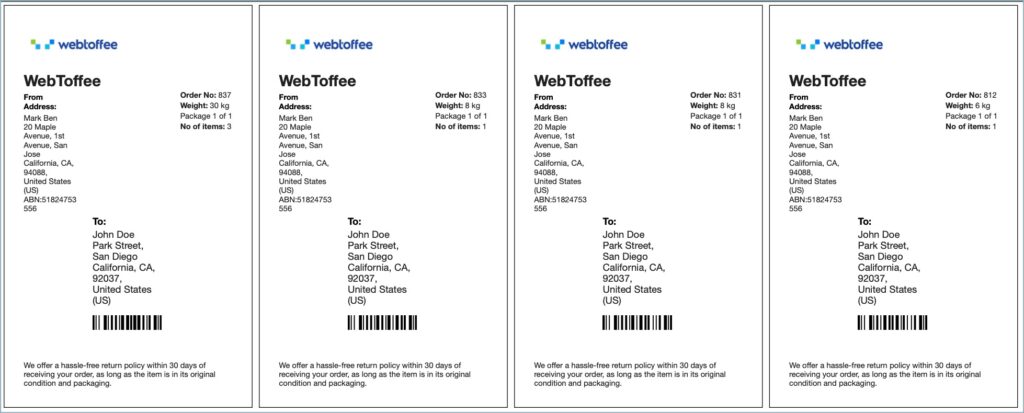
Here’s an example of Shipping Labels generated for multiple orders using the bulk print option:
Use case: Bulk-generating documents based on the month and the registered customer
Below are the detailed steps for the same:
- From the WordPress dashboard, navigate to WooCommerce > Orders.
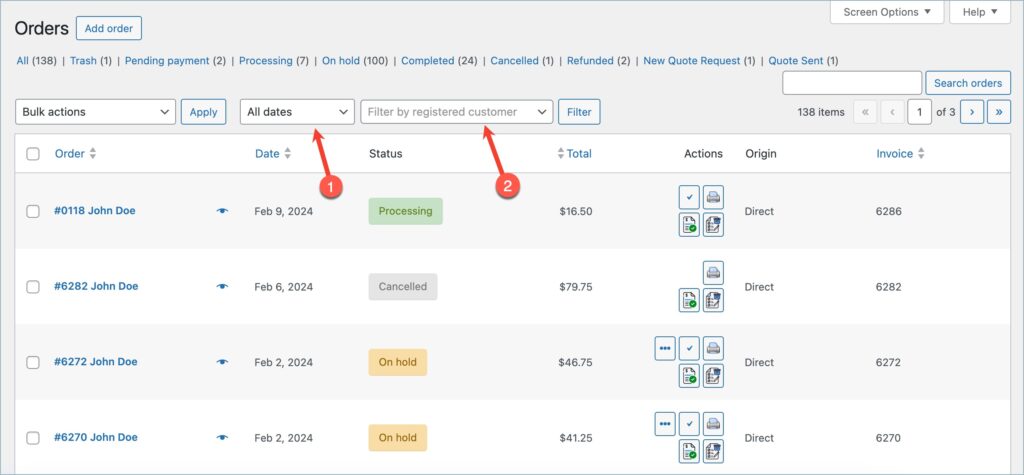
- On the Orders listing page, you can see the two filter options available. Click on the All dates dropdown and select the preferred month, and in the Filter by registered customer option, type in the customer name.
- Now, click on the Filter option to apply the filter. The order listing page will now display orders based on the filter.
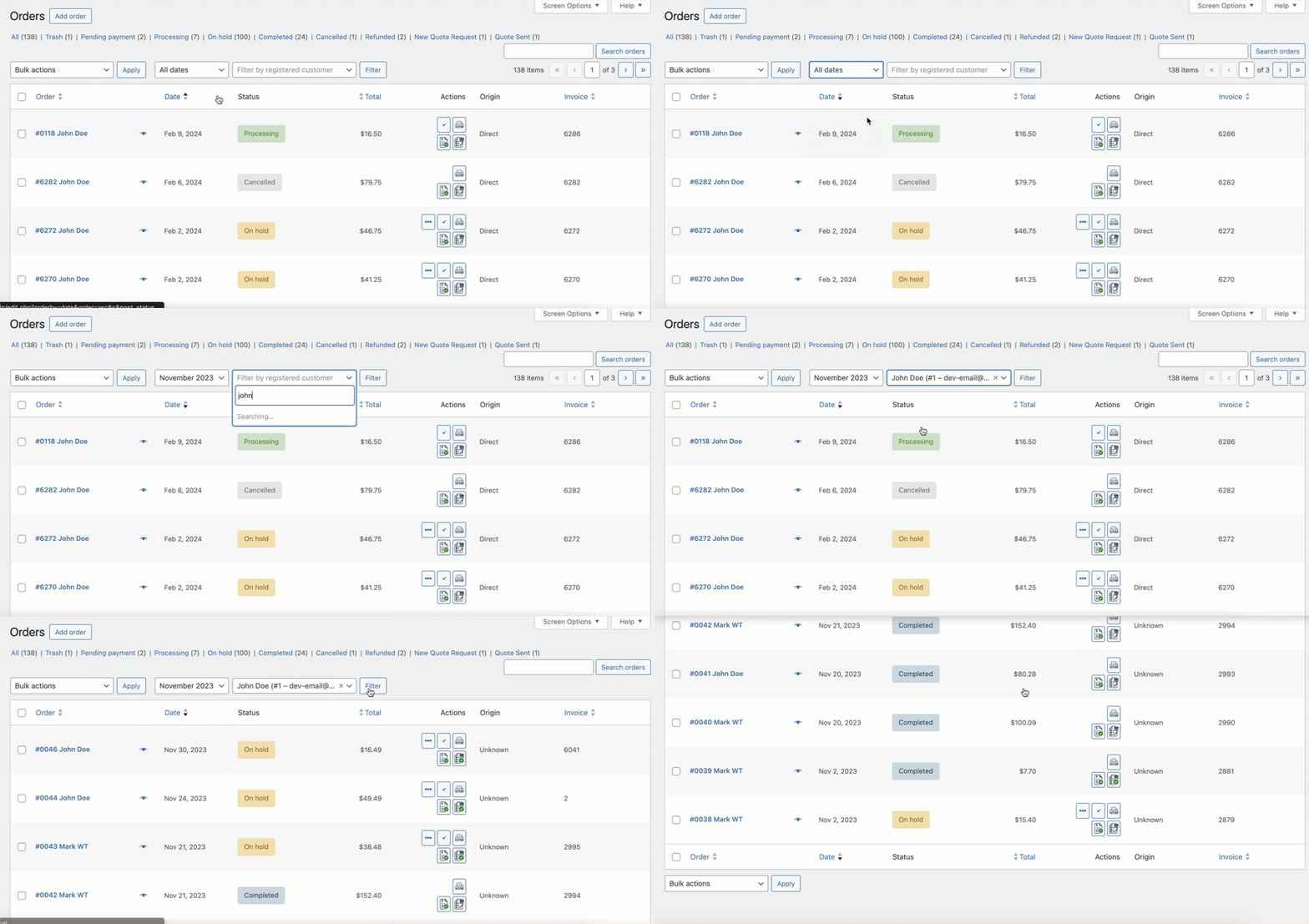
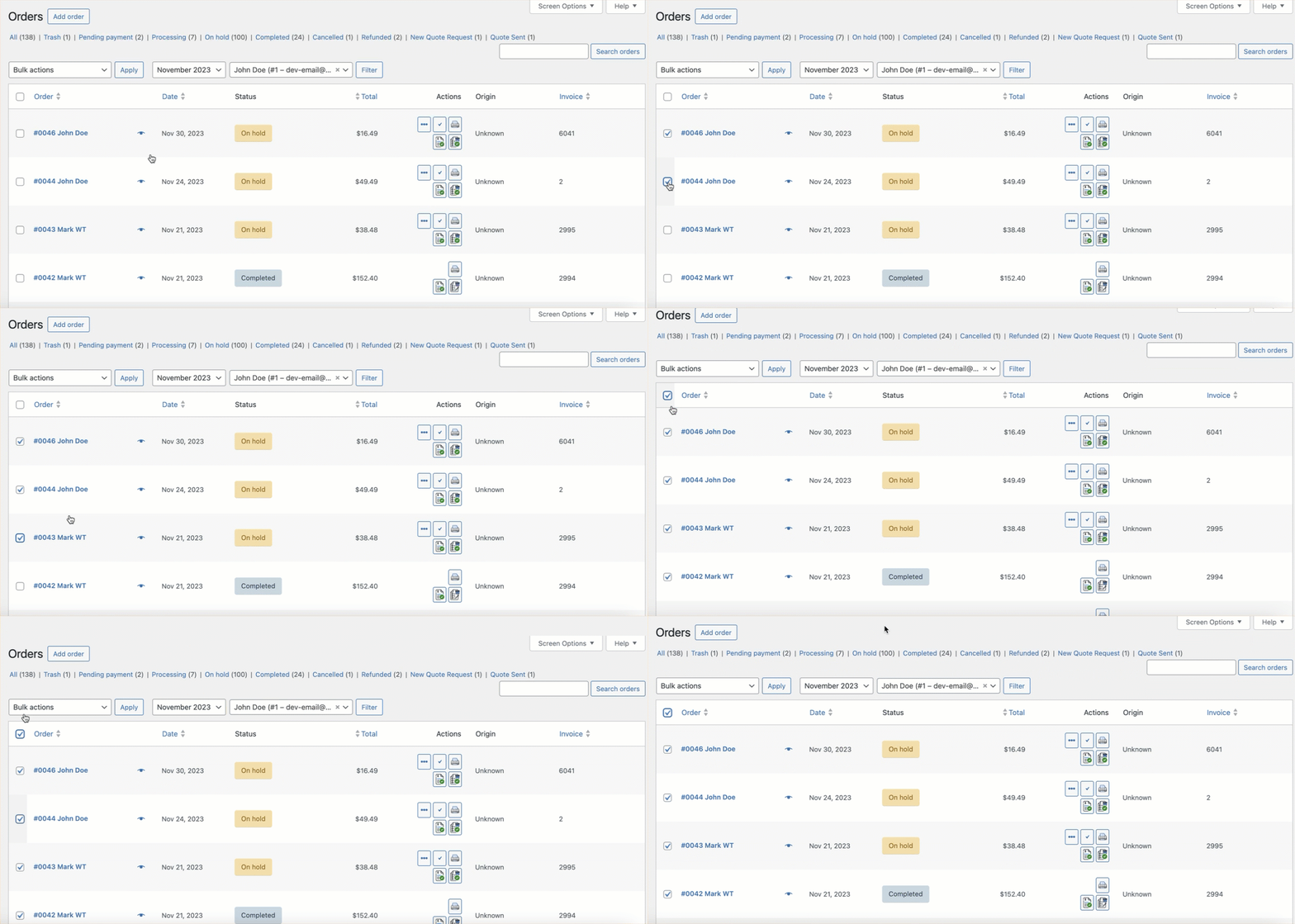
- From the Orders listing page, select the orders for bulk printing. If you wish to select all the orders from the filtered list, mark the checkbox next to the Order column.
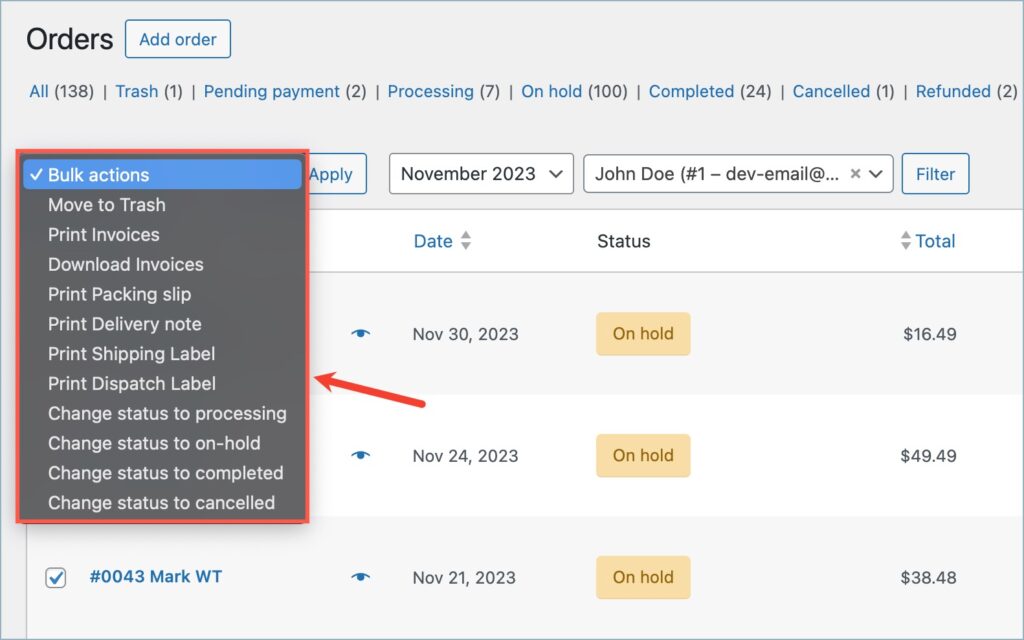
- When done with the selection, select the preferred print option from the Bulk actions dropdown.
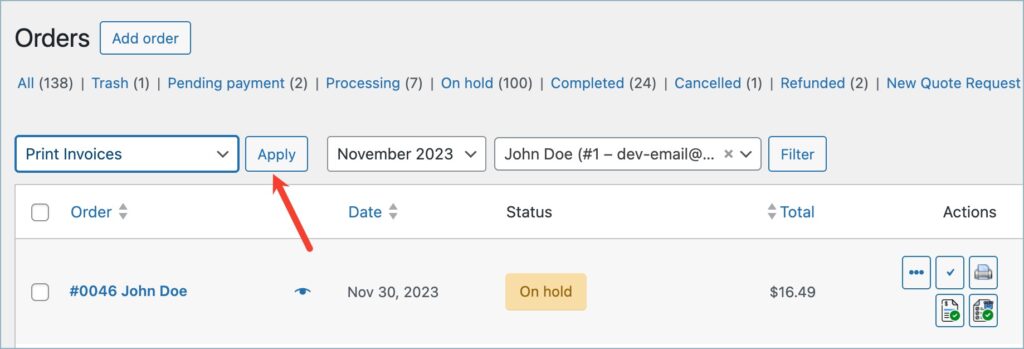
- Finally, click on the Apply button to generate the documents.
With WebToffee’s WooCommerce PDF Invoices, Packing Slips, and Credit Notes plugin, bulk printing documents is quick and efficient. By filtering orders by month and registered customer on the Orders page, you can easily select the required orders and generate invoices, packing slips, or other documents in bulk. This streamlined process saves time and simplifies large-scale order management.
