


Existing WooCommerce user details can be updated in bulk using the WordPress Users & WooCommerce Customers Import Export plugin by importing a file and configuring update options during the import process. You can update user data either by modifying values during column mapping or by using advanced options to update matching records.
To import or update the existing user details:
- Go to WebToffee Import Export (Pro) > Import
- Select the post type as Users/Customers
- Upload the import file with updated user data
- Proceed through the import steps
- Choose how to update existing users (Evaluate field or Advanced options)
- Run the import
For a detailed import workflow, refer to How to import users.
Method 1: Using evaluate field
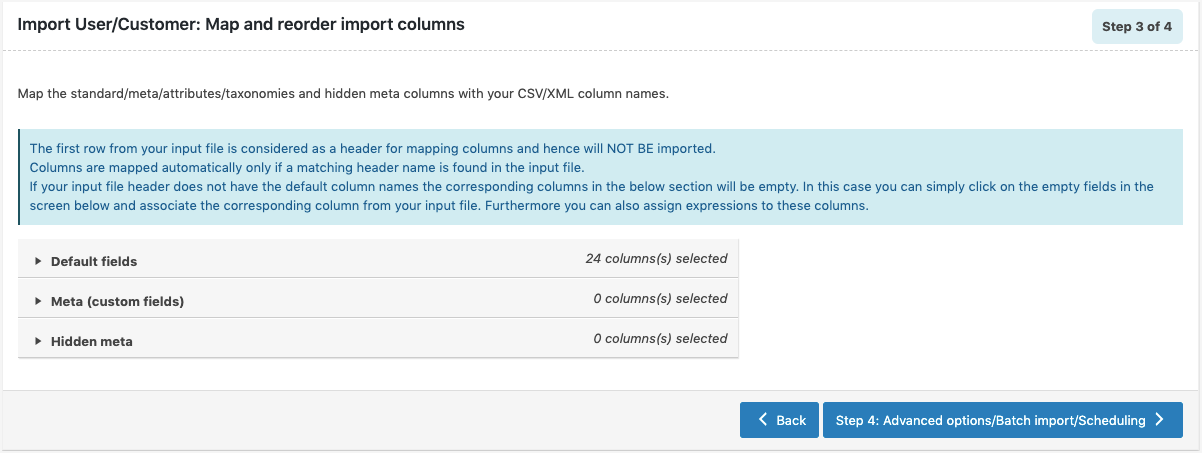
Once you reach Step 3, you can map and reorder the import columns under the following 3 fields:
- Default fields: The column names appearing in this section can be edited if required. The preferred names and choices that were last saved can be viewed on choosing a pre-saved template. One can also move the columns to reorder the arrangement.
- Meta(custom fields)
- Hidden meta

Evaluate field
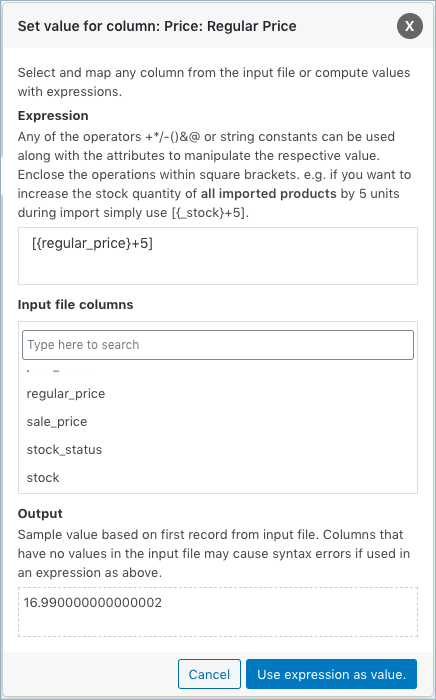
This field is used to append a value/expression to an existing item while importing. It basically selects/maps any column from the input file and compute the values with expressions and creates output.
- Expression: Any of the operators +*/-()&@ or string constants can be used along with the attributes to manipulate the respective value. Enclose the operations within square brackets. E.g. if you want to increase the stock quantity of all imported products by 5 units during import simply use [{_stock}+5].
- Input: Select the column from the dropdown which has to be modified.
- Output: Sample value will be created based on the first record from input file.
Method 2. From Advanced options
Once you reach Step 4, you get advanced options to update the existing user’s data.
Here, one can set If the user exists in the store to:
- Update: to update the existing user data as per the input file
- Skip: to skip the matching user from the input file.
To know more about the plugin, click: WordPress Users & WooCommerce Customers Import Export

Andy
October 23, 2023
We want to export user AND USER META data, edit the data, then re-import after we’re done. We have over 2,000 users so the process won’t be quick, so the concern I have is does your plugin check for modified data (maybe by using a last modified META value) to avoid overwriting any of our customers’ changes to their information? If we take a week or long, there’s a strong likelihood our customer data will change before we import which would result in us overwriting their changes. Please advise.
Vineetha
October 25, 2023
Hi Andy,
Thanks for reaching out!
Currently there is no option to check if there is a data update and then import. All the data in the file will be imported as it is.
Craig Brunt
October 4, 2020
I have a lot more choice for the Import. (This is why I was referring to the documentation) about importing existing users/customers:
Use the same ID for users on import ?????
Use the same Password for users on import ?????
Thx
Alan
October 5, 2020
Hi,
When migrating the users from one site to another site and if you are required to use the same ID for the imported users then you may please enable the option Use the same ID for users on import. Otherwise, users will be imported with a different ID.
Regarding the option “Use the same Password for users on import“, this option is used to import the same password for the migrated users so that the users can log in using the same old password. If this option is not enabled new password will be generated for the users.
fmwhatsapp
April 4, 2020
Do we have the option to choose one primary key? So that we can filter out one particular user.
Alan
April 6, 2020
Hi,
By default, there is no option to filter out particular users from the import/update. Please brief us your query with the help of screenshots via support.