


User imports can be scheduled in WooCommerce using the WordPress Users & WooCommerce Customers Import Export plugin by configuring scheduling options during the import process. This allows user data to be imported automatically at defined intervals without manual execution.
Steps to schedule the import:
- Navigate through WebToffee Import Export (Pro)> Import.
- Follow the steps in How to import users to get your site’s user data.
- On reaching step 4, click on Import/Schedule button.
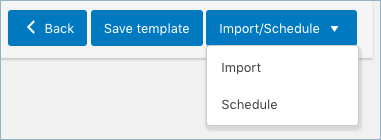
- Hit the Schedule option, and you will be taken to the cron schedule window as shown below:

The plugin supports two different schedule types:
- WordPress Cron: Upon a visit, WordPress Cron will check to see if the time/date is later than the scheduled event/s, and if it is– it will fire those events.
- schedules your job at the specified time.
- is dependent on your website visitors.
- Server Cron: You may need to trigger the URL every minute depending on the volume of data to be processed.You can use this option :
- to generate a unique URL that can be added to your system in order to trigger the events.
- if you have a separate system to trigger the scheduled events.
Also, the import/export can be scheduled on a daily, weekly, monthly, custom basis. One can also configure the time at which the import has to be scheduled.
- Click on Schedule now to finish.
One can view the Scheduled actions for more details.
Refer Enable FTP export to know about export scheduling.
