


You can export WordPress users and WooCommerce customers using the WordPress Users & WooCommerce Customers Import Export plugin by selecting the Users/Customers post type, choosing an export method, filtering the data, mapping columns, and configuring advanced options such as batch export or scheduling.
This helps you efficiently migrate, back up, or analyze user data without manual effort.
To export the Users/Customers:
- Select the post type as Users/Customers.
- Select an export method.
- Filter data.
- Map and reorder export columns.
- Configure advanced options and export or schedule.
Export Users
To export WordPress users / WooCommerce customers, click on WebToffee Import/Export(Pro) > Export.
Step 1: Select a post type
As a first step, choose the post type as User/Customer.

Step 2: Select an export method
Choose from the options below to continue with your export:
- Quick export from DB
- Based on a pre-saved template
- Advanced export
Let us have a look at each of these export methods:
Quick Export
- exports the basic/standard fields of the respective post type.
- To include fields from Meta(custom fields) and Hidden meta, select the respective group’s checkboxes.

- Click the Export button to complete the action or proceed to Step 3 for advanced options.


Pre-saved template
- Exports data as per the specifications(filters, selective column, mapping.. etc) from the previously saved file.

- By selecting this option, one can choose a previously saved template from the Export template drop-down.Note: The template will be listed in the drop down only if you have saved it in previous exports, if you go through the Advanced export, at Step 5 you will get an option to save the template. Once you save that, next time when you want to export a pre-saved template, it will be populated within the drop down.
- Click the Export button to complete the action or proceed to Step 3 to filter data.
- Navigate to Step 3 to know more about filtering options.

Advanced Export
- This option will take you through a detailed process of filtering/column selection/advanced options that may be required for your export.

Step 3: Filter data
Filter the data based on:
- Element – Choose the data field you want to filter by, such as User names or Roles.
- Condition – Specify whether to include or exclude the selected value.
- Value – Select the value that should be included or excluded in the export.

- Click on Step 4 to proceed further.
Step 4: Map and reorder export columns
Here, one can map and reorder the export columns under the following 3 fields:
- Default fields: The column names appearing in this section can be edited if required. The preferred names and choices that were last saved can be viewed on choosing a pre-saved template. One can also move the columns to reorder the arrangement.
- Meta(custom fields)
- Hidden meta

- Click on Step 5 to proceed.
Step 5: Advanced Options/Batch Export/Scheduling
- On reaching Step 5, the following window will appear, from where one can:
- Export guest users: Exports information related to guest users.
- Export file name: Specify a filename for the exported file. If left blank, the system generates a default name.
- Export file format: Both CSV and XML are available.
- Delimiter: Separator for differentiating the columns in the CSV file. Assumes ‘,’ by default.
- Enable FTP export: On opting ‘Yes’, choose an FTP profile and specify the export path, or use the default path.


- Save the template file for future export, as shown below (if needed).
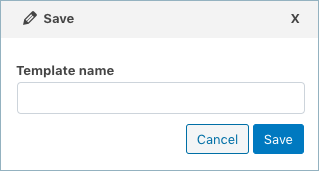
- Click on Export and export or schedule the export to finish.
Using the WordPress Users & WooCommerce Customers Import Export plugin, you can export user data by applying filters, mapping required fields, and configuring advanced options. This enables efficient data migration, backup, and scheduled exports.
Know more about WordPress Users & WooCommerce Customers Import Export Plugin.

savari irudaya raj
February 4, 2026
Something went wrong
We are unable to complete your request.Try reducing the import batch count to 5 or less and increasing the Maximum execution time in the General settings.
to export the product data how to fix it
Yuval
February 5, 2026
Hi Savari,
Thank you for reaching out. As you’re using the free version of the plugin and have already contacted us via our support channel, we request you to please continue the conversation there so we can assist you further based on your setup.
Neil
October 20, 2025
Is there a way to ONLY export customers who have been active in the last 2 years? We have a lot of customer profiles on our site who haven’t made a purchase in a long while and it’d be so much cleaner to not import them.
Yuval
December 5, 2025
Hi Neil,
Thank you for reaching out. Yes, you can export only customers who have been active in the last 2 years using the WebToffee Users & Customers Import Export plugin.
Simply go to WebToffee Import Export > Export, choose User/Customer, and select Advanced Export. In the Filter section, use the Last Active criteria and set the date range to cover the past 2 years. This will export only the customers active within that period.
Mary Connor
April 8, 2022
I need to export/import the users’ LearnDash Group(s), not just their WP Role. Can I specify that for both import and export?
Alan
April 20, 2022
Hi,
Yes, you can import and export all the users and their related data in a CVS/XML format.
To learn about importing users, refer to: How to import users from a CSV/XML file.
Timo Roosendaal
October 7, 2020
I need to export user billing data AND the membership plan for that user. How do I do that?
Mark
November 4, 2020
By default using the pro version of the plugin, you can export the billing details of the users to the CSV. To export membership details you may please enable the Hidden metadata option on the export page.
domknight1
February 12, 2019
This plug-in doesn’t work once you have paid your money. It gets stuck on Step 2 and does nothing.
domknight1
February 14, 2019
What I said above is correct but to be fair about it, it could be a conflict with another plug-in. We tried it on a test site and although the plug-in wasn’t able to export the details for Woo Commerce Membership (which it never claimed it could do) it did a good job exporting WordPress account details. The Customer Service was really good, they investigated everything and they refunded us so all good.
Mark
November 1, 2018
Hi Jessica,
Using this plugin you can Import-Export WordPress/Woocommerce customer data only. In order to Import/Export order data, you may please have a look at our Order Import Export plugin.
jessica
October 31, 2018
does this show you the number of orders per customer and or new customers?