


This article explains how to make your site comply with the California Consumer Privacy Act (CCPA), protect users’ privacy rights, and ensure transparency in how privacy information is collected, used, and shared. As part of this commitment, users can opt out of the sale of their personal data through the “Do Not Sell My Personal Information” banner. This article also explains how to add this consent banner to your site using the GDPR Cookie Consent plugin.
Steps to comply with California Consumer Privacy Act (CCPA)
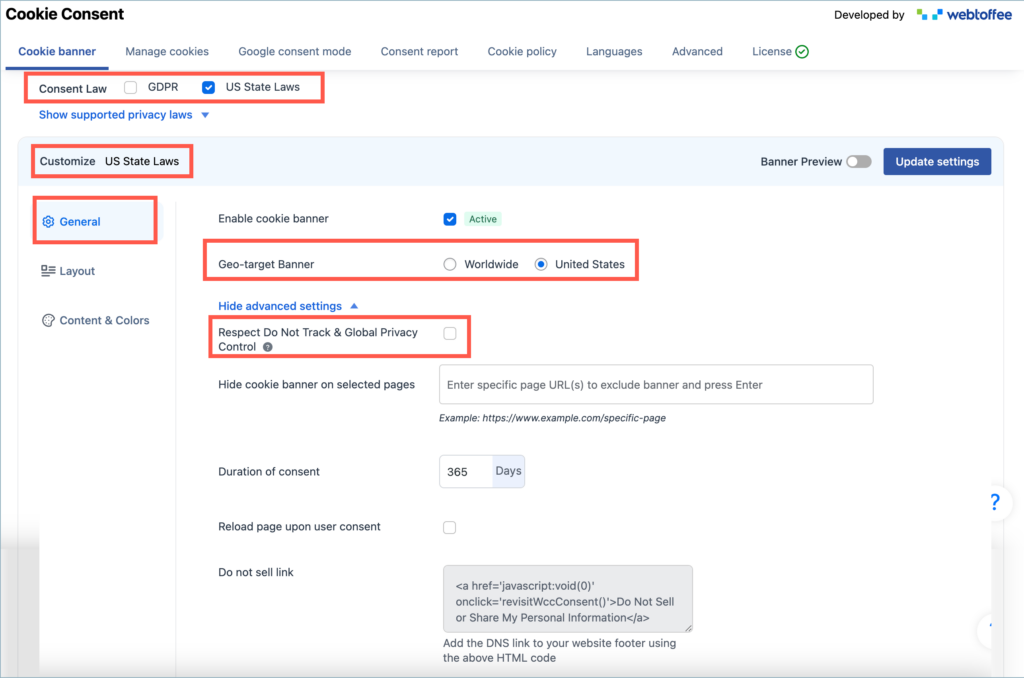
Step 1. From the dashboard, navigate to Cookie Consent. This displays the content of the Cookie Banner tab.
Step 2. Now, select the Consent Law as a US State Law and set the Customize option to US State Laws.
Step 3. In the Cookie Banner tab, move to the General section.
Step 4. Set the Geo-target Banner option.
Step 5. Click on the Show advanced settings section. Now, enable Respect Do Not Track & Global Privacy Control and click Update Settings. Enabling this option will ensure that the plugin respects the “Do not track” & “Global privacy control” option set in the browser. The consent banner will not be displayed, and by default, all the consent states will be set as “denied”. A revisit consent button will be added at the bottom of the page to allow users to change their consent status later.
Step 6. To block the website visitor when opting out of the sale of personal data, navigate to Manage cookies > Cookie List > Edit Category and enable the option “Sell or Share personal data” for the particular cookie category and click “Save Changes” to apply the changes.

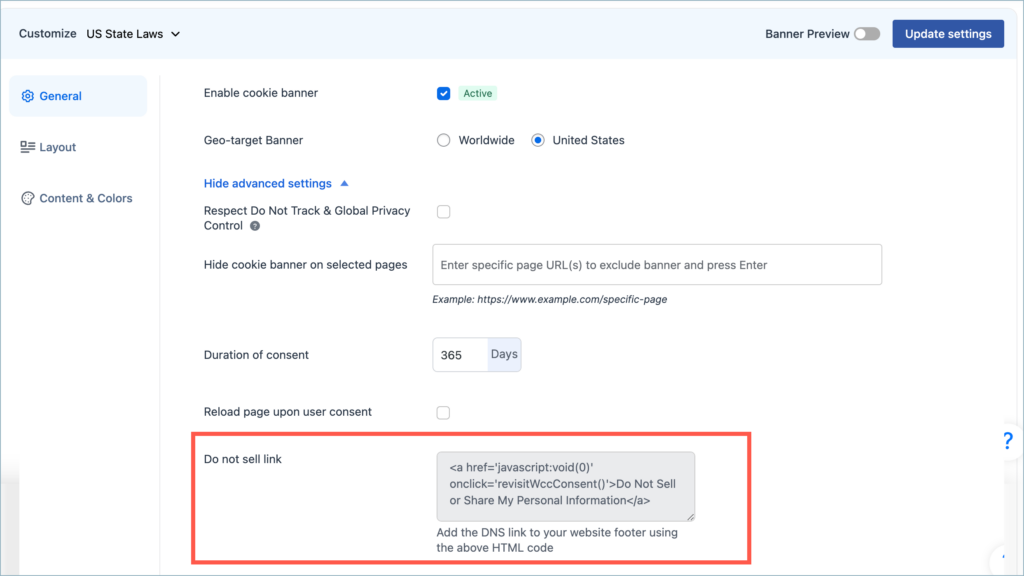
Step 7. The “Do not sell link” can be added to the footer of your webpage by just copy-pasting the HTML link provided in the option Do not sell link. This step is optional.
Step 8. You can further customize the US State Laws banner as per your liking. After you have done the required customizations, click on Update Settings. The image below shows the opt-out preference banner on the front end.

By properly configuring the GDPR Cookie Consent plugin for US State Laws, you can align your website with CCPA requirements and give users clear control over their personal data. Enabling features like “Do Not Sell My Personal Information” and Global Privacy Control helps ensure transparency, build trust, and demonstrate your commitment to protecting user privacy.
Geotargeting the Cookie Banner Using a Code Snippet
Use a geotargeting condition with a custom code snippet to display the cookie banner only for users in specific regions. By detecting the visitor’s location (e.g., via a geolocation service), you can load the banner only where regulations like GDPR or CCPA apply, ensuring compliance while avoiding unnecessary prompts for other users.
Related Articles :

Comments (2)
Matt Madison-Clark
June 23, 2025
The documentation about the CCPA type banner is a little unclear.
When employed, does it only display in the states listed for compliance on the plugin settings (CCPA/CPRA (California), VCDPA (Virginia), CTDPA (Connecticut), CPA (Colorado), UCPA (Utah)) or does it deploy for the entire United States.
Thanks in advance for a quick reply.
Matt Madison-Clark
Digital Marketing Manager
Cornerstone Research
Hema
June 25, 2025
Hello Matt,
Thanks for reaching out. As of now, the banner is displayed to all the states in the United States as the Geo-location option is set to the United States</strong>. However, we will add your request to our pipeline and ensure to an option that allows to select specific dates.