


What is Google Tag Gateway
Google Tag Gateway (GTG) lets you deploy a Google tag using your own first-party infrastructure, hosted on your website’s domain. This infrastructure sits between your website and Google’s services. In a standard Google tag setup, your web page requests a Google tag from a Google domain. When the tag fires, it sends measurement requests directly to the Google product. With GTG, your website loads the Google tag from your first-party domain, and when the tag fires, some measurement requests are sent to Google using your first-party domain.
In plain terms: instead of tracking scripts loading from www.googletagmanager.com, they load from a subdomain you control, for example, tags.yourwebsite.com.
Websites use GTG for two main reasons:
- To bypass ad blockers, which routinely block requests to Google’s domains
- To improve tag loading speed and measurement accuracy
Setting up Google Tag Gateway
There are two ways to enable GTG on your website:
One-click setup via Cloudflare This is the simplest and most common method. Inside Google Tag Manager, you connect your Cloudflare account and enable GTG with a single toggle. Cloudflare then automatically injects the Google tag script into your pages. No changes to your site’s code are needed.
Manual CDN or reverse proxy setup If you are not using Cloudflare, or want more control, you can manually configure GTG through another CDN (such as Fastly or Akamai), a load balancer, or a web server like Nginx. You configure the routing yourself, then update your page to load the tag script from your subdomain.
Both methods achieve the same result: Google’s tracking scripts load from your own domain instead of Google’s servers.
What this means in practice:
Your Consent Management Platform (WebToffee’s GDPR Cookie Consent Plugin) and your cookie banner must run before any tracking tags fire. That is the entire basis of a compliant consent flow. But with one-click or CDN-based GTG, the sequence becomes:
- Browser opens the page
- GTG script loads instantly from your subdomain
- Google Tag Manager initialises and is ready to fire tags
- Later the CMP loads and shows the cookie banner
- The user sees the banner and makes a consent choice
By step 3, the tag infrastructure is already running. The CMP arrives too late. Customers lose control over when tags are triggered not because of a deliberate bypass, but because neither setup method automatically connects GTG to the CMP.
The website needs to set the default consent state before any tags or other code uses or updates consent. Setting the default too late may not have the anticipated effect.
How to Check if Your Site is Using GTG
There are two ways to verify whether GTG is active on your site:
Method 1 — Inside Google Tag Manager
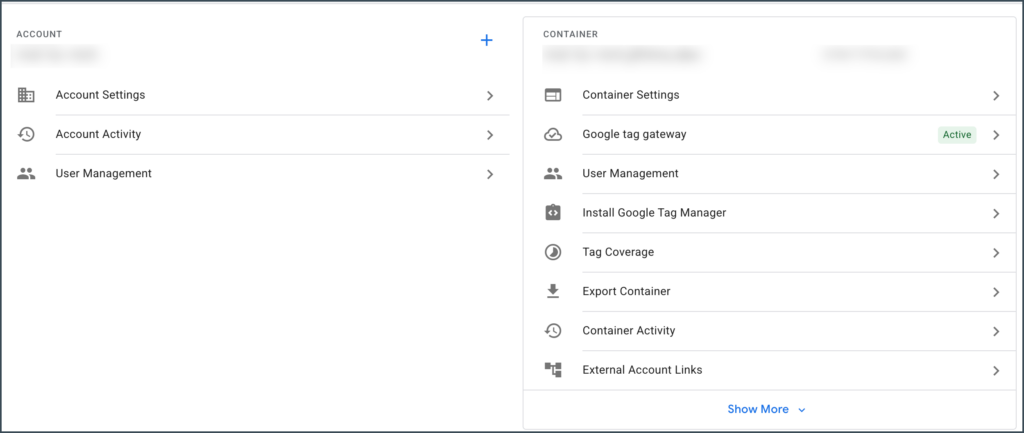
In your Google Tag Manager container, go to Admin and select “Google tag gateway.” In the Google tag gateway screen, the domains will be listed with the following statuses: First-party (GTG is active), Not started (GTG hasn’t been activated), Paused, or Pending (GTG is enabled but no diagnostic information has been received yet).
Method 2 — Using Google Tag Assistant
You can confirm if your GTG setup is working by using Tag Assistant. Open Tag Assistant and enter your website URL to create the connection. Navigate through your website to trigger tags. In the Summary > Output > Hits Sent tab, verify that the hits are routed to your measurement path.
If hits are routing through your own subdomain (e.g. yourwebsite.com/metrics) rather than www.googletagmanager.com, GTG is active.
Fixing the late consent error
Option A – Advanced Consent Mode (Recommended Approach)
Because GTG (especially via one-click CDN injection) limits your control over tag load order, the recommended solution is to adopt Advanced Consent Mode. This lets Google tags fire in a cookieless state immediately, then update once consent is given so load order is no longer an obstacle.
Advanced Consent Mode removes the dependency on perfect script ordering. Even if GTG causes the tag to initialise before the CMP, the consent defaults you set ensure no identifiable data is collected and Google’s modelling fills the gaps for users who later consent.
Option B – Migrate all tags into a GTM container and deploy GTM via GTG
If you are running multiple individual Google tags (such as separate GA4 and Google Ads tags), move them all into a single GTM container and deploy GTG at the container level. GTM has built-in consent controls that will hold all tags until consent is received from the user.
Option C — Set Up GTG Manually to Control Script Import Order
You can choose to set up GTG manually, allowing you to explicitly dictate the script loading hierarchy directly in your website architecture. The code must be ordered so that the WebToffee Consent Default command is declared before the GTG tracking script loads.
Related Articles :
Official documentation: Google Tag Gateway for Advertisers — Overview | Setup Guide
Official reference: Set up GTG with Cloudflare — Tag Manager Help
