


GDPR Cookie Consent plugin makes a website comply with the GDPR & CCPA privacy laws for using cookies on a website.
Plugin Features
- Add a cookie notice bar on the front end of the website to notify the user of the site’s cookies.
- Google consent mode v2.
- Google additional consent.
- IAB’s Transparency and Consent Framework v2.3
- Restrict banner to EU or CA visitors or all.
- Scan your website for cookies and add them to your cookie list.
- Render or block the scripts of these cookies based on the user’s consent, either via the automatic script blocker or by manually adding scripts.
- Maintain an audit log of user consent.
- Consent withdrawal.
Cookie Banner
The Cookie Banner tab allows you to select the required privacy laws, banner layout, banner content, and banner customization.

Consent law – Choose the required consent law. Either or both GDPR and US State laws. After selecting the law the corresponding supported laws are displayed in the Show supported privacy law option. Other customization options will also be displayed in the below tab.
- The General tab – This tab contains options to refine the law further.
- The Layout tab – This tab contains options to set the required layout for the cookie banner.
- The Content and Color tab – This tab contains options to customize the banner content and color.
General tab
The general tab lists features that allow one to select the type of law and manage its country restrictions.

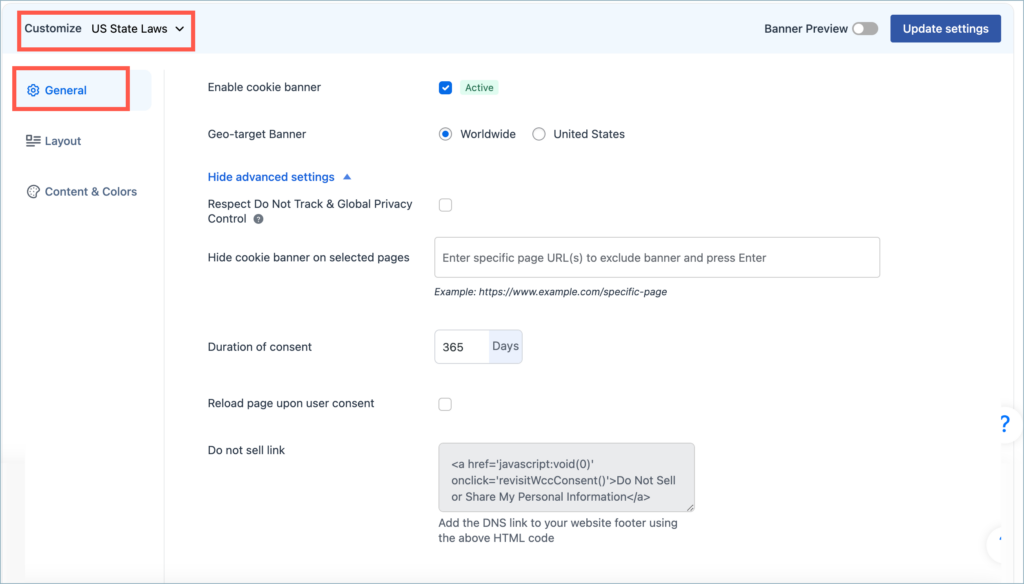
The general setting consists of the following options:
- Consent law – You can choose GDPR or US state laws based on your site requirement.
- Enable cookie banner – This allows you to enable or disable the cookie bar on your website. By default, it is in the enabled state which shows the banner at the front end of the website. Disable it to hide the banner on the front end of the website.
- IAB TCF v2.3 – Enable to comply with Interactive Advertising Bureaus (IAB) Transparency and Consent Framework (TCF)
- Support Google’s Additional Consent – Enable publishers to collect and signal additional consent for ad-tech providers.
- Manage Purposes and Features – Select the purposes and features to be displayed on the second layer of the Cookie banner for user consent.
- Manage vendor list – Select TCF-listed vendors to display in the cookie banner. All vendors selected will receive consent to purpose, features, and special features if applicable.
- Respect Do Not Track & Global Privacy Control – Enabling this option will hide the consent banner for users who have enabled the “Do not track” or “Global Privacy Control” enabled in their browser.
- Hide cookie banner on selected pages – Enter the URLs where the Cookie banner must be hidden.
- Duration of consent – Specify the number of days for which the consent is valid.
- Reload page upon user consent – Enable to reload the webpage after the user consents.
Layout tab
From this tab, one can set the layout of the Cookie banner and the Preference Centre. There are three types available:
- Banner type
- Box type
- Popup type

Content and color tab
From this tab, you can customize the banner content. Apart from that, you can also customize the buttons on the banner, Enable and disable WebToffee branding, show and hide cookie list, and allow transparency by adding a revisit consent button.

The customization options are listed under 5 sections:
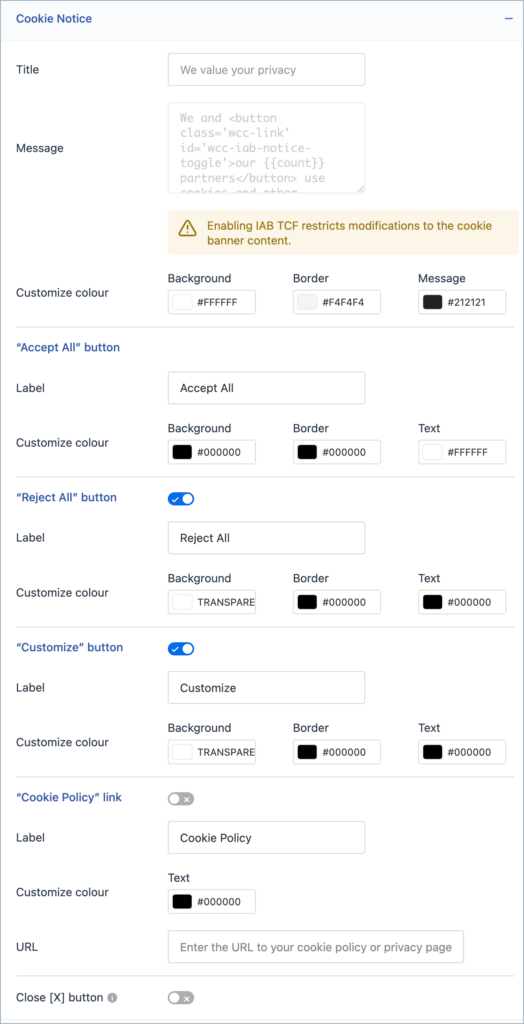
- Cookie Notice – From this section, the background, border, and text color of the Accept All button, Reject All button, Customize button, and Cookie Policy link of the cookie banner can be customized. Apart from that, there are options to include and exclude the Close button on the banner.
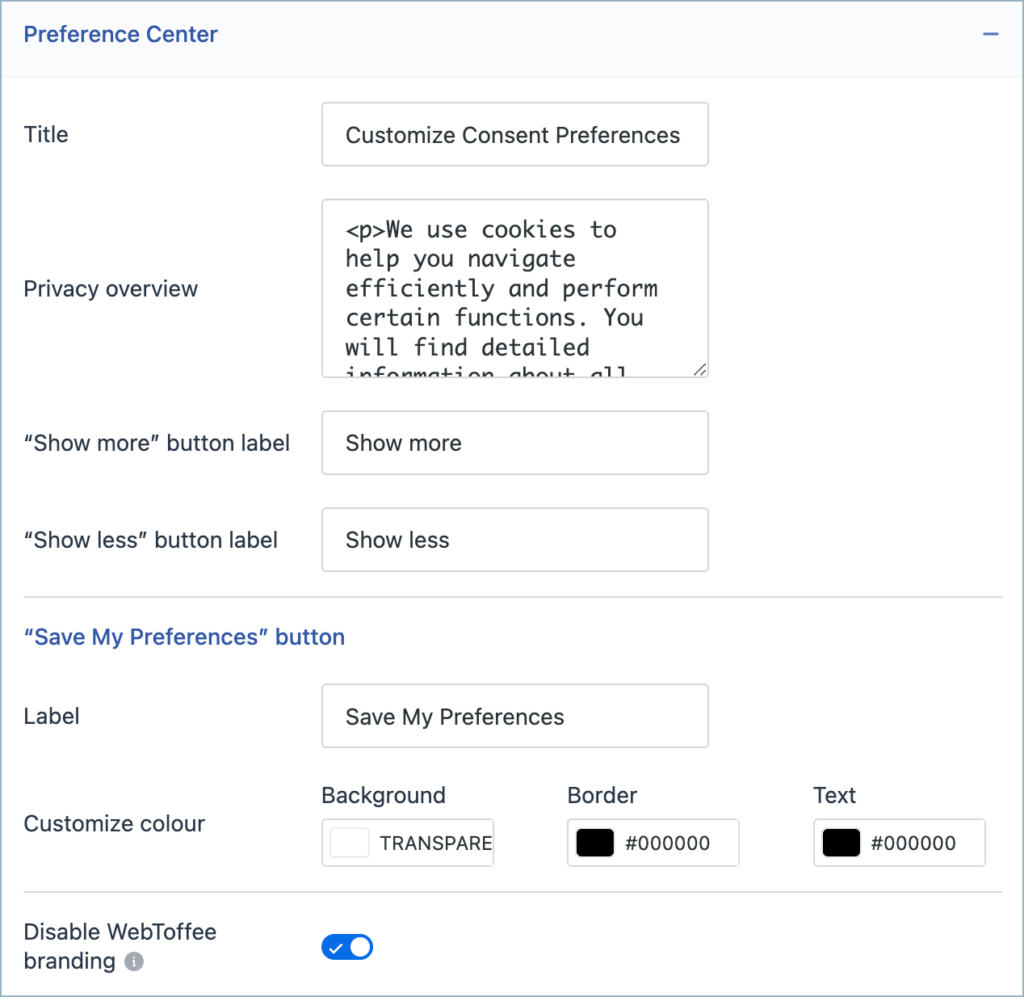
- Preference center – This section contains options to customize the consent preference tab in the cookie banner. There are options to edit the title, Privacy overview, Show more button cation, and the Save my Preference button caption. There are options to disable the WebToffee branding from the banner.
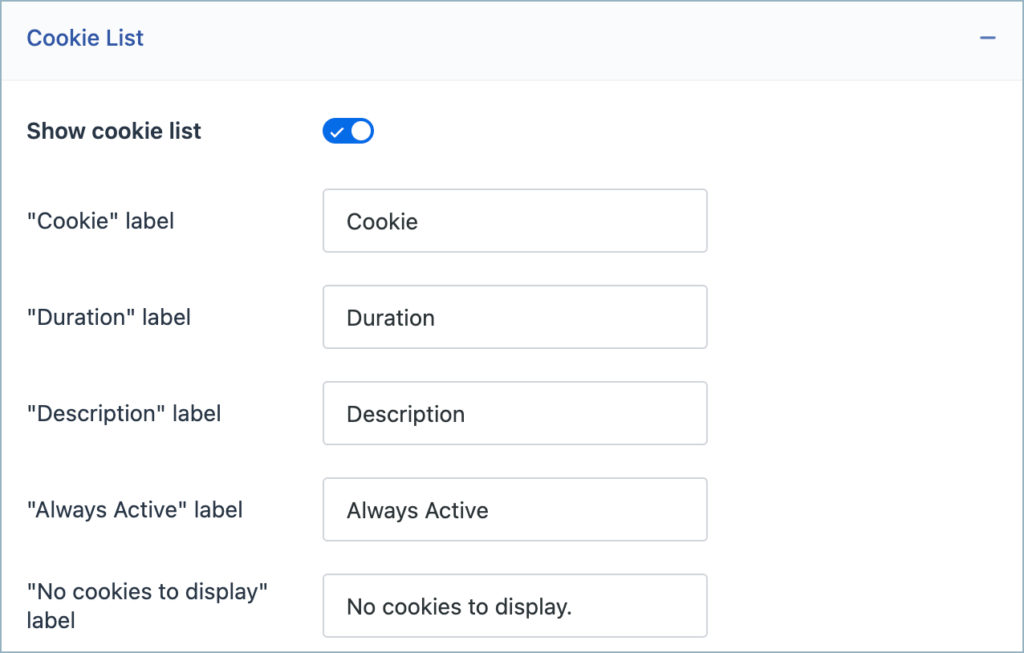
- Cookie list – This section houses options to customize the cookie list present in the consent preference tab of a cookie banner. There are options to show or hide the cookie list, and options to edit the Cookie label, Duration label, Description label, Always active label, and No Cookies to display label.
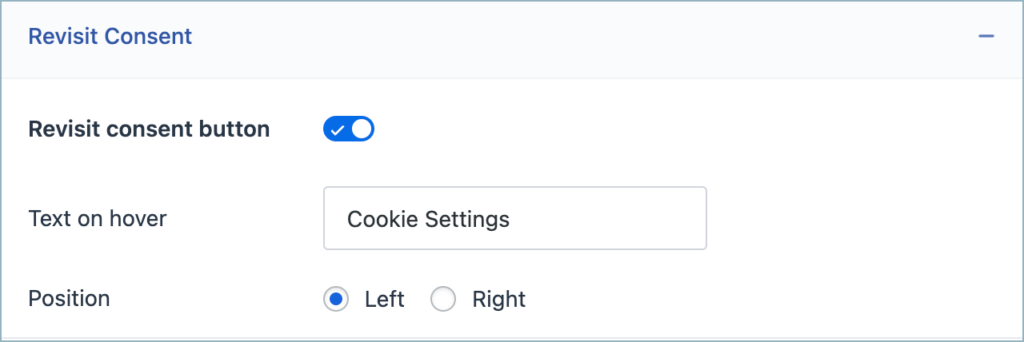
- Revisit consent – This tab holds options to customize the consent revisit button. There are options to alter the position of the Revisit consent button and the tooltip.
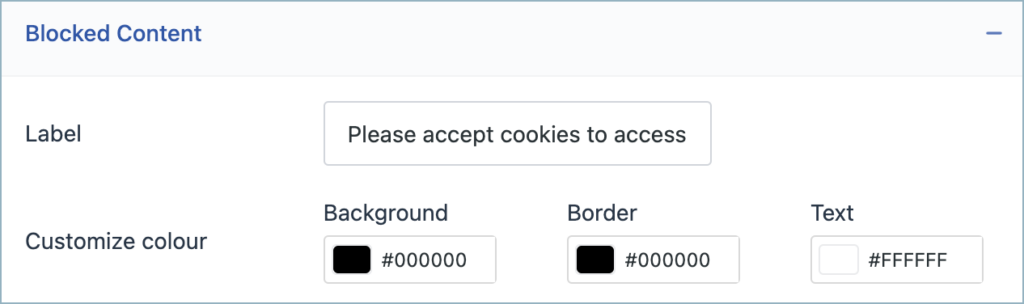
- Blocked content – This tab contains features to customize the text displayed over the blocked content.
Manage Cookies
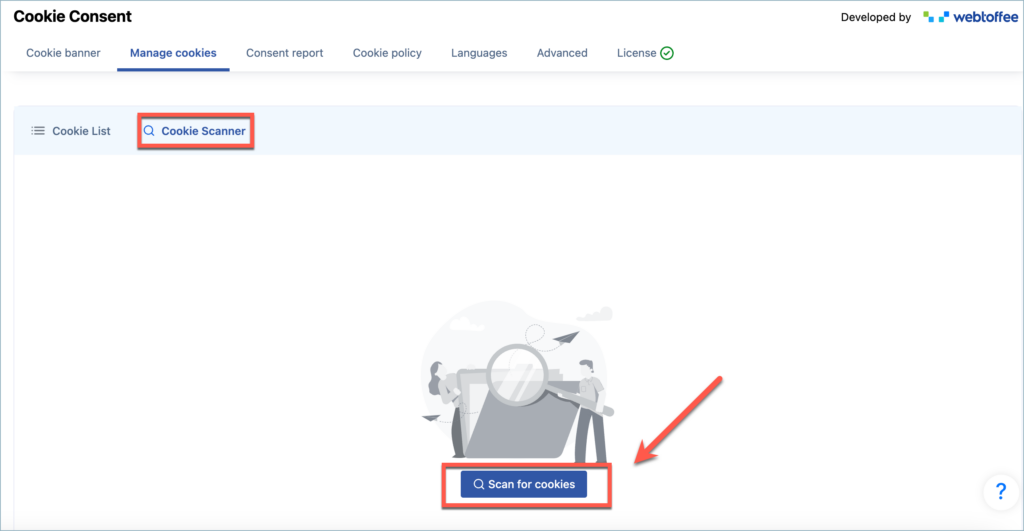
Cookie Scanner
Under this tab, you will find options to scan your website for cookies. Click on the Scan for cookies button to initiate a site-wide scan.
Cookie-List
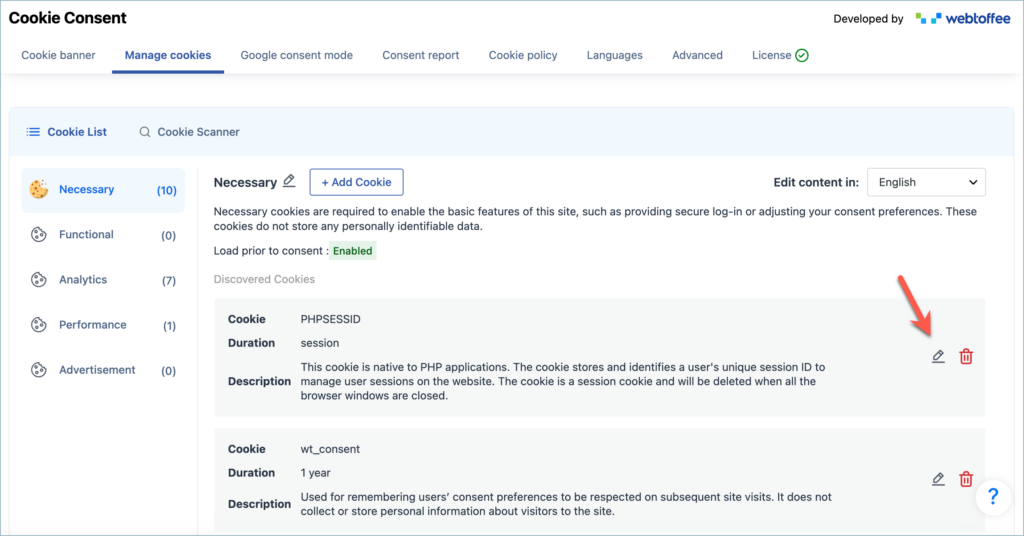
This page lists all the scanned cookies. The cookies are mapped to one of the 5 categories listed by the CMP. The available categories are
- Necessary
- Functional
- Analytics
- Performance
- Advertisement
New cookies can be added manually to categories. Select the required category and then click on +Add cookie button. Enter details such as Cookie name, Domain, Duration, Description, and Script URL Pattern. To know more about manually blocking cookies refer article : Add cookie manually to the cookie list

Change cookie category
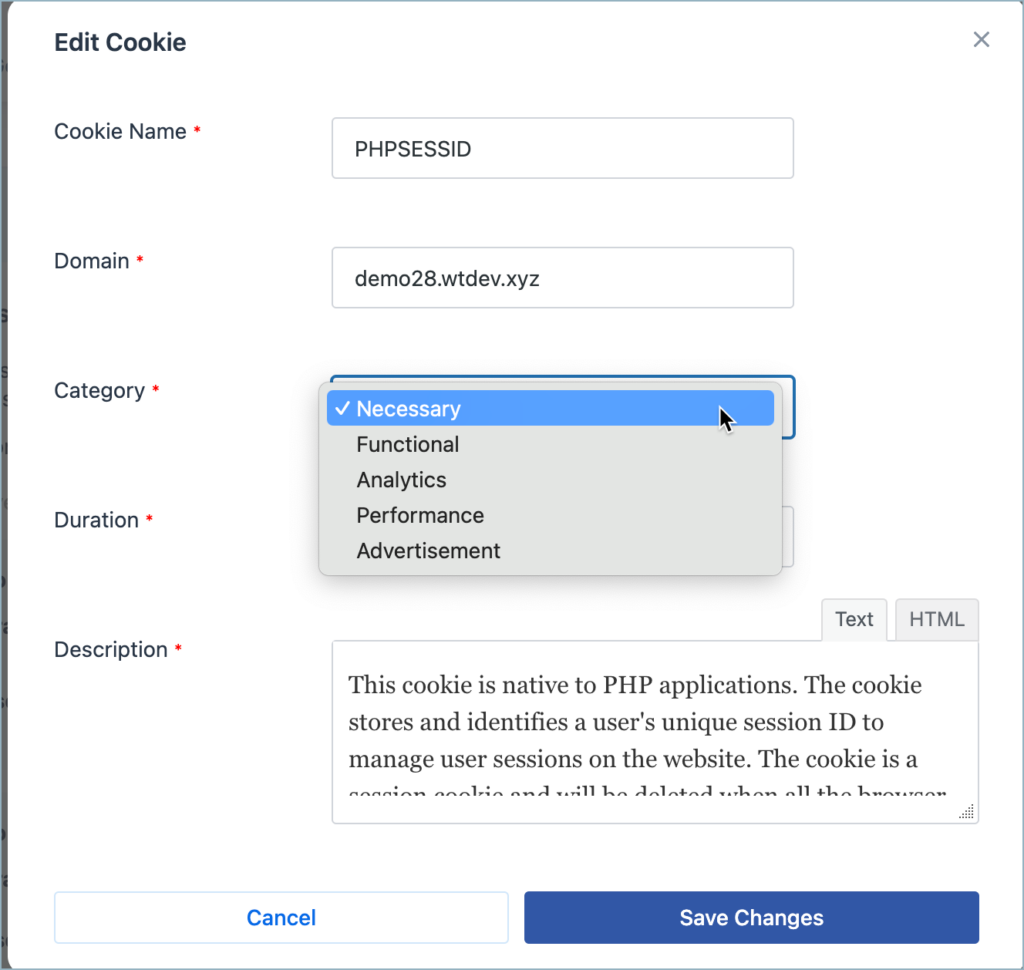
The category of the cookies can be changed dynamically from the cookie list page. Click on the Edit icon from the cookie list page. This will display the Edit Cookie dialogue box. Click on the Category drop-down. Select the new category to which the cookie must be assigned and click on Save changes button.
Google Consent Mode
This tab allows configuring Google Consent Mode (GCM).
General settings – Google Consent Mode
Enable Google tag behavior option to set how the Google tags must behave. To learn how to set up consent mode in basic and advanced modes, please refer to the article by Google: Set up consent mode on websites.

- Manage consent mode via GTM template – Enable the option to configure the Google Consent Mode via GTM template. To know more, read the article : Configure GCM with WebToffee’s GTM Template
- Advanced mode – This is the default option. The Google tags are fired before the consent is given.
- Basic mode – Google tags are blocked until the user consents.
- Allow URL data to passthrough – When enabled, data can be passed between webpages for tracking.
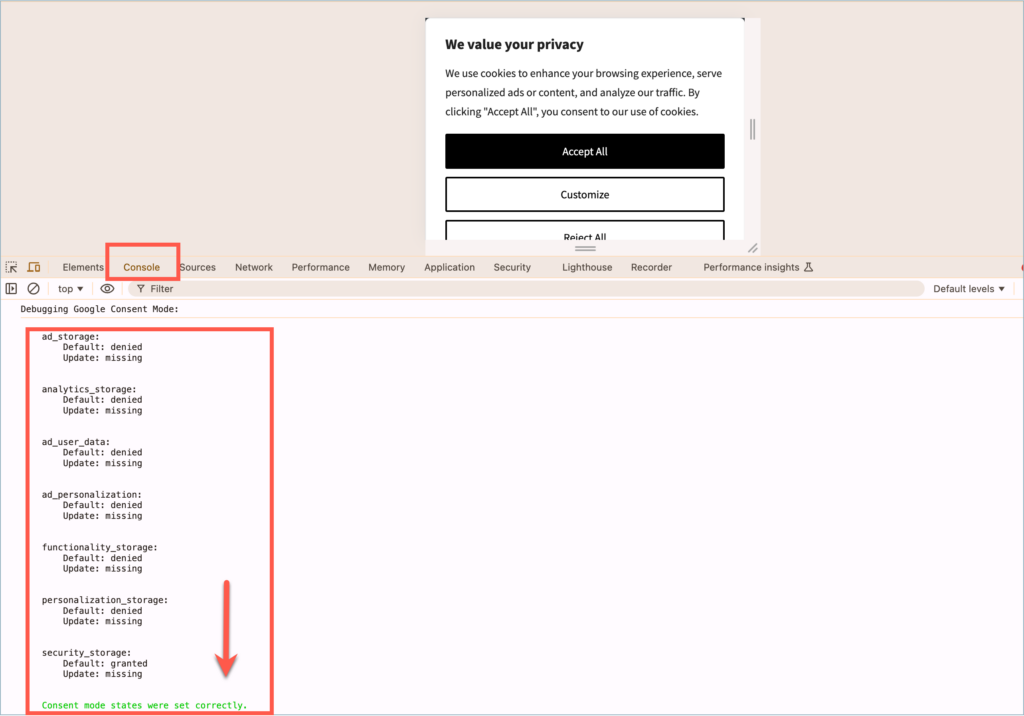
- Enable debug mode – When enabled, the status of the consent parameters is shown in the browser console. This mode allows us to know whether the consent mode is configured correctly. When there is an error in the configuration, the browser console throws an appropriate error message.

- Redact ads data – When the consent for the advertisement category is withdrawn, the ads data stored previously are removed.
Default consent states – Google Consent Mode
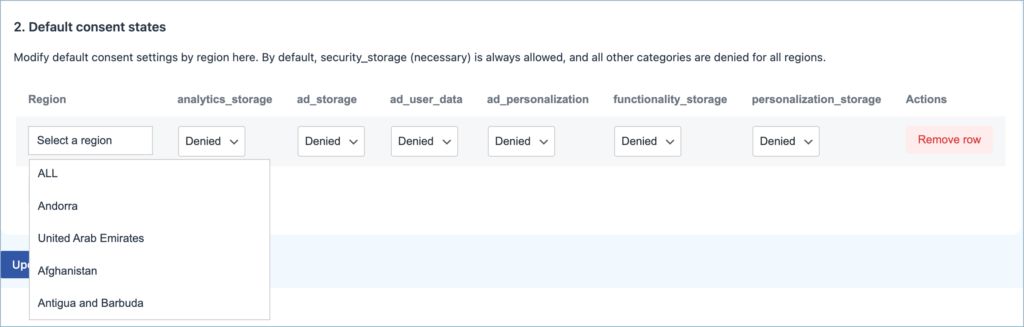
This section allows the default consent to be set by region. By default, the Necessary category is Allowed, and all other categories are denied. To modify the behavior:
- Click on the Add new button.
- Select a region under Region.
- Set the default consent states for the necessary consent parameters and update the settings.

Google Consent Mode Checker
You can verify if Google Consent Mode V2 is correctly set up on your site using the Google Consent Mode Checker. This free tool instantly scans your website in a simulated Chrome browser, checks the GTM consent variable, and identifies any setup issues. It helps ensure your Google Analytics, Ads, and Tag Manager tags function properly based on users’ consent choices.

Microsoft consent mode
Microsoft Clarity Consent Mode allows websites to manage and respect user privacy choices by controlling the collection of behavioral analytics based on consent. It ensures tracking scripts only activate after users have given the required permissions.
Microsoft Clarity Consent Mode – Enable to track user behavior using Clarity.
Support Microsoft UET Consent Mode – Enable to track users while respecting their cookie consent choices.
Consent history
The Consent history tab allows you to view visitor consents and download proof of compliance with privacy regulations and laws. By clicking on the Export as CSV button, user consent can be exported in CSV format. The page also lists other information such as Consent ID, Consent Status, and the Date and Time of consent creation.

Cookie Policy
You can easily create and generate the cookie policy from the Cookie Policy page. This tab allows you to create a separate page for cookie policy. The plugin has a default policy page which lists out various details like:
- What are cookies?
- How do we use cookies?
- Manage the cookie preferences?
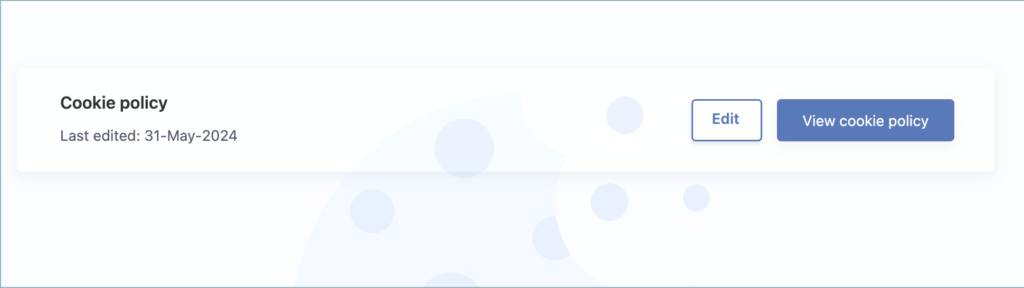
Click on the Edit button to update the default cookie policy. Click on the View cookie policy button, to have a preview of the policy page created.
Languages
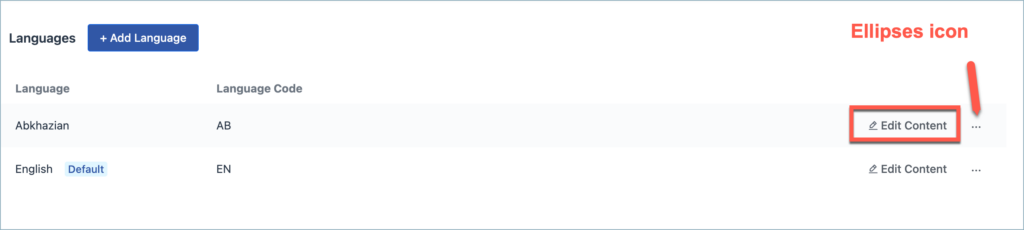
From the Languages tab, the admin can add languages for the cookie banner content when they run a multilingual site. This can be done by clicking on the Add Languages button. Search for the required language from the Add language dialogue box that appears. Finally, click on the Add button.

This page also lists the newly added language with language code. Click on the Edit content option next to the preferred language to edit the content.
Click on the Ellipses icon to delete or set a language as default.
License
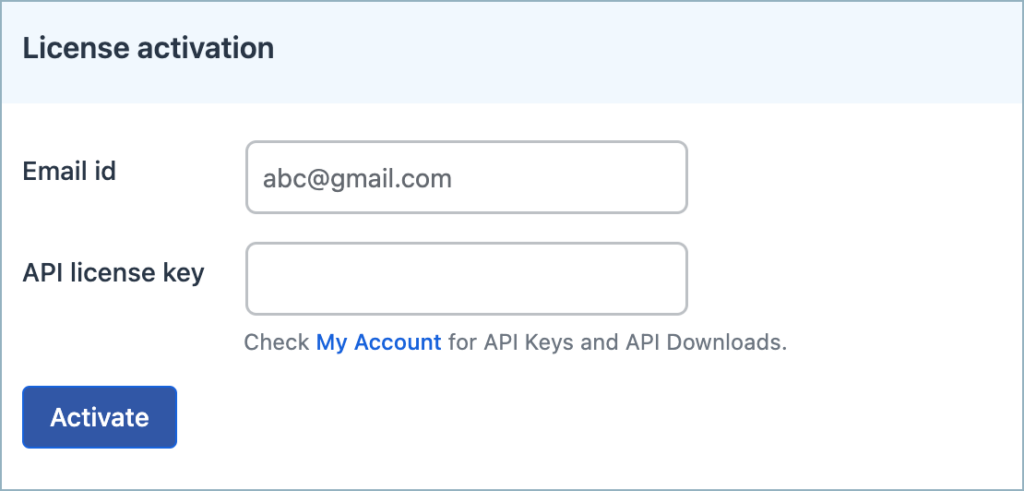
From the license tab, the plugin can be activated. Enter the email ID you used to purchase the plugin in the Email ID textbox, then enter the Activation key in the API license key textbox.
Advanced
This section is designed to help website administrators manage cookie consent settings efficiently by backing up, restoring, renewing, or resetting cookies.
One can renew user consent from the Advanced tab by clicking the Renew Now button. Click on the Reset button to reset the plugin to its default values.

Export/Import Cookies
From this section, the website administrator can export or import cookie lists.
- Export cookies button – Click on this button to download the current cookie list in CSV format.
- Import cookies – Uploads a CSV file to update the cookie list.
Export/Import Settings
From this section, the website administrator can export or import cookie settings.
- Export settings button – Downloads the settings in JSON format.
- Import settings – Uploads a JSON file to update plugin settings
Related Articles :
