


Using the WebToffee WooCommerce Request a Quote plugin, store owners can automatically notify the admin, custom recipients, and customers about a quote. Emails are triggered based on selected quote statuses, ensuring timely communication and better workflow management.
Notifying the admin about a quote
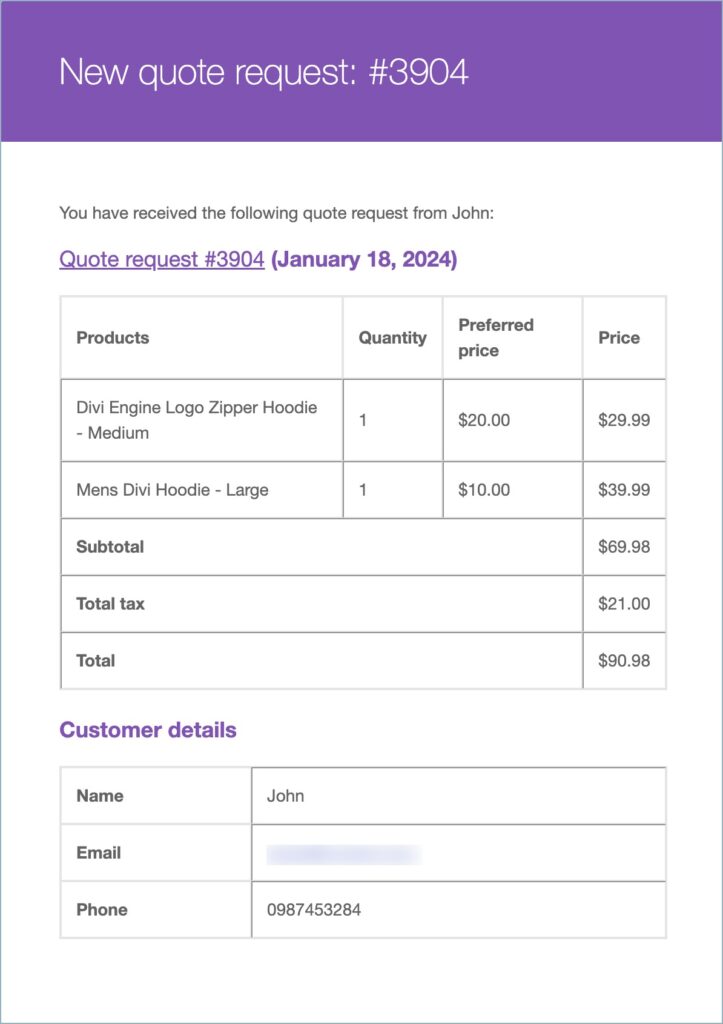
Based on the selected quote statuses under the “Send emails for quote statuses (to admin)” option, the admin will receive an email containing necessary quote details, such as the preferred price, customer information, etc. Here are the detailed steps on how to notify admins about a quote:
- From the WordPress dashboard, navigate to Quotes >Settings.
- Head to the Email notifications tab. This section allows you to email quotes to the admin, custom recipients, and customers based on the quote status.
- Go to the Send emails for quote statuses (to admin) option and select the quote statuses by marking the respective checkboxes.

Now, when a quote request is placed or a quote request has been approved or rejected, the admin will receive an email stating the quote details.
The email sent to the admin on placing a new quote request will look like this:
Notifying custom recipients about a new quote request
Store owners can notify custom recipients when a new quote request is placed. Below are the steps for the same.
- Under the Email notifications section, head to the Backend recipient email option and type the recipient email address in the Backend recipient email text box.

- If you leave the initial text field empty, the plugin will use the default admin email address.
- Finally, click on Update Settings to save the changes.
Notifying customers about a quote
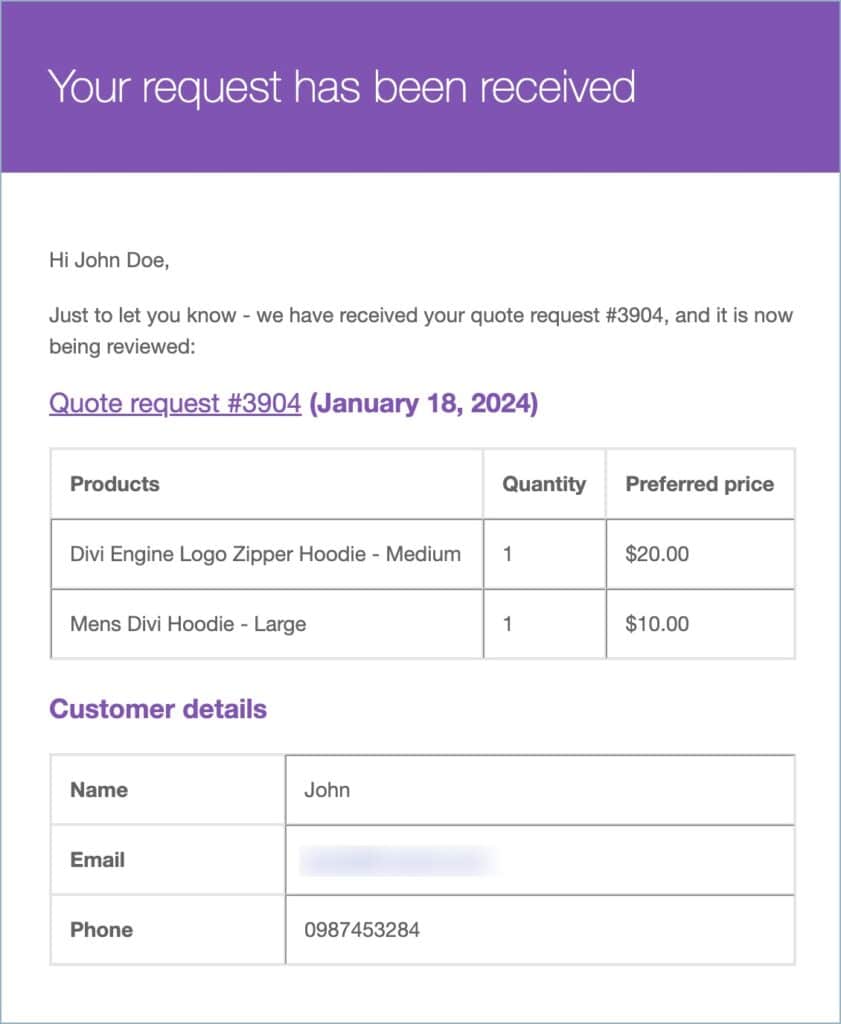
Store owners can select the quote statuses for which the customers should be notified. The customer will receive an email based on the quote status. Store owners can select the statuses under the Send emails for quote statuses (to customer) option. Below are the detailed steps:
- Navigate to Quotes > Settings
- Head to the Email notifications section and find the Send emails for quote statuses (to customer) option.

- Here, select the required quote statuses. You can remove a quote status by unchecking its checkbox.
- Finally, click on Update Settings.
Now when the customer submits a new quote request, they will receive an email like this:
By configuring the email notifications settings, store owners can choose which quote statuses trigger emails to admins, additional backend recipients, and customers. This ensures all relevant parties stay updated on quote submissions, approvals, rejections, and other status changes, improving transparency and efficiency.
