


Creating a quoting process in WooCommerce involves configuring your online store to handle requests for quotes, allowing customers to request quotes for products, and managing those requests. Here’s a step-by-step guide to send and receive a quote in WooCommerce:
- As a first step configure your online store to handle requests by installing the WebToffee WooCommerce request a quote plugin.
- Allow the customers to request a quote.
- The store owner sends the quote and communicates with the customer.
- The customer either approves or rejects the received quote. If the customer approves the quote, they can proceed to complete the purchase.
- After the customer successfully places the order, store owners may generate an invoice, arrange for shipping, and notify the customer of the order’s progress.
Step 1: Configure the store
Install and activate the WebToffee’s WooCommerce request a quote plugin. This adds quotes to your online store. By Default Add to Quote button is added to all the products in the store.
- The admin can limit the products that can be added to the quote by following the instructions mentioned in the article: Limiting products in a WooCommerce quote
- Quotes can restrictively be created for out-of-stock and backorder products. Read the following article to implement this: Quotes for Out-of-stock and backorder products
- Admins can customize the fields in the Quote request form to make it more detailed. Customize the quotes by following the steps mentioned in the linked article.
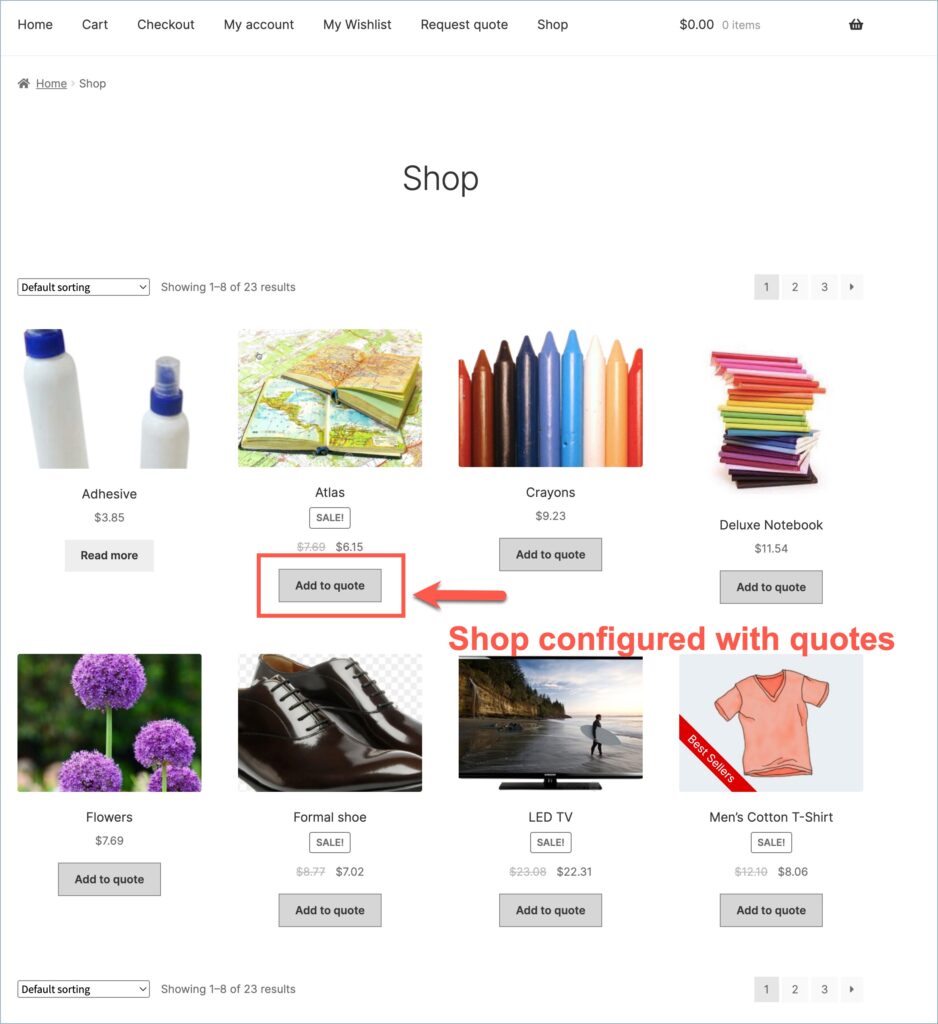
Step 2: Request a quote
As a next step, the customers add products to the Quote request form and send it to the store owner. They can also key in their preferred price before sending the quote. Read the pinned article to manage preferred prices.
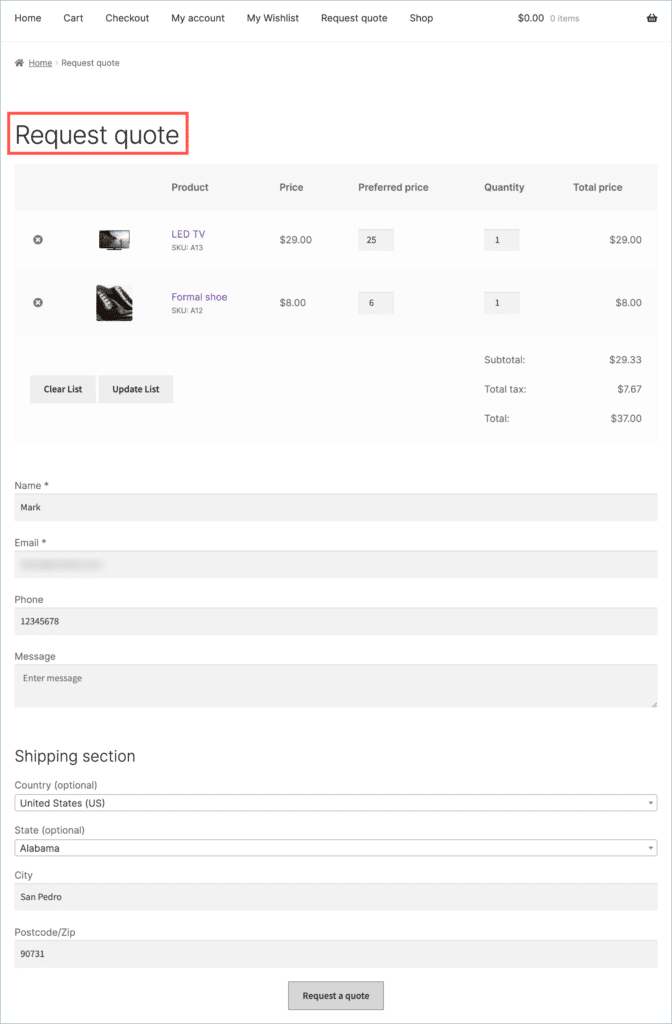
Step 3: Reply back to the customer
Consequently, the store owner replies to the quote request submitted by the customer. The store owner can key in the offered price and re-send the quote to the customer.
- In addition, the store owner can send quotes as PDF to the customer. Refer to the linked article to attach the Quote as a PDF to the email.
- The Quotes PDF is further customizable. Customize the Quotes PDF article further to explain the steps.
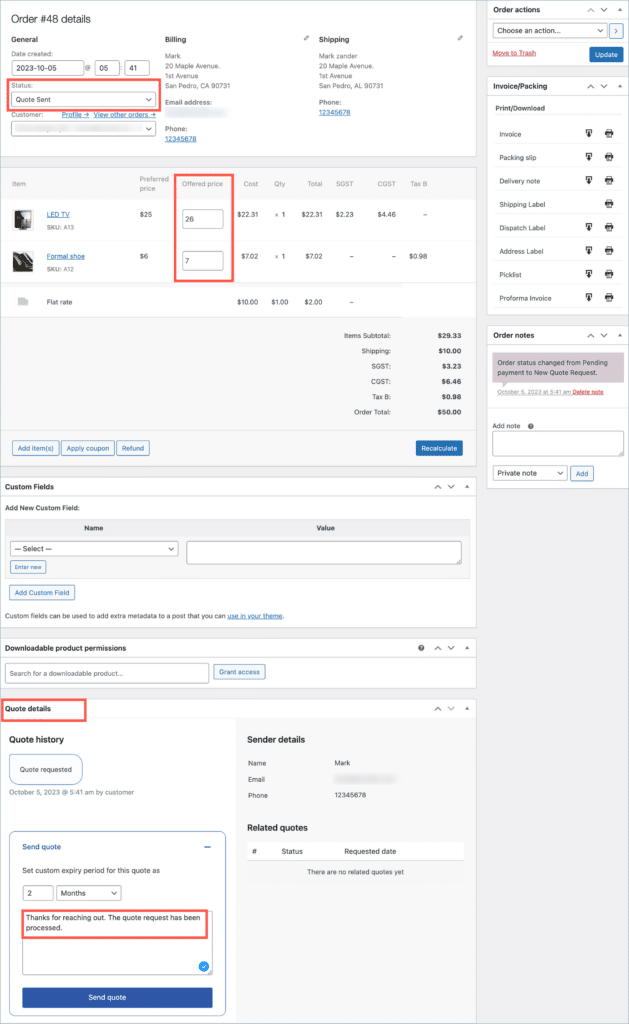
Step 4: Approve or reject the quote
On receiving the quote, The customer can either accept or decline the quote.
- If the customer accepts the quote he can then make the payment.
- Further, the Customer can also renegotiate a declined quote. Read this article to know more.
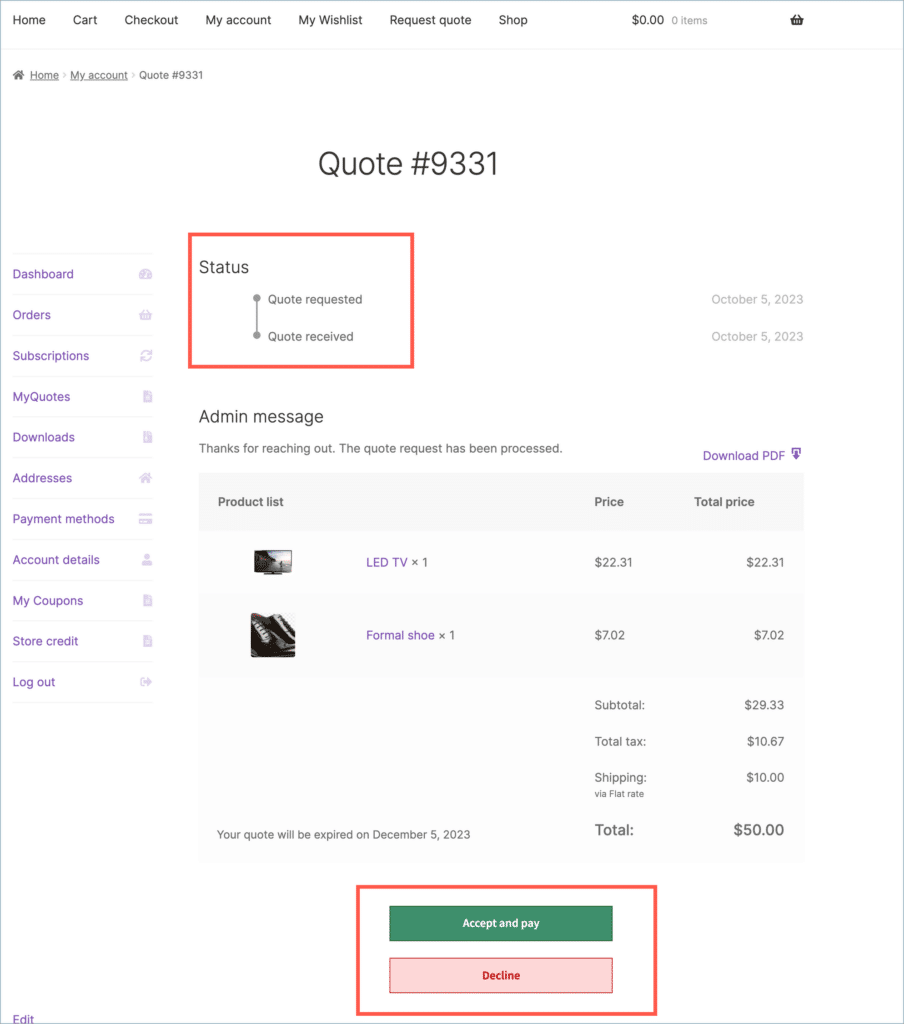
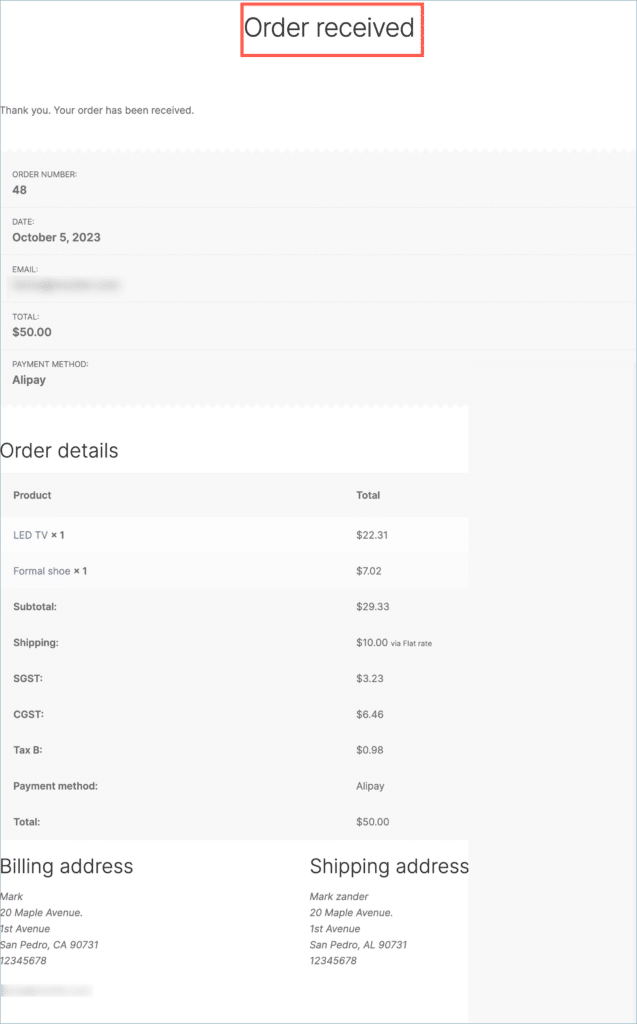
Step 5: Quote converted into an order
After the customer successfully places the order, store owners may generate an invoice, arrange for shipping, and notify the customer of the order’s progress.
With the WebToffee WooCommerce Request a Quote plugin, store owners can easily set up a quote system where customers request a quote, the admin reviews and sends an offer, and the customer accepts or declines it. Once accepted, the quote is converted into an order, completing the purchase process smoothly.
