


The Import Export Suite for WooCommerce Plugin helps you to automate all your exports and imports via FTP profiles and schedules. By configuring FTP connection details in the plugin settings, exported files can be automatically uploaded to a remote server and import files can be retrieved during scheduled operations. To begin, download, install, and activate the plugin.
To create an FTP profile:
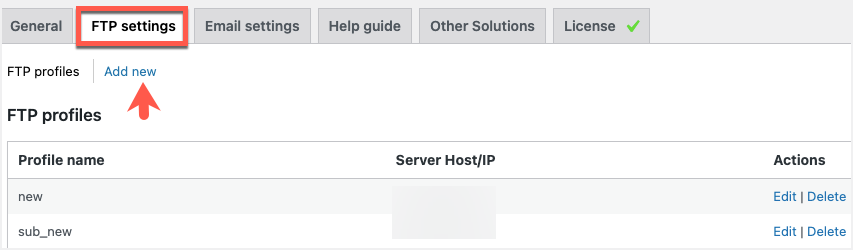
- Navigate through WebToffee import/Export (Pro)> General Settings> FTP settings.
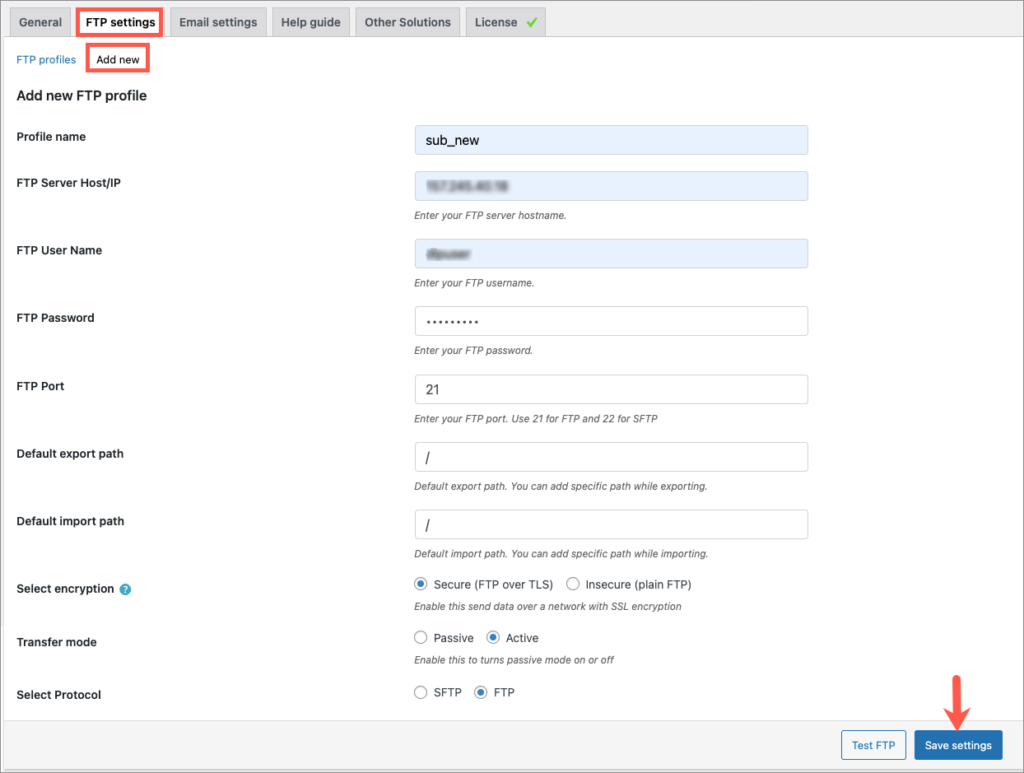
- Click on Add new and fill up the details.
- Click on Test FTP and Save settings.
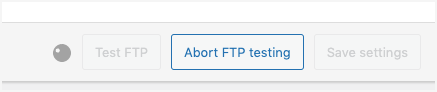
- There is a provision to Abort FTP testing if needed.
- One can Edit and Delete the profiles under FTP profiles.
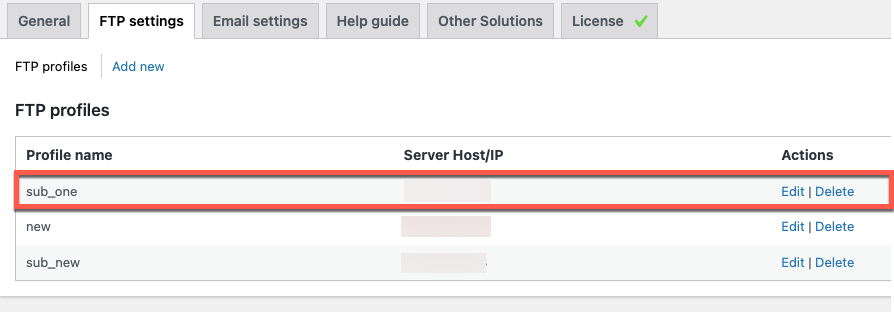
This FTP profile can be used for various export and import operations.
Know more about the plugin.
