


The Import Export Suite for WooCommerce Plugin helps you to automate all your exports and imports via FTP profiles and schedules. The two types of schedulers we use here are:
- WordPress Cron
- Server Cron
To schedule cron, we suggest you to refer these articles:
Editing scheduled cron
All the scheduled import export cron will be listed in WebToffee import/Export (Pro) > Scheduled Actions.
Click on Edit to edit an already scheduled cron.

On Export
On editing the export scheduled cron, you will be taken to the Filter data step of export. Here, the required changes can be made and then proceed further to finish.
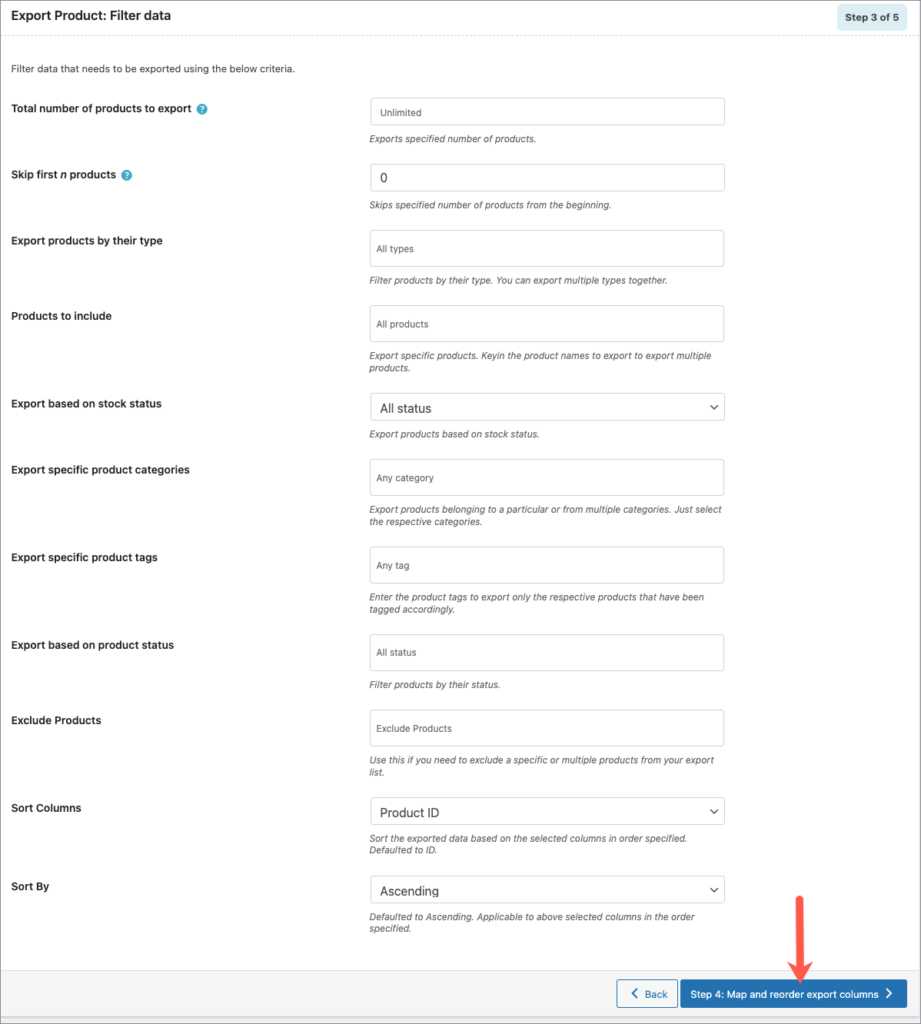
We can also step back to the previous steps and make changes.
On Import
On editing the import scheduled cron, you will be taken to the Map import columns step of import. Here, the required changes can be made and then proceed further to finish.
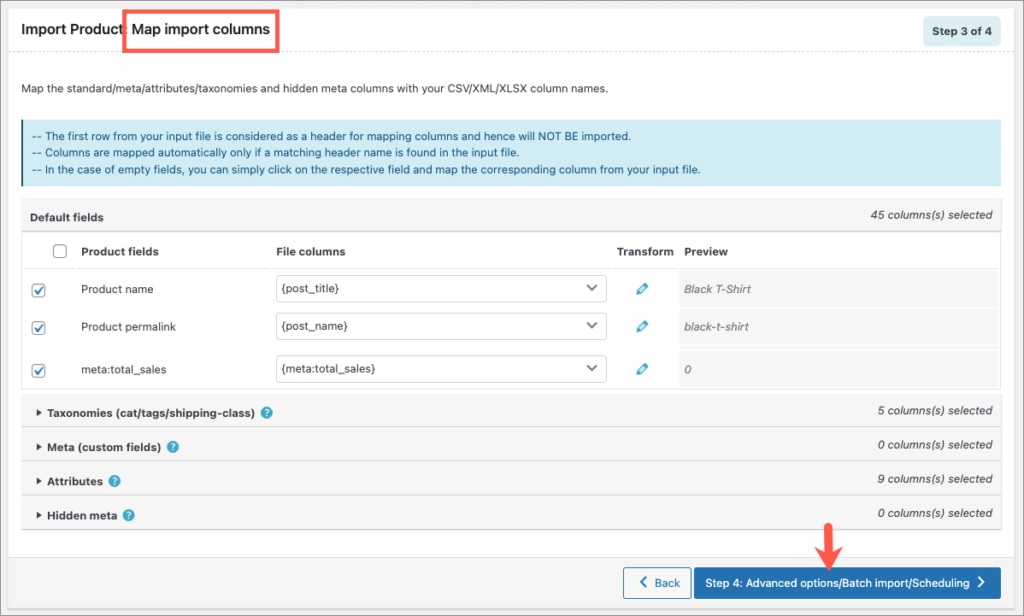
Refer to other cron scheduling articles to know more.
