


WooCommerce stores often require exporting product data for migration, backup, bulk editing, or external integrations. The Import Export Suite for WooCommerce plugin allows you to export WooCommerce products by selecting Product as the post type, choosing the required export method, applying filters, mapping columns, and configuring advanced options such as file format and scheduling.
In this guide, you’ll learn how to export WooCommerce products step by step using the Import Export Suite plugin.
Export Products
To export WooCommerce products, click on WebToffee Import/Export(Pro) > Export.
Step 1: Select a post type
Begin by setting the post type to Product.

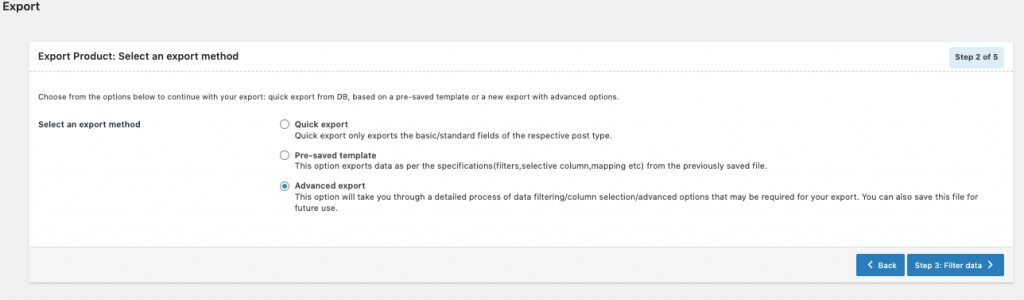
Step 2: Select an export method
Pick one of the following options to move ahead with your export:
- Quick export from DB
- Based on a pre-saved template
- Advanced export
Here is what each of these methods offers:
Quick Export
- Pulls out the standard fields of the chosen post type.
- Tick the checkboxes for the Taxonomies, Meta(custom fields), Attributes, and Hidden meta groups to include those fields too.
- Select Export to run it straight away, or continue to Step 3 for advanced options.
- See Step 5 for details on advanced options, batch export, and scheduling.
Pre-saved template
- Runs the export according to the specifications — filters, column selection, mapping, and so on — stored in a previously saved file.
- Choosing this option lets you pick an existing template from the Export template drop-down.
- Select Export to finish, or continue to Step 3 to filter the data.
- See Step 3 for details on the filtering options.
Advanced Export
- This option walks you through the full set of filtering, column-selection, and advanced settings your export may need.
Step 3: Filter data
Open Step 3 to set filter rules using the fields below:
- Element – The data attribute you want to apply the filter on.
- Condition – The rule that determines how the value is matched.
- Value – The criteria used to include or exclude data from the export.
You may add multiple filter rules or remove existing ones as needed.

- Move on to Step 4.
Step 4: Map and reorder export columns
Column names in this section are editable where needed. Selecting a pre-saved template displays the names and choices stored on the last save, and columns can be dragged into a new order.
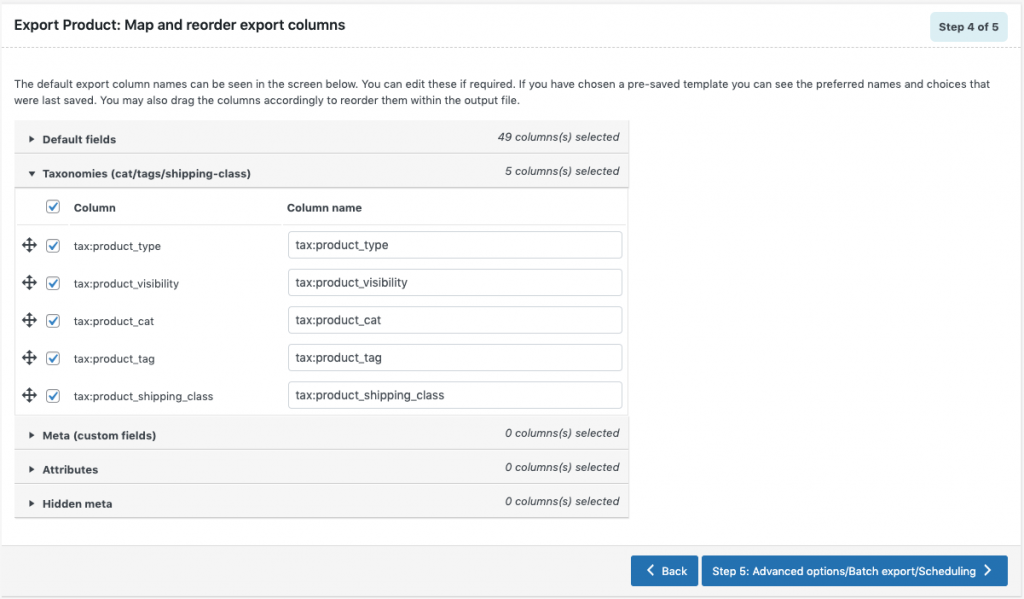
- The export columns are grouped under five headings:
- Default fields
- Taxonomies
- Meta(Custom fields)
- Attributes
- Hidden meta
- Proceed to Step 5.
Step 5: Advanced Options/Batch Export/Scheduling
The final step brings up the following controls:
- Export children SKU of grouped products: exports the child items of grouped products using their SKU instead of the default Product ID.
- Export file name: sets a name for the output file.
- Export File Format: choose between CSV and XML.
- Delimiter: the character that separates CSV columns; a comma is used unless you change it.
- Enable FTP export: selecting ‘Yes’ lets you pick an FTP profile and set the destination path.

Expanding Advanced options additionally lets you:
- Convert shortcodes to HTML
- Export in batches of
- Export images as .zip file
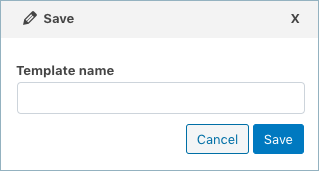
The configuration can be saved as a template for later exports (if needed).
- Select Export to run it now, or schedule the export to finish.
