


While migrating to a new WordPress website, the most important thing that you need for your website is the users. Import Export Suite for WooCommerce Plugin helps you to export a CSV file that includes all the WordPress user’s data and import the same to the website much quickly by selecting Users/Customers as the post type, choosing an import method, mapping the required columns, and configuring advanced options such as batch processing or scheduling.
To import WordPress users / WooCommerce customers:
- Select the post type as Users/Customers.
- Select an import method.
- Map the import columns.
- Use advanced options/ batch import and scheduling.
Import Users
To import WordPress users / WooCommerce customers, click on WebToffee Import/Export(Pro) > Import
Step 1: Select post type
As a first step, you need to choose the post type as User/Customer.
Step 2: Select the import method
Choose from the below options to continue with your import:
- Quick import
- Based on a pre-saved template
- Advanced import
Let us have a look at each of these import methods:
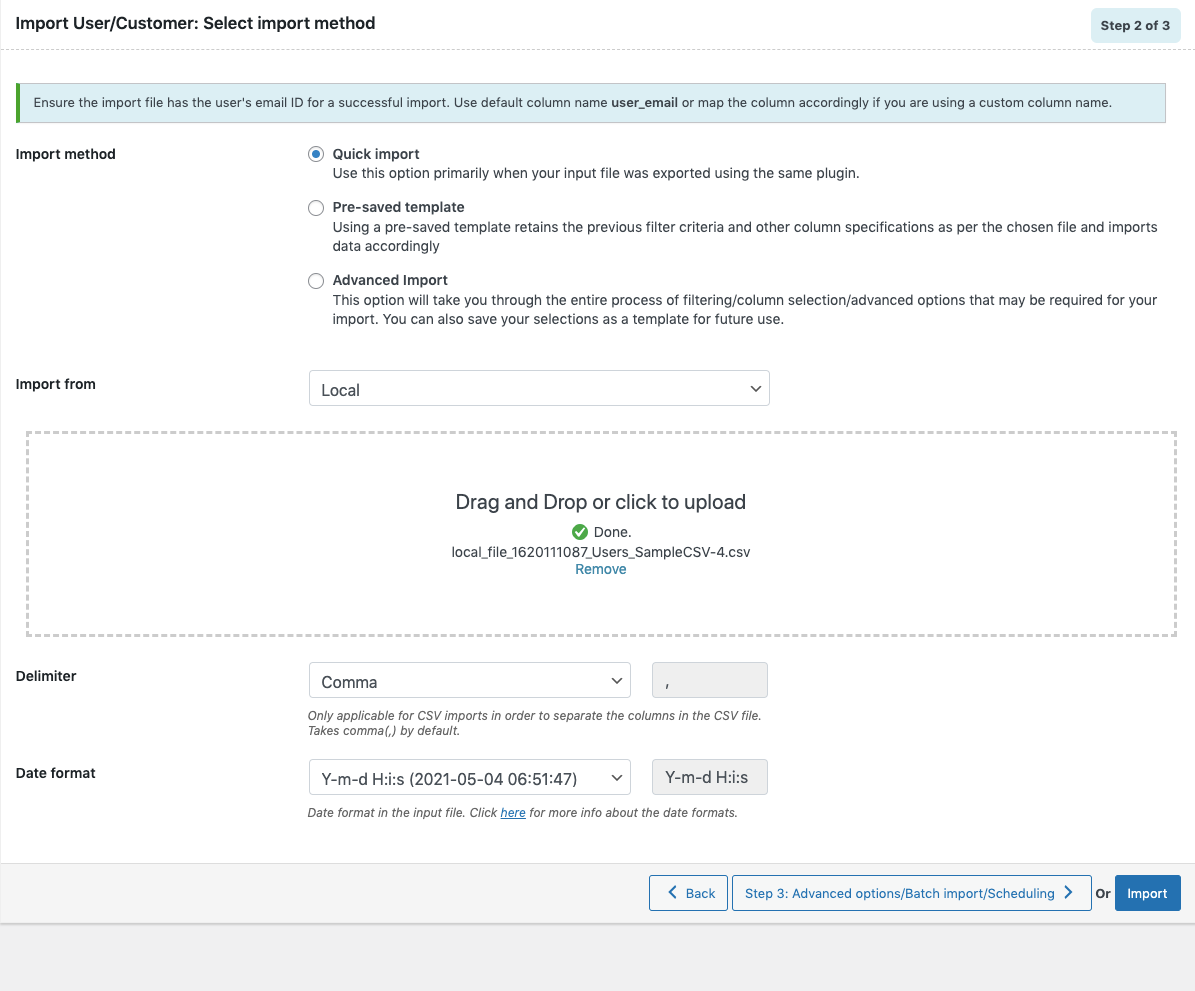
Quick Import
- imports the basic/standard fields of the respective post type.
- primarily used when your input file was exported using the same plugin
- One can import file from:
- Local
- URL
- FTP
- Click the Import button to complete the action or proceed to Step3 for advanced options.

- Navigate to Step 4 to know more about Advanced options/ Batch import/ Scheduling.
From pre-saved template
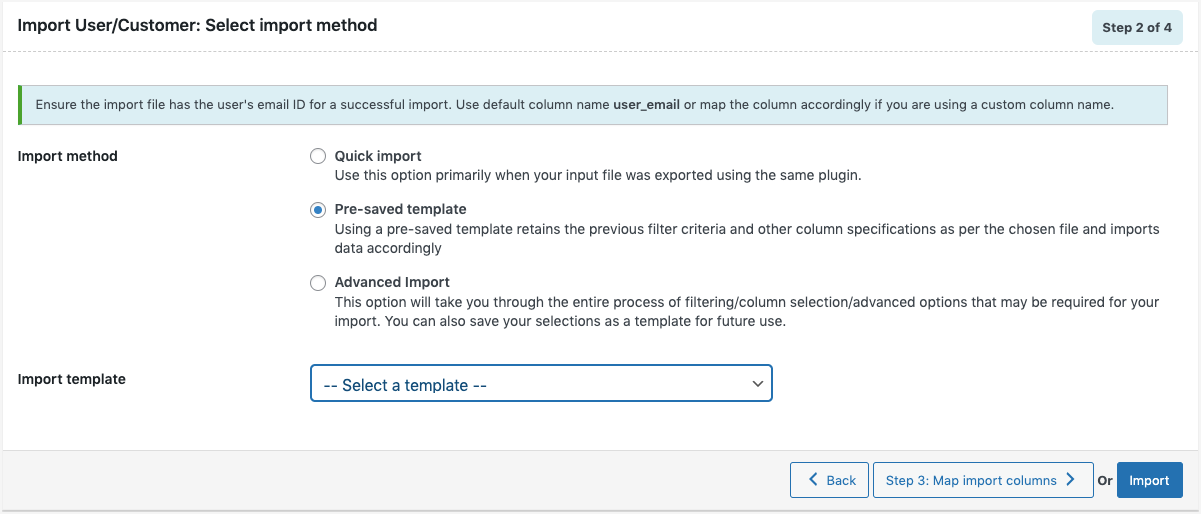
- This method retains the previous filter criteria and other column specifications as per the chosen file and imports data accordingly.
- By selecting this option, one can choose a previously saved template from the Import template drop-down.
- Click the Import button to complete the action or proceed to Step3 to map columns.

- Navigate to Step 3 to know more about mapping import columns.
Advanced Import
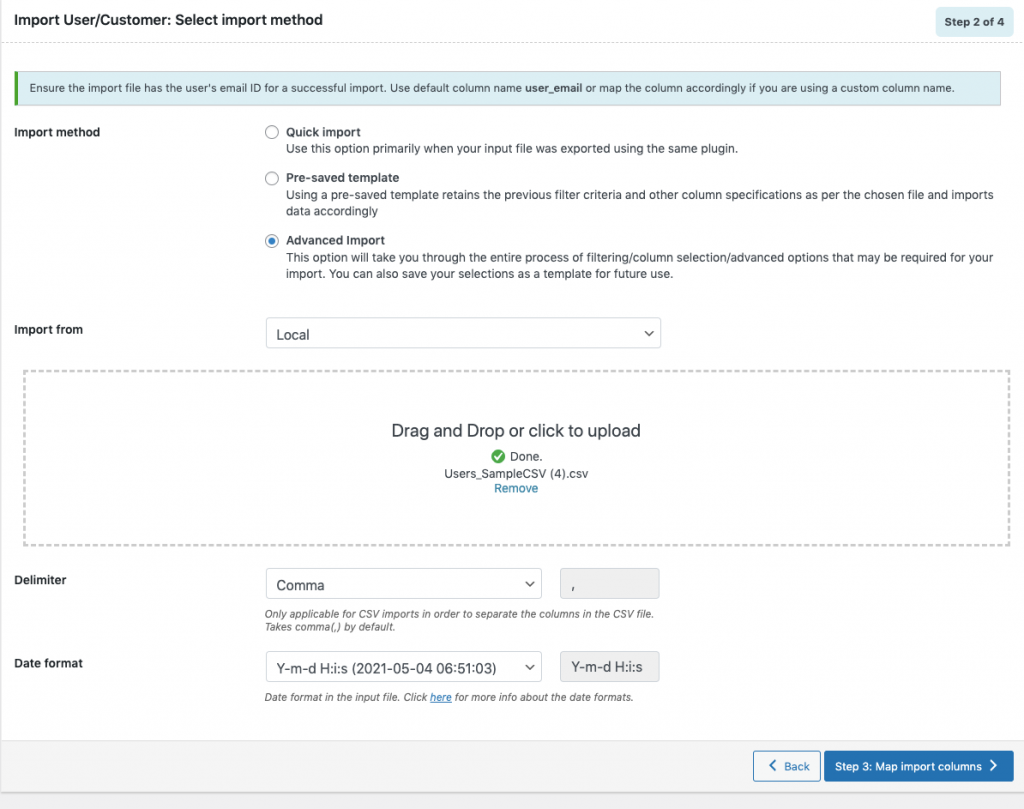
- This option will take you through a detailed process of filtering/column selection/advanced options that may be required for your import.
Step 3: Map import columns
- Here, one can map the import columns under the following 3 fields:
- Default fields: The column names appearing in this section can be edited if required. The preferred names and choices that were last saved can be viewed on choosing a pre-saved template.
- Meta(custom fields)
- Hidden meta
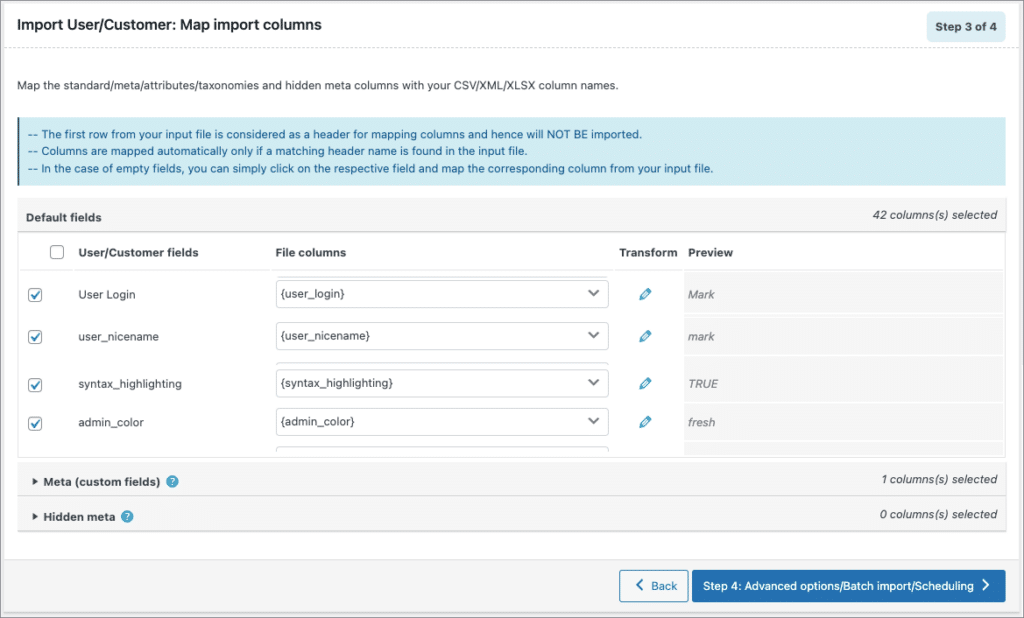
- Click on Step 4 to proceed.
Evaluate field
This field is used to append a value/expression to an existing item while importing. It basically selects/maps any column from the input file and compute the values with expressions and creates output.
- Expression: Any of the operators +*/-()&@ or string constants can be used along with the attributes to manipulate the respective value.
- Input: Select the column from the dropdown which has to be modified.
- Output: Sample value will be created based on the first record from input file.
Step 4: Advanced Options/Batch Import/Scheduling
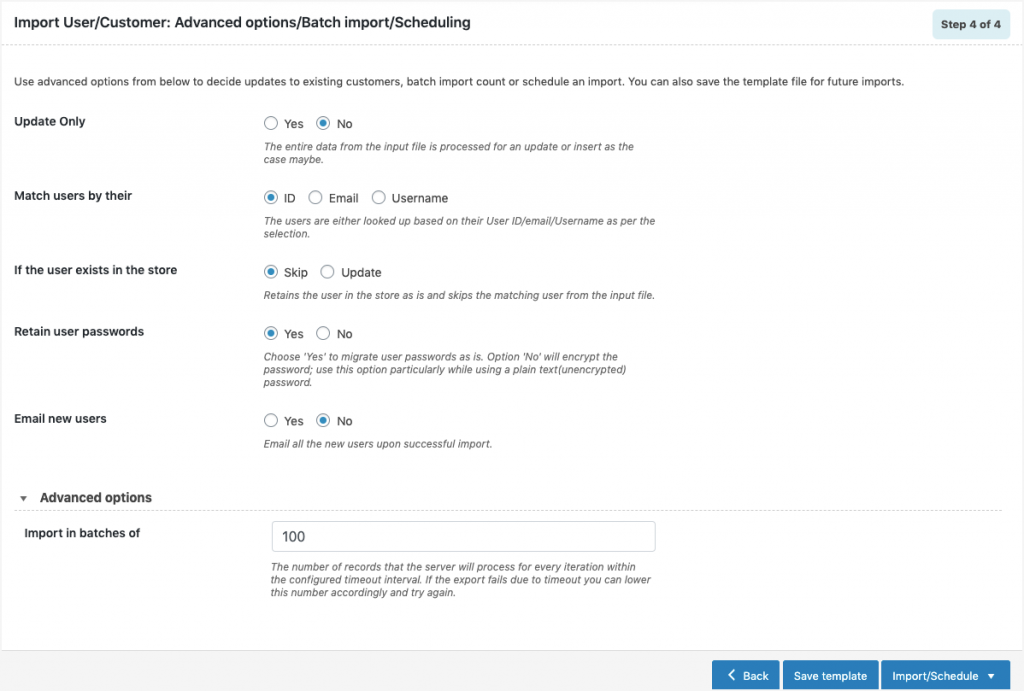
On reaching Step 4, the following window will appear, from where one can:
- Update Only: On selecting “Yes”, the store is updated with the data from the input file only for matching/existing records from the file. On selecting “No”, the entire data from the input file is processed for an update or insert as the case maybe.
- Match users by their: ID, Email, Username
- If the user exists in the store: One can either Skip or Update the entry.
- Retain user passwords
- Email new users: One can Email all the new users upon successful import.
- Save the template file for future (if needed).
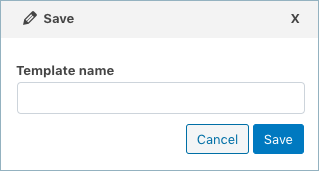
- Click on Import/Schedule to finish.
You can either import the users directly into your store or schedule the import.
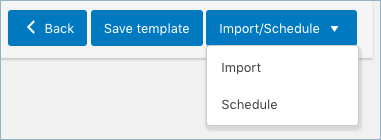
To schedule the import:
- Hit the Schedule option, and you will be taken to the cron schedule window as shown below:

The plugin supports two different schedule types:
- WordPress Cron: Upon a visit, WordPress Cron will check to see if the time/date is later than the scheduled event/s, and if it is– it will fire those events.
- schedules your job at the specified time.
- is dependent on your website visitors.
- Server Cron: You may need to trigger the URL every minute depending on the volume of data to be processed.You can use this option :
- to generate a unique URL that can be added to your system in order to trigger the events.
- if you have a separate system to trigger the scheduled events.
Also, the import/export can be scheduled on a daily, weekly, monthly, custom basis. One can also configure the time at which the import has to be scheduled.
To directly import:
- Hit on the Import option
Once the import is completed, a pop-up will be displayed showing import status which contains the number of successful imports and failed imports (if any).
Know more about the Plugin.

Comments (2)
WooCommerce Import Fails to Overwrite Fields with Empty or Null Source Values
November 28, 2025
During the user import process, the plugin updates target fields only when the source CSV contains a non-empty string (string length > 0).
When the source value for a mapped field is empty, blank, or null, the plugin does not overwrite the existing value in the WooCommerce user record. Instead, it retains the previous value stored in the database.
Expected Behaviour
The import process should overwrite existing field values even when the source value is empty, blank, or null. This is required to allow intentional clearing of incorrect or obsolete data.
Actual Behaviour
Fields are only updated when the source value contains a non-empty string. Empty or null source values are ignored, resulting in:
Persistence of incorrect or legacy data
Inability to reset fields to a blank state via import
Impact
Data integrity issues
Manual data correction required
Risk of synchronisation inconsistencies between source systems and WooCommerce
Steps to Reproduce
Prepare a CSV file with a mapped field containing an empty or null value.
Import the file using Import Export Suite for WooCommerce.
Ensure the target user already contains a value in that field.
Observe that the original value remains unchanged after import.
Proposed Resolution
Introduce a configuration option such as:
“Force overwrite with empty values”
“Clear target field if source is blank”
Yuval
December 5, 2025
Hi Nico,
Thank you for reaching out to us.
You’re correct in observing that, by default, the plugin does not overwrite existing user/customer field values when the corresponding value in the import file is empty or null. In such cases, the plugin retains the previously stored data to avoid unintentional data loss.
We understand that in your use case, this behavior limits your ability to intentionally clear outdated or incorrect data, and we agree that having a configuration option—such as “Force overwrite with empty values” or “Clear target field if source is blank”—would be beneficial in maintaining data integrity and sync between systems.
At present, this functionality is not available for user/customer imports, but we have taken note of your suggestion and will pass it along to our product team for review and possible inclusion in a future update.
In the meantime, if you have any specific fields you’re looking to clear and need help with workarounds or alternatives, please let us know—we’re happy to assist further.