


WooCommerce coupons can be exported in bulk using the Import Export Suite for WooCommerce plugin. By selecting Coupon as the post type, choosing the appropriate export method, optionally applying filters, and configuring advanced options such as file format and batch processing, you can download coupon data in CSV or XML format for migration, backup, or store synchronization.
This guide explains how to export WooCommerce coupons step by step.
Export Coupons
To export WooCommerce coupons, click on WebToffee Import/Export(Pro) > Export.
Step 1: Select a post type
As a first step, you need to choose the post type as Coupon.
Step 2: Select an export method
Choose from the below options to continue with your export:
- Quick export
- Based on a pre-saved template
- Advanced export
Let us have a look at each of these export methods:
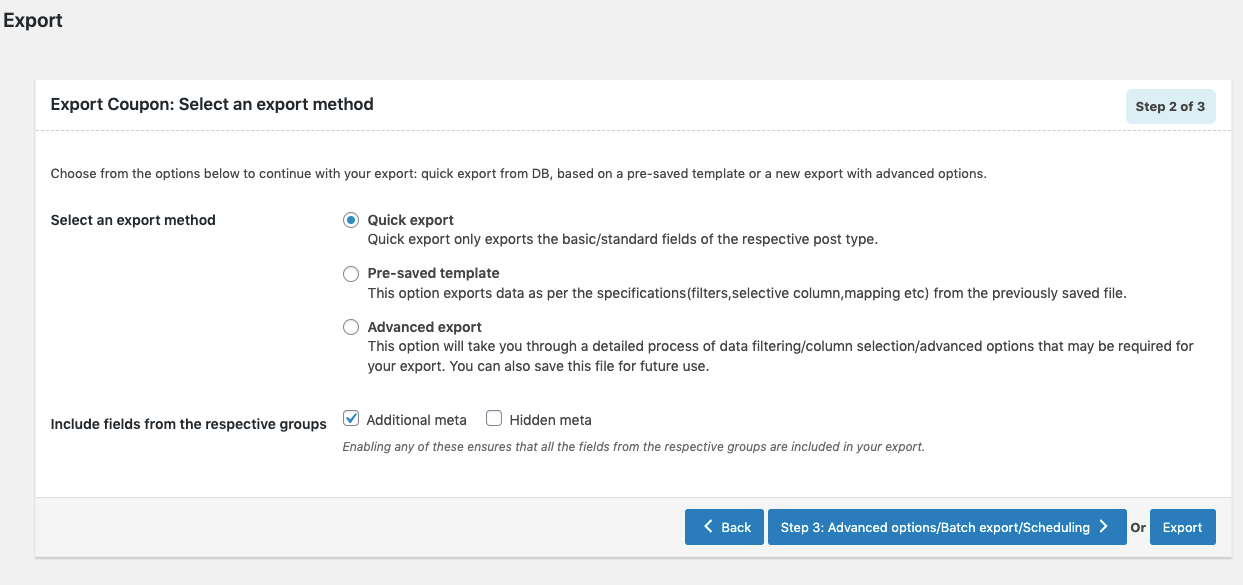
Quick Export
- exports the basic/standard fields of the respective post type.
- To include fields from Additional meta and Hidden meta select the respective group’s checkboxes.
- Click the Export button to complete the action or proceed to Step3 for advanced options.

- Navigate to Step 5 to know more about Advanced options/ Batch export/ Scheduling.
Pre-saved template
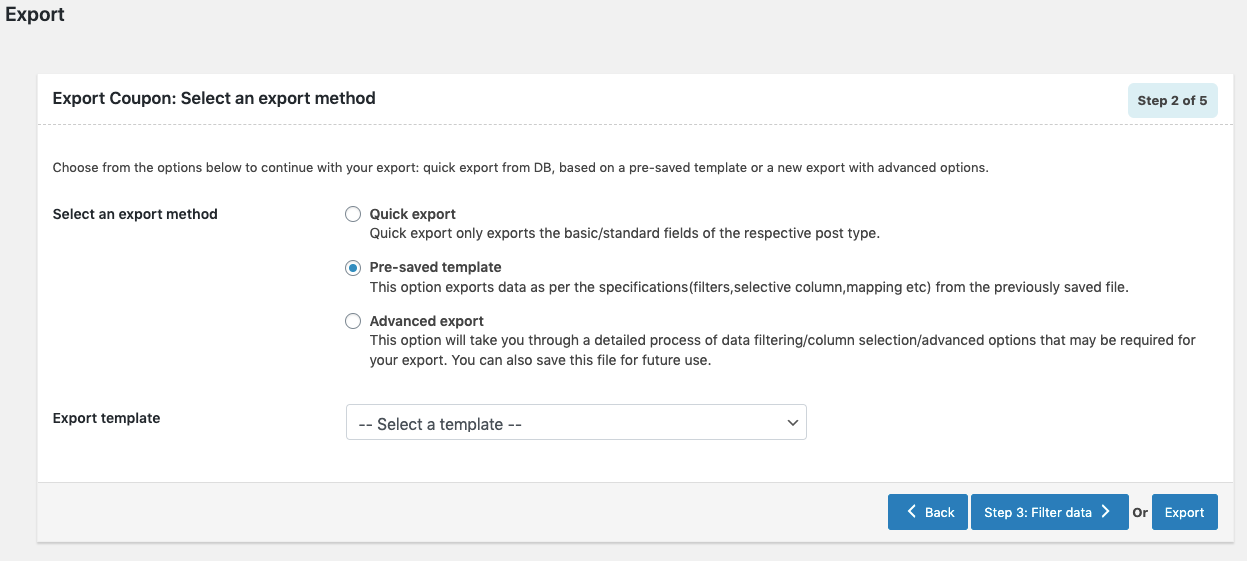
- exports data as per the specifications(filters, selective column, mapping.. etc) from the previously saved file.
- By selecting this option, one can choose a previously saved template from the Export template dropdown.
- Click the Export button to complete the action or proceed to Step3 to filter data.

- Navigate to Step 3 to know more about filtering options.
Advanced Export
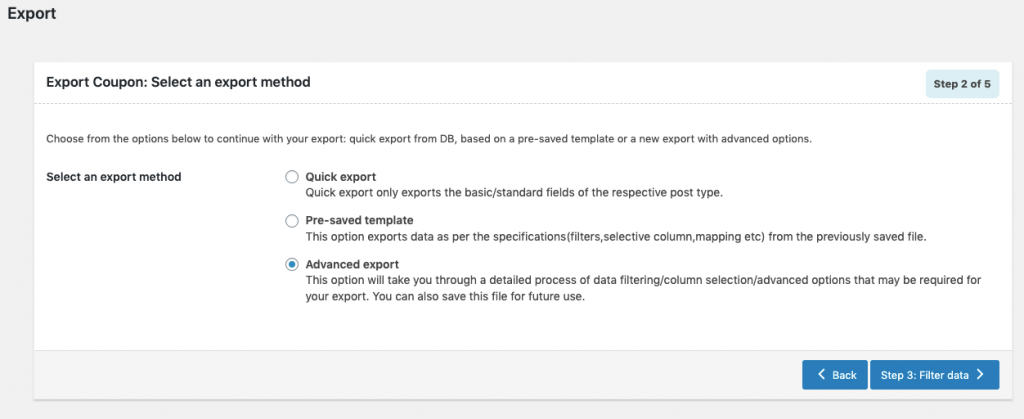
- This option will take you through a detailed process of filtering/column selection/advanced options that may be required for your export.
Step 3: Filter data
Use this step to filter the data that needs to be exported.
Apply one or more filters by specifying the following:
- Element – Select the field based on which the data should be filtered.
- Condition – Define how the selected field should be evaluated.
- Value – Choose or enter the value used for filtering the data.
You can add multiple filters using Add new filter or remove an existing filter using the delete icon.

- Click on Step 4 to proceed further.
Step 4: Map and reorder export columns
The column names appearing in this section can be edited if required. The preferred names and choices that were last saved can be viewed on choosing a pre-saved template. One can also move the columns to reorder the arrangement.
Here, one can map and reorder the export columns under the following 3 fields:
- Default fields
- Additional Meta
- Hidden meta
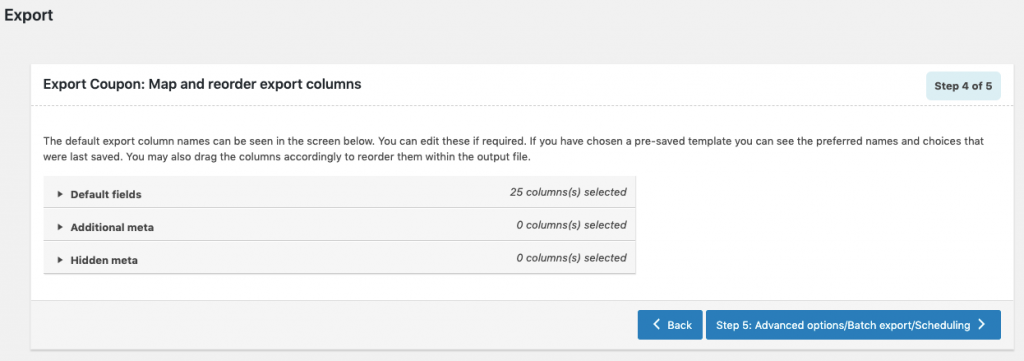
- Click on Step 5 to proceed.
Step 5: Advanced Options/Batch Export/Scheduling
On reaching Step 5, the following window will appear, from where one can:
- Export File Name: Specify a filename for the export file
- Export File Format: Both CSV and XML file formats are available.
- Delimiter: Separator for differentiating the columns in the CSV file. Assumes ‘,’ by default.

On expanding Advanced options, one can:
- Convert shortcodes to HTML
- Export in batches
- Save the template file for future export (if needed).
- Click on Export to finish.
