


The Order / Coupon / Subscription Import Export Plugin for WooCommerce allows you to export orders into a CSV or XML file with various filter options. This article explains how to filter order exports by coupon, ordered products, order status, and date range.
Steps to Export Orders
Navigate to WebToffee Import Export (Pro) > Export.
- Select the post type as Order.
- Select Advanced export as the export method to avail filter options
- In Step 3 – Filter Data, configure the required filters.
- In Step 4 – Map and Reorder Export Columns, map the required fields.
- Configure Advanced Options, Batch Export, or Scheduling if required, and complete the export.
Refer Export WooCommerce Orders to know more about the export process.
1. Filter Order Export by Coupon
Follow the steps below to export orders associated with specific coupons:
- Select Order as the post type.
- Choose the Advanced Export method.
- In Step 3, expand the Filter Data section.
- Enter one or more coupon codes under the element Coupon.

- Proceed to mapping and complete the export.
Sample of exported CSV

Only orders that used the specified coupons will be included in the exported file.
2. Filter Order Export by Ordered Products
You can filter orders based on specific products purchased.
- Select Order as the post type.
- Choose the Advanced Export method.
- In Step 3, expand Filter Data.
- Under Item ordered, select one or more products from the list.

- Continue to Step 4 to map and export the file.
Orders containing any of the selected products will be exported.
Sample Use Case
For example, if you want to export orders containing the products Black Hoodie and Jeans, select only those products from the product list.

3. Filter Order Export by Order Status
To export orders of specific statuses:
- Select Order as the post type.
- Choose Advanced Export.
- In Step 3, expand Filter Data.
- Under the element Order Status, select one or more statuses such as Processing, On hold, etc.

- Proceed to mapping and download the exported file.
Only orders matching the selected status(es) will be exported.
Sample Use Case
For example, if you want to export orders with statuses: Completed and Processing, then select only those values from the field. This will export only orders with the Processing and Completed statuses.

4. Filter Order Export by Date Range
You can export orders created within a specified date range.
- Select Order as the post type.
- Choose Advanced Export.
- In Step 3, expand Filter Data.
- Under the Order Date filter, enter the From Date and To Date.
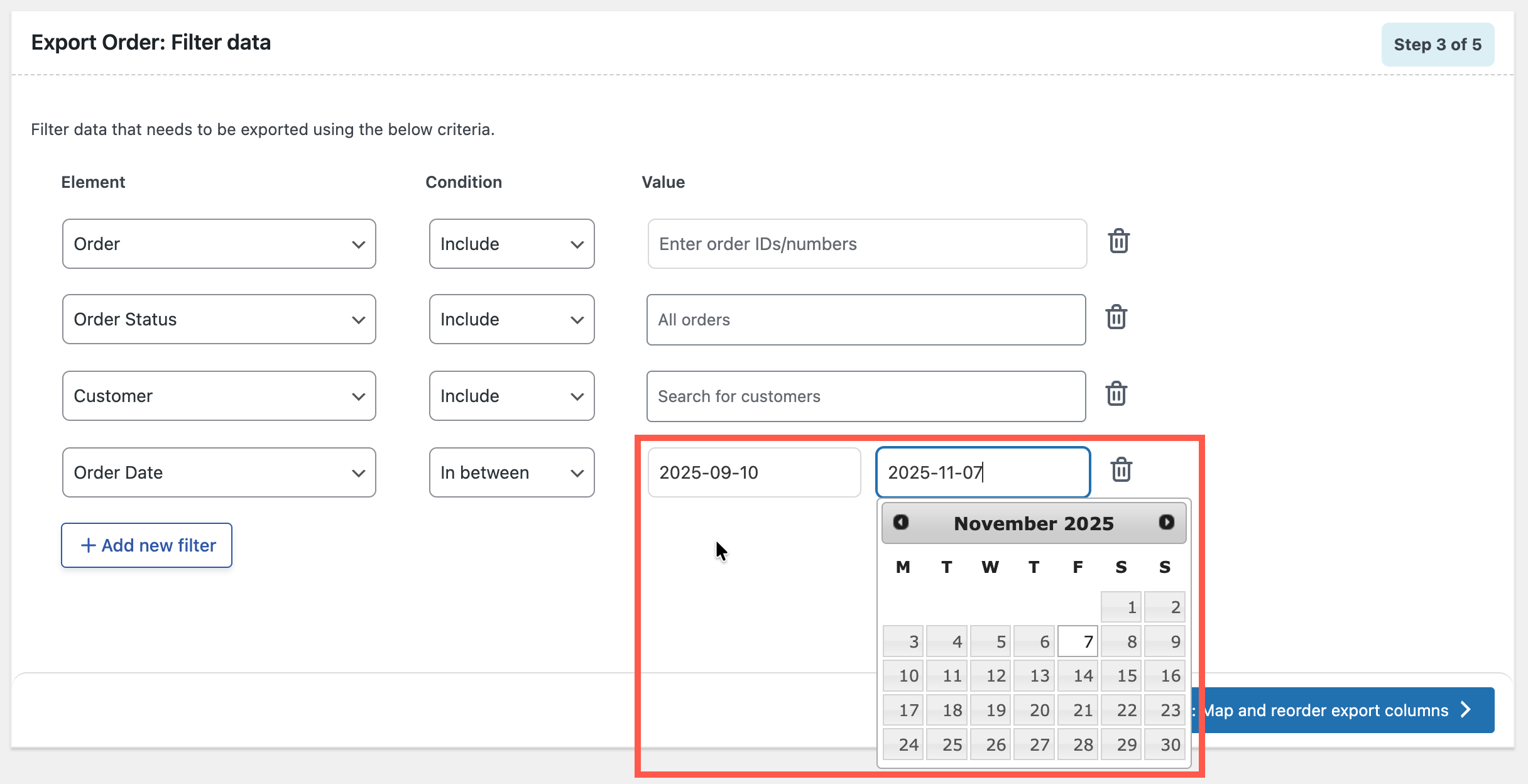
- Complete the remaining steps to export the orders.
Only orders created within the specified date range will be included in the export.
Sample of exported CSV

