


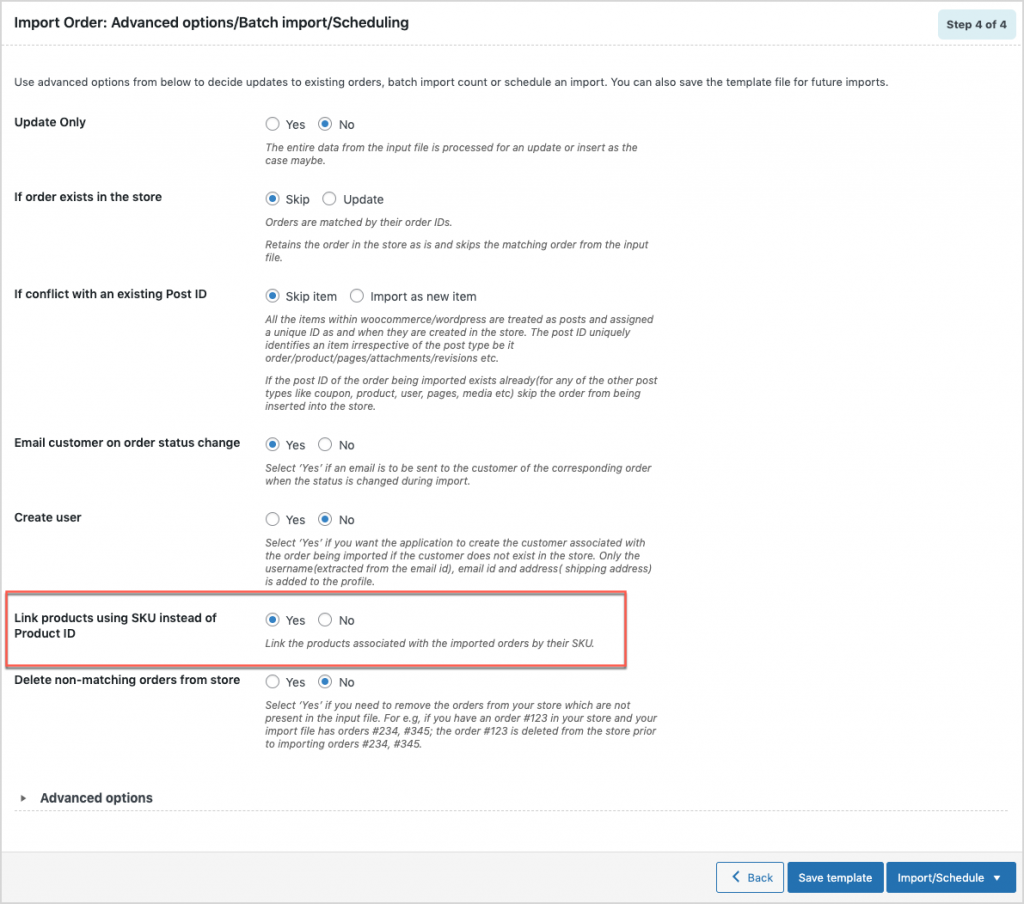
WooCommerce orders can be connected to products using the product SKU instead of the product ID by enabling the “Link products using SKU instead of Product ID” option in the advanced import settings of the Order, Coupon, Subscription Import Export plugin. This ensures line items are matched based on SKU during order import. A sample format for inserting elements in the line item column is given below:

By default, the line items in an order are identified by product ID. There can be instances where the user needs to use an SKU instead of a product ID. In those cases, choose Yes for the option “Link products using SKU instead of Product ID” before importing it.
Linking products using product SKU
From the WordPress admin dashboard, click on WebToffee Import/Export(Pro) > Import. To connect the WooCommerce orders with products using product SKU:
- Select the post type as Order.
- Select an import method.
- Map the import columns.
- In the last step of import advanced options/ batch import and scheduling, choose Yes for the option Link products using SKU instead of Product ID.
- Click on Import to finish.
For a step-wise procedure of import, refer to How to import WooCommerce Orders.

Hesham
September 3, 2023
Hi,
Thanks for your plugin and always support.
while importing the orders that every order contains more than 1 product and add filled the line item with “name:{Product}|product_id:{Product ID}|sku:{SKU}|quantity:{Quantity}|total:{Total}|sub_total:{Total}” it shows me only the 1st product in the order but the original order have 3 products for sample.
please help me how can i get all products contains in the every order??
Vineetha
September 6, 2023
Hi Hesham,
Thanks for reaching out! Can you please reach us via support?
Dano
December 21, 2022
I’m having trouble understanding why this article is here?
Give me a use-case scenario. e.g., is the ability : Import line items with Product SKU available to us because IF importing orders we might need to make this a 2 step process? …
1. import the order data: id, email, customer details, etc. (with NO product data), then
2. import the product sku|qty|price associated with an order ID
If so, this would be very useful. My dB separates order data across 2 tables.
One table for order data: order_id, email, customer details, etc.
and a second table referring to the order_id (above), with only 1 sku and only 1 price, etc. — so I have many records here which refer to the same order_id. It’s difficult without knowing some involved MYSQL commands to get all the order data in one record / row for import.
I hope you can speak to this. Someone above also addresses this problem. thx
Alan
February 21, 2023
Hi,
By default in WooCommerce the product and orders are linked using the product ID. The option to import item details to the orders using SKU is provided because there are chances of the product IDs on the export and import site being different when migrating. In this case, if the products have an SKU then products can be linked using the SKU instead of the ID.
Alfons
December 9, 2022
In prior Versions we could enter in a column the SKUs for Cross-Sellings (ie “p1|p2”).
With the new release the Cross-Sells are only imported when we enter the internal Product-ID. Is it no more possible to have the SKUs in that column?
In advanced options we selected “Match products by their SKU”.
Alan
January 2, 2023
Hi,
Yes, you can import cross-sell data based on the SKU using the pro version plugin. Please enable the option “Use SKU to link up-sells, cross-sells, and grouped products” during import.
kevin49
April 24, 2019
If you are trying to import 50 products, that are all different product ID’s, what is the easiest way to enter that information on the CSV prior to importing?
Alan
April 24, 2019
Hi,
Hope you are trying to import orders. If you are required to import 50 different products into the line item field of orders then you may please specify the ID’s of those 50 products in the line item column of corresponding orders.
Sami
September 6, 2022
I’m only able to import the first product of an order and I’ve been trying to find out how to import more than one. The tool only reads one column and if the products are stacked into one column it still reads only the first product along with it’s data; products are separated by |; e.g. name|sku|quantity|total|name|sku|quantity|total
Alan
September 19, 2022
Hi,
If you have multiple products then you have to create multiple line item columns and provide data in them. For each item, you have to create separate columns. Eg: If you have 2 items then the CSV should have 2 line_item columns ie. line_item_1 & line_item_2