


WooCommerce orders can be exported using the Order, Coupon, Subscription Import Export plugin by selecting Order as the post type, choosing an export method, applying filters if required, mapping the export columns, and completing the export. This allows bulk order data to be downloaded or transferred efficiently.
In this guide, you’ll learn how to export WooCommerce orders step by step.
Export Orders
To export WooCommerce orders:
- Click on WebToffee Import/Export(Pro) > Export.
If you want a file only for reference purpose, then you can export the line items either in Separate rows or in Separate columns.
You can select this option in the last step of export.

Step 1: Select a post type
As a first step, choose the post type as Order.

Step 2: Select an export method
Choose from the below options to continue with your export:
- Quick export from DB
- Based on a pre-saved template
- Advanced export
Let us have a look at each of these export methods:
Quick Export
- exports the basic/standard fields of the respective post type.
- To include fields from Custom meta and Hidden meta select the respective group’s checkboxes.
- Click the Export button to complete the action or proceed to Step 3 for advanced options.

Pre-saved template
- exports data as per the specifications(filters, selective column, mapping.. etc) from the previously saved file.
- By selecting this option, one can choose a previously saved template from the Export template drop-down.
Note: The template will be listed in the drop down only if you have saved it in previous exports, if you go through the Advanced export, at Step 5 you will get an option to save the template. Once you save that, next time when you want to export a pre-saved template, it will be populated within the drop down.
- Click the Export button to complete the action or proceed to Step 3 to filter data.

Advanced Export
- Takes you through a detailed process of filtering/column selection/advanced options that may be required for your export.
Note: You can also save this file as a template for future use.
- Click on Step 3 to filter data.

Step 3: Filter data
In this step, you can define rules to filter the data before exporting.
Each filter consists of:
- Element – Select the field based on which the data should be filtered.
- Condition – Define how the selected field should be evaluated.
- Value – Choose or enter the value used for filtering the data.
Multiple filters can be applied as required. Use the delete icon to remove any filter.

Step 4: Map and reorder export columns
If necessary, the column names in this section can be edited. When you choose a pre-saved template, you will see the preferred names and choices that were last saved. One can also move the columns to reorder the arrangement.

- Here, one can map and reorder the export columns under the following 3 fields:
- Default fields
- Meta(Custom fields)
- Hidden meta
- Click on Step 5 to proceed.
Step 5: Advanced Options/Batch Export/Scheduling
- On reaching Step 5, the following window will appear, from where one can:
- Exclude Already Exported: Option ‘Yes’ excludes the previously exported orders.
- Exclude line items: Choose ‘Yes’ to exclude and ‘No’ to include line items.
- Export line items in: You can export in Default mode if you are migrating orders. For exporting a reference file, you can either choose Separate columns or Separate rows.
- Export file name: To specify a filename for the exported file. If left blank, the system generates a default name.
- Export File Format: Both CSV and XML file formats are available.
- Delimiter: Separator for differentiating the columns in the CSV file. Assumes ‘,’ by default.
- Download the file into: Here, you can choose between Local, E-mail and FTP. On opting FTP, choose an FTP profile and specify the export path.

Note: On expanding Advanced options, one can set the number of records that the server will process for every iteration within the configured timeout interval. If the export fails due to timeout you can lower this number accordingly and try again.

- Save the template file for future export as shown below(if needed).
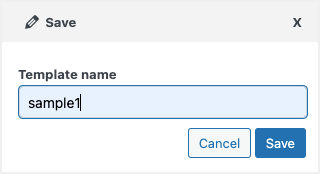
- Click on Export or Schedule the export to finish.

Calvin
May 14, 2025
Hi there,
I was wondering if it’s possible to automatically send order reports at a scheduled time — for example, every weekend?
Thank you for your help!
Best regards,
Calvin
Hema
May 20, 2025
Hello Calvin,
Thanks for reaching out. Yes, you can schedule the order report export by using the scheduling feature of the plugin. Kindly follow the steps mentioned in the article: Scheduling Order Export to achieve the same.
Ferro Pack d.o.o.
April 28, 2025
Hello,
I am having problem with uploading file to FTP. Even though by testing FTP connection in Webtoffee everything is fine, I am using another software with no problem, read/Write access is allowed, when I try to export orders, everything runs smoothly and than it says “Failed to upload file.”
What could case this?
Second question, why there is no item_price (a single price of product), rather it only has item_subtotal which is qty*price, which is not a good field, but I rather want normal ones. How I can create custom fields which are within Woo, to use them?
Kind regards
Hema
May 19, 2025
Hello Ferro Pack,
Thanks for reaching out. It seems we need more information to process your query. Kindly contact customer support for further assistance.