


WooCommerce order numbers can be preserved during import by activating a sequential order number plugin before importing and ensuring the order_number field is included in the CSV file. When using the Order, Coupon, Subscription Import Export plugin, this setup allows the original order number to remain unchanged even if the order ID is reassigned due to conflicts.
To preserve the order numbers while importing WooCommerce orders:
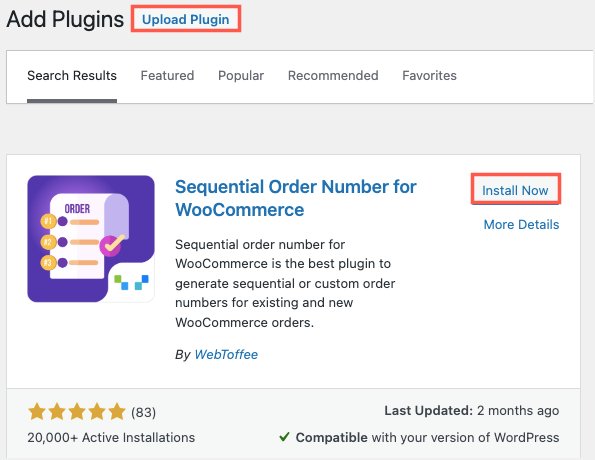
- Install and activate the sequential order number plugin, which will help import the order number as is. You can also try any other third-party plugins that would serve the purpose.
- Select the post type as Order.
- Select an import method.
- Map the import columns.
- Use the advanced options and import.
Before importing the order, we are activating the recommended third-party plugin.
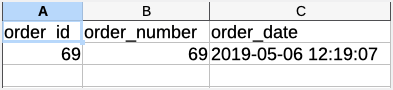
Let us consider a sample CSV with order number and order id as 69.
Importing order number as it is
- From the WordPress admin panel, navigate to the menu WebToffee Import Export (Pro).
- Click on Import and specify the post type as Order.
- Select your import method and Import from location.
- Map the import columns.
- Select the required advanced import options and click on Import to finish.
For a step-wise procedure of import, refer to How to import WooCommerce Orders.
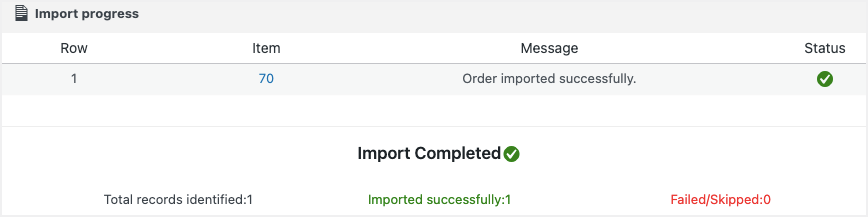
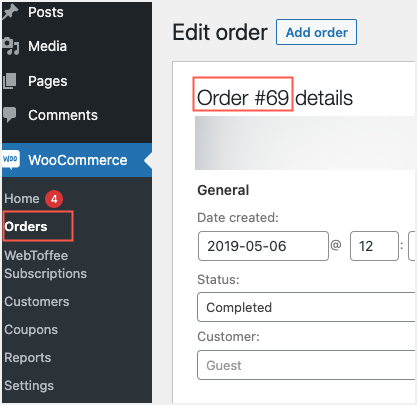
Here, due to a conflict with an existing ID, the new order will get imported with order_id (70) and order_number (69) will be imported as is. As the third-party plugin is activated, the plugin will import the order number same as in the input file.

Stephen Smith
April 14, 2025
Good afternoon! I’m trying to migrate orders from a live site to a new, staged site – these are orders that have been created since we staged the site. New pages, posts etc. have been created on the new site, so a number of the order_ids that are in use by orders we’re trying import have already been used as post_ids by those pages, posts etc.
My understanding is that the sequential order numbers plugin will let us assign new order_ids on import while maintaining the original Order Numbers, however when I import, any order with an existing order_id simple fails to import.
Do I need to uncheck the order_id column when importing these migrated orders, and just import the order_number (and all the other fields)?
Also – when exporting, there’s an option to Export line items in:
a)Migration mode
b)Separate columns
c)Separate rows
I’m assuming Migration mode is correct, but can you confirm?
Thanks in advance!
Hema
April 23, 2025
Hello Stephen Smith,
Thanks for reaching out. I would like to ensure that your understanding about Sequential order numbers plugin is correct.
However during Import, to avoid skipping, kindly set the option, If conflict with the existing post id to Import as new item. Enabling this option, would create a new order_id and import the order.
If order_id is not a mandatory field, unchecking order_id and then importing would also help.
To answer your final question, Yes, Migration mode would be the correct option to export.
Frank
December 28, 2023
What do you mean with?
“Install and activate any third-party plugin which will help import the order number as is”
This article is so confusing.
Vineetha
January 3, 2024
Hi Frank,
Thanks for reaching out! To preserve the order numbers while importing WooCommerce orders, you may install and activate the sequential order number plugin and then import the orders from the CSV file. You can also try any other third-party plugins that might be able to assist you with this.
Stephen
August 30, 2023
I have Sequential Order Number for Woocommerce. I recently used it to preserve original order numbers when I imported all of my past orders into a staging site. It worked perfectly. The import plugin I used was CSV Import suite. This worked perfectly! All of my previous orders imported with the original Order numbers, then I did a test order (new order) and it created the new formatted order number that I chose in Sequential Number plugin. this was exactly what I was looking for!
Since then, I had to delete my staging site and create a new one. I am now trying to do the exact same operation, and Sequential Number plugin is NOT preserving the original order numbers for all past orders. It is applying the new format to all past orders. Why is it not working this time? I have done nothing different!
Please help
Vineetha
September 5, 2023
Hi Stephen,
Thanks for reaching out! The Sequential Order Number for WooCommerce plugin uses the meta key _order_number to store the sequential order number in the post-meta table. Kindly make sure you have exported that meta key too in the CSV file while creating the staging site.
Stephen
January 18, 2024
In the CSV file, there is a column titled, “order_number” but there is not an underline in front of the word “order”. I do not know if the column is a meta key or not, but I have tried mapping the import to that column instead of the order_id column, but that did not work either. Why is this not working like it did the first time I tried it? Really need help with this.
Vineetha
January 22, 2024
Hi Stephen,
Thanks for reaching out! As per our understanding, you are having the issue of order numbers being changed during import, and you are required to retain them. If the ID of the orders is already used for other posts on your site, then the orders will have to be imported with a new ID and as a result, the order number will also change as the order number depends on the order ID in Woocommerce.
By default in Woocommerce, the order number is auto-generated from the order ID. Whatever the order ID, it will be used as the order number. I hope this is clear.
To overcome the issue of order numbers changing, you can try using our Sequential order number plugin to import order numbers from the CSV file. You may please install the Sequential order number plugin and then import the orders from the CSV file to retain the order numbers.
If we have misunderstood your query, then please brief us on the same via support along with relevant screenshots so that we can understand it better.