


A gift card is a prepaid card customers use to buy products from a specific store. With the WebToffee WooCommerce Gift Cards plugin, you can sell gift cards as products in your WooCommerce store. To create a gift card product:
- Go to Gift card products and click Add new.
- Set up the basic product details.
- Set up the General settings.
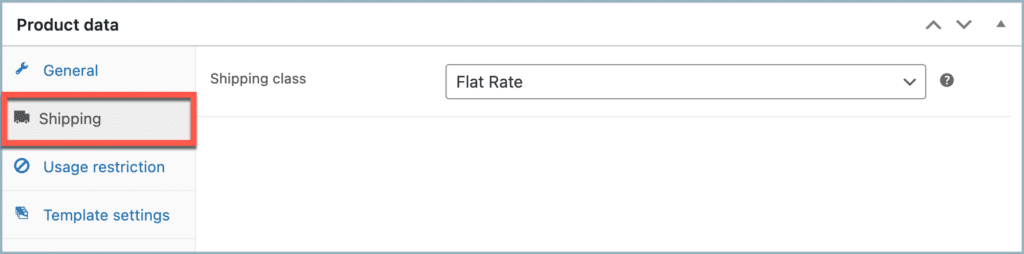
- Set a shipping class for physical gift cards (optional).
- Configure the Usage restriction settings.
- Select the gift card templates, then click Publish.
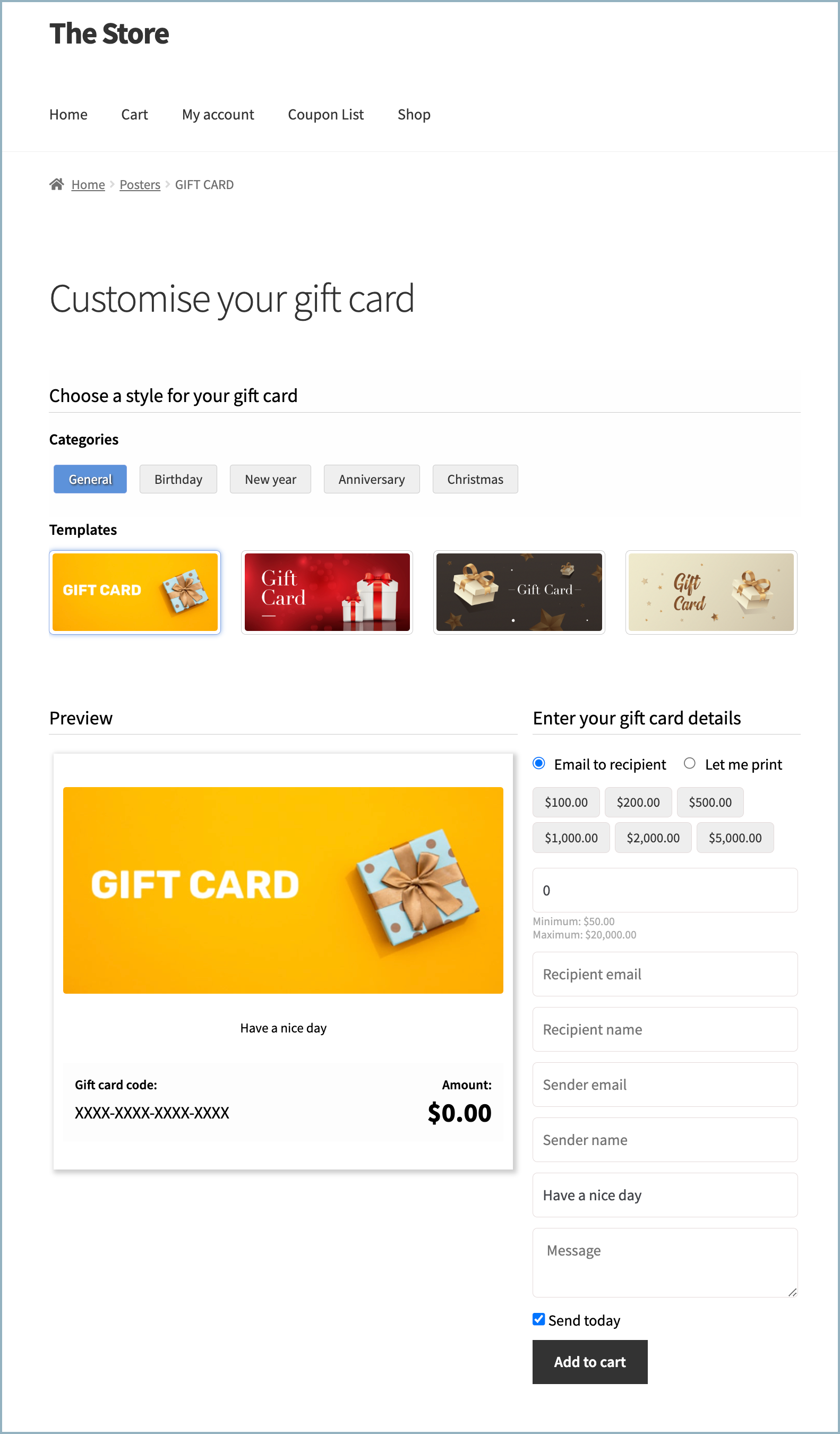
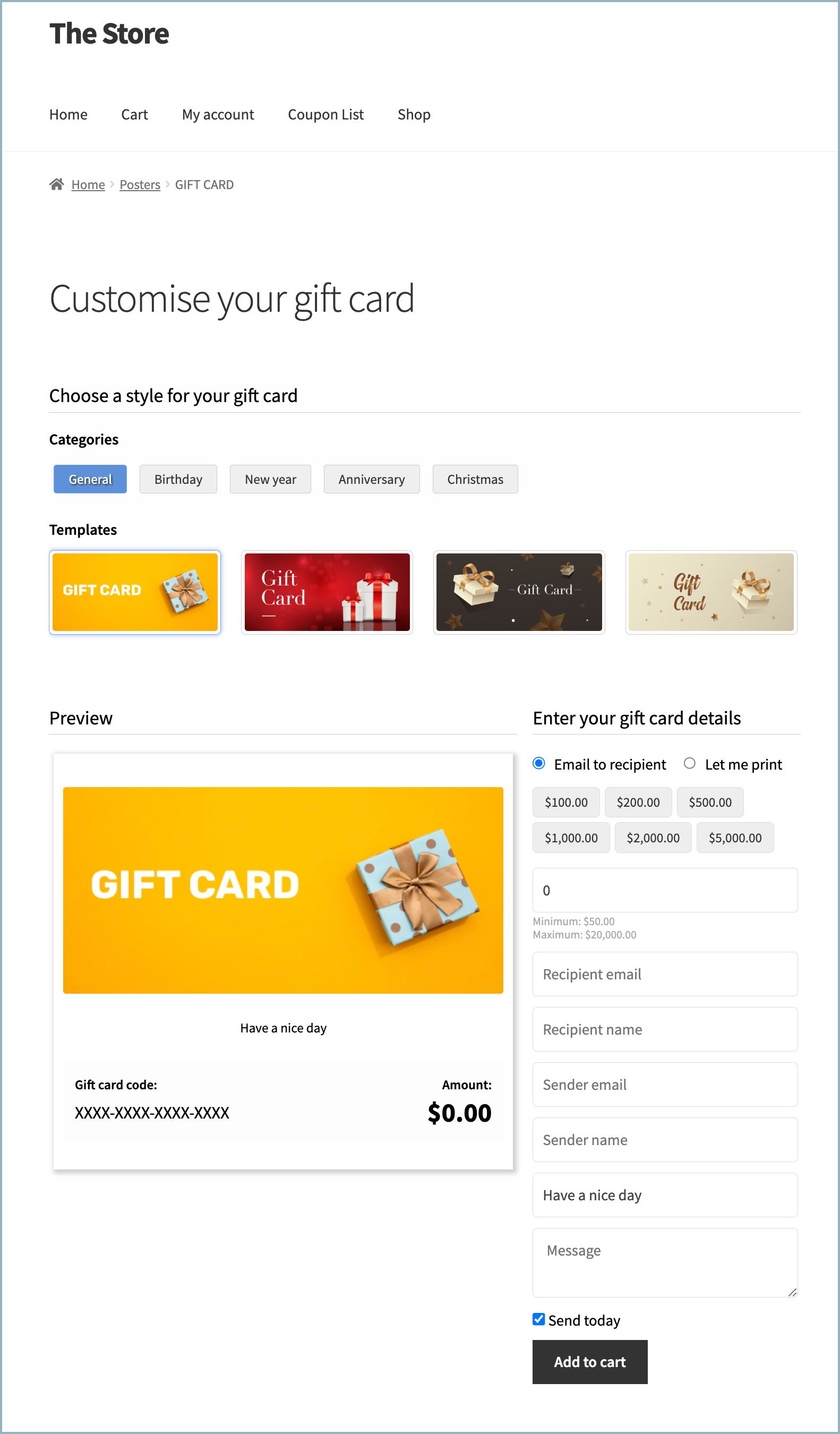
Here’s how a gift card product looks in your store:
Step 1: Go to the Gift Card Products Section
To set up a gift card:
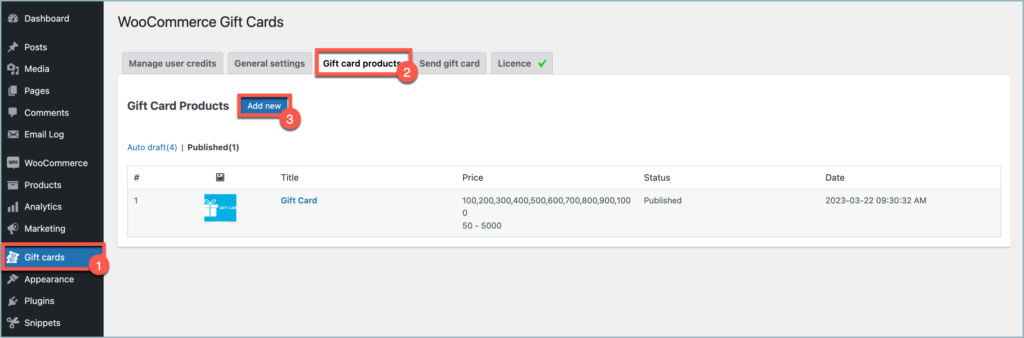
- From the WordPress dashboard, go to Gift Cards > Gift card products. If you use the plugin with Smart Coupons for WooCommerce, go to Smart Coupons > Gift cards > Gift card products. This page lists all gift card products in your store.
- Click Add new to create a gift card product.
Step 2: Set Up Basic Product Details
- The Add new gift card product page opens.
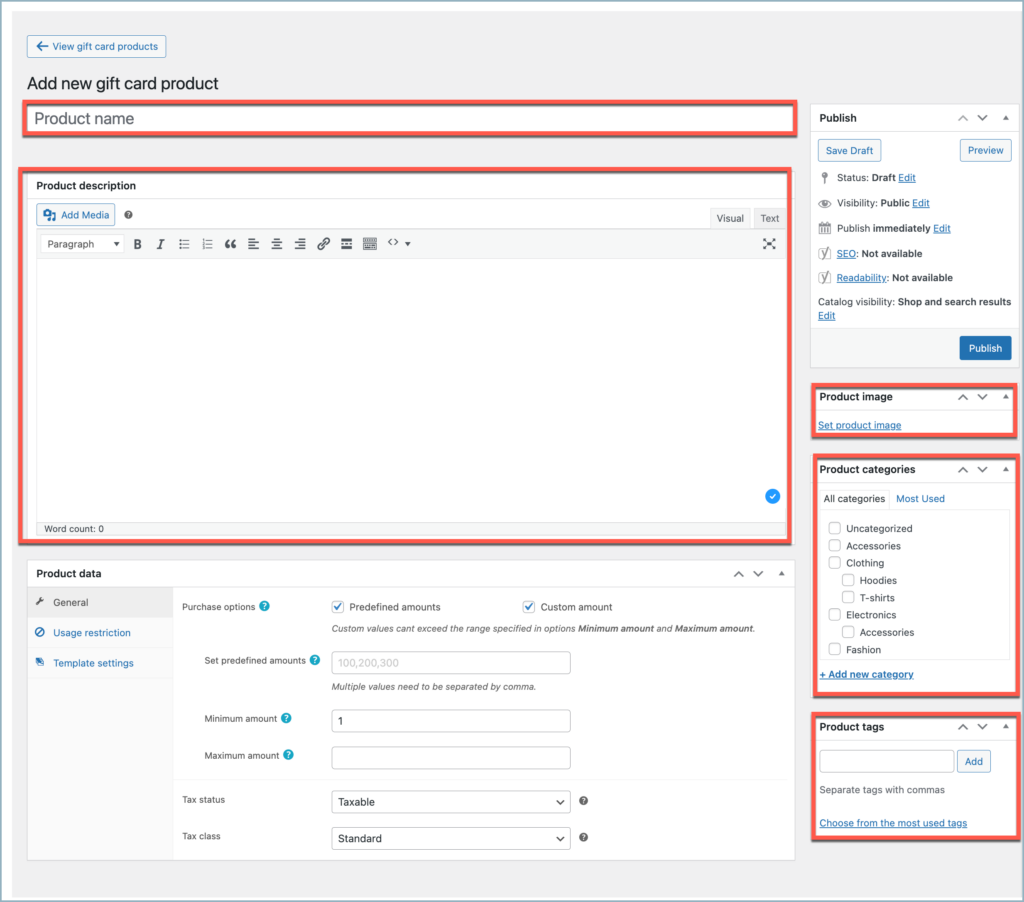
- In Product name, enter a name for the gift card.
- In Product description, describe the gift card.
- Under Product image, click Set product image and upload the image you want to show in your store.
- Under Product categories, select a category for the gift card, or click Add new category to create one.
- Under Product tags, add tags for the gift card.
Step 3: Set Up General Settings
Scroll down to the Product data meta box on the Add new gift card product page. The General tab opens by default.
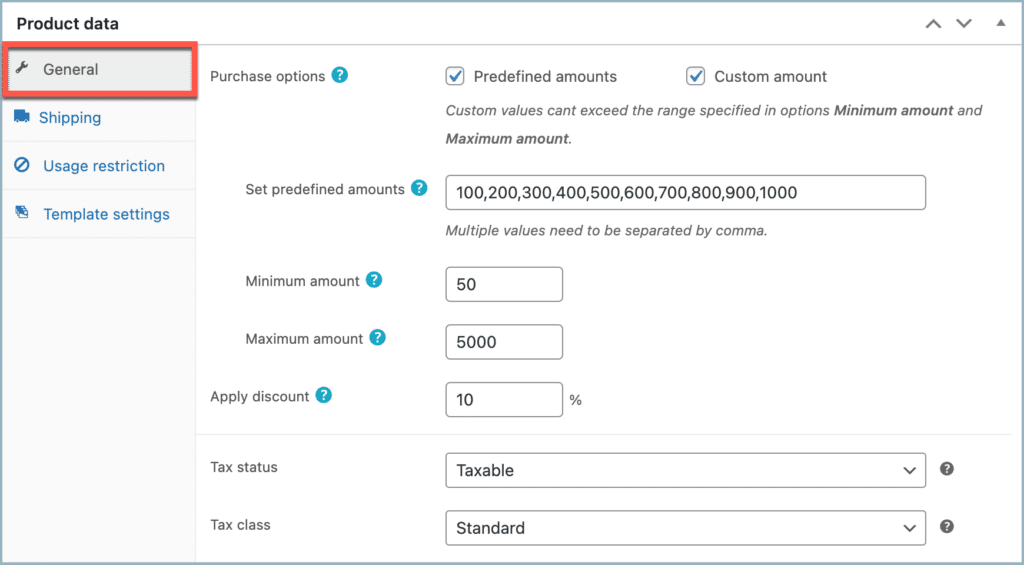
- Under Purchase options, enable Predefined amounts to offer fixed amounts. In Set predefined amounts, enter the amounts separated by commas.
- Under Purchase options, enable Custom amount to let customers enter their own amount.
- In Minimum amount, enter the lowest amount customers can buy.
- In Maximum amount, enter the highest amount customers can buy.
- Apply discount – Enter a percentage to sell the gift card for less than its value. For example, with a 10% discount, customers pay $90 for a $100 gift card. The product page shows the original and discounted price.
- In Tax status, choose whether the gift card is taxable. If it is, select a Tax class.
- For example, in the given settings:
- The gift card is available in predefined amounts of $100,$200,$500,$1000,$2000, and $5000.
- Alternatively, the customer can set a custom amount for the gift card within the limit of $50 to $20000.
- Also, the product is taxable under the standard class.
Step 4: Set a Shipping Class (Physical Gift Cards)
If you sell physical gift cards, open the Shipping tab and select a Shipping class. Some shipping methods, such as Flat rate, use shipping classes to charge different rates for different product types. The Shipping tab appears only when you enable Send physical gift card in Gift Cards > General settings > General > Allow users to. For digital-only gift cards, skip this step.
Step 5: Configure the Usage Restrictions
Open the Usage restriction tab in the product data meta box. These restrictions apply when customers use the gift card. Customers can’t redeem gift cards with usage restrictions to their store credit wallet; they can only apply them at checkout.
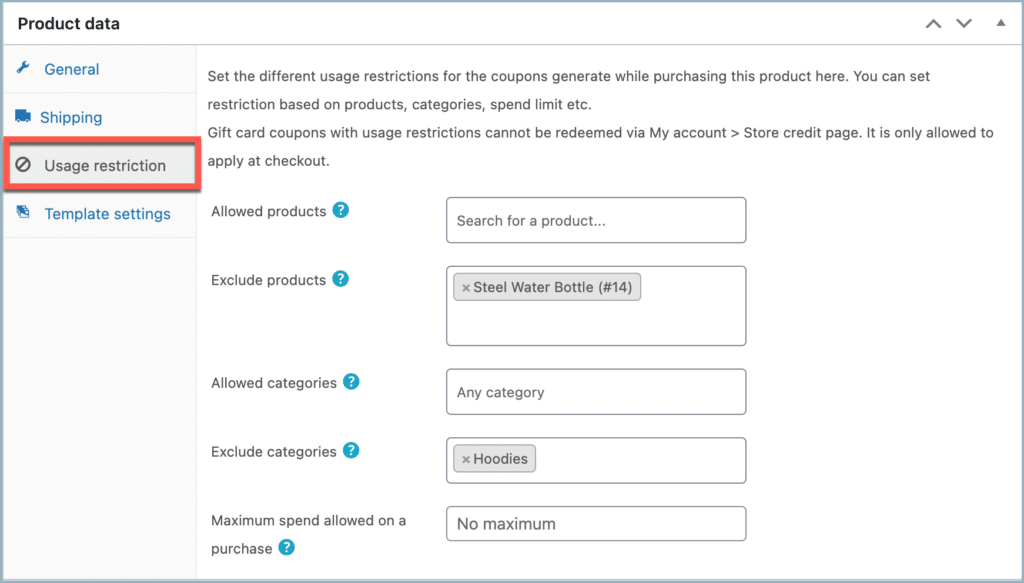
- Allowed products – Select the products customers can buy with the gift card. Leave it empty to allow all products.
- Exclude products – Select the products customers can’t buy with the gift card.
- Allowed categories – Select the categories customers can buy from with the gift card. Leave it empty to allow all categories.
- Exclude categories – Select the categories customers can’t buy from with the gift card.
- Maximum spend (subtotal) – Enter the maximum amount customers can use from the gift card on a single order.
- Set expiry – Enter the number of days the gift card stays valid.
- Usage limit per gift card – Enter how many times customers can use each gift card. For example, enter 1 to allow a single use. Leave it empty for unlimited use.
- For example, with the settings shown:
- Customers can’t use the gift card to buy the Steel Water Bottle.
- Customers can’t use the gift card on products in the Hoodies category.
- Customers can use up to $1,000 of the gift card on a single order.
- Customers can use each gift card up to 3 times.
Step 6: Select Gift Card Templates
The plugin offers a variety of ready-to-use gift card templates. This page showcases all the templates available from the plugin. Users will find the selected templates on the single product page. To add custom templates and template galleries, refer to the article, How to Create Image Galleries for WooCommerce Gift Cards.
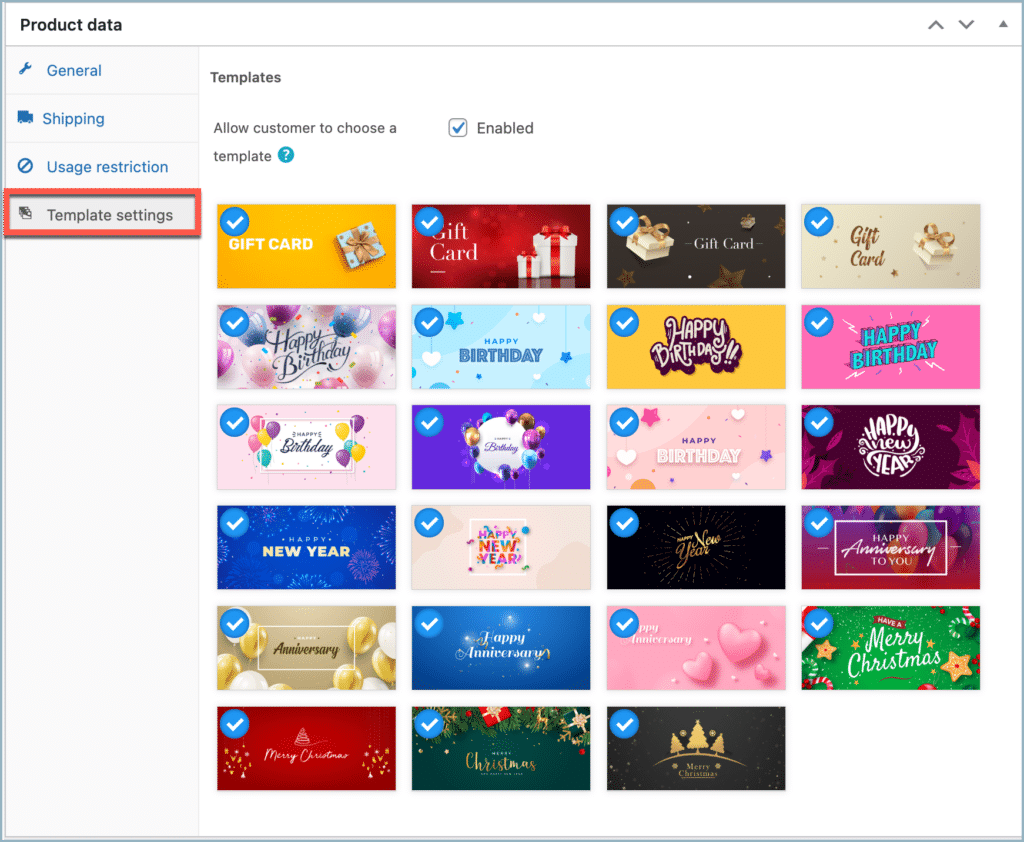
- Enable Allow customer to choose a template to show the templates on the product page and let customers pick one.
- Under Select template, choose the templates to show on the product page.
- To add your own template, go to Gift Cards > General settings > Template settings.
- Click Publish.
Step 7: View the Gift Card Product in Your Store
When you publish the gift card product, it appears in your store automatically. Here’s how the product page looks:
Adding Gift Card Products to a Custom Page
In addition to the shop page, you can also add selected gift card products to a custom store page.
With shortcode
Once a gift card is live, you can find a shortcode for that gift card product from the Gift Card Products tab.
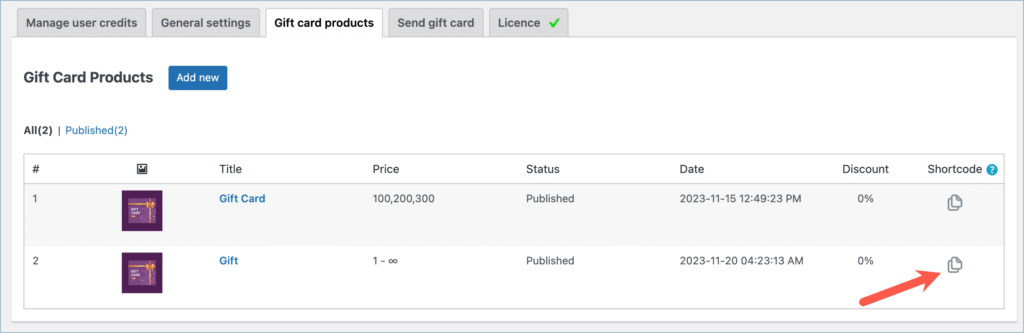
Next, navigate to the page or post where you would like to display the gift card product, then paste the shortcode into a shortcode block.
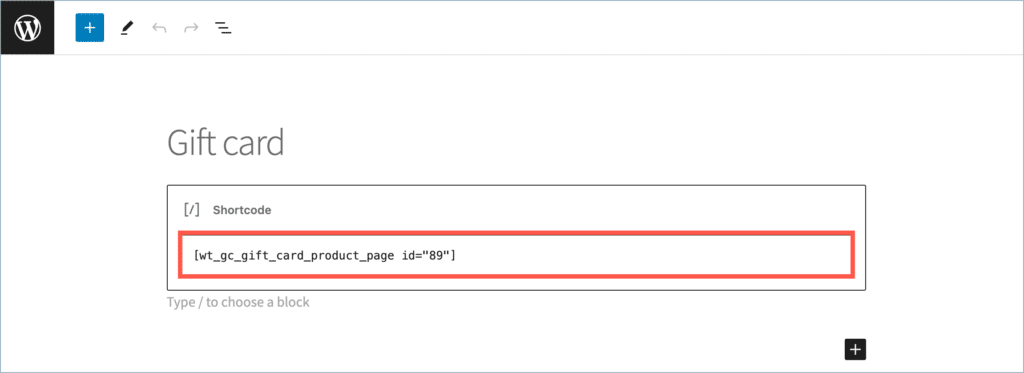
The gift card product will now be available on the page, ready to purchase.
From the block editor
To add a gift card product to a select page using the block editor,
- Navigate to the page where you want to display the gift card product.
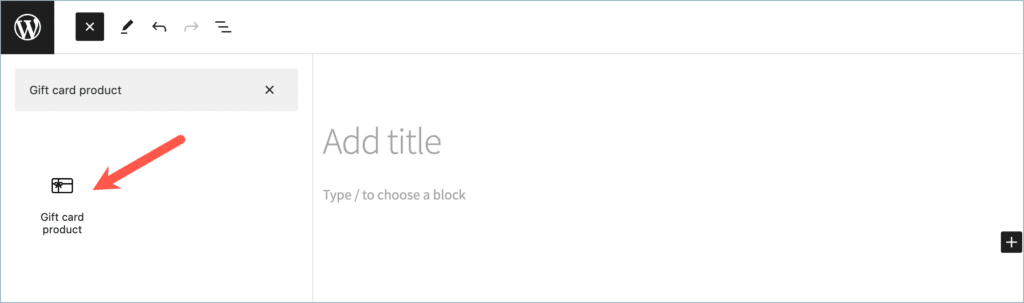
- Go to the block menu and search for gift card product.
- Select the block named Gift card product.
- Once you select the block, choose one of the active gift card products available in the store.
- Click on Done.
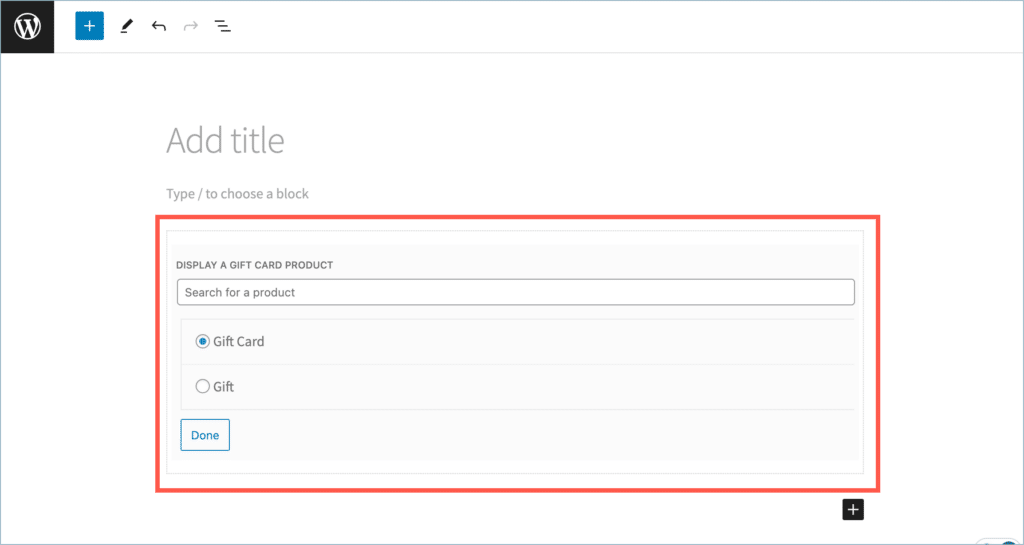
The plugin is now adding the selected product to the page.
Note: Purchasing a gift card does not automatically add its value to the customer’s store credit balance. To reflect the value in the customer’s store credit, the customer must redeem the gift card from the profile. Once redeemed, it will appear on the user’s store credit balance and manage store credit page.
Also, note that it is not necessary for the customer to redeem the gift card into the store credit balance. They can directly use the gift card at checkout, just like a normal coupon.

Comments (2)
Saroj Dhungnaa
July 18, 2023
How do we redeem the giftcard code that has been sent to the mail
Arjun
July 18, 2023
Hi Saroj,
Thank you for getting in touch with us. To redeem the gift card code, you can copy and paste it into the Apply coupon field on the cart page. Alternatively, you can navigate to My Account > Store credit, where you can paste the code and redeem it.