
If you’re looking for a way to offer gift cards on your website, the WebToffee WooCommerce Gift Cards plugin is a great option. With this plugin, you can sell gift cards online and manage store credit easily. With the store credit functionality, you can offer store credits to customers and enable gifting and sharing of store credits between customers through purchasable gift cards. The plugin also offers multiple gift card templates, lets you restrict how customers use gift cards, and lets you refund orders as store credit. It’s a great way to boost sales and offer a convenient gifting option for your customers.
Getting started
- To begin, start by installing and activating the plugin.
- If you install it as a standalone plugin, open the settings from Gift Cards in the WordPress dashboard.
- If you install it as an add-on to Smart Coupons for WooCommerce, open the settings from Smart Coupons > Gift cards.
The settings are grouped into four main pages:
Managing user credits
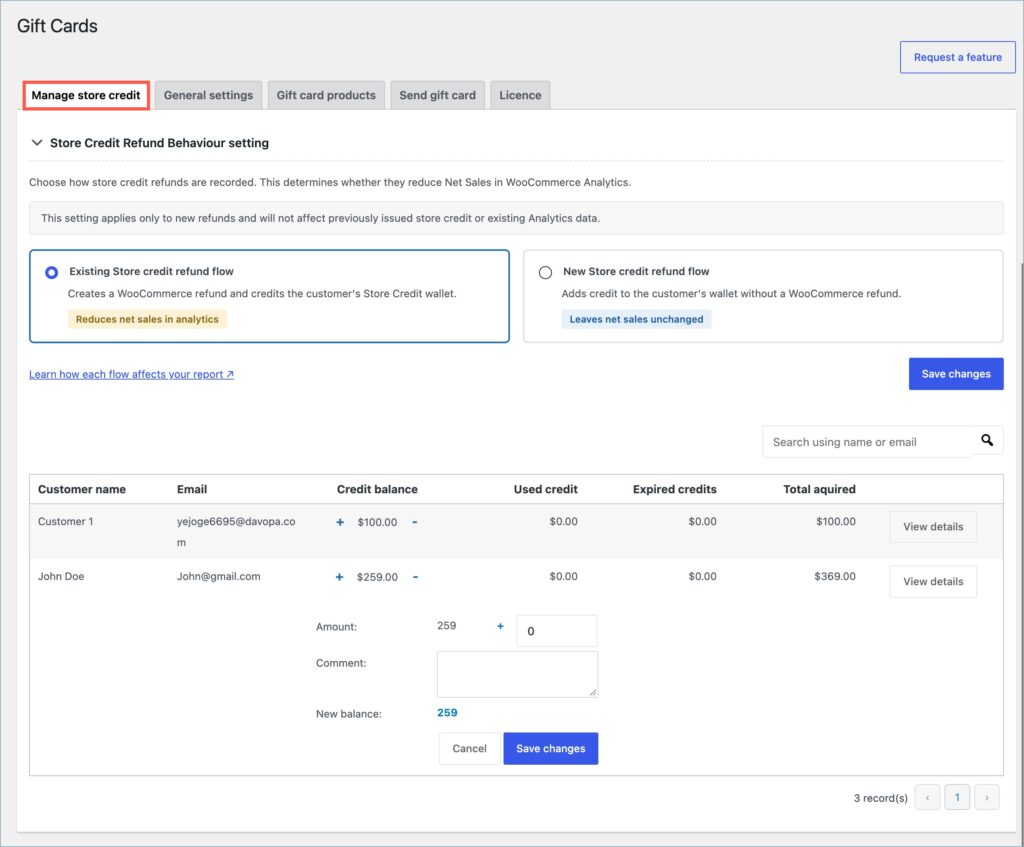
On this page, you can view and adjust each customer’s store credit and choose how the plugin records refunds to store credit.
- Store Credit Refund Behaviour setting – Choose how the plugin handles refunds to store credit:
- Existing Store credit refund flow – Creates a WooCommerce refund and adds the amount to the customer’s store credit wallet. This reduces net sales in WooCommerce Analytics.
- New Store credit refund flow – Adds the amount to the customer’s wallet without creating a WooCommerce refund, so net sales stay unchanged. With this flow, a Refund to store credit button appears on paid orders.
The setting affects only new refunds. For the full steps, see Refund to Store Credit.
- Customer name – Name of the customer in the e-store.
- Email – Email address of the customer.
- Credit balance – The store credit available in the customer’s account. Click + to add credit or – to deduct credit manually.
- Used credits – Total credits used by the customer.
- Expired credits – Credits that expired before the customer used them.
- Total acquired – The total store credit the customer has received so far, including used and expired credits.
The image below shows the credit management options provided by the plugin.
- View details button – Opens a detailed view of the store credit balance of a single user.
Includes used store credit, expired balance, total acquired, and current store credit balance.
Usage history records every transaction made via store credit with its timestamp and amount. The various fields in the usage history are as follows:- Admin credited
- Admin debited
- Refund credited
- Redeemed gift card
- Used for order
The following image shows the detailed store credit balance of customer John Doe.

Note: Purchasing a gift card does not automatically add its value to the customer’s store credit balance. To reflect the value in the customer’s store credit, the customer must redeem the gift card from the profile. Once redeemed, it will appear on the user’s store credit balance and manage store credit page.
Also, note that it is not necessary for the customer to redeem the gift card into the store credit balance. They can directly use the gift card at checkout, just like a normal coupon.
General Settings
This page allows for configuring different settings related to gift card behavior, the appearance of the gift card product page, and gift card templates. The General settings page has six tabs:
- General
- Product page
- Template settings
- Email settings
- Send product as gift
- Export/Import
General
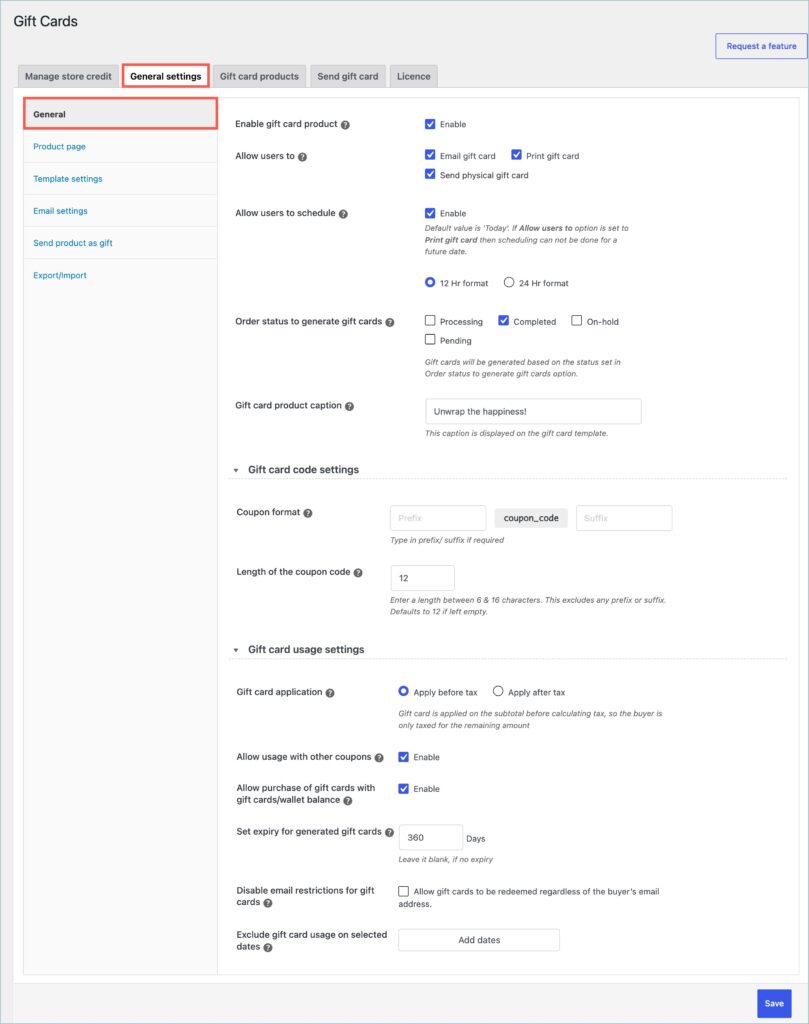
General Section
- Enable gift card product—This option allows the store to add gift card products and purchase functionality. Even if this option is disabled, the store owner can still email and manage store credits from the backend.

- Allow users to – Allow users to choose what they can do with their purchased gift card. The available options are:
- Email gift card – On purchase, the gift card will be shared with the chosen email address.
- Print gift card – After purchasing, the buyer can download the gift card from the thank-you page or from the shared email. No email will be sent to the recipient.
- Send physical gift card — When you place an order, the store owner will print and send the gift card to the recipient, the same as a normal order.

- Allow users to schedule – Enable this option to let customers schedule the gift card for a future date. You can also choose a 12 Hr format or 24 Hr format for the time. Customers who choose Print gift card can’t schedule the gift card for a future date.
- Order status to generate gift cards – The plugin generates the gift card and emails it to the recipient only when the order reaches one of the statuses you select. You can select one or more of these statuses:
- Processing – The gift card will be generated when the order reaches Processing status.
- Completed – The gift card will be generated when the order reaches the Completed status.
- On-hold – The gift card will be generated when the order reaches On-hold status.
- Pending – The gift card will be generated when the order changes to Pending status.
- Gift card product caption – Enter the caption that appears on the gift card template, for example, “Unwrap the happiness!”
Gift card code settings
- Coupon format – Enter a Prefix and a Suffix to add text before and after the random part of each gift card code. For example, the prefix
GIFT-and the suffix-2026give a code likeGIFT-A7K2-9QXM-P4TD-2026. Leave both fields empty to use the random code alone.- Length of the coupon code – Enter a length between 6 and 16 characters for the random part of the code. The prefix and suffix don’t count toward this length. If you leave it empty, the plugin uses 12 characters.
These settings apply to gift cards customers buy from your store. Gift cards you send from Send gift card use the default code format.
Gift card usage settings
- Gift card application – Choose when the plugin applies gift cards relative to tax. This choice affects the total tax on the order.
- Apply before tax – The plugin applies the gift card to the subtotal before calculating tax, so the customer pays tax only on the remaining amount.
- Apply after tax – The plugin calculates tax on the subtotal first, then applies the gift card.
- Apply on tax, shipping and other charges – Select this option to let customers use the gift card to pay for tax, shipping, and other charges too.
- Allow usage with other coupons- Enable this option to use gift cards or store credit balances in conjunction with other coupons.
- Allow purchase of gift cards with gift cards/wallet balance – Enable this option to let customers buy gift cards with other gift cards or their store credit balance. If you leave it disabled, customers see an error at checkout when they try.
- Set expiry for generated gift cards – Enter the number of days a gift card stays valid. Leave it empty if you don’t want gift cards to expire. The default is 365 days.
- Disable email restrictions for gift cards – Enable this option to let anyone redeem a gift card, regardless of the buyer’s email address.
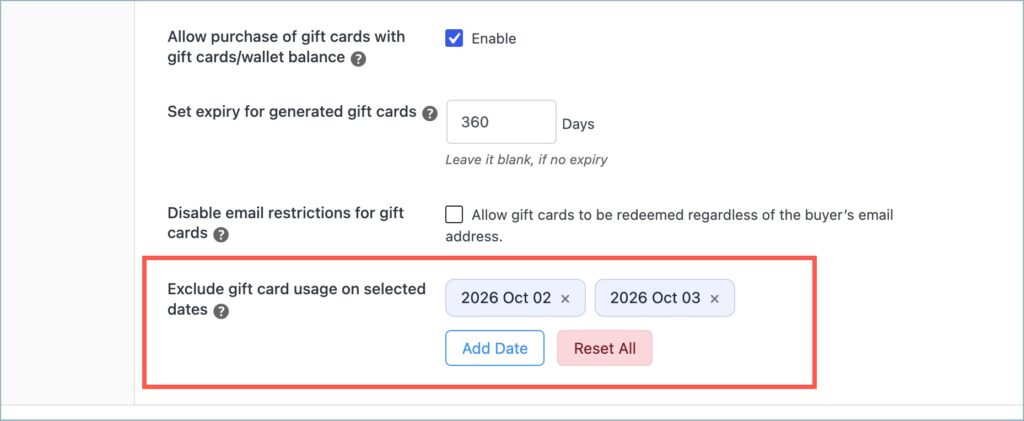
- Exclude gift card usage on selected dates – Pick the dates when customers can’t use gift cards, such as sale days, and click Add Date. Click Reset All to clear the list. On these dates, customers who apply a gift card at checkout see the message “Sorry, this coupon cannot be used today.” The restriction doesn’t apply to the store credit wallet.
Product page
On this tab, you choose which fields appear on the gift card product page and what they’re called.
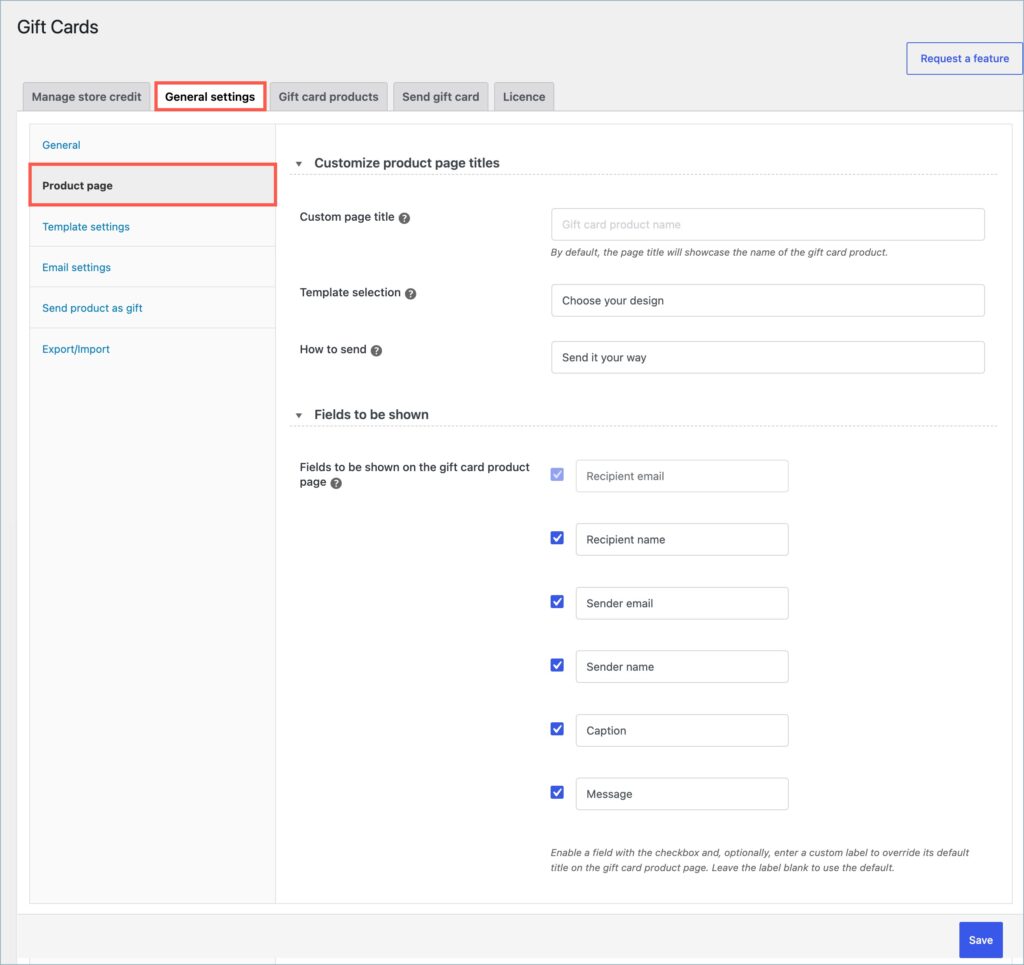
- The Customize product page titles group lets you rename the headings on the product page: Custom page title, Template selection, and How to send. By default, the page title shows the gift card product name.
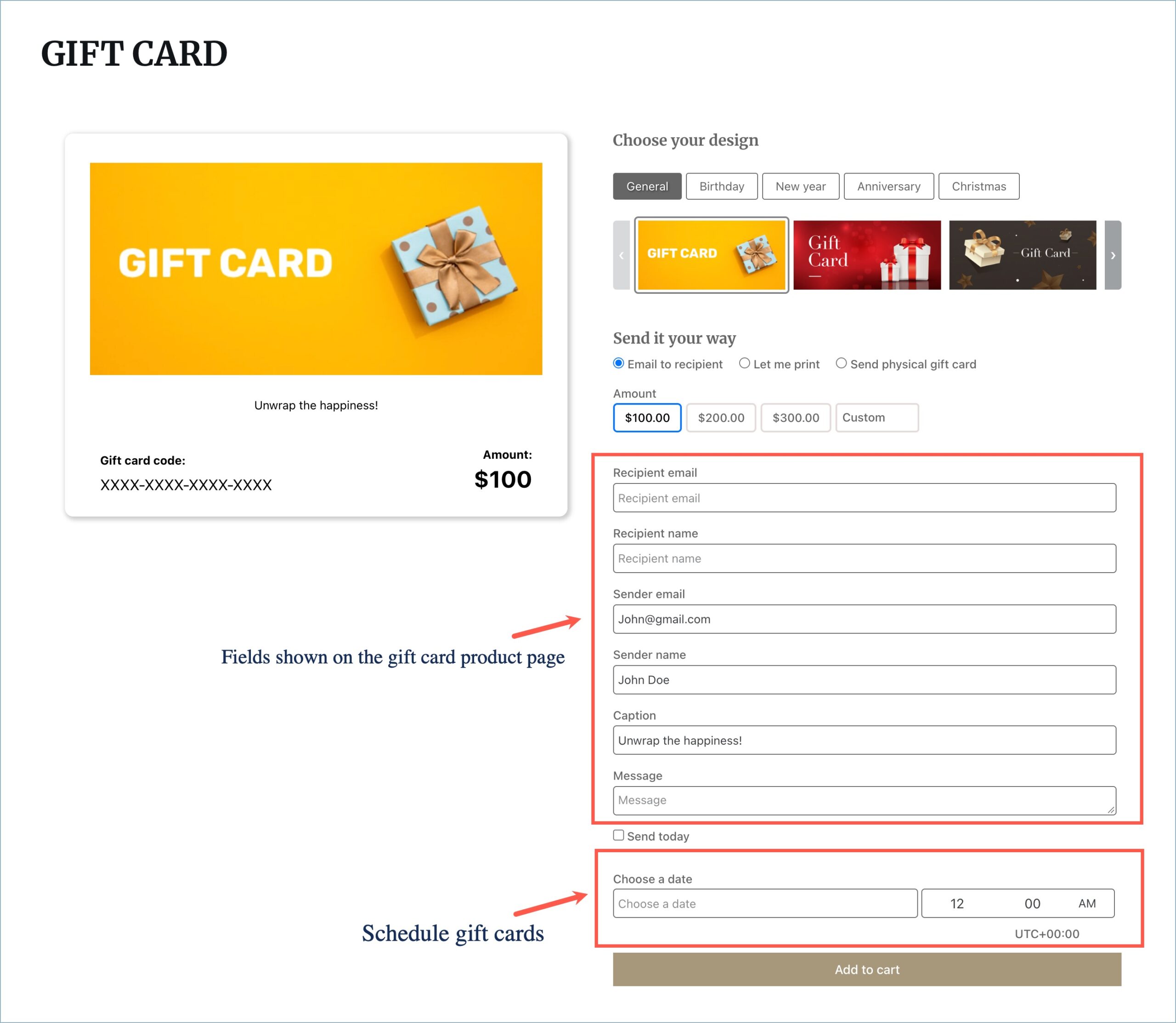
- Fields to be shown on the gift card product page – Select the fields you want to show on all gift card product pages. Next to each field, you can enter a custom label to replace its default title on the product page, for example, “Who is this gift for?” instead of “Recipient name.” Leave the label empty to use the default title. The available fields are:
- Recipient email – The recipient’s email address. You can’t disable this field.
- Recipient name – The recipient’s name. The plugin uses it to address the recipient in the gift card email.
- Sender name – The sender’s name. It appears on the gift card after From:.
- Sender email – The sender’s email address. It appears on the gift card after From:. If you enable both Sender name and Sender email, the gift card shows only the name, as From: [sender name].
- Caption – A caption that appears on the gift card.
- Message – A personal message that appears on the gift card. Line breaks the customer adds stay in place in the email, PDF, and preview.
Template settings
The section enables configuring template images and adding/removing/categorizing templates for each gift card category. This tab works like a gallery for each gift card category, and templates must be selected per product later.

- Categorize templates – Once enabled, the available coupons in the gallery are categorized into different groups to ensure easy navigation and selection of the desired templates. This applies both to the front end and back end. Categories available by default are:
- General
- Birthday
- Anniversary
- Christmas
- New year
- New categories can be added from the Templates section.
Templates
Lists of the templates available for the gift card. Only the selected templates will be available under the gift card product edit section for configuration.

- The “+” icon can be used to add new templates and categories as needed. Clicking on the + button will open the Add new template dialogue box.
- Template image – Image to be used in the gift card template. The recommended dimension for the image is 852x400px. Different dimensions may break the Gift card purchase page / Gift card email.
- Category – Category for the uploaded template. New categories can also be added from this section.

Email settings
On this tab, you can attach gift cards as PDFs to emails and edit the redemption text that appears on every gift card.
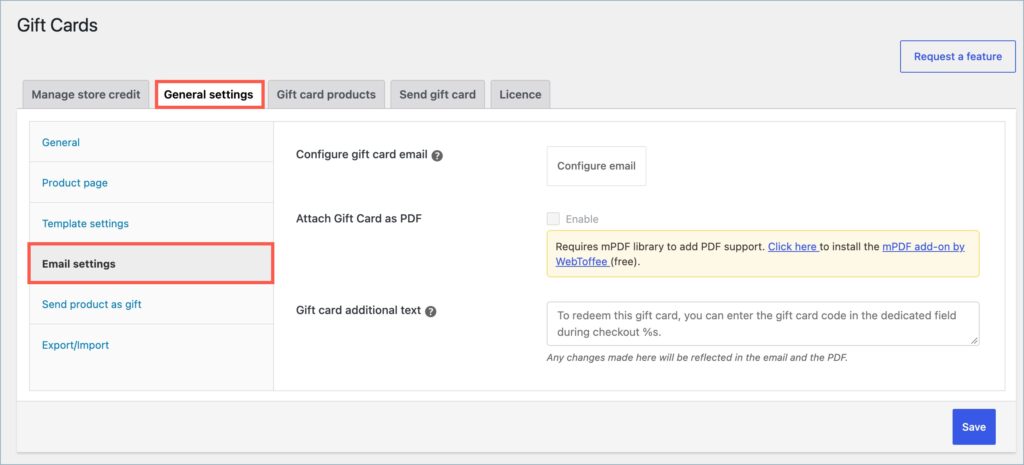
- Configure gift card email – Click this button to open the gift card email settings in WooCommerce.
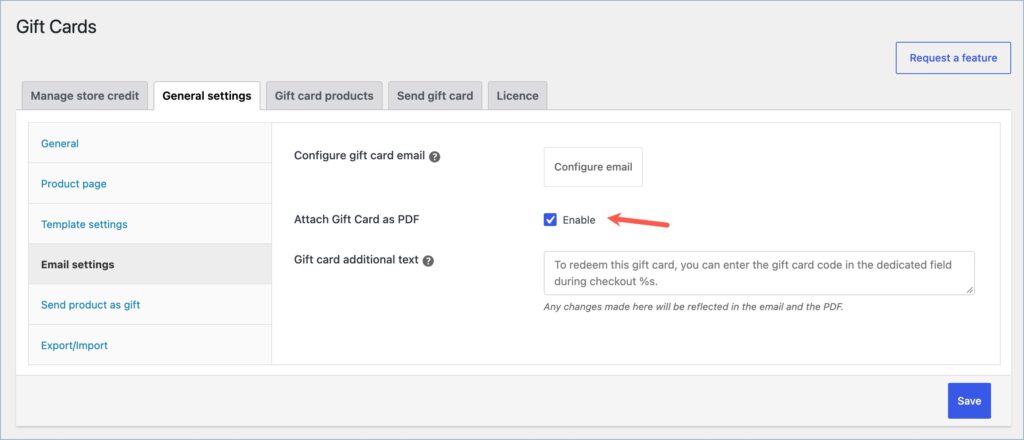
- Attach Gift Card as PDF – Select Enable to attach the Gift Card in PDF format to the email.
To enable this feature, you must install and activate the mPDF add-on for PDF Invoices plugin by WebToffee.
Note: mPDF add-on for PDF Invoices is a free add-on. If you have already installed the add-on, ensure the add-on version is 1.0.7 or higher.
- To install the add-on, click on the hyperlink “Click here”.

- The plugin installs the add-on automatically, and the notification disappears.
- The Attach Gift Card as PDF option is now active. Enable it to attach gift cards as PDFs.
- Gift card additional text – Edit the text that appears on the gift card in the email and the PDF. By default, it reads: “To redeem this gift card, you can enter the gift card code in the dedicated field during checkout %s.” Keep the %s placeholder if you want the plugin to add “or add it to your store credit balance at [store name]” for gift cards customers can redeem to their wallet. Clear the field to hide the text completely.
- Click Save to save changes.
Send product as gift
The Send product as gift feature allows users to send a gift card and a product suggestion. For a detailed guide on how to set up the product as a gift option, refer to the article, Send a Product as a Gift in WooCommerce.
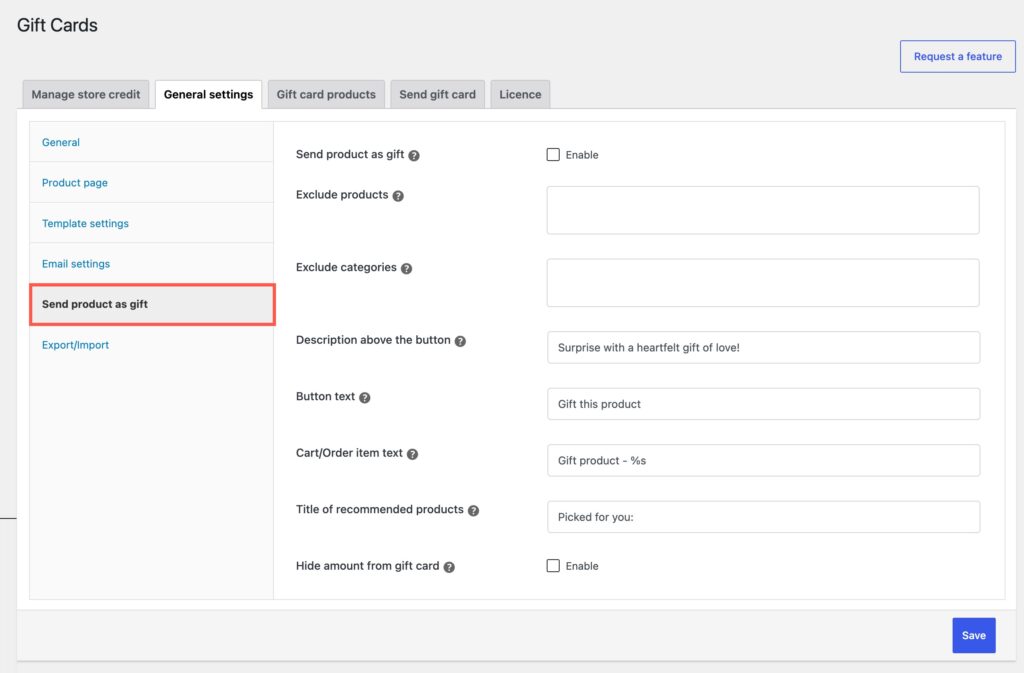
- Send product as gift – Enable to activate and add a Gift this product button on the single product page.
- Exclude products – Lists products that do not offer the Gift this product option.
- Exclude categories – Lists categories of products that do not offer the Gift this product option.
- Description above the button – The text entered will be displayed as a heading above the Gift this product button.
- Button text – The entered text will be placed in the Gift this product button.

- Cart/Order item text – The %s acts as a placeholder for the product name. The text given will be displayed along with the product name in the cart to assist in identifying the product.

- Title of recommended products – The entered text will be displayed as the heading of the recommended product section on the gift card sent to recipients.

- Hide amount from gift card – Once enabled, the value of the gift card will be hidden in the recipient’s email.
Gift card product
Create and Configure gift card products. This page displays the available gift card products, with the option to create a new one and copy the shortcode for each created one.

- Add new – Click to create a new gift card product.
- Shortcode – Copy and paste the shortcode to any custom page to add the gift card product to that page.
Click on Add new button to create new gift card products. This opens the Edit Product page window with the following options. All options and product visibility statuses are similar to regular WooCommerce products.
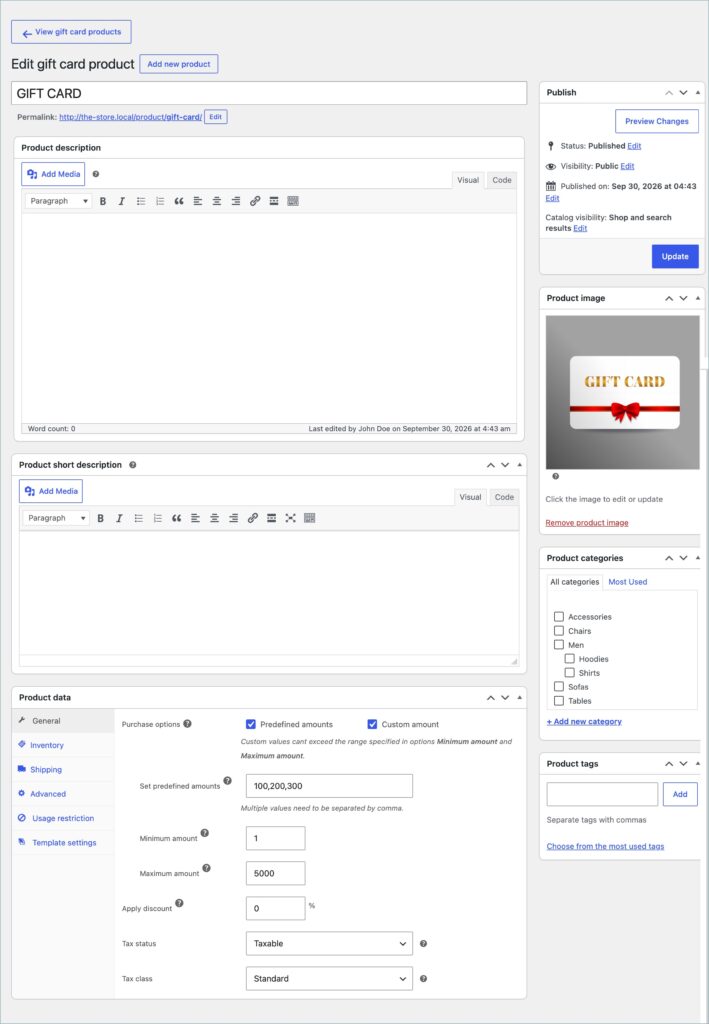
- Product name – Product title that appears in the front end.
- Product description – Gift card product description.
- Product image – Product image to display on the shop page.
- Product category and tags – WooCommerce default categories and tags.
Product data meta box
Configure the gift card product from the product data meta box. It has these tabs:
- General
- Inventory
- Shipping (only if you enable Send physical gift card)
- Advanced
- Usage restriction
- Template settings
General Section
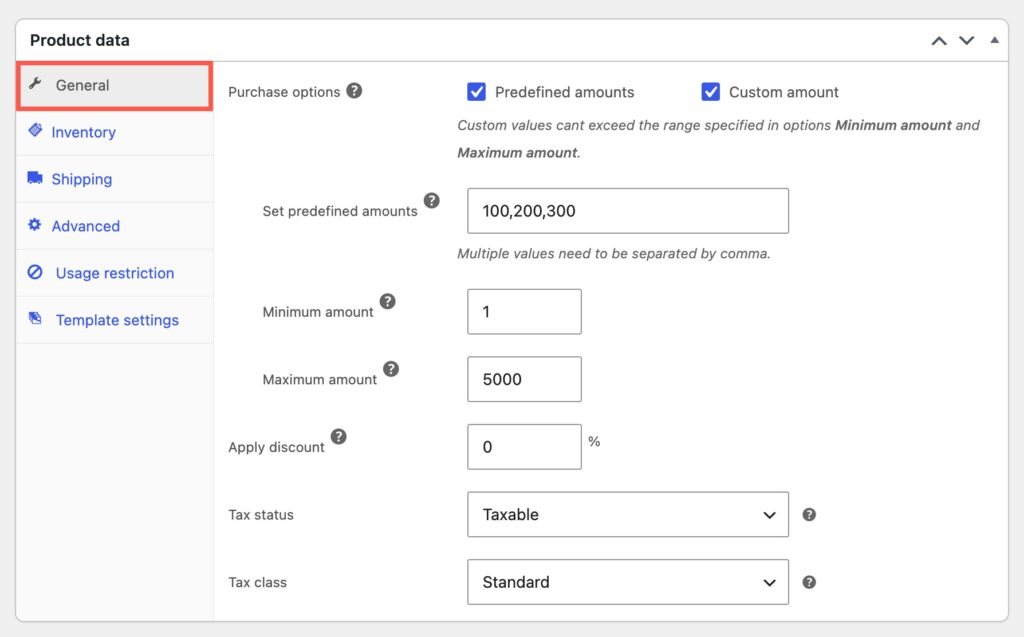
- Purchase options – Allows to choose between pre-defined gift card values or custom gift card values.
- Predefined amount – Allows settings of predefined gift card purchase values.
- Set predefined amount – Enter predefined gift card values in this text box. Separate multiple values with a comma.
- Custom amount—This option allows the user to input gift card values, which are bound by the values entered in the Minimum and Maximum amounts.
- Predefined amount – Allows settings of predefined gift card purchase values.
- Minimum amount – Set the minimum amount for which the gift card can be purchased.
- Maximum amount – Set the maximum amount with which the gift card can be purchased.
- Apply discount – The discount percentage entered will be applied to the total value of the gift card.
- Tax status – Select tax status (basic WooCommerce tax status feature enabled on gift card product page) from the drop-down.
- Tax class – Select tax class (basic WooCommerce tax class feature enabled on gift card product page) from the drop-down.
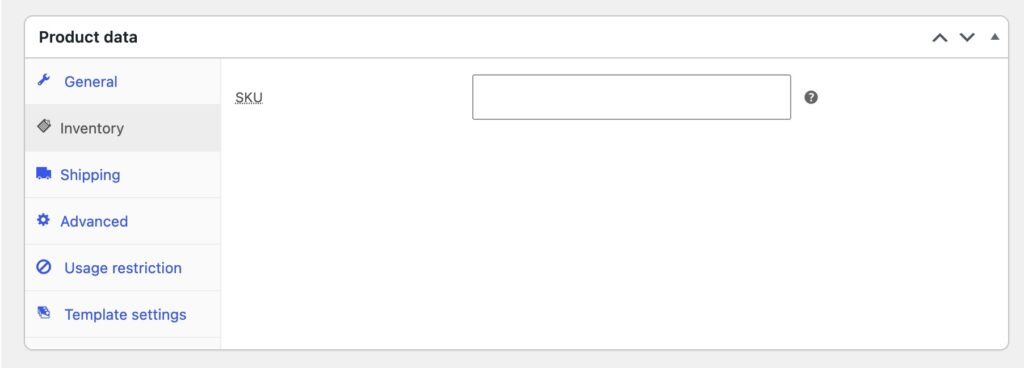
Inventory
- SKU – Enter a stock keeping unit to identify the gift card product in your store. The plugin hides the other WooCommerce inventory fields for gift card products.
Shipping
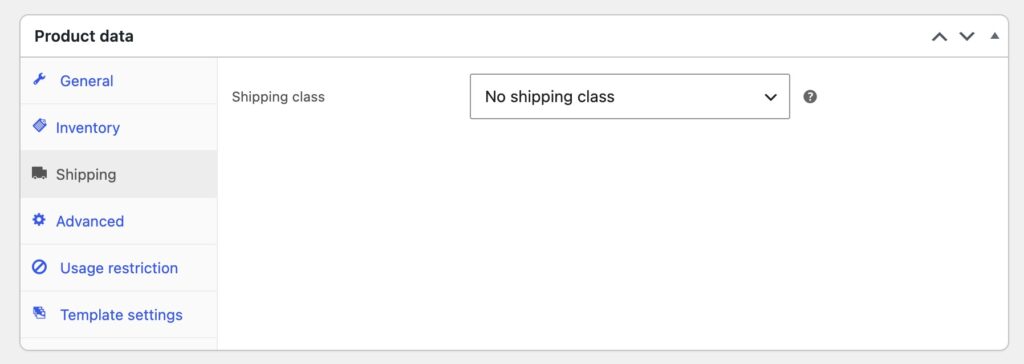
- Shipping class – List available shipping classes. (Only available for physical gift cards).
Advanced
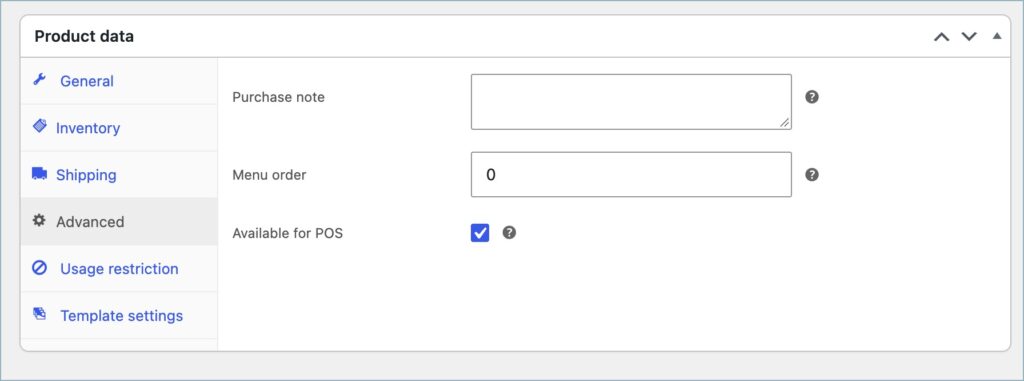
- Purchase note – Enter a note to send the customer after they buy the gift card.
- Menu order – Enter a number to set the product’s position in your store’s product order.
The plugin hides the WooCommerce Enable reviews option for gift card products.
Usage restriction
In this section, you set restrictions that apply when customers use the gift card. Customers can’t redeem gift cards with usage restrictions to their store credit wallet; they can only apply them at checkout.
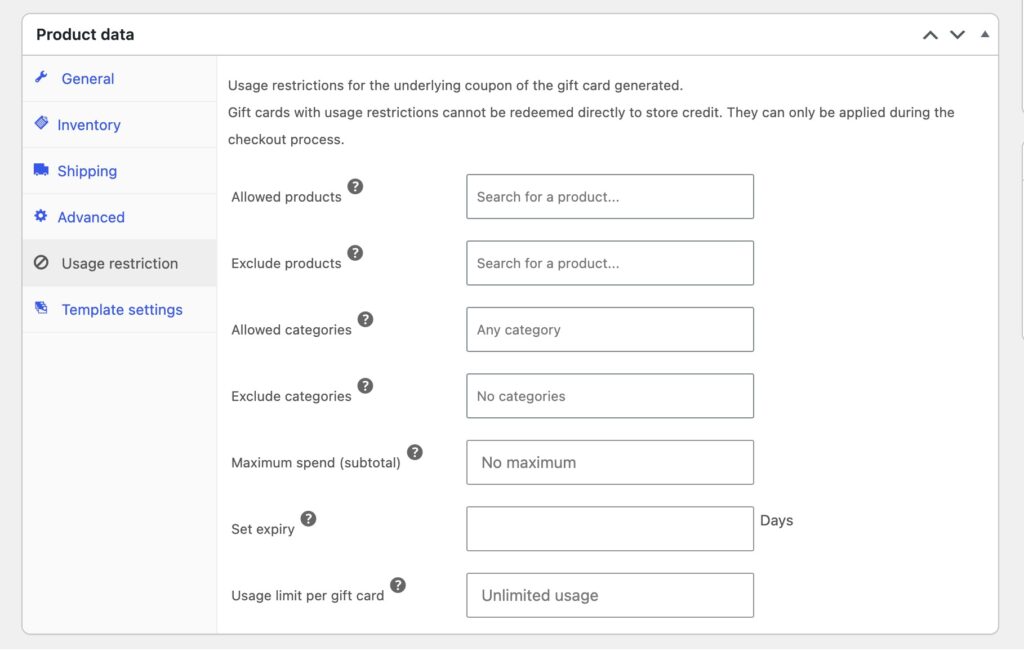
- Allowed products – Select the products customers can buy with the gift card. Leave it empty to allow all products.
- Exclude products – Select the products customers can’t buy with the gift card.
- Allowed categories – Select the categories customers can buy from with the gift card. Leave it empty to allow all categories.
- Exclude categories – Select the categories customers can’t buy from with the gift card.
- Maximum spend (subtotal) – Enter the maximum amount customers can use from the gift card on a single order.
- Set expiry – Enter the number of days the gift card stays valid.
- Usage limit per gift card – Enter how many times customers can use each gift card. Leave it empty for unlimited use.
Template settings section
This section allows you to choose different templates for gift card products. The chosen templates will be present on the gift card purchase page, from where the customers can select their own template.
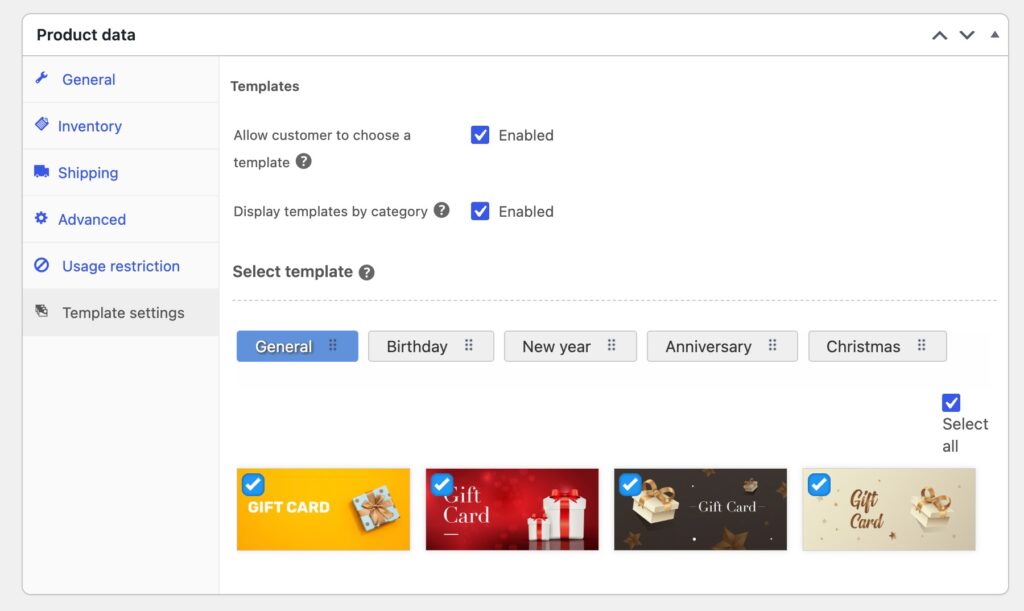
- Allow customer to choose a template: Select to allow the customer to choose a gift card template from the given set. The selected template will be present on the gift card product purchase page.
Send gift card
On this page, you send store credit directly to customers as gift cards by email.
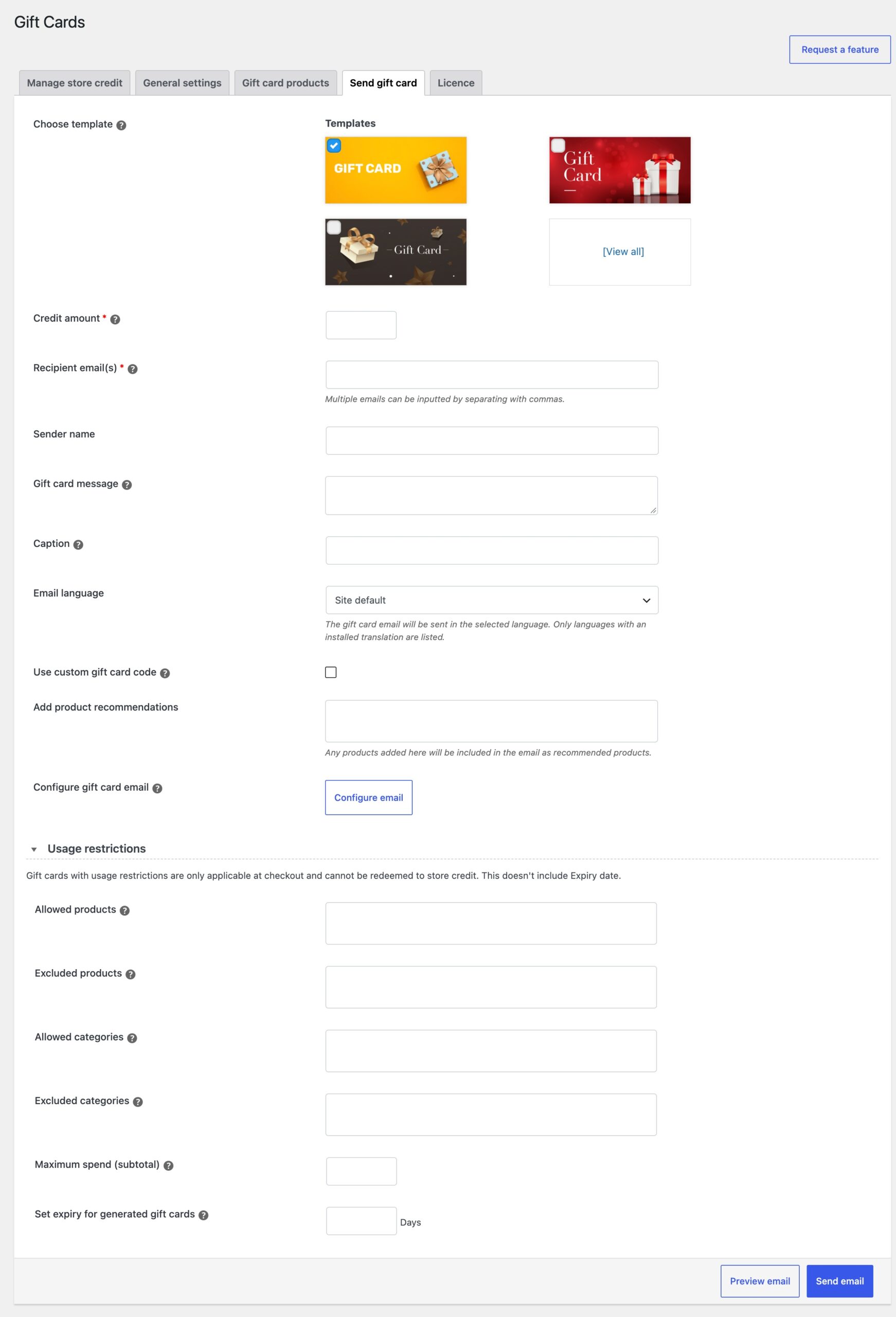
- Choose template – The gift card template for the email.
- Credit amount – The plugin creates a gift card for this amount.
- Recipient email(s) – The email addresses that receive the gift card. Separate multiple addresses with commas.
- Sender name – The sender’s name, usually your business name.
- Gift card message – A message that appears in the bottom-left section of the gift card. Line breaks you add stay in place in the preview, the email, and the PDF.
- Caption – Text that appears at the top of the template. Leave it empty to keep the top section blank.
- Email language – Select the language of the gift card email. The dropdown lists only languages with an installed translation. Leave it as Site default to use your site’s language.
- Use custom gift card code – Enable this option to enter your own code in Gift card code instead of a random one. Gift cards you send here don’t use the prefix and suffix from General settings.
- Add product recommendations – Select products to show as recommendations on the gift card.
- Configure gift card email – Redirects to WooCommerce> Settings > Store credit email section. Allows to configure the store credit emails.

Usage restriction
In this section, you set restrictions for the gift card you’re sending.
- Allowed products – The products customers can buy with the gift card.
- Excluded products – The products customers can’t buy with the gift card.
- Allowed categories – The categories customers can buy from with the gift card.
- Excluded categories – The categories customers can’t buy from with the gift card.
- Maximum spend (subtotal) – The maximum amount customers can use from the gift card on a single order.
- Set expiry for generated gift cards – The number of days the gift card stays valid.
Note: Purchasing a gift card does not automatically add its value to the customer’s store credit balance. To reflect the value in the customer’s store credit, the customer must redeem the gift card from the profile. Once redeemed, it will appear on the user’s store credit balance and manage store credit page.
Also, note that it is not necessary for the customer to redeem the gift card into the store credit balance. They can directly use the gift card at checkout, just like a normal coupon.
