


The WebToffee WooCommerce Gift Cards plugin lets you refund an order as store credit instead of returning funds to the original payment method. For a registered customer, the amount is added to their store credit wallet; for a guest, it is issued as a store credit coupon (gift card).
The plugin provides two refund flows, and you can choose between them from a single Store Credit Refund Behavior setting. The customer ends up with the same store credit either way. What changes is whether the plugin also files a WooCommerce refund, which determines whether the amount is deducted from your Net Sales in WooCommerce Analytics.
Below, we first set the behavior, then walk through each flow: how to issue a refund and what the customer gets.
Choose how refunds are recorded
Before issuing refunds, decide how you want them recorded. Go to Gift card → Manage Store credit. On the store credit management screen, you’ll find the Store Credit Refund Behavior setting.
The setting offers two options:
| Option | What it does | Effect on Analytics |
|---|---|---|
| Existing Store credit refund flow | Creates a WooCommerce refund and credits the customer’s Store Credit wallet. | Reduces net sales in analytics |
| New Store credit refund flow | Adds credit to the customer’s wallet without a WooCommerce refund. | Leaves net sales unchanged |
Select the flow you want and click Save changes.
Note: This setting applies only to new refunds; it won’t touch store credit you’ve already issued or any existing Analytics data.

Note: The Existing Store credit refund flow is selected by default, so if you’re already refunding to store credit, nothing changes for you unless you switch.
Existing Store credit refund flow
Here, the store credit rides on top of WooCommerce’s own refund process. When you issue a refund for an order, a WooCommerce refund is created, and the amount is issued as store credit. Because a real refund is recorded, that amount drops out of your Net Sales in Analytics.
Registered users
When an admin refunds an order placed by a registered user, the refunded amount is credited to that user’s store credit balance.
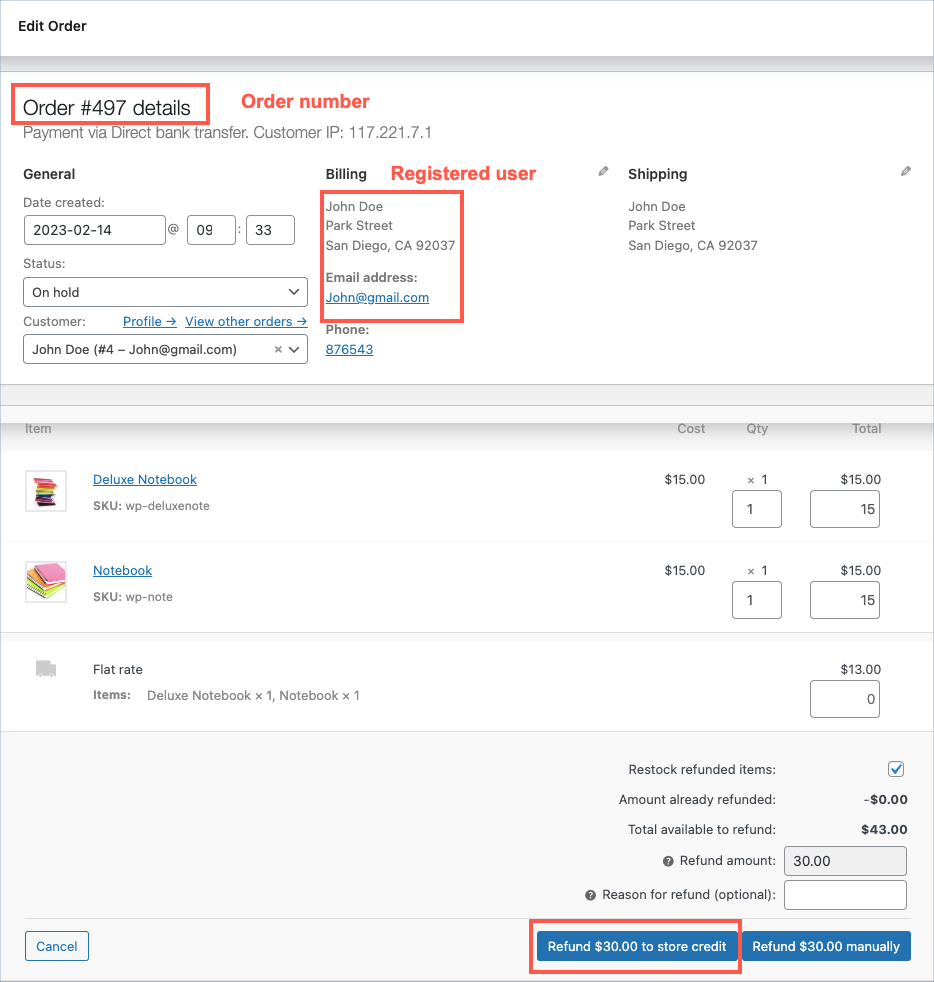
- Open the order and click the Refund button in the order items box. In the refund panel, enter the line item quantities and refund amounts, then click the Refund [amount] to store credit button (added by the plugin next to WooCommerce’s manual refund button) and confirm.
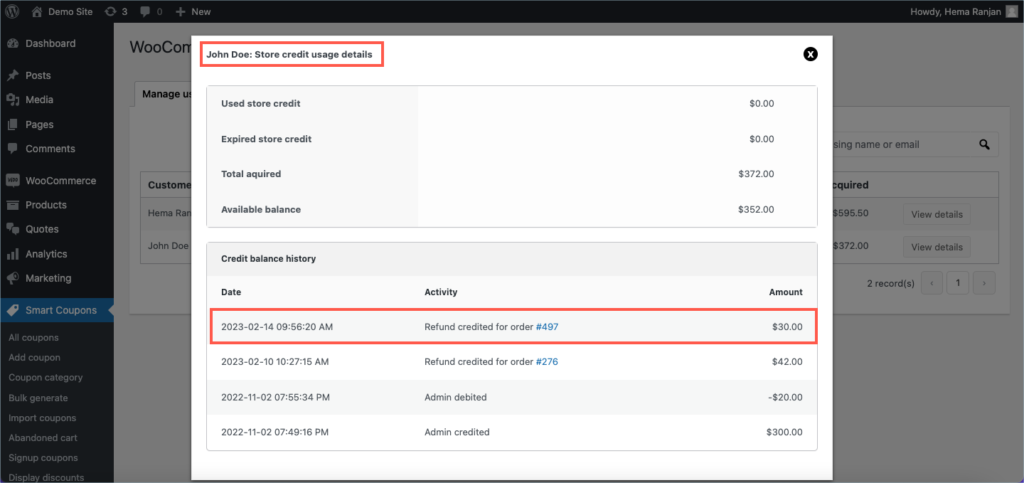
- The plugin refunds the amount to the registered user’s store credit. The store credit can be verified by navigating to Gift card → Manage Store credits.
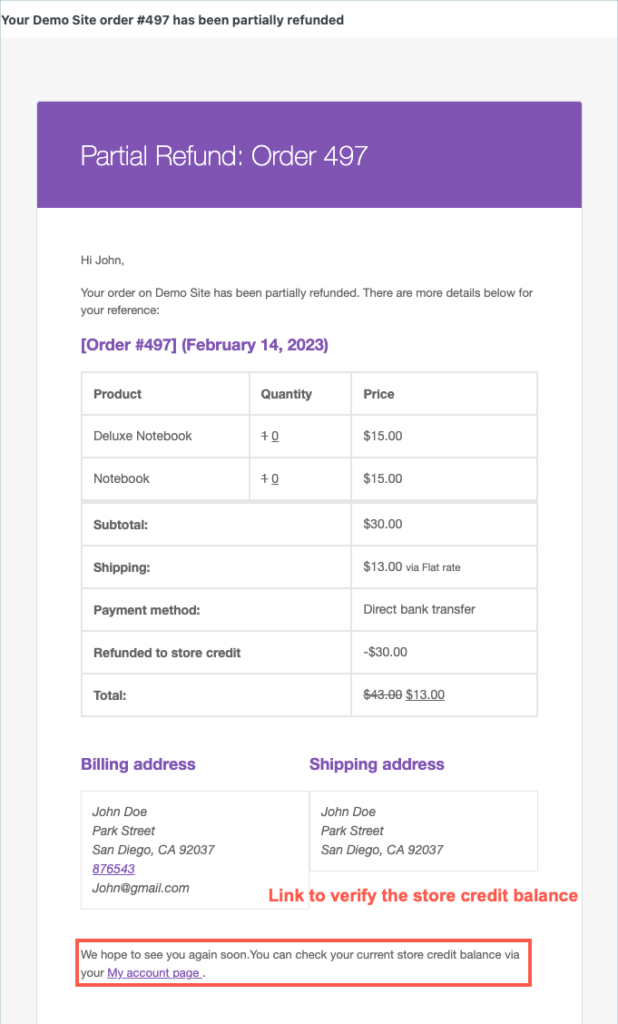
- The registered user is notified by email about the refund. A link to check the store credit balance is added to the email.
Guest users
When you refund an order placed by a guest user, the refunded amount is converted into an equivalent store credit coupon (gift card). The workflow is as follows.
- Open the guest order, click the Refund button, then click the Refund [amount] to store credit button, and confirm the same way as for a registered user.
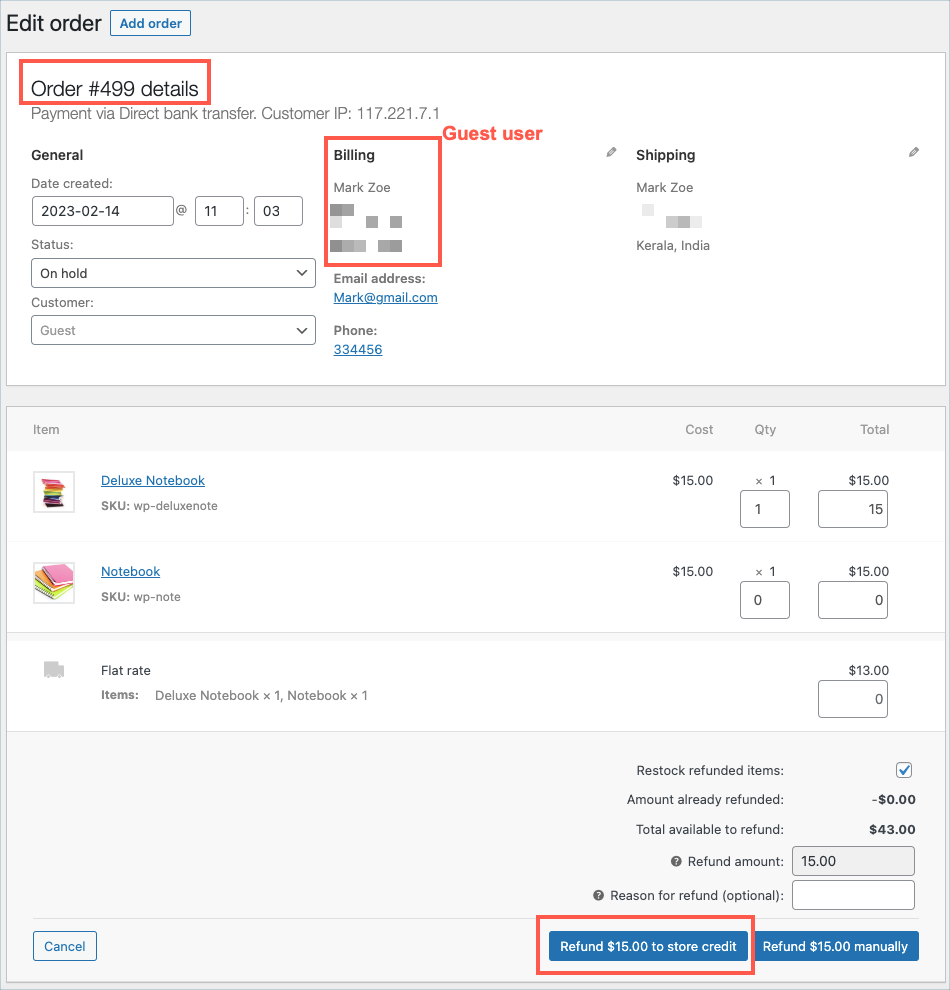
- The plugin refunds the amount by generating an equivalent store credit coupon and emailing it to the guest user.
- The guest user is notified by email about the refund. A link to check the store credit balance is added to the email.
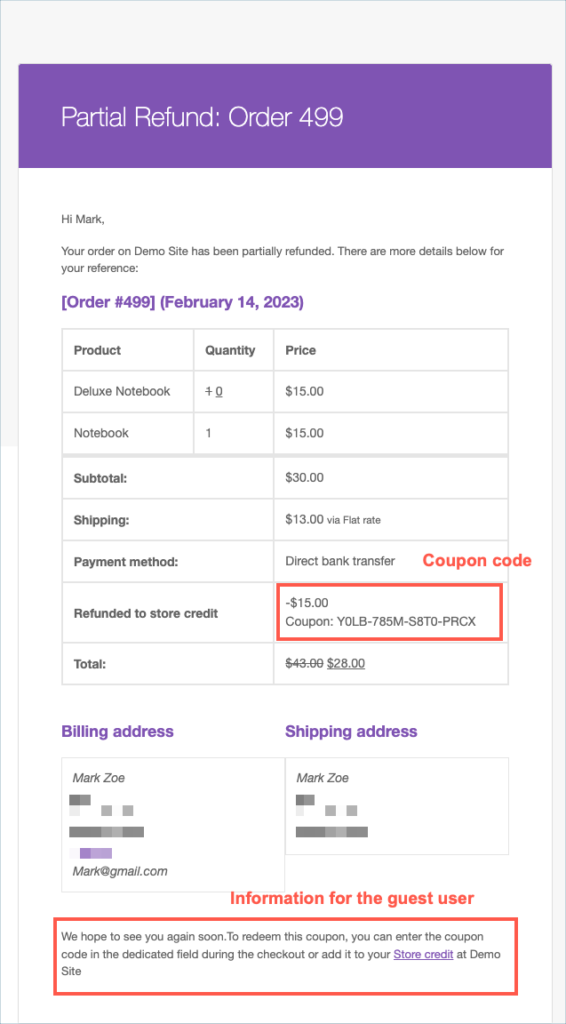
New Store credit refund flow
This flow issues store credit without creating a WooCommerce refund. The credit lands in the same place as before: a registered user’s wallet or a guest’s store credit coupon, but since no WooCommerce refund sits behind it, your Net Sales in Analytics stay unchanged. You also get a dedicated refund panel here, so you have finer control over how much to credit, whether stock goes back, and what gets logged.
To use it, set the Store Credit Refund Behavior setting to New Store credit refund flow and save.
Issuing a refund to store credit
- Open the order. In the order items box, click the Refund to store credit button. This opens the plugin’s own refund panel (separate from WooCommerce’s refund panel).

- In the panel, enter the line-item quantities and refund amounts. The panel shows:
- Amount already refunded and Amount already refunded to store credit — so you can see what has been issued before.
- Total available to credit — the remaining amount that can still be credited for this order.
- Refund amount — calculated from the line items you enter.
- Restock refunded items — an optional checkbox to return the refunded quantities to stock.
- Reason for refund (optional) — visible to the customer.

- Click Refund [amount] to store credit and confirm. A confirmation message reminds you that no WooCommerce refund will be created, and that stock won’t be restocked unless you ticked the restock option.
The plugin then credits the customer:
- Registered user — the amount is added to their store credit wallet.
- Guest user — a store credit coupon is generated and emailed to the billing address.
You can credit an order more than once, up to the total available to credit. Each refund is recorded against the order, and the running total is shown in the order totals and in the Refunded to store credit column on the Orders list.

Which flow should you choose?
Both flows credit the customer the same, so the call really comes down to how you want the refund to show up in your reports:
- Go with the Existing flow if you want the refund recorded in WooCommerce as a real refund, so Net Sales drops to reflect the credit you handed back.
- Go with the New flow if you’d rather issue store credit as a goodwill or returns gesture without denting your reported Net Sales — and you want the extra control it brings, like repeat partial crediting, optional restocking, a reason field, and its own customer email.
One thing to watch with the New flow: since no WooCommerce refund is created, the order still shows as fully paid revenue in your reports, even though you’ve issued a credit. So pick whichever flow lines up with how you and your accountant want returns reflected in the books.

PTS Web Team
July 10, 2024
I have Smart Coupons that also has Gift Certificates. Would I need to purchase this app to get the same functionality? Wouldn’t I then have redundant apps?
Arjun
July 15, 2024
Hi PTS Team,
Thank you for reaching out. Yes, Smart Coupons does offer a basic gift certificate option that integrates gift card purchase functionality into your store. However, Gift Cards for WooCommerce is a specialized plugin that provides extensive customization options and features, such as store credit management and refunding to store credit. Both Smart Coupons and the Gift Cards plugin are fully compatible and designed to work seamlessly together. If you install both plugins, they will function smoothly without any issues.
Phillips
March 1, 2023
Hi there, How can you have Store Credits apply to the Order Total INCLUDING the Shipping amount?
Currently it is only applying to the Subtotal – also in the screenshot above
Thanks
Mike
March 9, 2023
Hi Phillips,
The Gift Card plugin doesn’t discount the shipping fee by default. The feature is in our roadmap and will be implemented in the upcoming releases.