How to Set Up Usage Restrictions for WooCommerce Gift Cards
Last updated on October 7, 2026
To set up usage restrictions for WooCommerce Gift cards, go to Gift Cards > Gift card products, edit or create a gift card product, and open the Usage restriction tab. There, you can limit the gift card to specific products or categories, exclude items, set a maximum cart subtotal, set an expiry, and limit how many times each gift card can be used. These options help you protect your margins, run targeted promotions, and keep gift card use in line with your store policies.
With usage restrictions, you can create gift cards that:
Work only on selected products or categories.
Work only on orders up to a set subtotal.
Expire after a set number of days.
Can be used only a set number of times.
You can also block all gift cards on selected dates, such as sale days.
Get Started
Install and activate the plugin, then go to Gift Cards in the WordPress dashboard. If you use the plugin as an add-on to Smart Coupons for WooCommerce, go to Smart Coupons > Gift cards.
Applying Restrictions to Gift Card Products
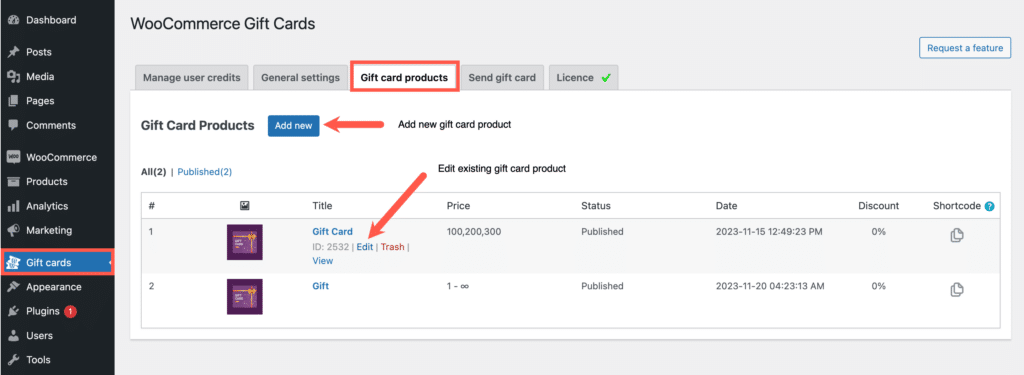
Go to Gift Cards > Gift card products.
Open the gift card product you want to restrict. If you don’t have one yet, create a gift card product first.
Gift card products tab
In the Product data meta box, open the Usage restriction tab. Here, you will find many restriction options that can be applied to your gift card product.
Usage restrictions for gift card products
📌
Note: Customers can’t redeem gift cards with usage restrictions to their store credit wallet. They can only apply them at checkout. This applies to every option below except Set expiry.
The restriction options include:
Allowed products
Select the products customers can buy with the gift card. The gift card works only on these products. You can select more than one.
Exclude products
Select the products customers can’t buy with the gift card. You can select more than one.
Allowed categories
Select the categories customers can buy from with the gift card. The gift card works only on products in these categories. You can select more than one.
Exclude categories
Select the categories customers can’t buy from with the gift card. You can select more than one.
Maximum spend (subtotal)
Enter the highest cart subtotal at which customers can use the gift card. If the cart subtotal is above this amount, the gift card can’t be applied. For example, with a $1,000 gift card and a maximum spend of $300, customers can use the gift card only on orders with a subtotal of $300 or less. They can spend the remaining balance on later orders, each up to $300.
Set expiry
Enter the number of days the gift card stays valid after it’s generated. This overrides the expiry in Gift Cards > General settings > General > Set expiry for generated gift cards. Enter 0 if gift cards from this product should never expire, or leave the field empty to use the global setting.
Usage limit per gift card
Enter how many times customers can use each gift card from this product. Each order that uses the gift card counts as one use. For example, enter 1 to make the gift card single-use, even if some balance is left after the first order. Leave the field empty for unlimited use until the balance runs out.
4. Click Publish (or Update for an existing product).
In this example, the gift card works only on products in the Women category, on orders with a subtotal of $300 or less.
You can stop customers from using gift cards on specific dates, such as Black Friday or other sale days. Unlike the restrictions above, this setting applies to every gift card in your store.
Go to Gift Cards > General settings > General.
Under Gift card usage settings, find Exclude gift card usage on selected dates.
Pick a date and click Add Date. Repeat for each date you want to block. To clear all dates, click Reset All.
Click Save.
Block Gift Cards on Selected Dates – WooCommerce Gift cards
On the dates you block, customers who apply a gift card at checkout see the message “Sorry, this coupon cannot be used today.” Customers can still use their store credit wallet balance on these dates.
Applying Restrictions to Gift Cards Sent by the Store Owner
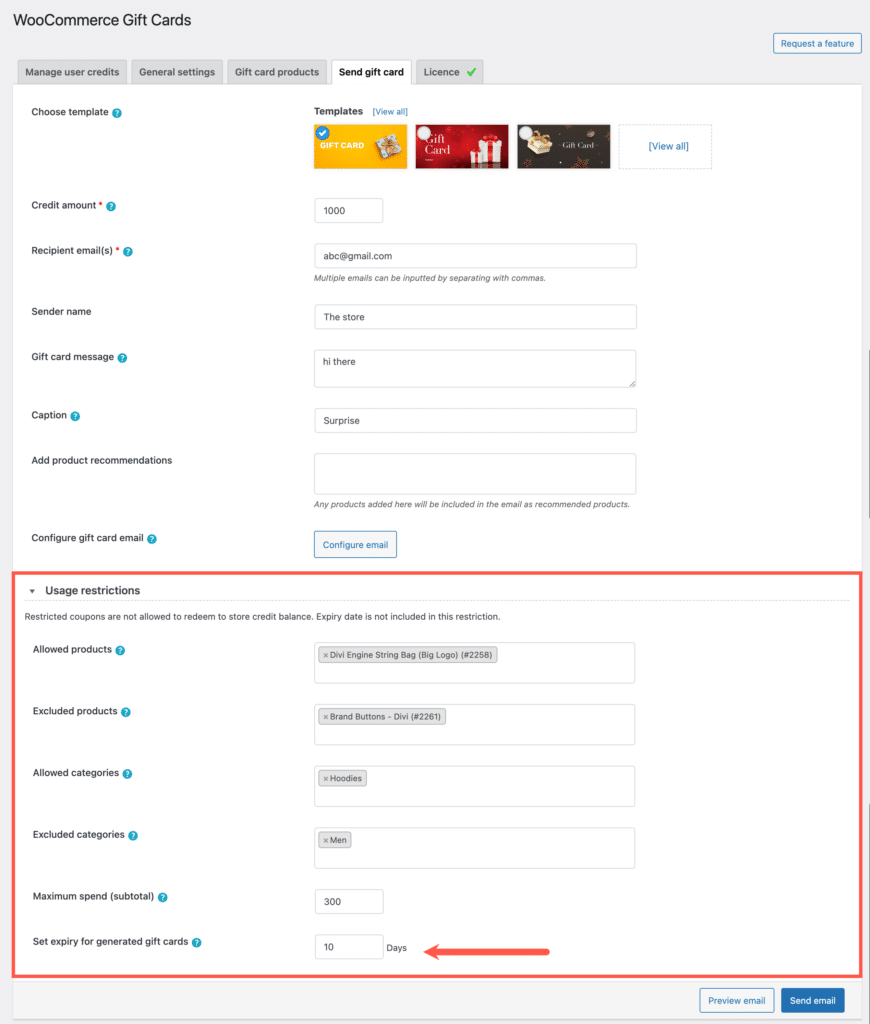
You can also send gift cards from the backend and set restrictions on them. The Send gift card form has the same product, category, and maximum spend restrictions as gift card products, plus Set expiry for generated gift cards. It doesn’t have a usage limit.
Set the restrictions you need: Allowed products, Excluded products, Allowed categories, Excluded categories, Maximum spend (subtotal), and Set expiry for generated gift cards.
Gift card usage restrictions
In Set expiry for generated gift cards, enter the number of days the gift card stays valid. For example, enter 10, and the gift card expires 10 days after you send it.
Click Send email.
In the example below, a customer tries to use a gift card after it expired.