


With the WebToffee WooCommerce Gift Cards plugin, you can give customers an automatic discount when they gift a product. Enable Gift Cards > General settings > Send product as gift, then create a coupon under Smart Coupons > Add Coupon that targets the Product as gift product. The discount, fixed or percentage, applies automatically whenever a customer uses the Gift this product button, which encourages more gift purchases.
Prerequisites
- Install and activate WebToffee WooCommerce Gift Cards.
- Install and activate Smart Coupons for WooCommerce (Free).
Enabling Product as a Gift Setting
To enable the Send product as a gift option in the store,
- From the WordPress dashboard, go to Gift Cards > General settings > Send product as gift.
- Enable Send product as gift. For details on this feature, see Send Products as Gifts.
- Customize the other settings as needed.
- Click Save.
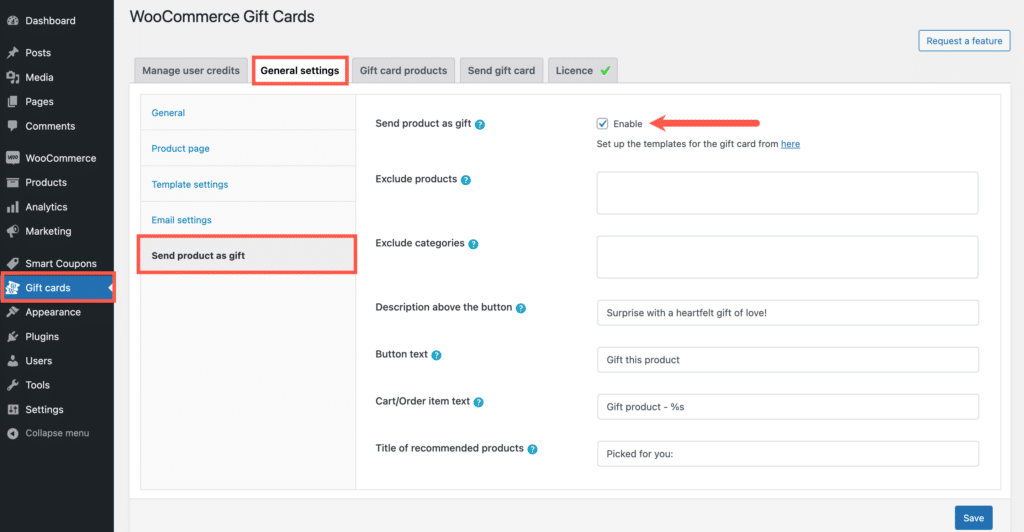
After you save, the plugin adds a gift card product named Product as gift under Gift Cards > Gift card products. Every gift sent with the Gift this product button uses this product, so any restriction or coupon you apply to it also applies to all product gifts. Note down its product ID; you’ll need it in the next section.

Note: This includes the Usage restriction tab on the product. For example, if you set Usage limit per gift card to 1 on the Product as gift product, every gift card sent with Gift this product becomes single-use. Keep the product published, or the Gift this product button disappears from your store.
Associate a Coupon with a Product
To create a discount coupon for product gifts:
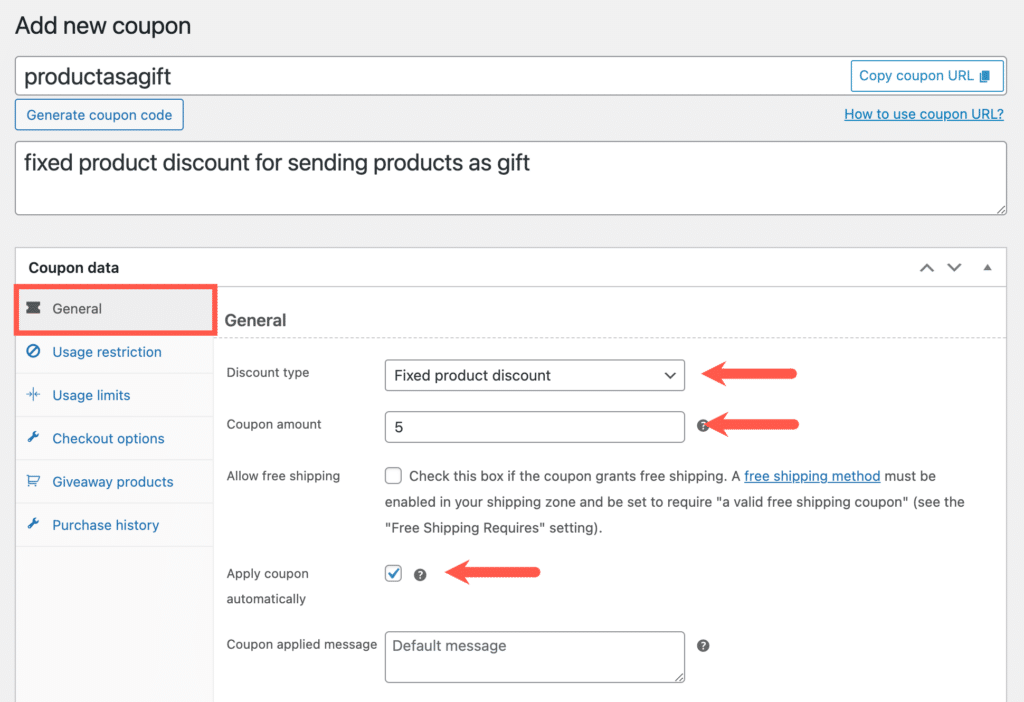
- From the WordPress dashboard, go to Smart Coupons > Add Coupon.
- Enter a Coupon code and a Description.
- On the General tab, select a discount type and amount. In this example, we use a Fixed product discount of $5.
- Enable Apply coupon automatically so the discount applies as soon as the gift card is added to the cart.
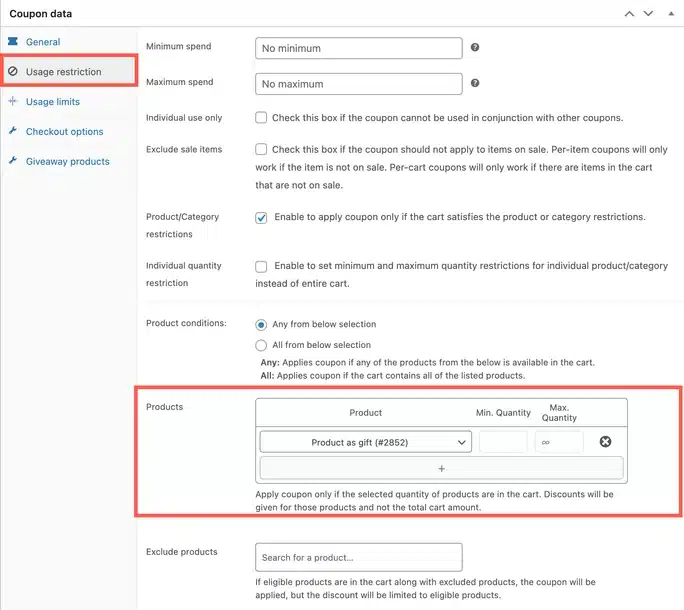
- Open the Usage restriction tab.
- Enable Product/Category restrictions.
- In the Product condition, select Any from below selection.
- Under Products, search for Product as gift and select the product with the ID you noted earlier.
- Click Publish.
Now, when you add a gift card to the cart through the Gift this product button, a fixed product discount of $5 will automatically be applied.

