With the WebToffee WooCommerce Gift Cards plugin, you can attach the gift card as a PDF to the gift card email, so recipients can save or print it. Here’s a quick overview:
Go to Email settings.
Install and activate the mPDF add-on.
Enable Attach Gift Card as PDF.
Optionally, edit the Gift card additional text shown on the PDF.
Click Save.
Prerequisite
The plugin needs the free mPDF add-on for RTL and Unicode Support by WebToffee to create PDFs. You can install it from the plugin’s Email settings tab, as shown below.
Attaching gift card as PDF
From the WordPress dashboard, go to Gift Cards > General settings > Email settings. If you use the plugin with Smart Coupons for WooCommerce, go to Smart Coupons > Gift cards > General settings > Email settings.
WooCommerce Gift Cards – Email settings
Attach Gift Card as PDF stays grayed out until the mPDF add-on is active. In the notice below it, click Click here to install the add-on.
After the add-on installs, click Click here in the notice again to activate it. If you have an older version of the add-on, the notice asks you to update it instead.
Enable Attach Gift Card as PDF.
WooCommerce Gift Cards – Email settings
Click Save.
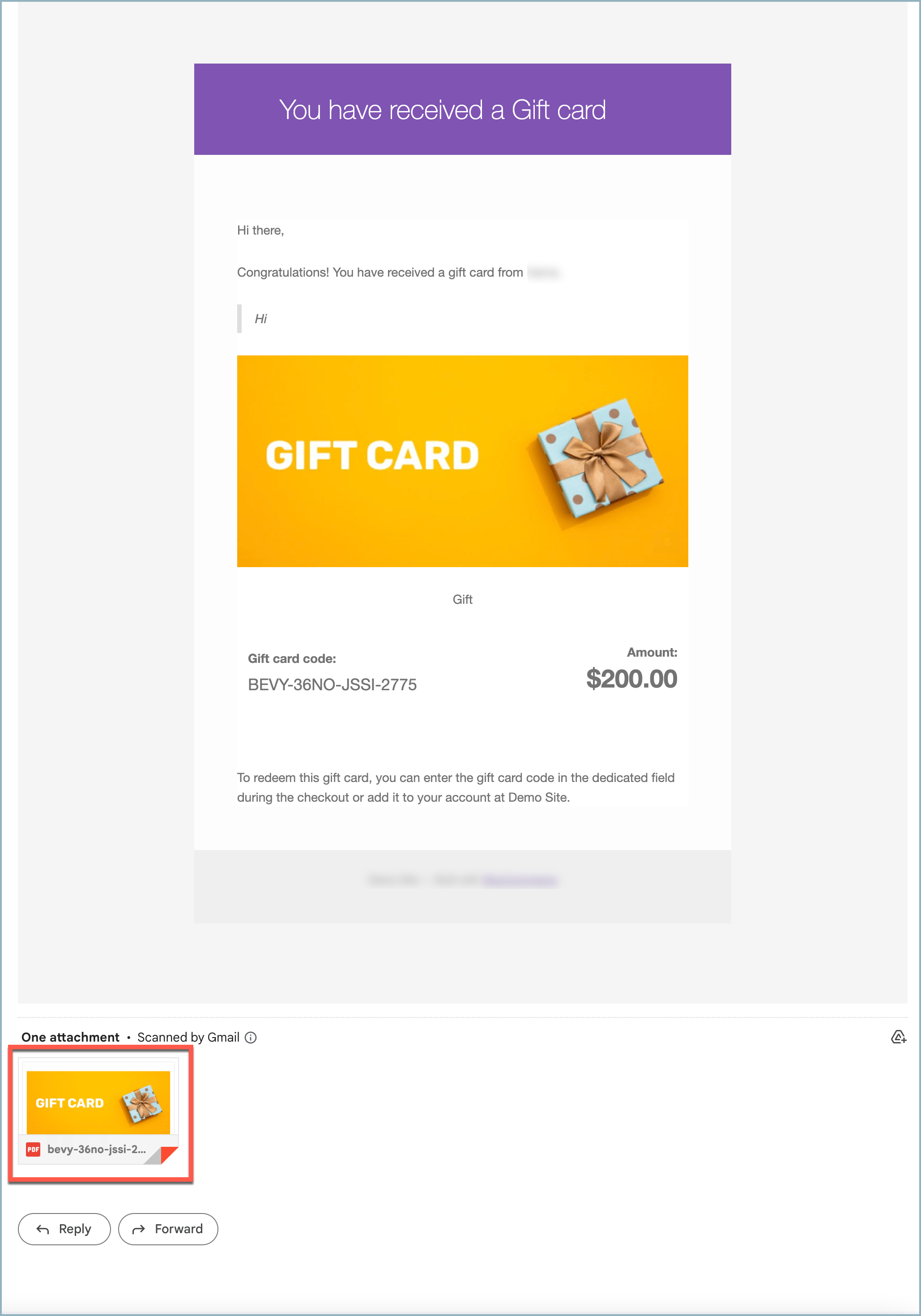
Once a gift card is sent, the recipient will receive the following email.
WooCommerce Gift Cards – Recipient mail
Customize the text on the PDF
The PDF shows a line telling the recipient how to redeem the gift card. You can change this text on the same tab:
Go to Gift Cards > General settings > Email settings.
Edit the Gift card additional text field. By default, it reads: “To redeem this gift card, you can enter the gift card code in the dedicated field during checkout %s.”
Click Save.
Gift card additional text
ⓘ
Note: Purchasing a gift card does not automatically add its value to the customer’s store credit balance. To reflect the value in the customer’s store credit, the customer must redeem the gift card from the profile(My Account > Store Credit). Once redeemed, it will appear on the user’s store credit balance and manage store credit page.
Also, note that it is not necessary for the customer to redeem the gift card into the store credit balance. They can directly use the gift card at checkout, just like a normal coupon.
If you want to add store credit to a customer’s credit balance directly, you can do that from the Manage Store Credit tab.





Prashant Kumar
July 3, 2026
I want to add order no along with gift card code to
1. the email that receipient (not the buyer)
2. the pdf attachment
I managed to add to email by using a custom code in child theme’s function.php. How do i add it to pdf attachment? I found a file wp-content/plugins/wt-gift-cards-woocommerce/public/modules/gift_card/gift-card.php which contains reference to ‘From and To’ field which is found only in pdf attachment.
What is the recommended way to customise contents of pdf attachment?
Mike
July 13, 2026
Hi Prashant,
Thank you for reaching out.
Yes, we can help you customize the gift card PDF attachment to include the order number.
As this is a customization request specific to your requirements, could you please get in touch with us using this contact form?
This will allow our team to review your request and guide you with the most appropriate solution.
Once we receive your request, we’ll be happy to assist you further.
Amandeep Singh
November 21, 2025
Where can we change “To redeem this gift card, you can enter the gift card code in the dedicated field during checkout .” line for attached pdf?
Sanjai Valsan
December 2, 2025
Hi Amandeep,
Thank you for your question. The text inside the attached PDF (including the line “To redeem this gift card…”) is not editable through the plugin settings. However, it can be customized using a small custom code snippet.
Please contact our support team with your requirement, and they will provide the exact snippet or help apply it for you.