


WooCommerce product categories can be exported as a separate post type using the Product Import Export Plugin for WooCommerce. To export product categories, select Product Categories as the post type, choose an export method, apply filters, map and reorder export columns, and configure advanced options before running the export.
Exporting Product Categories
To export WooCommerce product categories, click on WebToffee Import/Export(Pro) > Export.
Step 1: Select a post type
As a first step, you need to choose the post type as Product Categories.

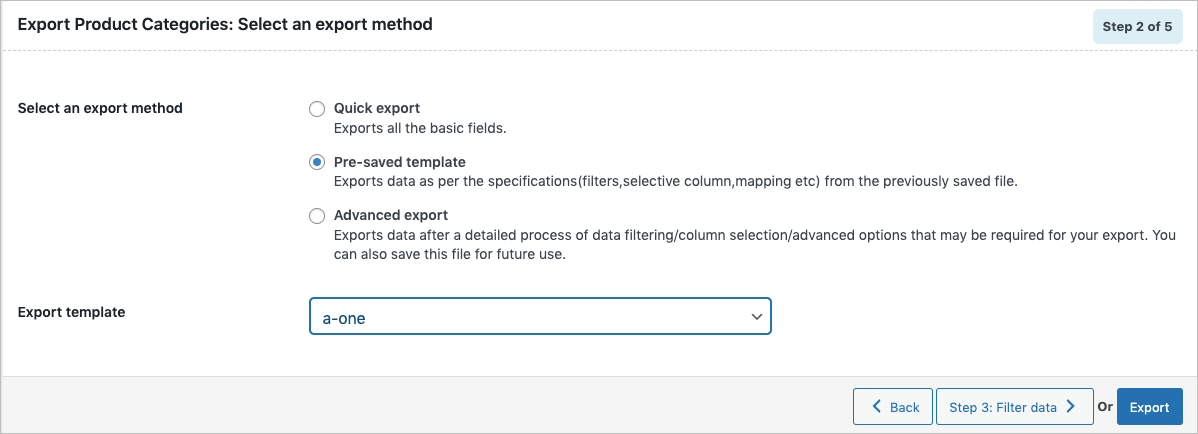
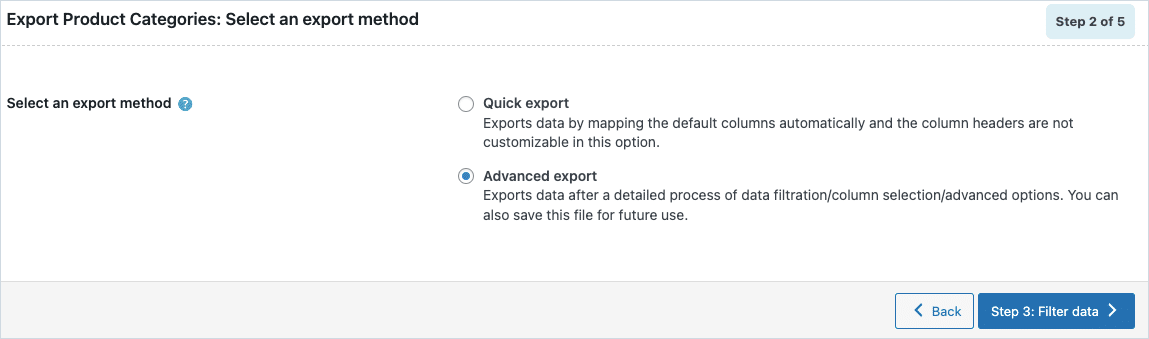
Step 2: Select an export method
Choose from the below options to continue with your export:
- Quick export : exports the basic/standard fields.
- Based on a pre-saved template : exports data as per the specifications(filters, selective column, mapping etc) from the previously saved file.This export method will be visible only if you satisfy both of these:
- exported data using the Advanced export method in any of your previous exports.
- saved the selections as a template for future use.
 Note: The template will be listed in the drop down only if you have saved it in previous exports, if you go through the Advanced export, at Step 5 you will get an option to save the template. Once you save that, next time when you want to export a pre-saved template, it will be populated within the drop down.
Step 3: Filter data
Filter the data based on:
- Element – Choose the data field you want to filter by, such as Category name or Type.
- Condition – Specify whether to include or exclude the selected value.
- Value – Select the value that should be included or excluded in the export.

- Click on Step 4 to proceed further.
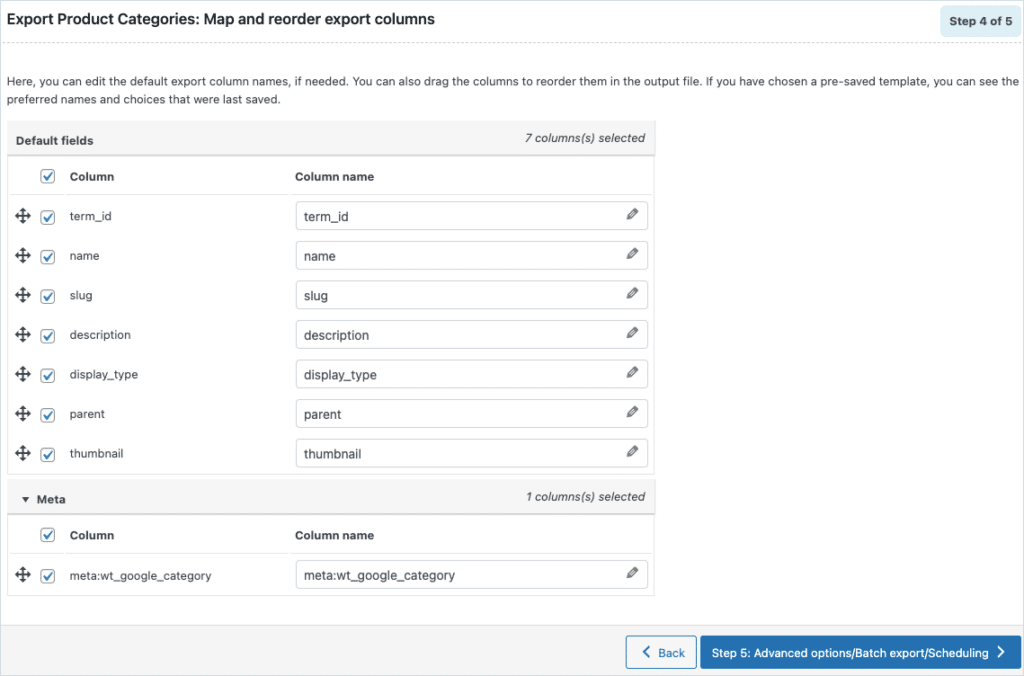
Step 4: Map and reorder export columns
You can edit all the default export column names in this section in the export mapping screen. The preferred names and choices last saved can be viewed by choosing a pre-saved template. You can also move the columns to reorder the arrangement.
Step 5: Advanced Options/Batch Export
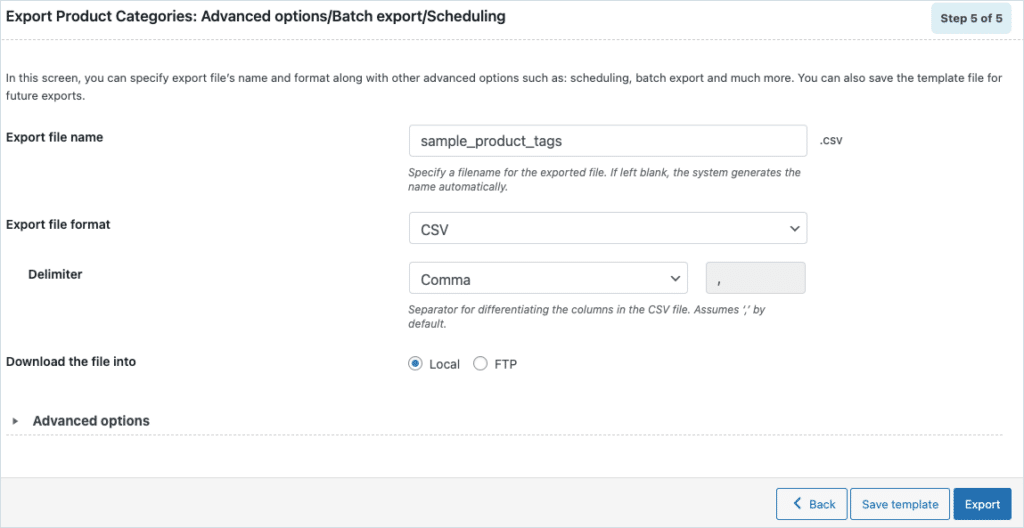
On reaching Step 5, the following window will appear, from where you can:
- Specify the Export file name.
- Choose the Export file format between CSV and XML.
- Select the required delimiter among Comma, Semicolon, Tab, Spaces, and others.
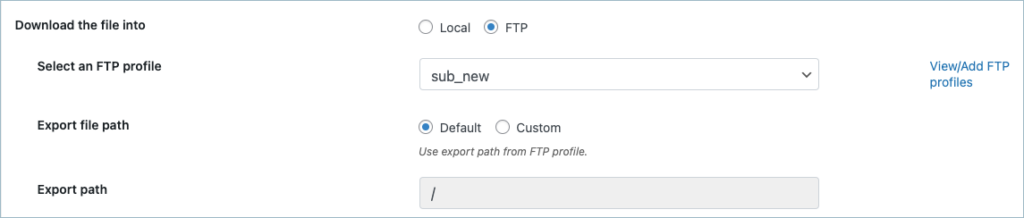
- Download the file into Local or FTP.
To enable FTP export, select FTP for the option Download the file into.
- Select an FTP profile
- Use the default export path or specify a new one as required.
- Click on Export/Schedule and select the Schedule button.
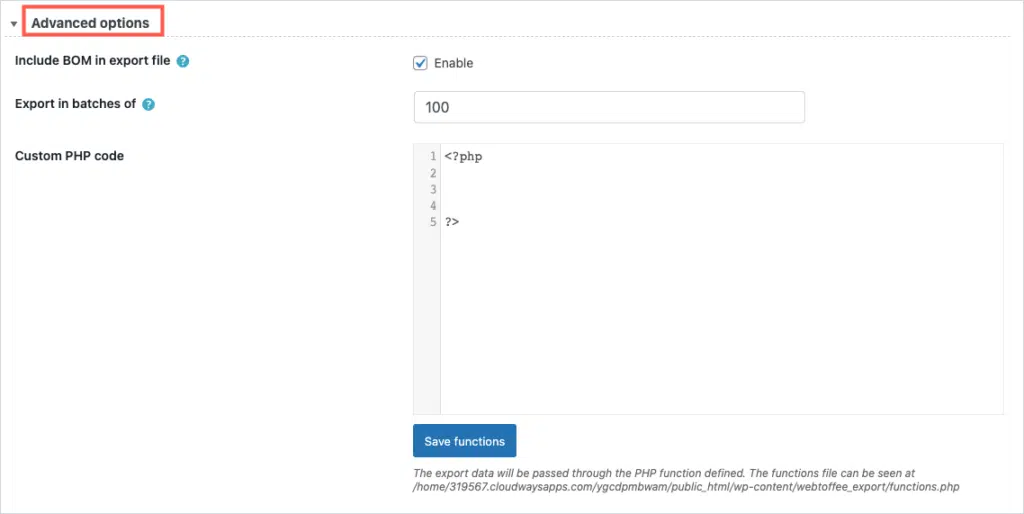
On expanding the Advanced options, you can :
- Include BOM in export file by selecting the Enable option. This will help the applications like Microsoft Excel to read your export file, even if it contains non-English characters.
- Export in batches based on the number specified. This value specifies the number of records the server will process for every iteration within the configured timeout interval. NOTE: If the export fails due to timeout, you can lower the batch count and try again.
- Custom PHP code: Here, the export data will be passed through the PHP function defined. Click on Save functions to save the code.
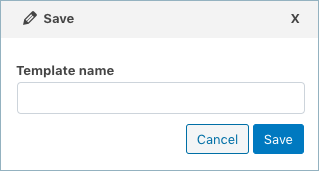
- Save the template file for future export as shown below(if needed).
- Click on Export to finish.
Related Articles :

Comments (2)
Kevin
October 11, 2024
I have webtoffee pro import export and i want to bulk edit my yoast meta titles ect. but the exporter and importer only imports it into once cell and not separately. How can i change this so its like the product exports that allows a different cell for meta title, meta description ect.
Hema
November 22, 2024
Hi Kevin,
Thanks for reaching out. The metadata will be exported/imported in the format that is present in the database. It is usually in serial form. There is no option to edit it. For further assistance, contact customer care.