


WooCommerce product images can be exported using the Product Import Export Plugin for WooCommerce. The plugin exports image data from the database as either an image URL or image name, stored in the image column of the exported file. Multiple images for a single product are separated by the pipe symbol |.
The plugin supports the following export modes:
- Export with image URL
- Export with image name
From the WooCommerce store, let us export the following products with images.

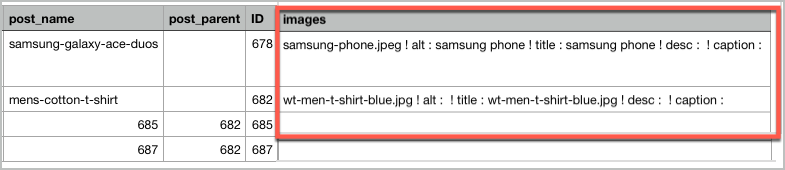
In the exported file, the data of the product’s image is listed in the column: “image“. The image data can be exported in 2 formats:
- Image URL: The URL of each product image will be exported.
- Image name: The name of each product image will be exported.
The plugin also facilitates the export of only images.
Export with image URL
To export all the WooCommerce products with images:
- Download, install and activate the plugin.
- From the WordPress admin panel, navigate through the menu: WebToffee Import/Export(Pro)> Export.
- Follow the steps in How to export products.
- Once the export process is completed, click on Download file.
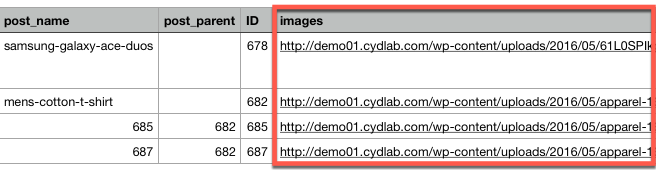
Click to download the Exported Sample CSV.
Export with image name
Follow the first 3 steps mentioned in Export with image URL. On reaching the 5th step of export process:
- Expand Advanced options.
- Enable the option Export product images separately.
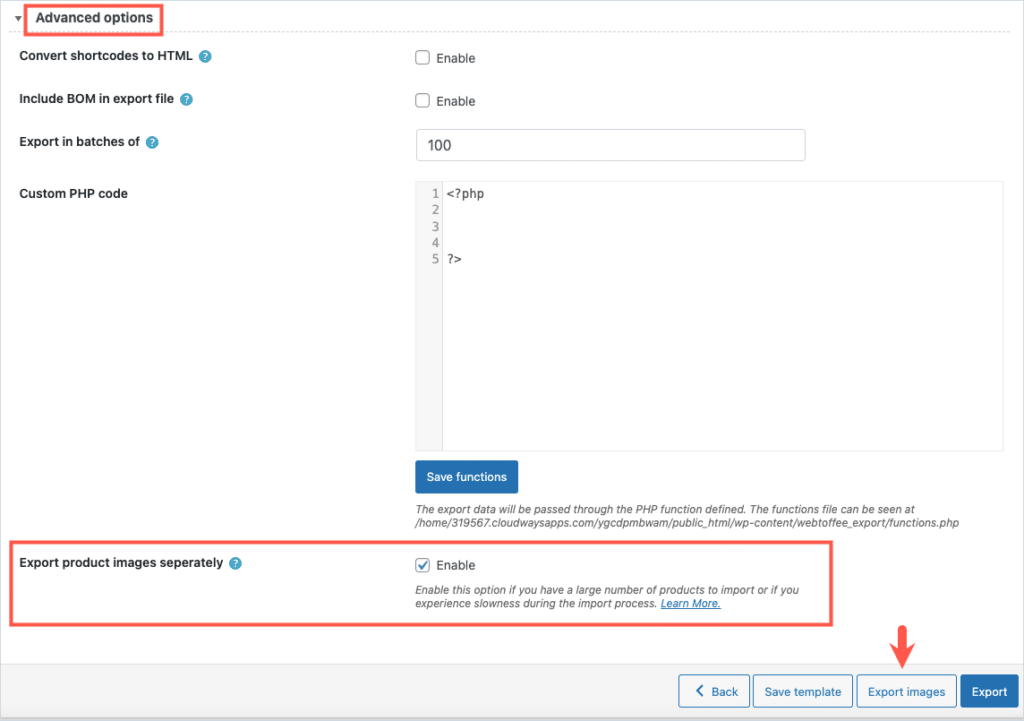
This action will add Export images button to the screen.
To export all the WooCommerce products with image names:
- Click on Export button and finish the export process.
- Click on Download file.
Export only images (in a separate zip file)
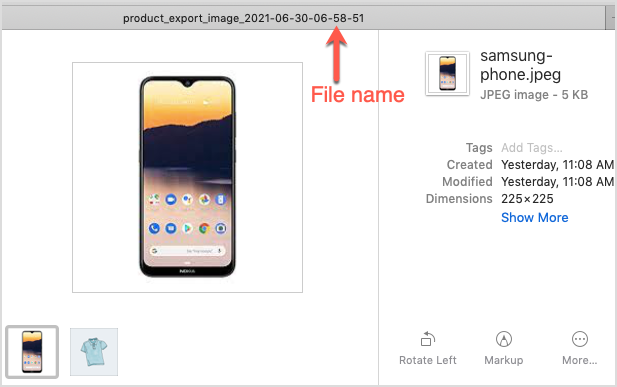
The Export images button will export only the images of the product. No other product related data will be exported. To export only the images:
- Click Export images to get the images in a separate zip file.
- Click on Download file.

- The extracted zip file will appear as shown.



Jiří Čompa
July 31, 2024
Hello,
we need to send our B2B customers the documents to list our products. The problem arises with the export of images, when instead of the URL of the image, text is also generated with description, title, alt and so on. Is it possible to export only image URLs without additional text?
Hema
August 2, 2024
Hi Jiri Compa
Thanks for reaching out. Kindly add the following code to the active child themes functions.php file.
add_filter('hf_export_image_metadata_flag','__return_false');This should export the URL leaving behind other meta data’s.
Jiří Čompa
August 7, 2024
Thank you very much! That will save me a lot of time now!
Juan Pablo Molina Ormaza
July 22, 2021
Hello, good afternoon, I try to download the images but I only download 10, what can I do?
Alan
July 26, 2021
Hi,
Please make sure that you are having the latest version(Ver 3.8.5) of the plugin installed on your site.
dude
April 14, 2023
it’s 2023 still not working
Vineetha
April 18, 2023
Hi,
Thanks for reaching out. Kindly reach us through the Support page. Our customer support executives can assist you to rectify this issue.
So download all images in a zip not working ?
November 15, 2023
So download all images in a zip not working ?
Vineetha
November 17, 2023
Hi,
The feature is working! Under Advanced options, you simply have to enable the option Export product images separately and click on Export images. This will download all the images in a zip file. To know more, refer to Export images as a zip file.
Hiten
March 24, 2019
Is there a function where the thumbnails of the watches are exported as part of the CSV?
Alan
March 25, 2019
Hi,
The Product import export plugin imports/exports product details to/from the database. By default in Woocommerce, the regenerated image thumbnails details are not stored along with the product details instead it is stored in the media library section of the database. Only the main product image is linked with the product details in the database. Since the image thumbnail details are not stored along with the products details the thumbnails are not exported to the CSV.
Hiten Nainaney
June 25, 2019
Thank you Alan,
Somehow I never got a notification for this response.
However, Is it possible to export the products list with the tumbnails included to a PDF Format?
Cheers,
Alan
June 26, 2019
Hi,
Our plugin supports exporting products either in CSV format or XML format. Exporting of products into a PDF file including the image thumbnails is not supported by the plugin.