


WooCommerce products can be imported with multiple categories or hierarchical category structures using the Product Import Export Plugin for WooCommerce. Category data must be included in the input CSV, XML, or Excel file before importing.
To import WooCommerce products with categories:
- Select the post type as Product.
- Select an import method.
- Map the import columns.
- Use advanced options/ batch import and scheduling options.
- Click on Import to finish.
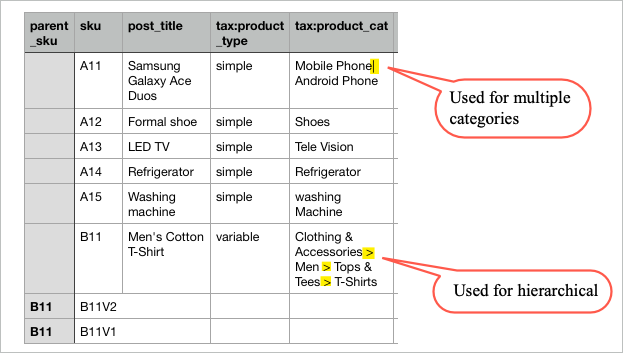
Product categories must be entered in the uploaded input file. While importing, if a product has multiple categories, they are separated by ‘|’, and if a product has a category with a hierarchical structure, they are separated by ‘>’.
Import product with categories
Download Sample CSV.
- Once the plugin is installed and activated, follow the steps in How to import products.
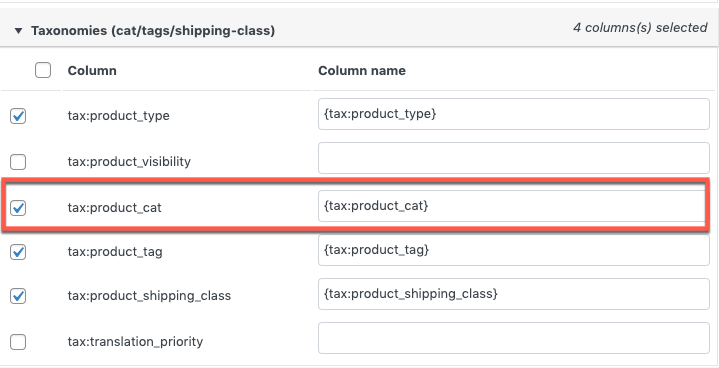
- In step 3, expand Taxonomies(cat/tags/shipping-class) to view the mapped category.

- Click on step 4 to proceed further.
- On successful import, we will get the products with their respective categories.

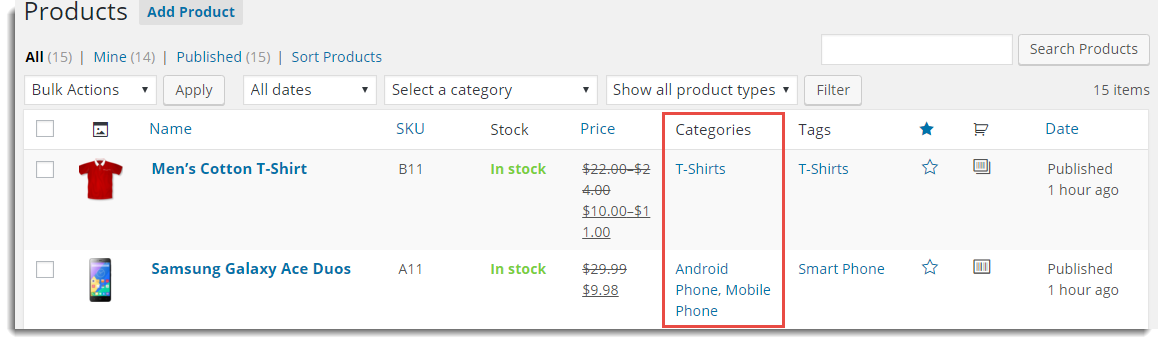
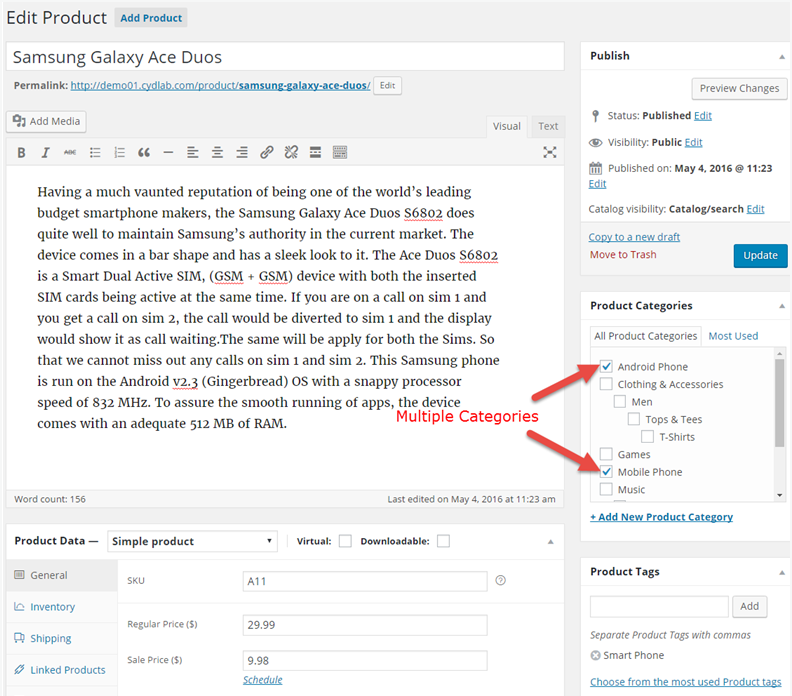
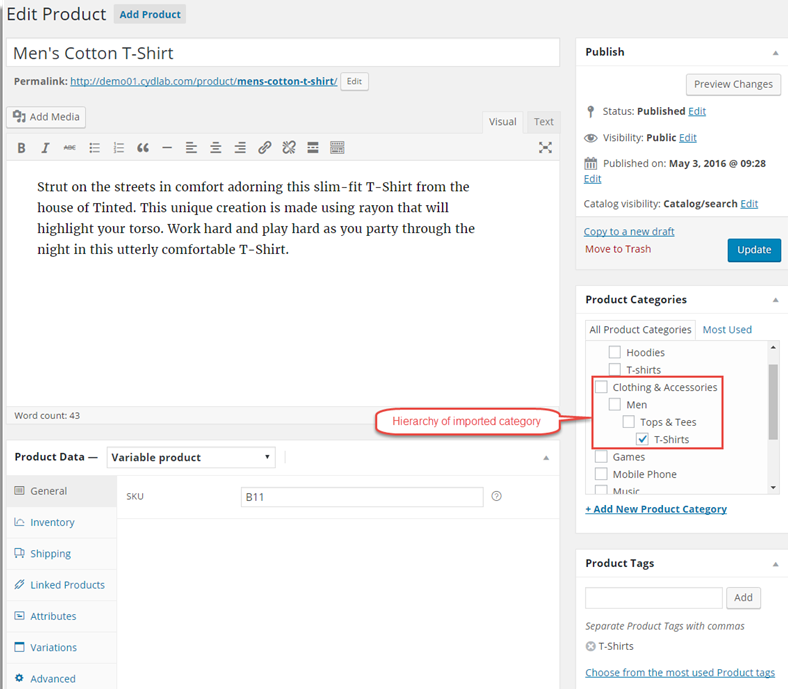
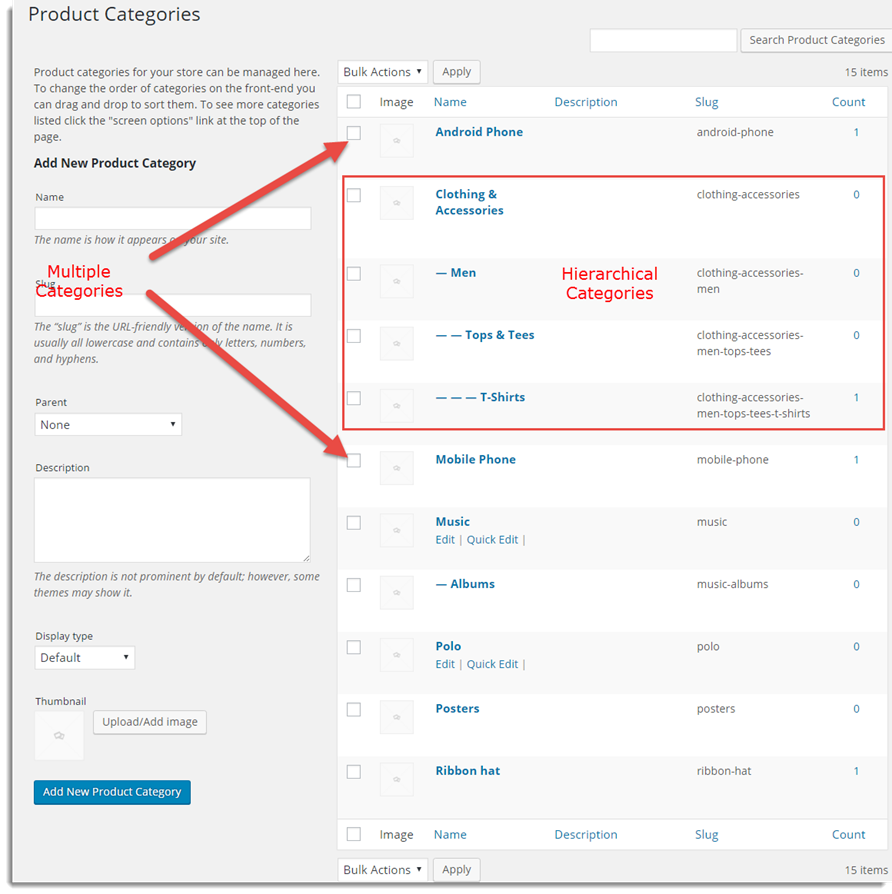
The simple product –Samsung Galaxy Ace Duos gets imported under the product categories Mobile Phone and Android Phone. The variable product – Men’s Cotton T-Shirt gets imported under the hierarchical product category, T-Shirts.
You can view the imported categories under Products > Categories section as shown below:
📌
Related Articles :

ANTONIO AROZAMENA MARANON
June 14, 2025
Pero en la importación jerárquica: Paraíso del baño > Jabones de baño
Se crean las categorías Paraiso del baño (padre) y Jabones de baño (hijo), y el producto queda categorizado en ‘Jabones de baño’ pero no en ‘Paraiso del baño’. Si voy a ‘Paraiso del baño’ me indica que no hay productos, sin embargo, si voy a su categoria hijo me indica que hay un producto.
Para nosotros es importante que el producto se categorice bien jerarquicamente, tanto en su categoria padre, como en las categorias que dependan de ella.
Hema
September 9, 2025
Hi Antonio,
Thanks for reaching out. By default, when importing with a hierarchical structure, the product is assigned only to the child category (Bath Soaps). The parent will contain the child category but won’t directly list the product.
Ronny Lange
December 10, 2024
I’ve importing new products from time to time and add them in existing categories. When importing a product in an existing category, it’s generating a new categorie with the same name and adds -2
Like: Shorts (existing) it generates shorts-2. Why this is happening?
Hema
December 11, 2024
Hi Ronney,
Thanks for reaching out, This usually happens when the category hierarchy is not properly defined. To confirm this, we need to look into your CSV file. Kindly reach to us via customer support, so that we can assist you.
Janis
September 27, 2024
Hello, I am having a problem with importing products. I use “>” to enter the product category. But this makes duplicates of already existing categories by putting a mix of the category hierarchy in the slug. How to resolve this problem? I don’t want this to create new categories. I only want a product to be associated with all the parent categories of its main category.
Hema
November 21, 2024
Hello Janis,
Thanks for reaching out. It seems we need more info to process your query. Kindly contact customer support for further assistance.
nisar
August 4, 2023
please tell – how to map categories in the import CSV plugin – I want to match/map the product categories in the CSV file with the product categories on my website, how can I do this? it’s really troublesome to change the categories in the CSV file of 2000 rows.
Nisar
Vineetha
August 8, 2023
Hi nisar,
Thanks for reaching out! Once the plugin is installed and activated, select the post type as products. On reaching step 3, map the required columns. Expand Taxonomies(cat/tags/shipping-class) to view the mapped category and import. For more details, refer to how to import products.
Temisan Neburagho
May 28, 2023
Hello,
The category slugs for my products are based on the Yoast primary category, so that only one category is assigned to a product in the url if it has multiple categories associated with it. When I import products via the import tool using CSV the slug is made of the combined multiple categories. How can I change this?
Thanks
Temisan Neburagho
May 28, 2023
Multiple categories are no longer showing, it was because I did not pipe separate them, but the wrong category is being assigned to the url, it should be the primary category set for Yoast. How can I fix this?
Vineetha
May 30, 2023
Hi Temisan,
Thank for reaching out! To sort this issue, we need a bit more detailed picture of this case. Can you please reach us via customer support?
Vineetha
May 29, 2023
Hi Temisan,
Thank for reaching out! To sort this issue, we need a bit more detailed picture of this case. Can you please reach us via customer support?
Kyla
October 17, 2022
Hey I want to add a parent category, with also the sub category selected, how do I go about this. I have been using the > symbol, but the parent category is not selected.
Alan
October 20, 2022
Hi,
If you are required to assign the product to parent and sub category then please provide the data in the CSV as below
parent-category|parent-category>sub-category
Max
November 24, 2021
Why, when importing, recreates the categories with a new slug and does not take the old one?
Alan
November 26, 2021
Hi,
The issue you are facing might be because you provided a custom slug for the categories. The categories are connected based on the slug of the category and the name in the category column. Please try providing the default slug for the categories and try importing.
Scott Petersen
October 18, 2021
I’m getting a developer to add custom attribute fields to my categories. Does your importer allow for the importing of attributes for a category (in a hierarchy)?
Mark
October 18, 2021
Hi,
Using our plugin you can import product categories(parent and child) to the site using a CSV file. You may please specify the category name in the tax:product_cat column of the CSV file. If you have added any custom fields to the categories and you are required to import this data then please reach us via support.
maulik
September 22, 2021
when im imported some products with categories so some time my categories spell wrong so when importing with wrong categories spell it generated with wrong spell id ..so i want to restricted this auto generate categories.please help me!!
Mark
September 24, 2021
Hi,
Can you please reach us via support and brief us on your query? If you are mentioning the category slug, then we would like to let you know that the category slug is auto-generated from the category name and this is done by WOocommerce. Whatever data is provided as the category name that will be used for generating the slug.
Leslie Mufaro Nyahwa
July 23, 2021
Hi, I keep getting this Failed/Skipped Skipping new item error log when I import products with both multi-categories and hierarchical categories, what could I be doing wrong in this product import?
Alan
July 29, 2021
Hi,
Please share your importing CSV file via support so that we can check it.
Alex
July 21, 2021
Hello!
Is it possible to specify a category ID in the file?
If not, do you plan to do it?
My accounting system has category IDs but no titles.
In short, it’s easier for me to pass the ID.
It’s easier for you to find a category by ID.
Let’s do!
Alan
July 29, 2021
Hi
We have developed a code snippet for this requirement. Please try using the code here.
Giorgi Babunashvili
August 30, 2021
Hello, how does this code works? I have an external taxonomy my store: called product-vehicle. Will this code work for external taxonomy? I Tried to change product-cat with product-vehicle but it does not work.
Alan
September 3, 2021
Hi,
Please reach us via support so that we can help you with it.
Khalil Chikh
June 6, 2021
Hello,
For multiple categories, there is a problem when viewing the product at frontend, it always shows the first category even if you choose the other category.
for example: I have 2 categories (Sport, Indoor & Outdoor > Dart Guns | Boys’ Toys > Testing), but when I view the product inside (Boys’ Toys) Category I see this :
(Home/Shop/Sport, Indoor & Outdoor/Dart Guns/hh) instead I need to see (Home/Shop/Boys’ Toys/Testing/hh).
Alan
June 7, 2021
Hi,
Can you please try importing using the default importer tool and check if the same issue occurs or not. If the issue is occurring only with our plugin then please reach us via support.
jose carreon
May 4, 2021
Alguien sabe como colocar los enlaces de descarga ya que puse por separado y no me los acepto y no se cargaron bien
Alan
May 8, 2021
Hi,
Can you please brief us on the issue you are facing? You may please reach us via support.
Jerry
March 25, 2020
How do you make sure that the products import into existing categories? I did an import and it created new subcategories which should have matched existing ones. Do you use the category slugs or the full name?
Alan
March 26, 2020
Hi,
Our plugin uses the category name to import a product into an existing category. If you are having an issue with importing category using the category name then please reach us via support with the importing CSV file so that we can check it.
Carl
May 23, 2019
Is it possible to merge csv imports?
I have my categories on seperate csv files. Some products are duplicated in 2 or more categories. When I import a file with a product that already is in a category, the previously allocated category is overridden with the new one and I have to manually assign the deleted category. How can I overcome this?
Alan
May 24, 2019
Hi,
If you are required to import a new category to a product that is already having a category then you may please include the existing category name along with the new category in the CSV. You may please separate those categories using the pipe symbol( | ). Eg: If a product X already has a category Y and you are required to import new category Z to X then you may please specify the data in the category column as “Y|Z”.
Patrick
February 22, 2019
I took your sample CSV and filled in product information and “Heating|Fixtures” in product categories it does not separate them into separate categories it creates a new category that reads Heating|Fixtures ??
Mark
February 22, 2019
Hey Patrick,
Please share your importing sample CSV with us via our support forum so that we can check and help you accordingly.
Julia
January 16, 2019
Hi,
i´m having problems to upload my csv right, it´s not taking hierarchical categories like Bekleidung > Tops & Shirts It just uploading Tops & Shirts… What i´m doing wrong? Thank you
Alan
January 16, 2019
Hi Julia,
You may please specify the category as “Bekleidung|Bekleidung > Tops & Shirts” in the CSV in order to import the product under the categories Bekleidung and Tops & Shirts. Following the format “Bekleidung > Tops & Shirts” will create categories Bekleidung and Tops & Shirts however product will be uploaded only under Tops & Shirts.
Kenneth Augustyn
October 31, 2018
Stunning article you have shared with us and it will be very valuable for me to increase my skills. I really impressed by your blog because you have good knowledge of import product categories. I really thankful to you.
jmjose
January 29, 2018
“Condensate Pump > Apollo Pump” is what is in the Products Categories field but the import still fails. However, upon checking the Product Categories list, Apollo Pump and its parent category Condensate Pump were created but has 0 products in it. Can you help me debug as to why this is happening?
Mark
January 31, 2018
Hi,
Please reach us via support with your importing CSV so that we can check it.
https://support.xadapter.com/hc/en-us/requests/new?info1170
January 22, 2018
When exporting my products the categories are separated with “|” however, when they are imported the | doesn’t separate them properly. For example, if the export has “Category A|Category B” the categories are imported as one category with the name “Category A|Category B”, not two separate categories.
Can you help me find a solution to this?
Mark
January 23, 2018
Hi,
Specifying like Category A|Category B in tax:product_cat column will import the product into two separate categories. We have checked this and it is working fine. Please reach us with the CSV via support if issue persists.
Support LINK:
https://support.xadapter.com/hc/en-us/requests/new?Lee
March 26, 2021
Hello.
Great plugin, live the way you can split the exported products in say batches of 1000.
Please can you recommend a method to import category images and descriptions to the categories already imported whilst importing products ?
Kind regards
Alan
March 31, 2021
Hi,
The plugin does not support importing category images and descriptions. It supports the importing of category name only and that too along with the product data. Category image and description data is not stored with the product details in the database. Hence it cannot be imported using the plugin.