


Variable products can be exported to CSV using the Product Import Export Plugin for WooCommerce. The plugin exports all variable product details including images, categories, attributes, and metadata. By default, variable products are exported with all their variants listed consecutively. The sort order can be adjusted using the Sort Column field.
Let us understand the variable product’s export with the help of an example. Suppose, you have a variable product: Men’s Cotton T-Shirt on your WooCommerce store as shown below.
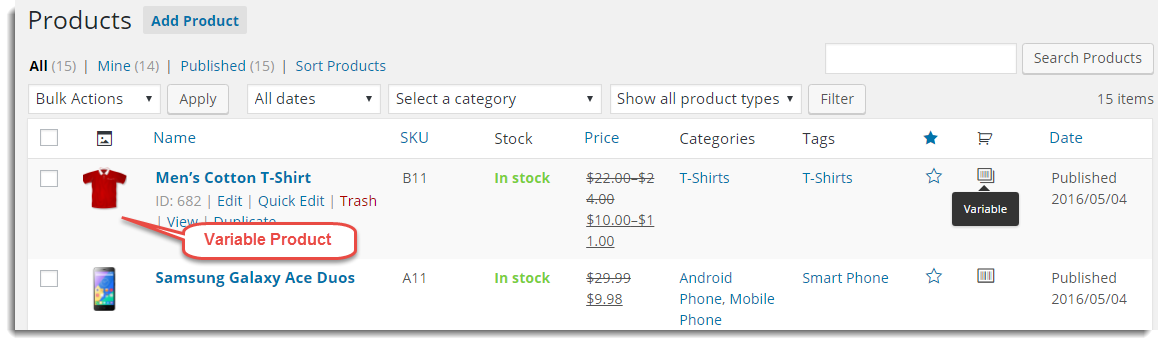
The product variation details are described as: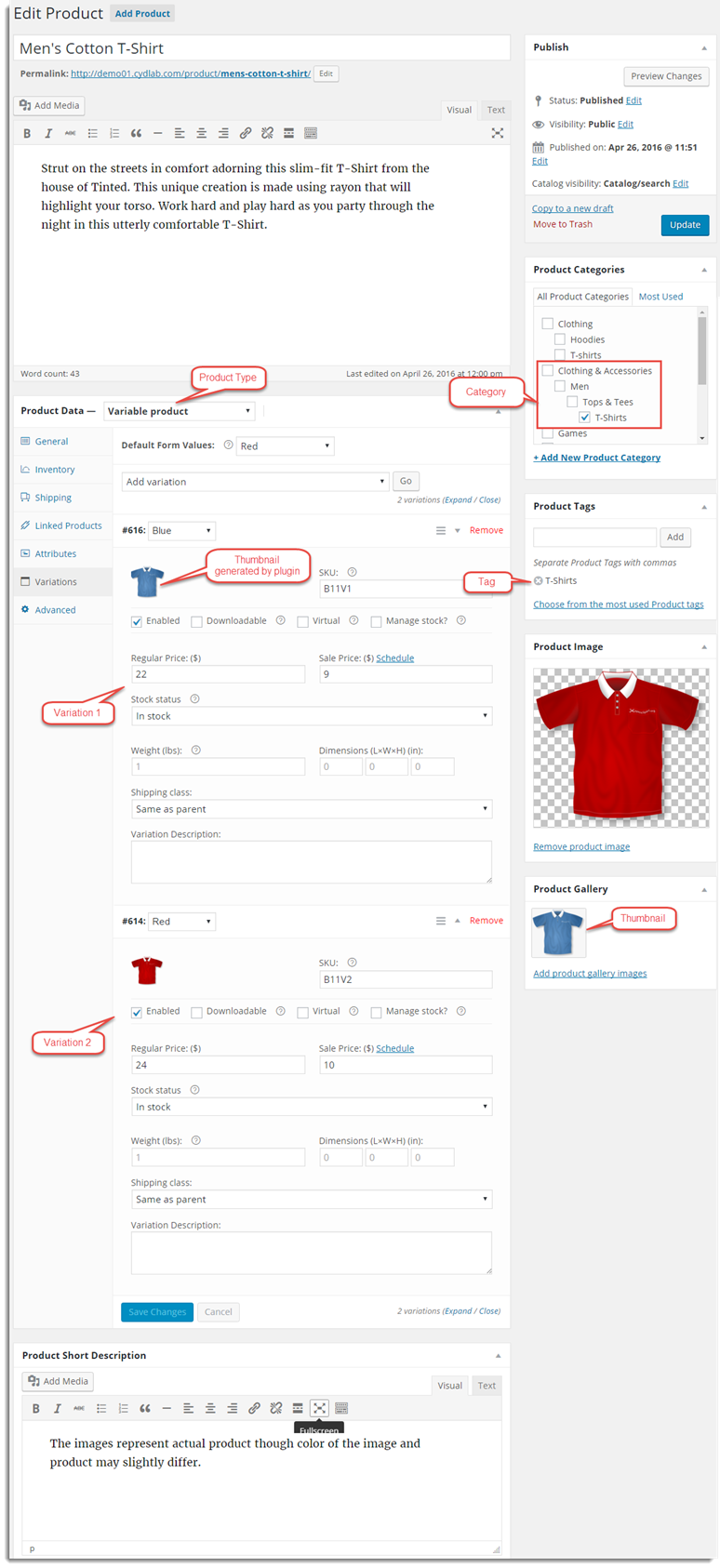
Steps to export
From the WordPress admin panel, navigate to the menu: WebToffee Import Export (Pro).
- Click on Export and specify the post type as Product.
- In step 2, you can choose the required export method.
- In step 3, filter the export data.
- On reaching step 4, map and reorder the export columns.
- Click on Step 5 to finish the export.
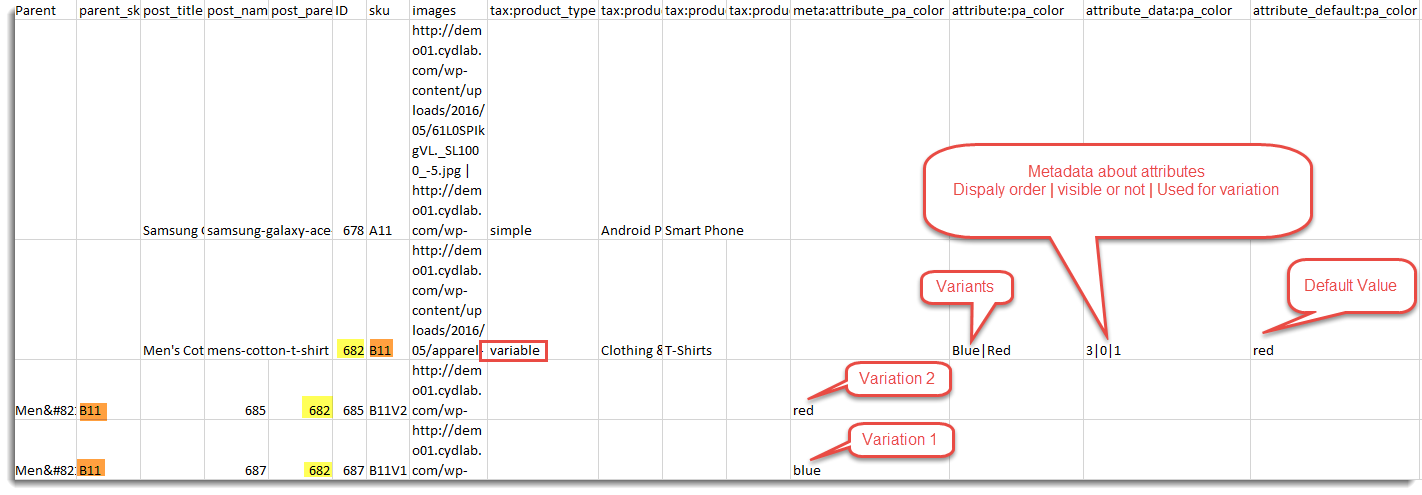
As highlighted in the above screenshot, the SKU and ID of the parent product are linked to variations. Also, all the variations are exported with attributes and metadata.
For a detailed export process documentation, refer: How to export products.
Click to download the Sample CSV.
Other related articles:
