


Simple and variable subscription products can be imported from one WooCommerce store to another using the Product Import Export Plugin for WooCommerce. To import subscription products:
- Select the post type as Product.
- Select an import method.
- Map the import columns.
- Use advanced options/ batch import and scheduling options.
- Click on Import to finish.
Important :
- Please ensure that you have configured subscription products in your site using a relevant subscription plugin.
- For successful import, it is advised to export the subscription product using the same plugin or refer to the subscription products sample CSV for the required format. Before importing the subscription product, make sure that the product type is specified as ‘subscription’ in the CSV file.

Import subscription products
To import the WooCommerce subscription products:
- As a first step, install and activate the product import export plugin.
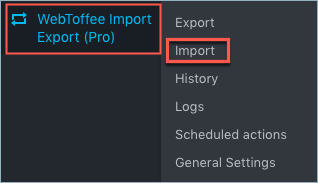
- Click on WebToffee Import Export (Pro) > Import menu from the WordPress admin panel.
Your subscription product can be imported in just 4 steps:
- Select Products under the post type.
- Select an import method: One can choose among: Quick import, Pre-saved template and Advanced import .
- Map import columns: To map import columns. Here, you can map the commercial names to WooCommerce columns. Use Evaluation Field to fix/update the required value for a particular field.
- Advanced Options/Batch Import: Provides advanced options to import and scheduling import.
Click on Import to finish. Finally, head on to Products from WordPress dashboard to view the imported subscription products as shown below:

Refer to How to import WooCommerce products for a detailed import procedure.
