


You can customize the name of files exported from Shopify using the StoreRobo Import Export Suite through the Edit export file name option in the export file settings. StoreRobo supports placeholders such as {store}, {entity}, {date}, {time}, and {job_id}, which automatically add relevant information to the file name when the export runs.
Custom file names make exported files easier to identify and help prevent files from being overwritten during recurring scheduled or FTP/SFTP exports.
Steps to customize an export file name
Once you have the StoreRobo Import Export Suite installed on your Shopify store:
Step 1: Choose an export template
- From the Shopify admin dashboard, go to Apps > StoreRobo > Home.
- Under the Export section, choose the required export template from the Choose export template dropdown, such as Shopify CSV.
- Click Proceed.

Step 2: Select the data to export
Under Select options, in the Select data card:
- Click the data dropdown and select the required data types, such as Products, Orders, Customers, Discounts, Smart Collections, or Custom Collections. You can select more than one data type, or use Select All to include everything.
- Expand the selected data type to choose the required columns.
- Apply export filters if needed.

Step 3: Edit the export file name
Scroll down to the Export file settings card and expand Edit export file name. The Name your file field is pre-filled with the default export file name:
{entity}-export-{date}-{time}
The values in curly braces are placeholders. StoreRobo replaces each of them with its actual value when the export runs, so the same file name format produces a different file name on each run.
You can edit the field directly, or click the placeholder buttons below it — Store, Entity, Date, Time, and Job ID — to insert a placeholder into the name. A placeholder button appears dimmed when that placeholder is already present in the file name.

You can use the default name as it is, edit any part of it, or rearrange the placeholders. For example, export-{date}-{time}{entity} moves the entity to the end of the file name.
If you clear the Name your file field completely, StoreRobo uses the default file name for that export.
Avoid characters such as / \ : * ? " < > | in the file name, as file systems do not support them.
Step 4: Save, run, or schedule the export
To reuse the same configuration later, go to the Save preset card and click Save. The export file name is saved along with the rest of your selections.
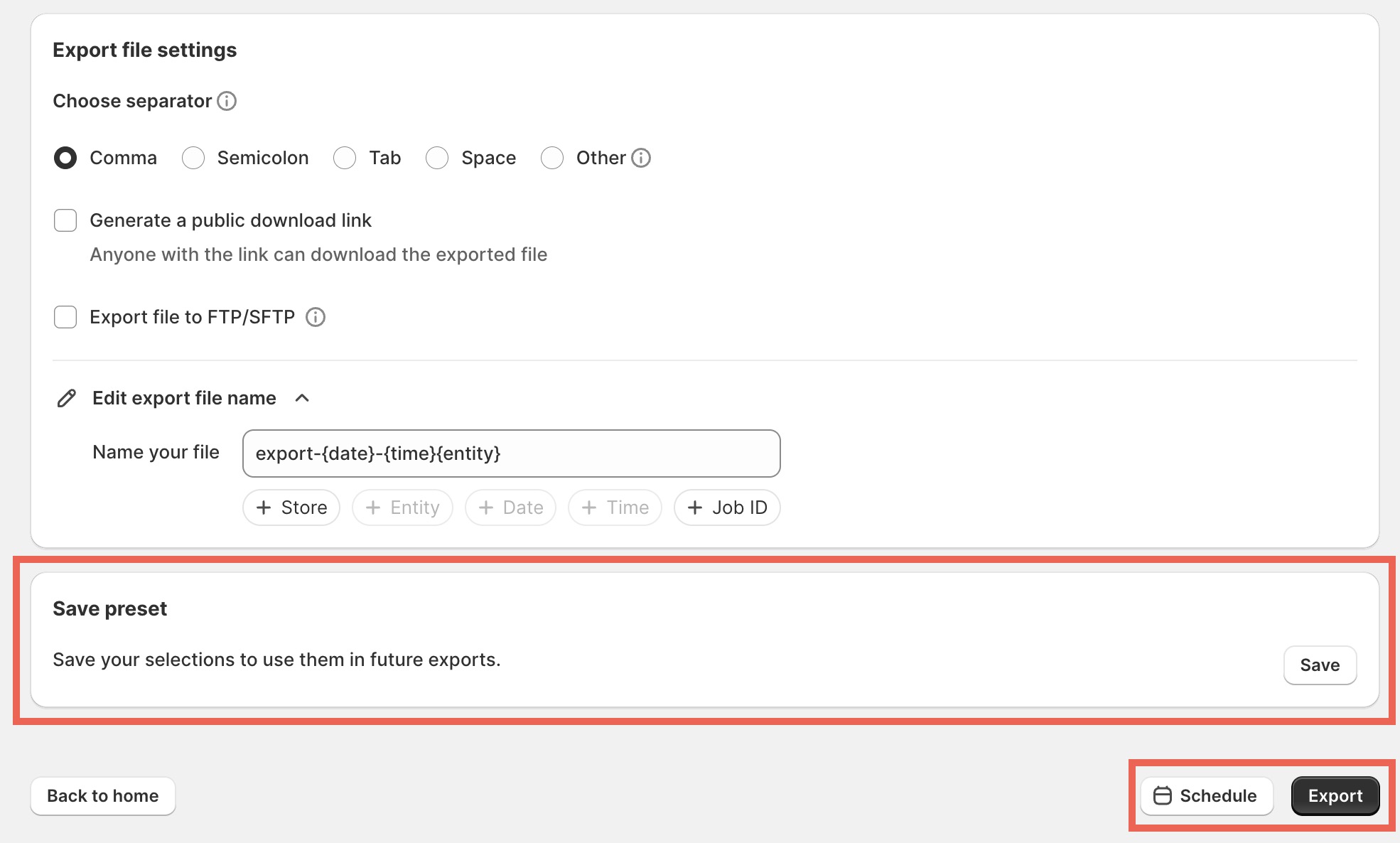
Then click Export to run the export immediately, or Schedule to set it up as a scheduled export.
The file name you set applies to the export whether it runs manually, on a schedule, or through FTP/SFTP delivery.
Available placeholders
StoreRobo supports the following placeholders in the export file name:
| Placeholder | Button | Description |
|---|---|---|
{store} | Store | Adds the store information to the file name |
{entity} | Entity | Adds the data type being exported, such as Product or Order |
{date} | Date | Adds the export date |
{time} | Time | Adds the export time |
{job_id} | Job ID | Adds the export job ID |
For example, {entity}-{store}-{date}-{time} or {entity}-export-{job_id}-{date}.
Only the placeholders listed above can be used. You cannot save or run an export with any other placeholder in the file name.
Note: Because {entity} is a placeholder, the file name automatically reflects whichever data type you export. You do not need to update the name when you change the selected data type.
Avoid duplicate file names in recurring exports
For recurring exports, make sure the export file name contains at least one placeholder that changes between export runs: {date}, {time}, or {job_id}.
The default file name includes both {date} and {time}, helping each export generate a unique file name. If you remove these placeholders and use the same static file name for a scheduled or FTP/SFTP export, StoreRobo displays a warning that subsequent exports may overwrite previously generated files.
For example, {entity}-export may generate the same file name on every run. Instead, use a name such as {entity}-export-{date}-{time} to distinguish each exported file.
File names in presets and scheduled exports
When you save an export configuration as a preset or create a scheduled export, StoreRobo saves the export file name along with that configuration. Each future run uses the saved naming format and replaces the placeholders with the values available at the time of that export.
For example, a preset or schedule containing monthly-{entity}-{store}-{date} continues to use the same format on every run, while the placeholder values change with each export. The same behavior applies when the export sends files to an FTP/SFTP server.
Note: Scheduled FTP/SFTP export jobs created before this feature was introduced continue to use their existing file naming convention. Newly created export jobs use the new customizable file naming option.
