


Recurring imports from an FTP or SFTP server can leave processed files behind, causing old files to accumulate or be picked up again during the next scheduled import.
StoreRobo helps prevent this by automatically deleting the source file after a successful import. You can enable the FTP/SFTP profile option and override it for individual import jobs when needed.
In this article, we’ll see how to enable automatic source file deletion for FTP/SFTP imports and verify the deletion status after the import.
Delete the Source File After Import
Once you have the app installed on your store:
Step 1: Choose the Import File
- From the Shopify admin dashboard, go to Apps > StoreRobo > Home.
- Under Import, select FTP/SFTP server.
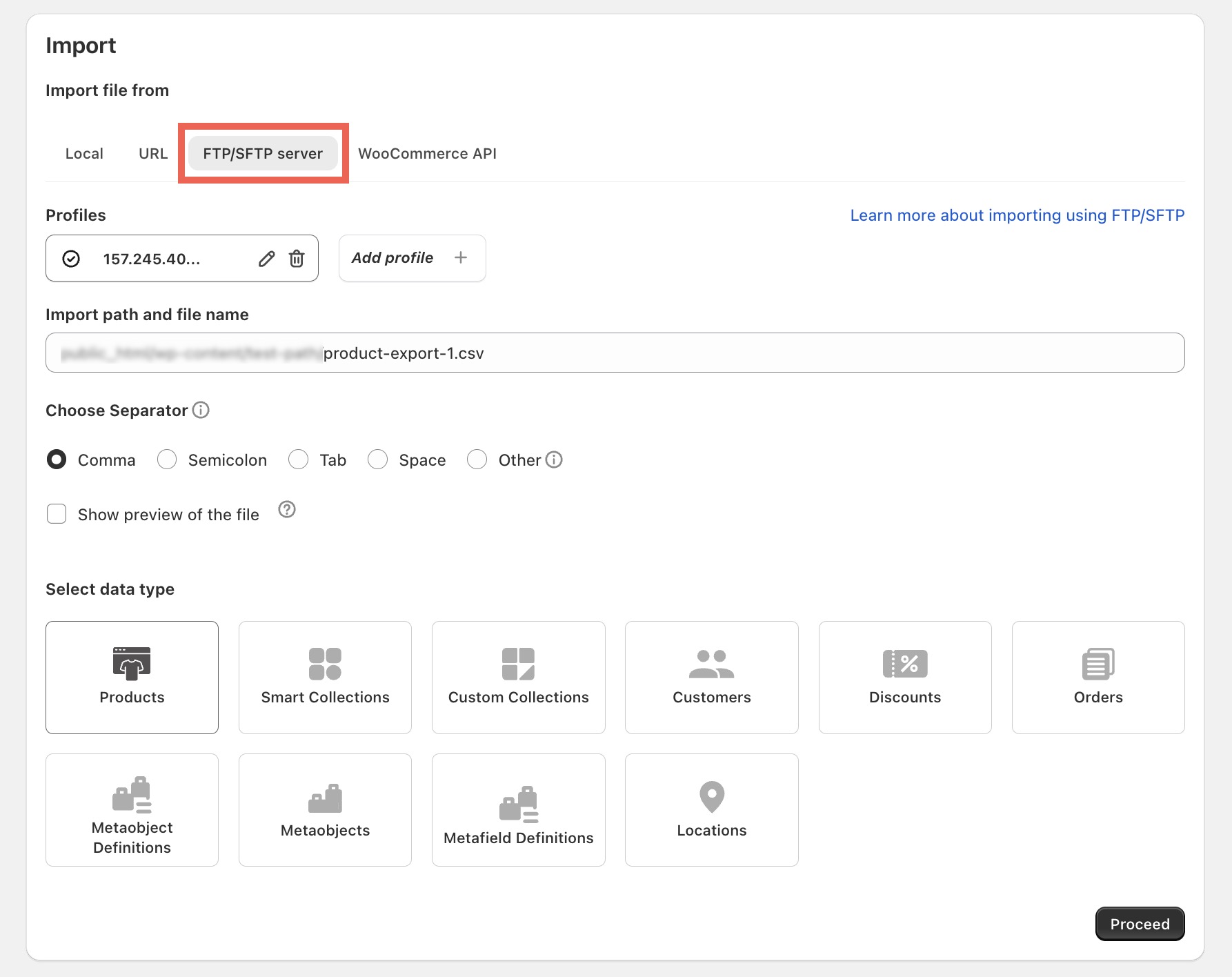
- Select an existing FTP/SFTP profile or click Add profile.
- To enable automatic file deletion for the profile, add a new profile or click the edit icon next to an existing profile.
- Enter or verify the FTP/SFTP connection details.

- Enable Delete source file after successful import.
- Click Connect & Save.
When this option is enabled, it is automatically selected for new imports that use the profile.
- Enter the Import path and file name.
- Choose the file separator and select the data type to import.
- Click Proceed.
Step 2: Select Import Options
Under Options, review the Delete source file from FTP server after successful import checkbox.
When the setting is already enabled for the selected profile, the checkbox will be preselected. You can clear it to retain the source file for this particular import.

Configure the remaining import options, then click:
- Import to run the import immediately.
- Schedule to schedule the import for later.
Step 3: Complete the Import
After the import completes, StoreRobo displays the import summary and the source-file deletion status.

The file is deleted only when:
- The import completes successfully.
- Every row in the file is processed.
- No rows fail.
Skipped rows do not prevent the file from being deleted.
The file is retained if the import fails, stops midway, reaches the plan row limit, or contains failed rows. If StoreRobo cannot delete the file after a successful import, the import remains successful, and the deletion failure is recorded in the log.
Check the Profile Setting
To check whether file deletion is enabled for an FTP/SFTP profile:
- Go to Apps > StoreRobo > Settings.
- Select FTP profiles.

The Delete after import column shows whether the option is Enabled or Disabled for each profile.
Changing the profile setting affects only new imports configured using that profile. Existing jobs retain their current job-level setting.

Comment (1)
Amarildo Freitas dos Santos
August 7, 2026
Muito bom