
You can connect AI tools such as Claude, ChatGPT, and Cursor to StoreRobo using the StoreRobo MCP server. Once connected, you can run imports, exports, and migrations on your Shopify store by describing what you need in plain language, and the StoreRobo Import Export App does the actual work in the background.
This article explains how to connect an AI tool to StoreRobo, what you can do once the connection is active, and how to review or revoke connections.
AI connections are available on the Pro and Enterprise plans. On the Free plan, an upgrade prompt is displayed when you try to authorize a connection.
What the MCP Server Does
MCP (Model Context Protocol) is an open standard that lets AI tools connect to other applications and perform tasks in them. StoreRobo hosts its own MCP server, so any MCP-compatible AI tool can connect to it using a single server URL.
There is no separate account to create and no API token to generate. Jobs created by an AI tool run inside StoreRobo and appear in your Import/Export History, just like jobs you create in the app.
Connect an AI Tool to StoreRobo
- From the Shopify admin dashboard, go to Apps > StoreRobo > Settings > AI connections.
- Under Connect an AI tool, select your tool: Claude, Cursor, ChatGPT, or Other.
- Follow the setup instructions shown for the selected tool, and click Copy to copy the command or URL you need.
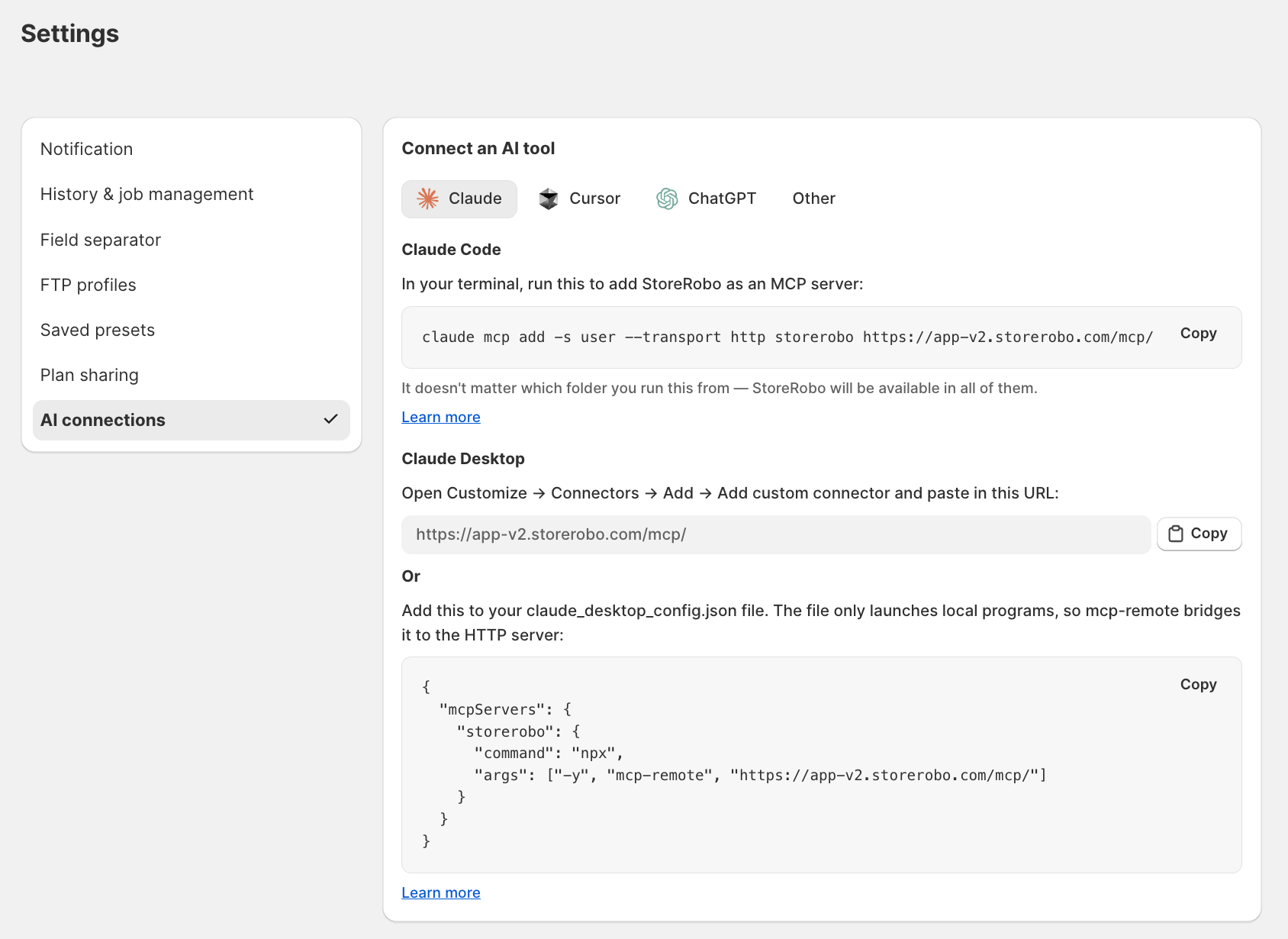
The screenshot shows the instructions for Claude. The exact steps differ for each tool, but the flow is the same: copy the details from StoreRobo, add the connector in your AI tool, then authorize the connection. For how to add a custom connector, see the official documentation for Claude, ChatGPT, or Cursor.
- Add StoreRobo as a connector in your AI tool using the copied details.
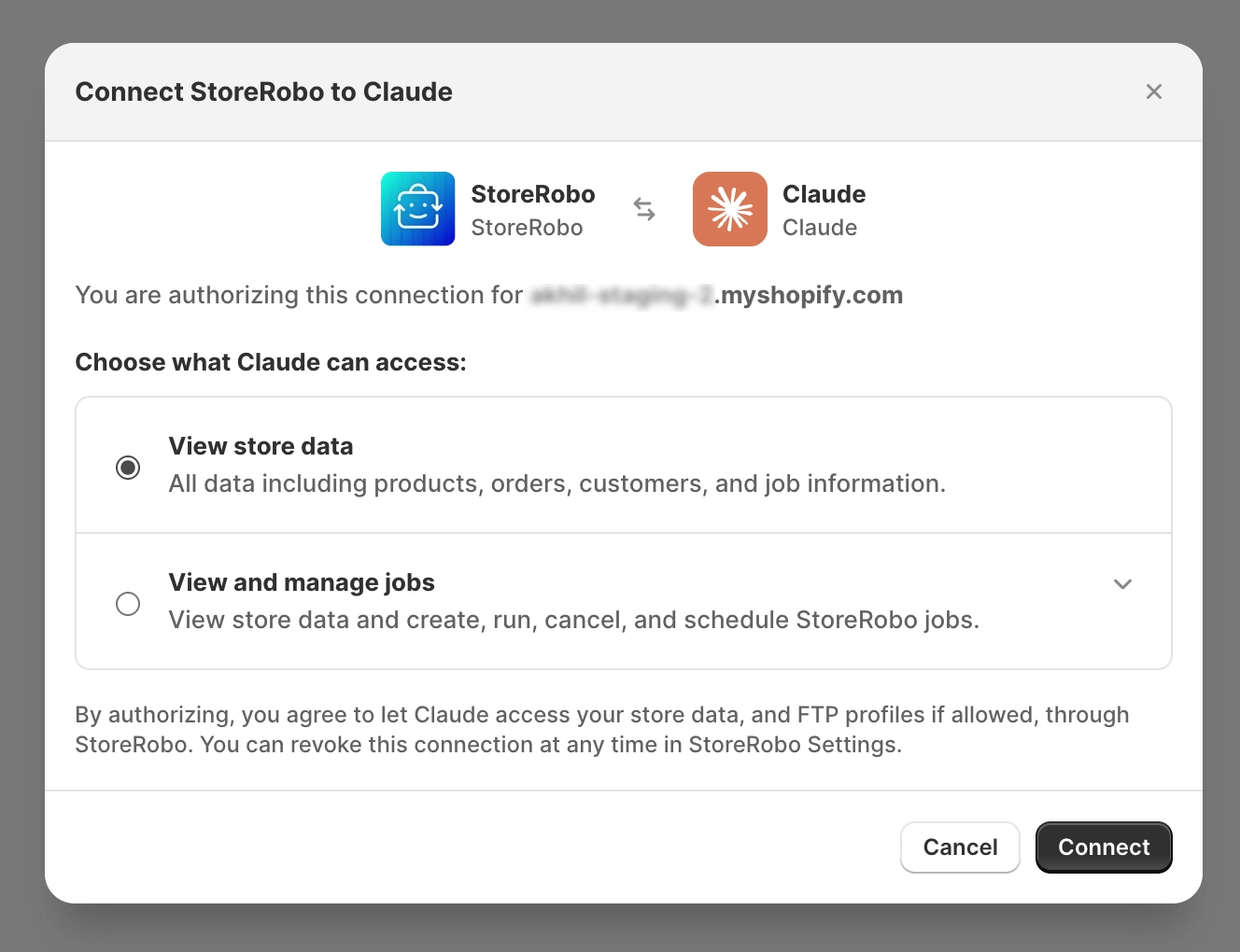
- A browser window opens with the Connect StoreRobo to screen, showing the store the connection is being authorized for.
- Under Choose what your AI tool can access, select the level of access you want to grant.
- Click Connect.
- Return to your AI tool, which confirms that the connection is active.
You can now use natural language to run StoreRobo tasks from within your AI tool.
The first time the AI runs a StoreRobo task, your AI tool asks you to approve the action. This prompt comes from the AI tool, not from StoreRobo. Most tools offer an option to allow the connection permanently so that you are not asked again.
Choose What the AI Can Access
When you connect a tool, you choose one of two access levels:
- View store data: All data, including products, orders, customers, and job information.
- View and manage jobs: View store data and create, run, cancel, and schedule StoreRobo jobs.
Select View store data for a tool you use only to check data or review past jobs. Select View and manage jobs if you want the AI to create and run imports and exports for you.
You can change the access level later from Settings > AI connections without setting up the connection again.
Each connection is authorized for a single store. If you manage more than one Shopify store, connect each store separately.
Run Imports and Exports
Describe the job you want in plain language, and the AI creates it in StoreRobo, runs it, and reports back when it is done.
For example:
- “Export all active products as CSV.”
- “Export my customers who ordered in the last 30 days.”
- “Import this file and update the prices of existing products.”
For imports, you can share a file with the AI tool, point it to a file URL, or paste the CSV data directly into the conversation. For exports, the AI applies the columns, filters, and file format you asked for, and provides a download link once the export is complete.
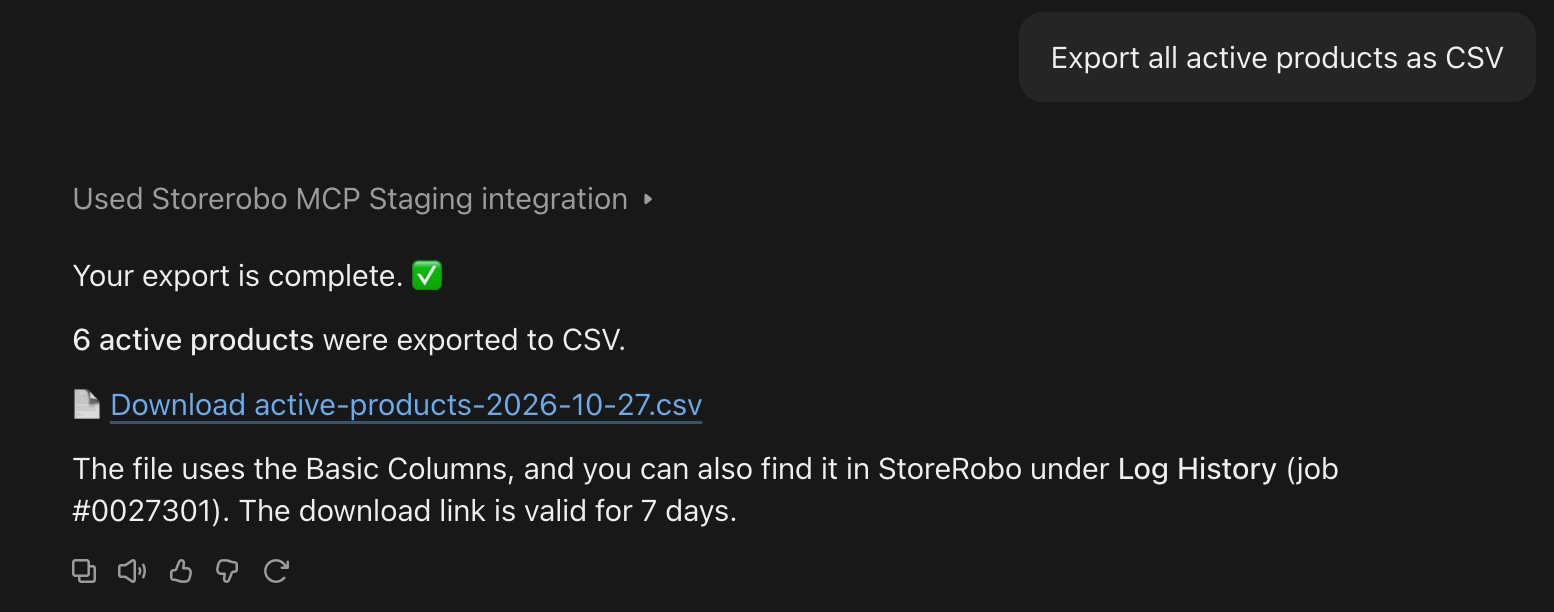
Download links provided by the AI tool are valid for 7 days. You can retrieve the file at any time from Apps > StoreRobo > Log History using the job ID the AI reports.
Migrate Data from Another Platform
If you are moving to Shopify from another platform, share your export file with the AI tool and ask it to import the data. This works with CSV and Excel exports, so no platform-specific setup is needed.
StoreRobo identifies the file, maps its columns to the matching Shopify fields, and runs the import. The AI then reports how many products were created and points out any items that rely on features of your previous platform that Shopify does not have, so you know what to check in your Shopify admin.
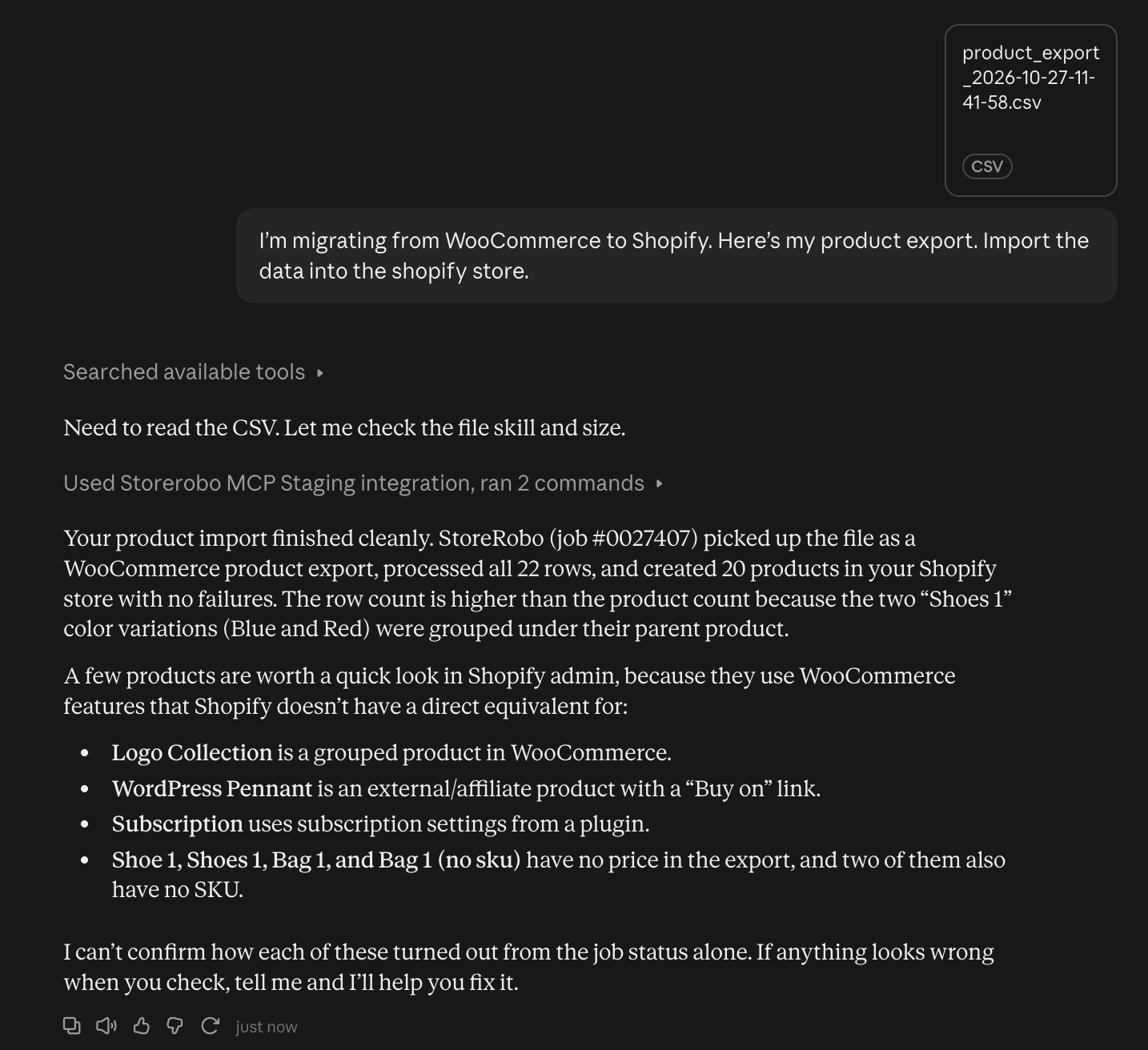
If you want to check the column mapping before anything is written to your store, ask for it. For example, “Show me how the columns map to Shopify fields before you import anything.” The AI then lays out the mapping and waits for your confirmation.
Manage Jobs and Understand Errors
You can also ask the AI about existing jobs. For example:
- “What’s the status of my last product import?”
- “Cancel the running export.”
- “Give me the download link for yesterday’s customer export.”
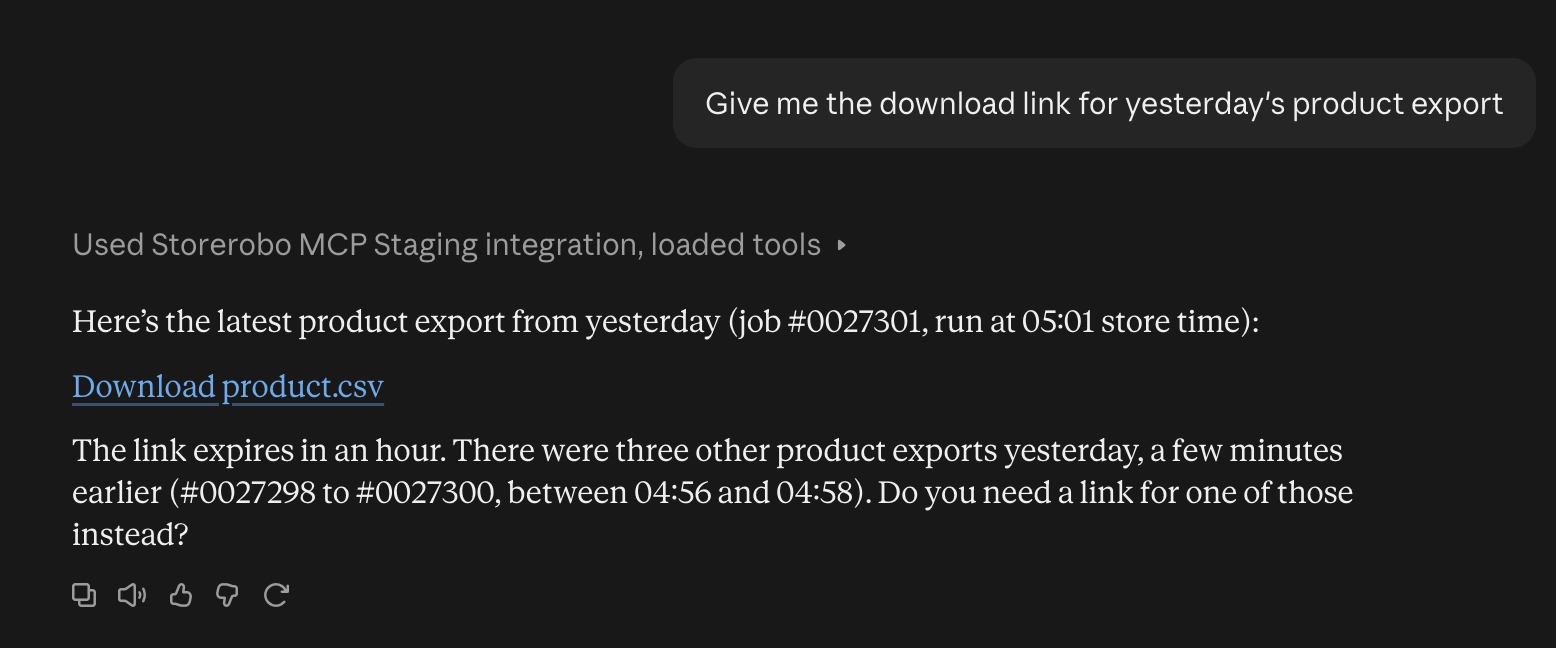
If a job fails or some rows are skipped, ask the AI what went wrong. It looks up the StoreRobo error details, explains them in plain language, and suggests what to fix. You can then correct the file and ask the AI to run the import again.
The AI can also answer questions about StoreRobo itself, such as which columns a template supports, by referring to the StoreRobo documentation.
Identify Jobs Created by an AI Tool
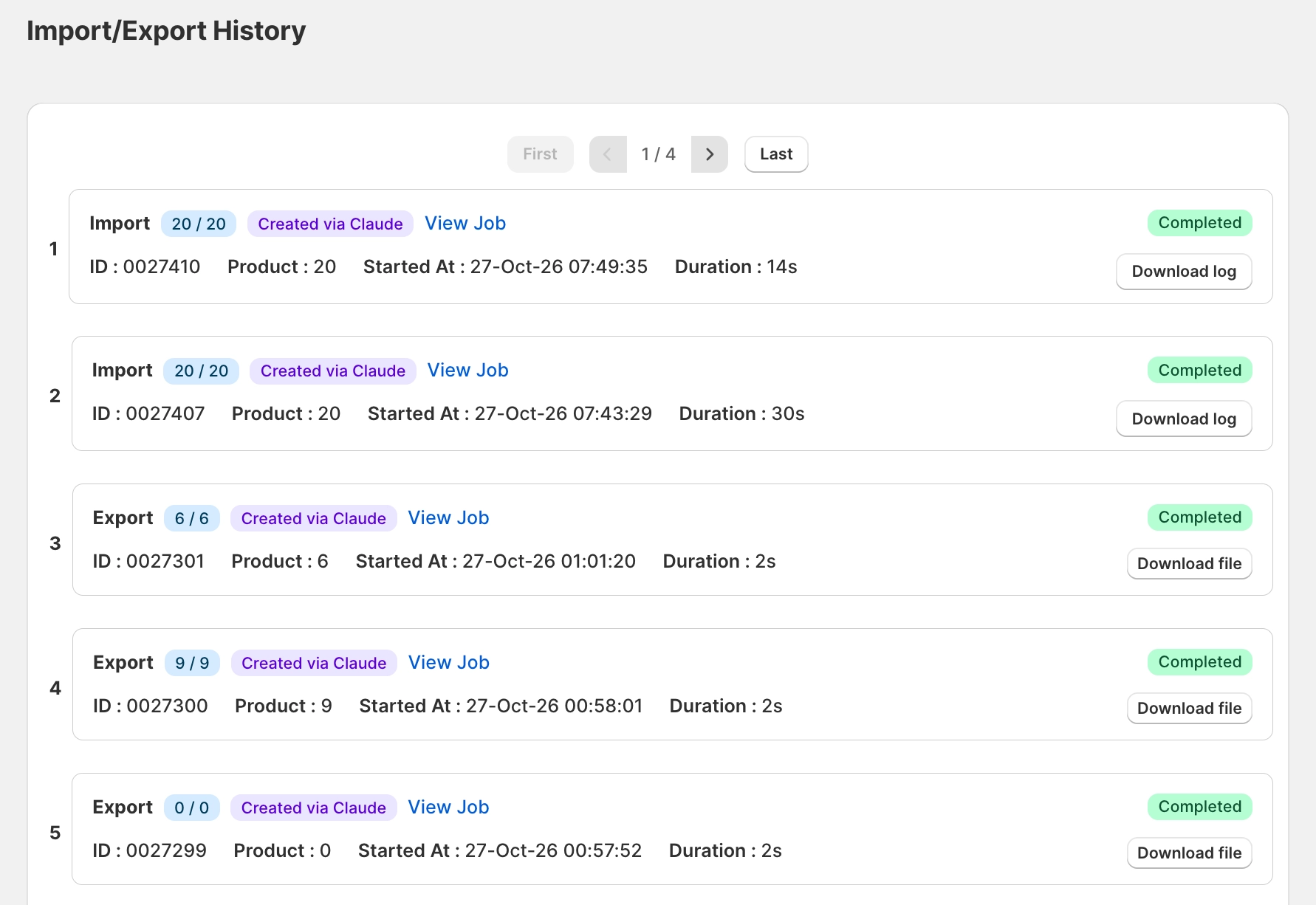
Every job created through an AI connection is marked in Log History with a Created via Claude label naming the tool that created it. This makes it easy to tell AI-created jobs apart from jobs started manually, especially in stores with multiple staff members.
Each entry also shows the job ID, the number of records processed, when the job started, and how long it took. Click View Job for the full details, Download file to retrieve an export, or Download log to review an import.
View and Revoke AI Connections
Go to Apps > StoreRobo > Settings > AI connections. The Authorized connections section lists every active connection, with the AI tool it belongs to, the access level granted, who authorized it, when it was connected, and when it was last used.
To change the access level for a connection, click the edit icon next to it.
To remove a connection:
- Click the delete icon on the connection you want to remove.
- In the confirmation dialog, click Revoke access.
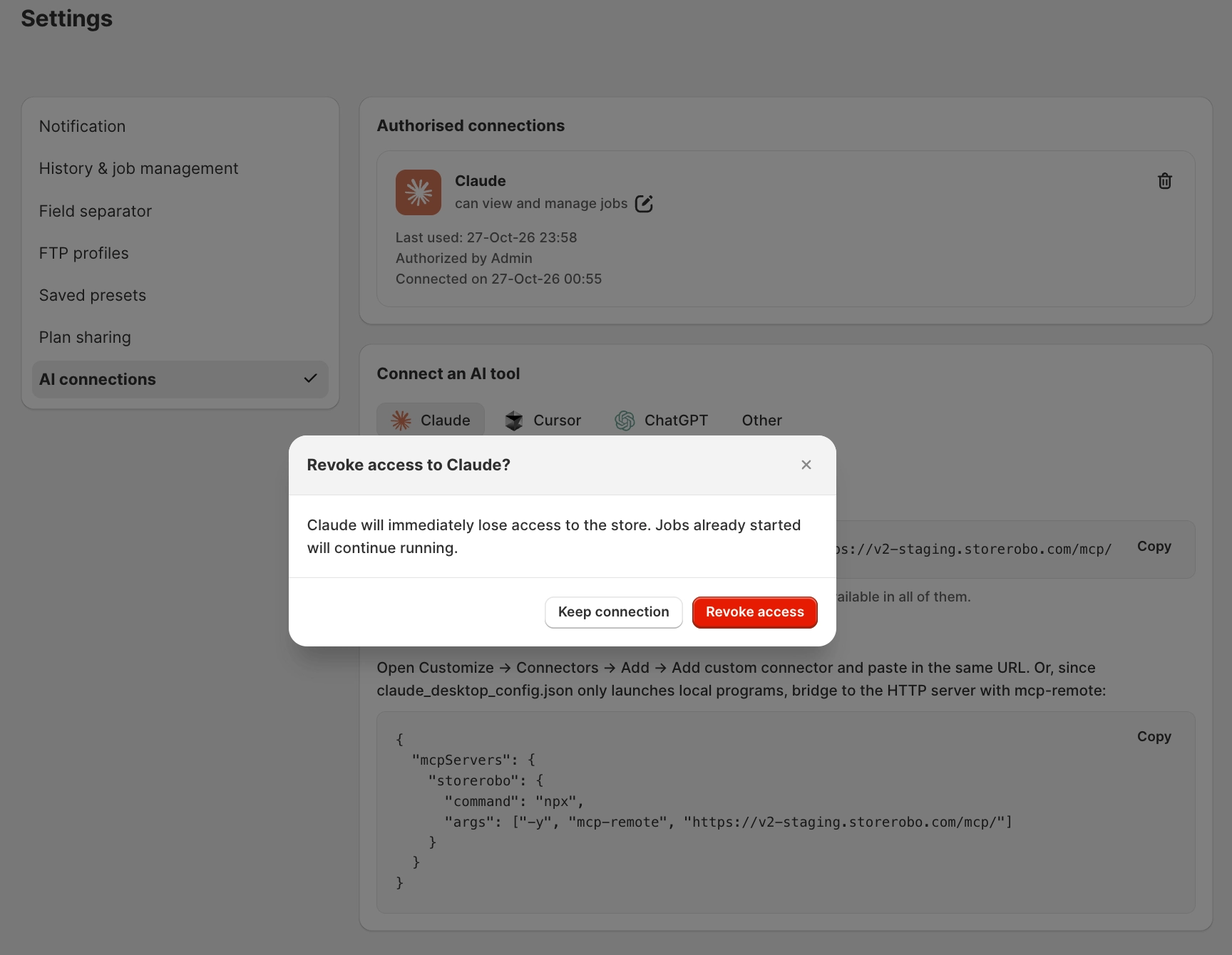
The AI tool loses access to your store immediately. Jobs that have already started continue running in StoreRobo, but the AI tool can no longer check their status.
You can also disconnect from the other side by removing the StoreRobo connector in your AI tool, and the connection status in StoreRobo updates automatically.
If your plan changes from Pro or Enterprise to Free, existing AI connections stop working and a notice is displayed in the app.
The StoreRobo MCP server lets you run imports, exports, and migrations from the AI tool you already use, without opening the app for every task. You stay in control of what each connection can access, every job remains visible in StoreRobo, and you can revoke access at any time.
