


Import errors such as missing required fields or incorrectly formatted values are often noticed only after an import has run. By then, incomplete or incorrect data may already be in the store and has to be cleaned up manually.
The StoreRobo – Shopify Import Export App helps prevent this with Run test import, a dry run that checks your import file for common file-level issues without making any changes to your Shopify store. You can review the results, download a test report, fix any issues, and then run the actual import.
In this article, you’ll learn how to:
- Run a test import on your import file.
- Review the test result and download the test report.
- Correct the file or run the actual import after the test.
Test import is available on all StoreRobo plans, including Free, and is currently in beta. The number of rows tested is limited to the import row limit of your plan.
What Is a Test Import?
A test import, also called a dry run, processes your import file the same way a regular import would, but doesn’t send any data to Shopify. No products, orders, customers, or other records are created, updated, or deleted.
The test checks only:
- File structure: whether StoreRobo can read the file and its columns.
- Mappings: whether the file columns match the selected import template or column mapping.
- Required fields: whether each row contains the fields required for that data type.
- Data formats: whether values match the expected format for that field.
Because the test doesn’t connect to your Shopify store, some Shopify-related errors may only appear during the actual import. For example, the test can’t check whether a record already exists in the store.
Run a Test Import
Once you have the app installed on your store:
Step 1: Choose the Import File
- From the Shopify admin dashboard, go to Apps > StoreRobo > Home.
- Under Import, choose the import source: Local, URL, or FTP/SFTP server.
- Upload or select the import file.
- Under Choose Separator, select the separator used in your file.
- Under Select data type, select the data type to import.
- Click Upload.
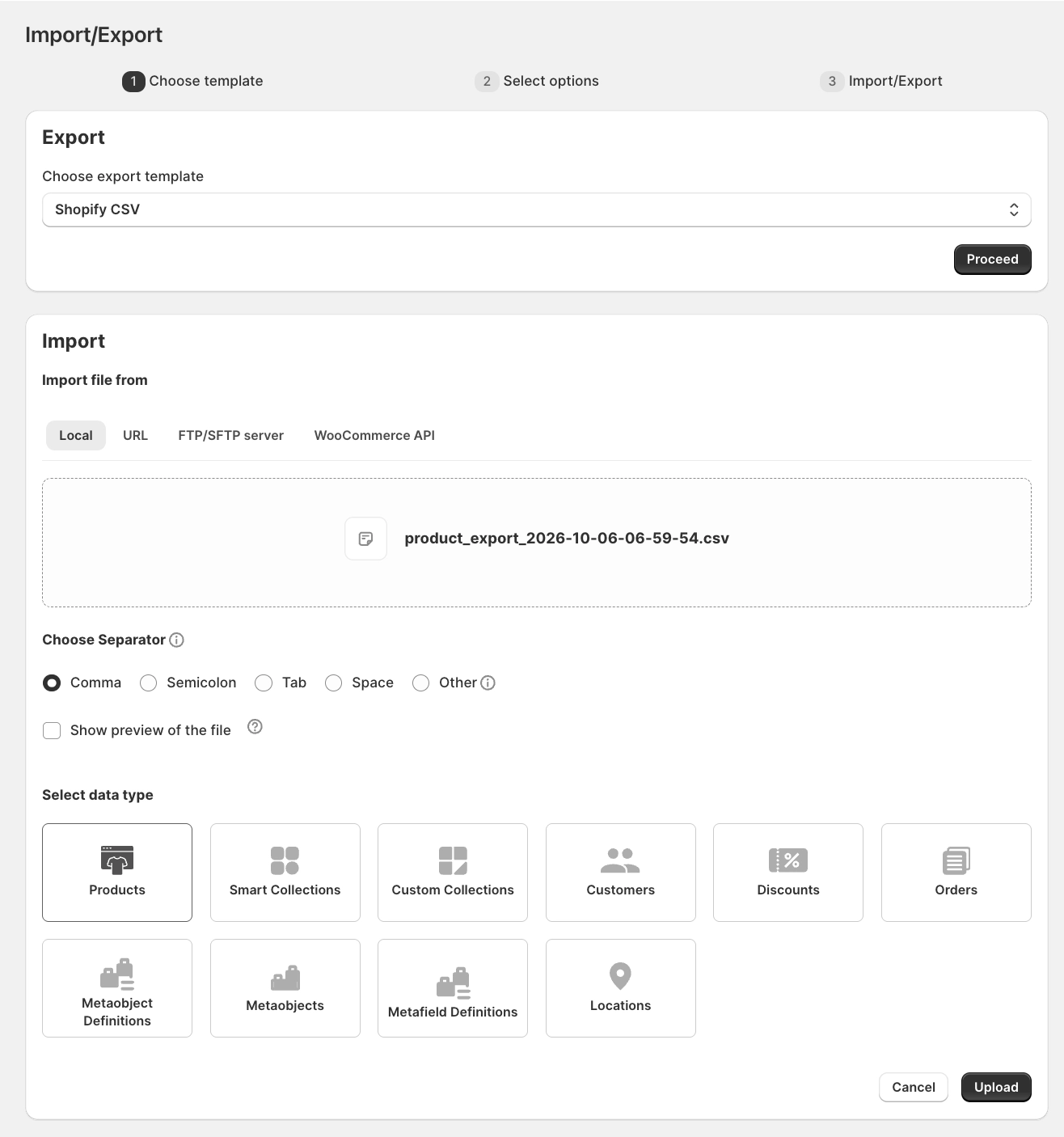
Step 2: Select Import Options
StoreRobo detects the template used in the file and shows it under Import template.
- Verify the import template. If it’s incorrect, select the correct template from the dropdown.
- Check the number of records identified in the file, for example, Products Identified: 8.
- To import only specific records, click Add filters under Filters. Leave filters empty to import all records from the file.
- Under Options, select the required import options, such as Update if products already exist in the store. The available options depend on the data type and template.
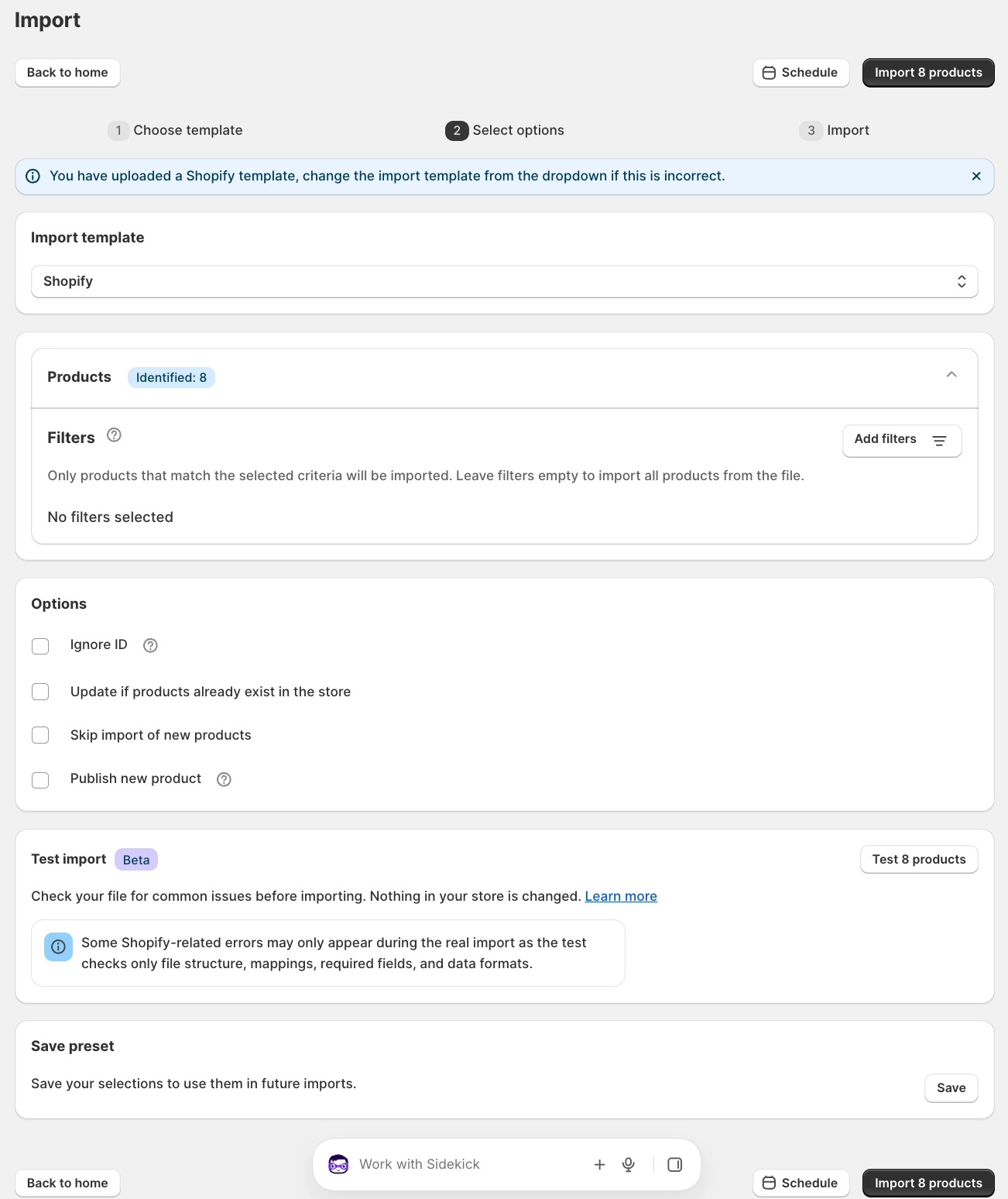
Step 3: Run the Test Import
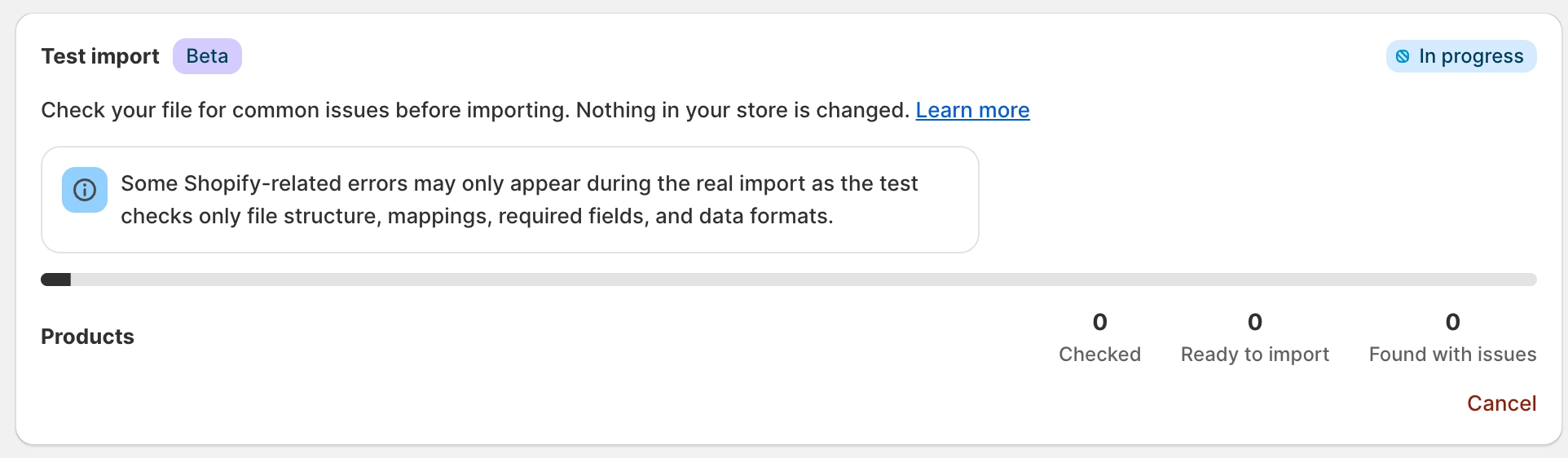
Under Run test import, click the Test button. The button shows the number of records to be tested; for example, Test 8 products.
If the file has more records than your plan’s import row limit, the button shows the limit instead, for example, Test first 25 products. Only the records up to the limit are tested and imported.

While the test is running, the status shows In progress, along with a progress bar and the number of records:
- Checked: records tested so far.
- Ready to import: records that passed the checks.
- Found with issues: records that failed one or more checks.
To stop the test, click Cancel. A partial report is available for the records checked before the test was canceled.
Step 4: Review the Test Result
When the test is complete, the result appears in the Run test import section.
- Completed · All checks passed: No file-level issues were found, and the message Your file is ready to import appears.
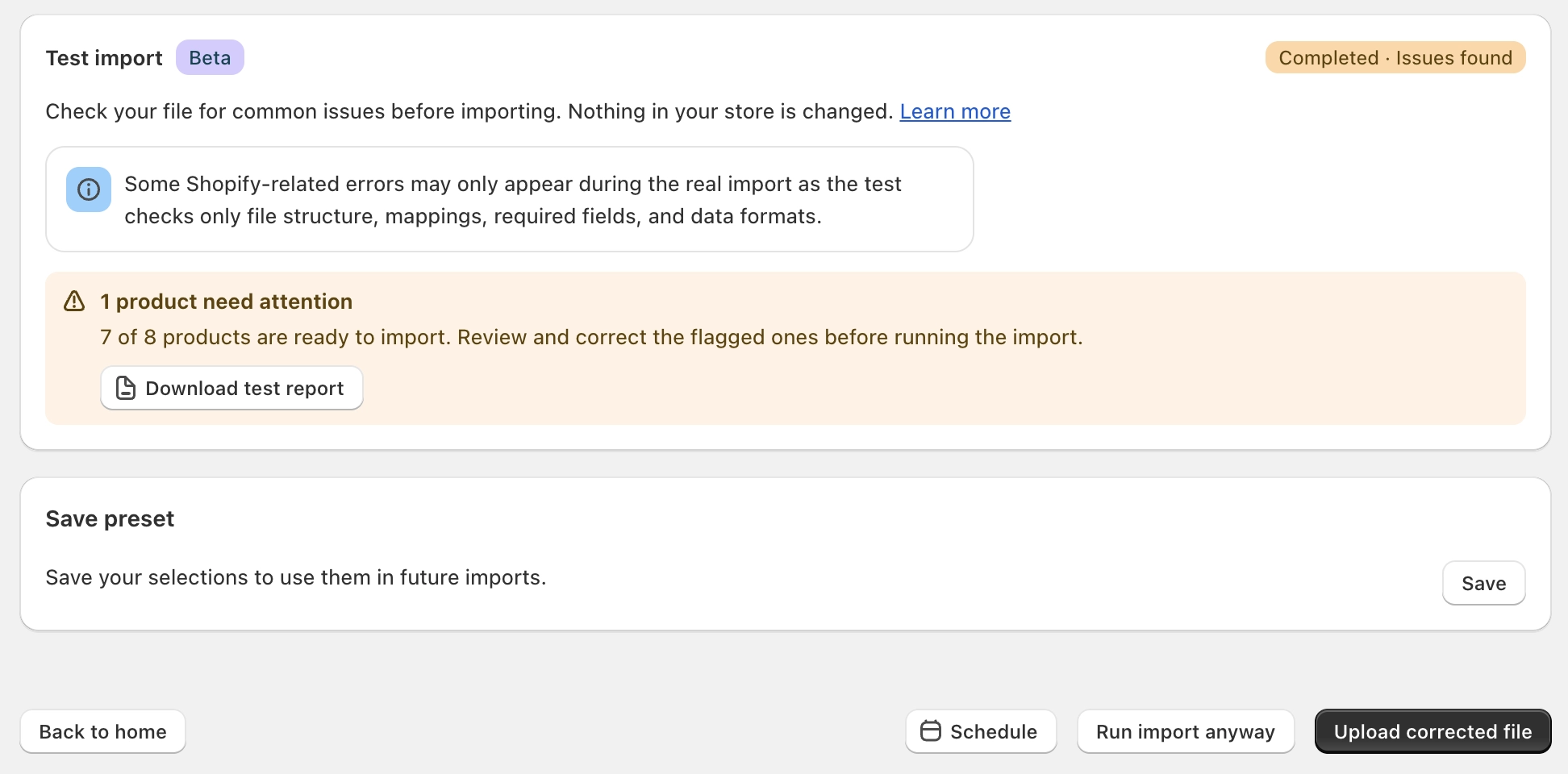
- Completed · Issues found: Some records failed the checks. The message shows how many records need attention and how many are ready to import.
To review the result for each row, click Download test report. For details on reading the report, see Understand the Test Report.
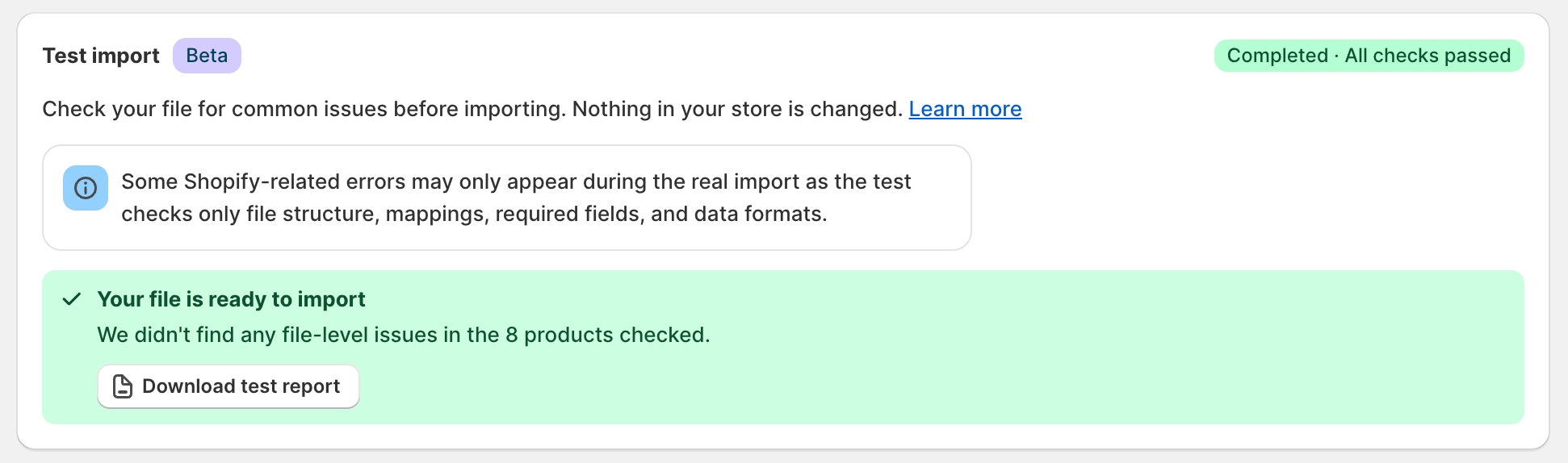
Step 5: Run the Actual Import
The next step depends on the test result.
If all checks passed, run the import from the same screen using the same file and settings:
- Click Import to import immediately.
- Click Schedule to schedule the import for later.
If issues were found, choose one of the following:
- Click Upload corrected file to provide a fixed version of the file. For details, see Upload a Corrected File.
- Click Run import anyway to import the current file without correcting it.
- Click Schedule to schedule the import of the current file for later.
The import uses the file uploaded for the test. If you edit the file on your device after the test, use Upload corrected file so that StoreRobo imports the updated version.
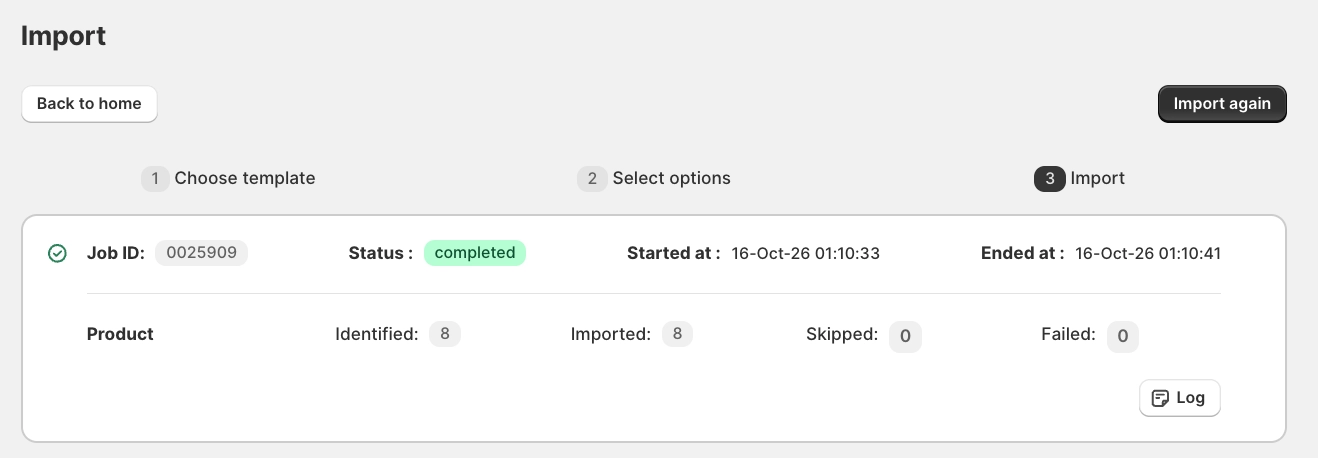
Once the import is complete, StoreRobo shows the Job ID, status, start and end times, and the number of records identified, imported, skipped, and failed. Click Log to review the import results.
Understand the Test Report
The test report contains every row from your import file. StoreRobo adds three columns at the start of each row:
| Column | Description |
|---|---|
| Row number | The position of the row in your original file, not counting the header row. |
| Result | OK if the row passed the checks, or Failed if it didn’t. |
| Comment | The reason the row failed. This is blank for rows marked OK. |
All the original columns from your file follow these three columns, unchanged and in the same order.
Example:
| Row number | Result | Comment | ID | Title |
|---|---|---|---|---|
| 1 | OK | 15872034561234 | Carry options | |
| 2 | OK | 15872034594002 | Bag/Case features | |
| 3 | Failed | Missing required field: Title | 15872034626770 |
To find the rows to fix, filter the Result column for Failed in your spreadsheet application, then correct those rows in your source file.
Upload a Corrected File
After correcting the issues in your source file, click Upload corrected file on the test result screen.
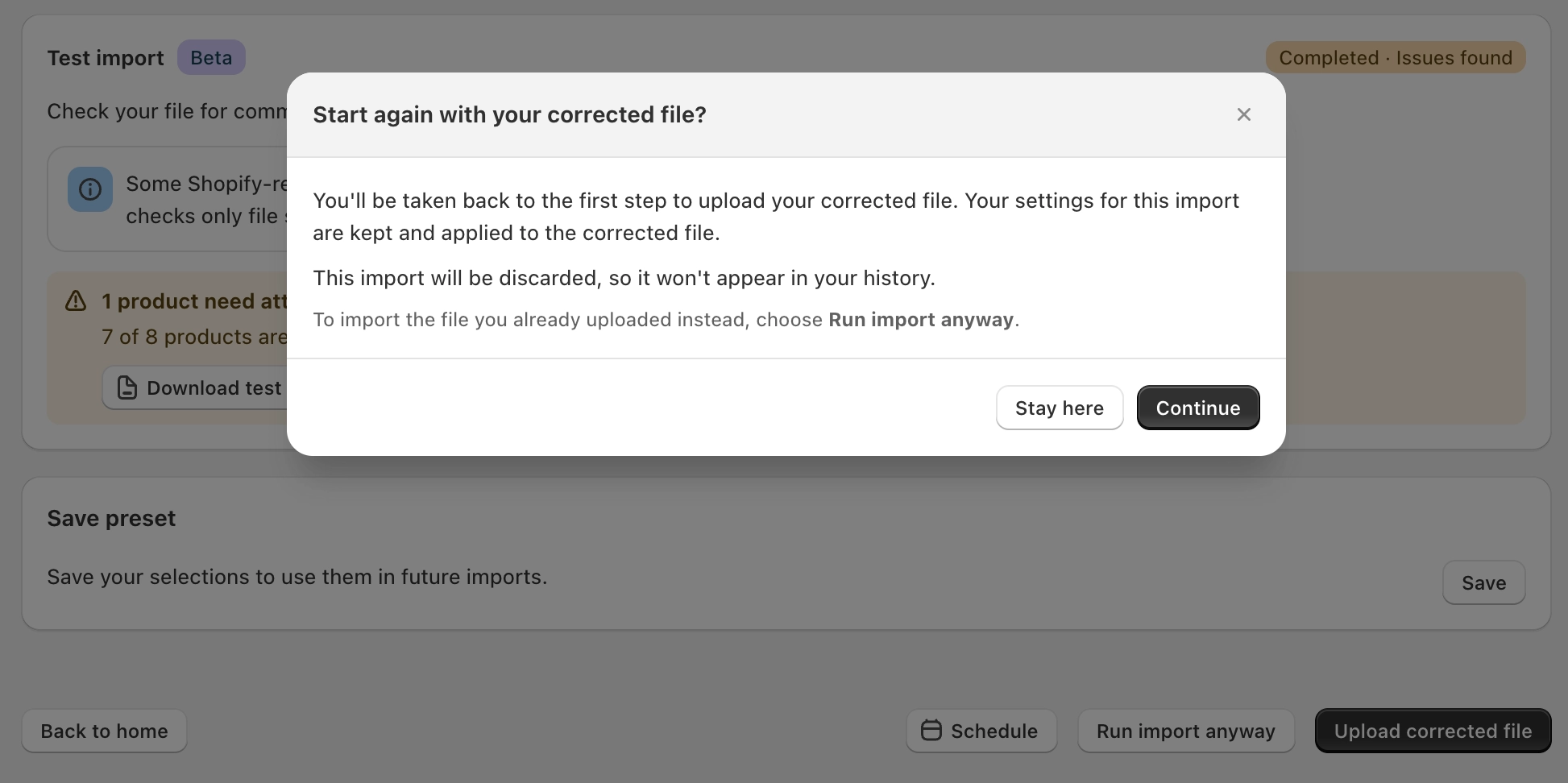
In the Start again with your corrected file? window, click Continue. You’ll return to the first step to upload the corrected file. The template, column mapping, filters, and options from the test are kept and applied to the corrected file.
The current import is discarded and won’t appear in your import history. To import the file you already uploaded instead, click Stay here, then click Run import anyway.
If the corrected file’s columns don’t match the original mapping:
- Custom template: StoreRobo flags the fields that no longer have a matching column. Remap those fields before importing.
- WebToffee, WooCommerce, and Shopify templates: StoreRobo flags any expected columns that are missing from the file.
The settings from the test are kept only until you provide the corrected file. If you cancel or leave the page first, they are discarded, and you’ll need to set up the import again.
You can then run another test on the corrected file or import it directly.
